This topic describes the systematic instructions to view the list of Overrides configurations.
- Under Overrides Configuration, click
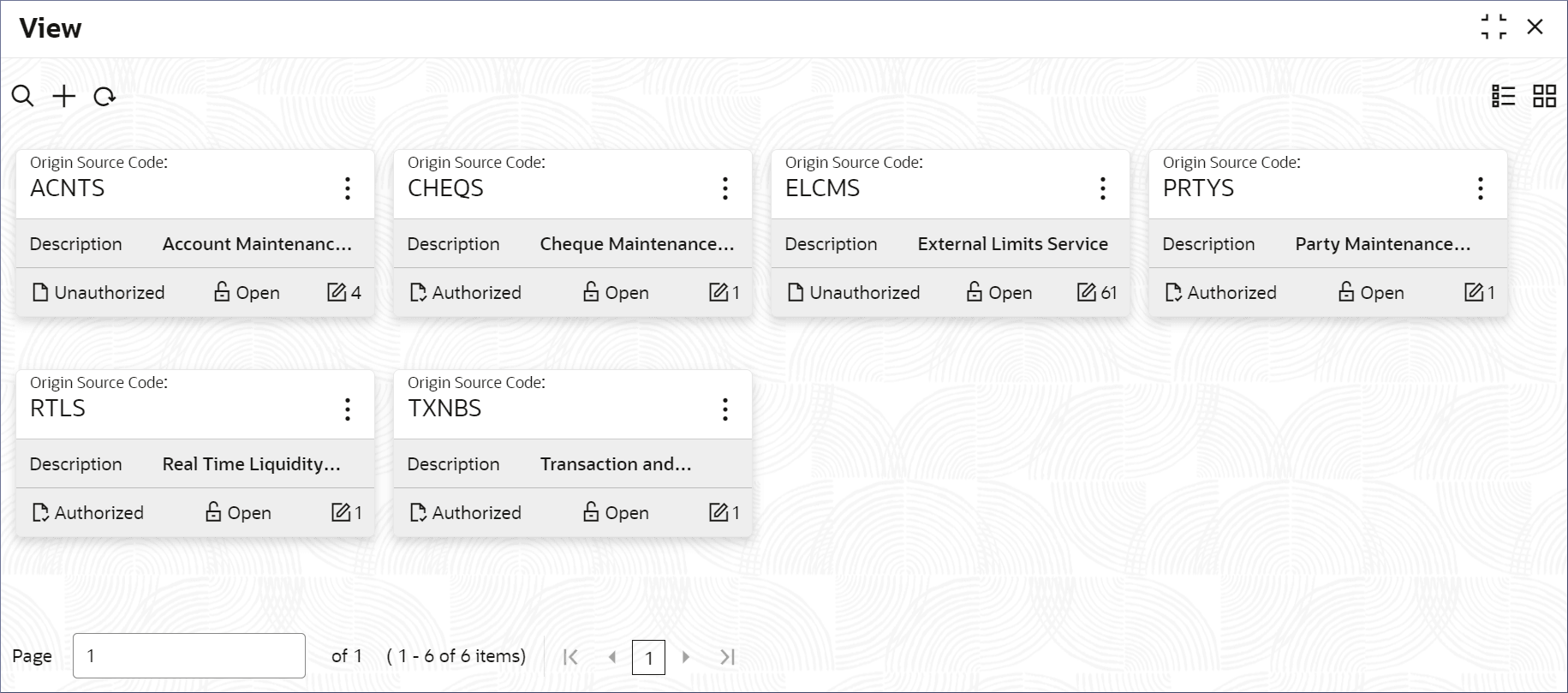
View.The View page displays.
Tip:
Click or
or  to switch between the Tile view and the List view.
Table 6-1 Overrides Configuration Tile - Field Description
Field Description Origins Source Code Displays the Code for the Overrides configuration. Description Displays the description of the Overrides configuration. Authorization Displays the authorization status of the record. - Authorized
- Rejected
- UnAuthorized
Status Displays the status of the record. - Open
- Closed
The following table describes the action items in the More Options (
 ) menu and the action items on the page.
Table 6-2 Action Items Description
Action Item Description Unlock Unlock a record and make amendments. Close Close a record to prevent it from being unlocked and amended. View View the details of a record. Delete Delete a record. Note:Once deleted, the component can no longer be used to define an entity. But entities already defined using the component can continue to use it.
Reopen Reopen a closed record. Authorize Authorize a record to make it active and available to define entities. Note:Creator of a record cannot authorize the component. Another user with authorize permissions can.
Audit Select to view the Maker, Checker, Status, and Modification Number of a record. Errors and Overrides Select to view all existing errors or warnings on the page. Note:
The actions you can perform depend on your role and the record status. - View details of an Overrides Configuration.
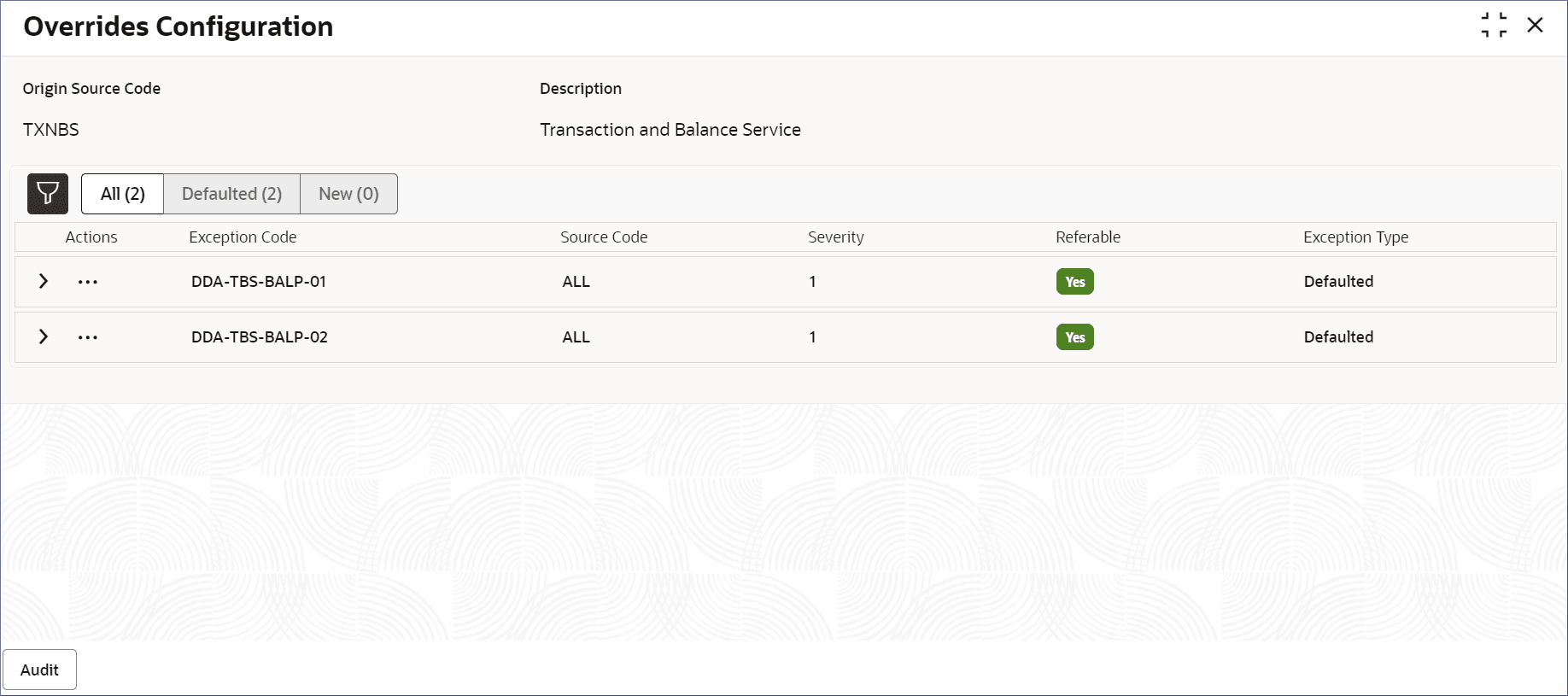
- Click and select View.The Overrides Configuration page displays.
Table 6-3 Fields and Column Descriptions
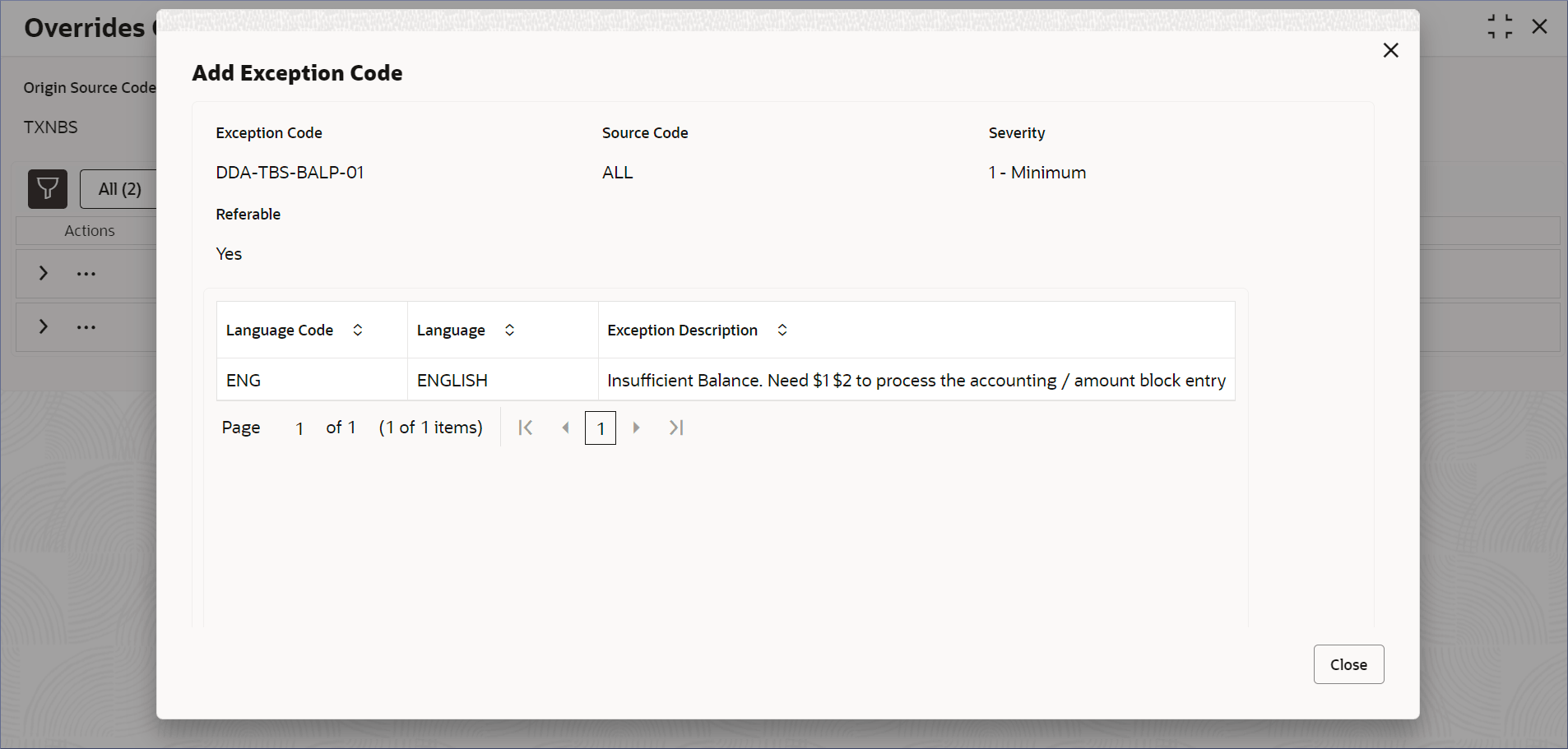
Column Name Description Origin Source Code Specifies the origin source of the exception codes. Description Description of the origin source. Exception Code This column lists the exception code added to the origin source. Source Code This column lists the source code to which the exception code applies. Severity This column lists the severity level of the exception. Referable This column lists if the exception is marked for referral. Exception Type This column lists the type of the exception. - Click in the Actions column and select View.The Add Exception Code dialog displays.
- Click
- Unlock and update an Overrides Configuration.
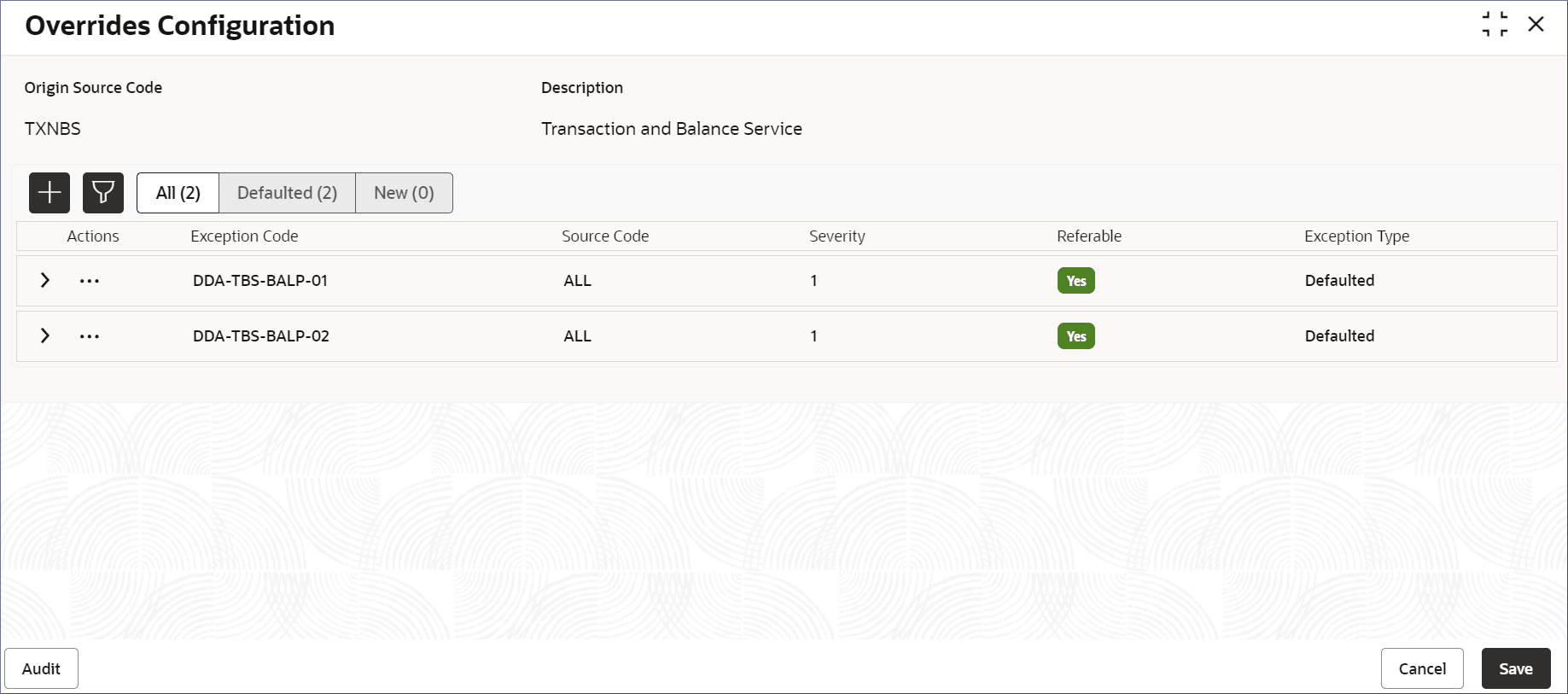
- Click and select Unlock.The Overrides Configuration page displays.
Figure 6-4 Overrides Configuration - Unlock
- To add a new Exception Code, click
 .
.- click .
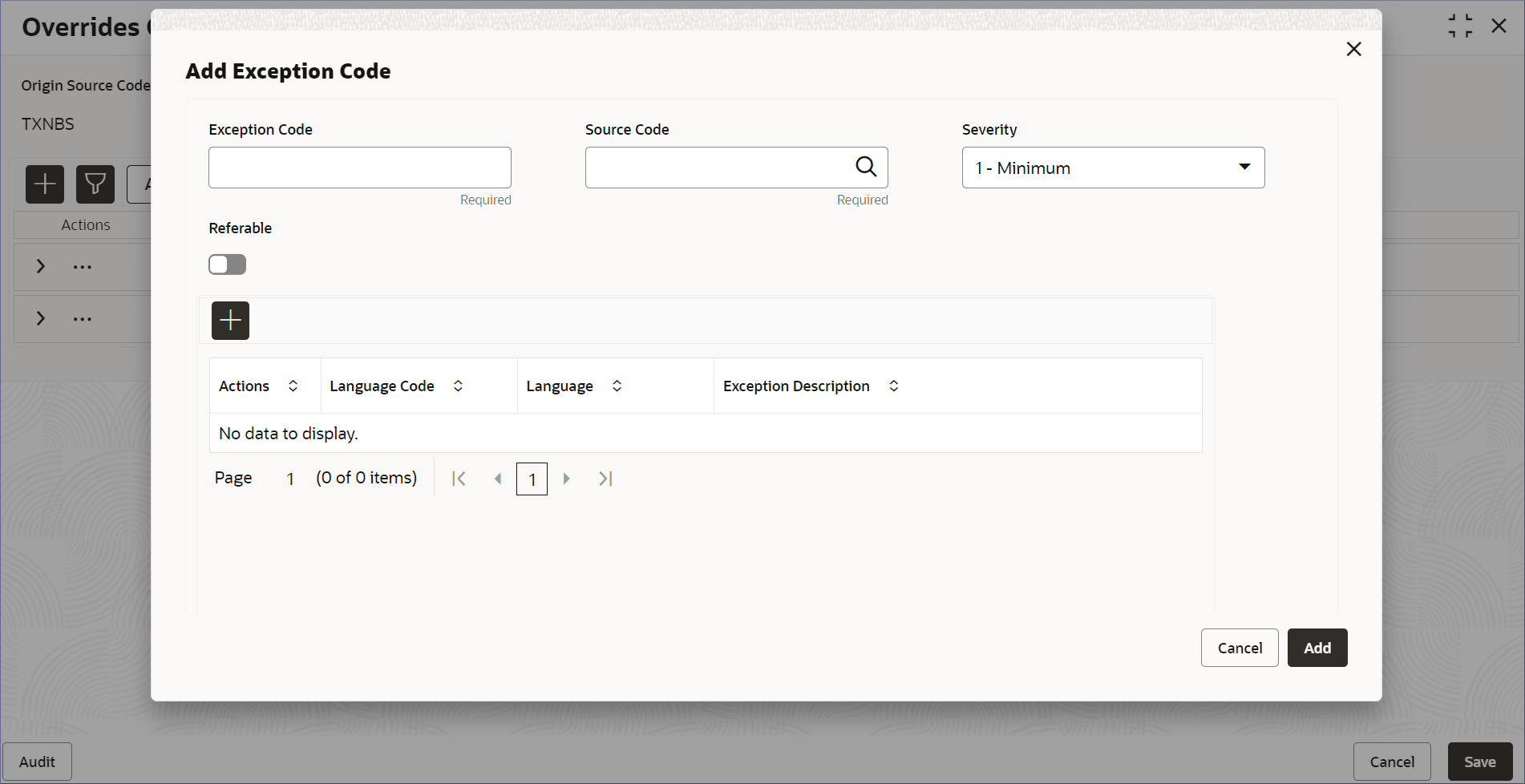
The Add Exception Code dialog displays.
Note:
Exception codes provide a structured way to handle and communicate errors and exceptional events. - Specify the required fields.
Note:
All the fields are mandatory.Table 6-4 Exception Code - Column Description
Field Description Exception Code Specify an alphanumeric code to identify an exception in a source code. For example, CAPP-ACS-VAL-H0. Source Code Specify the Source Code for which the Exception Code is specified, from the list of values. To know more about Source Code, see About Source Code. Severity Specify the Severity of the exception from a list of values. You can specify a value from one to ten, where one represents the minimum severity and ten represents the maximum severity. Referable Enable this option to refer this exception. By default this option is disabled. - To add a new language Code for the Exception code,
click .
A new blank row is added to the Language Code table.
- Double click the Language Code column to activate the row.
- Specify the required fields described in the following table.
Table 6-5 Language Code - Column Description
Field Description Action Displays the trash icon to delete the Language code. Language Code Specify the Language Code to set the preferred language from the list of values. Language Displays the name of the selected Language Code. Exception Description Provide additional details that describes the exception code. - Click Add.
The Overrides Configuration page displays the new Exception Code in a new row.
- click
- Edit an Exception code.
- Click in the Actions column and select Edit.
The Add Exception Code dialog displays.
- Perform the required edits.
- Click Save.
- Click
- Delete an Exception code.
- Click in the Actions column and select Delete.
The exception code is deleted.
Note:
You can only delete exception codes that you added in the same session.
- Click
- Click
- Approve or Reject Overrides.
- Click
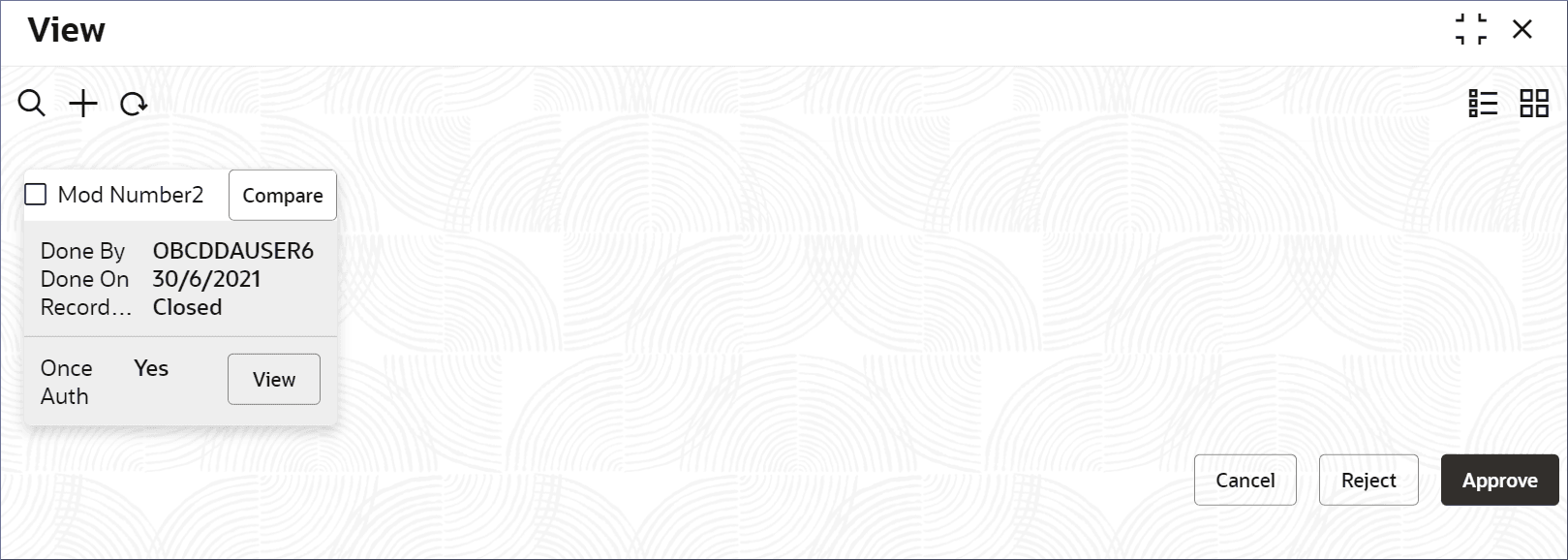
 and select Authorize.The View page displays.
Table 6-6 Authorize View
Field Name Description Mod Number<N> Indicates the number of times the record was modified. Where N represents the number of modifications. Note:For a newly created record the modification number is
1.Done By Name of the user who performed the latest modification. Done On Date on which the record was modified. Record Status The status of the record. Note:To authorize a record, its status should be Open.
Once Auth Specifies if the record was authorized at least once. Note: For a newly created record, the value is No.
Compare (Button) Click to compare the modified record with the previous version of the record. View (Button) Click to display the record details.
- Click