3.2 Accounting Enquiry
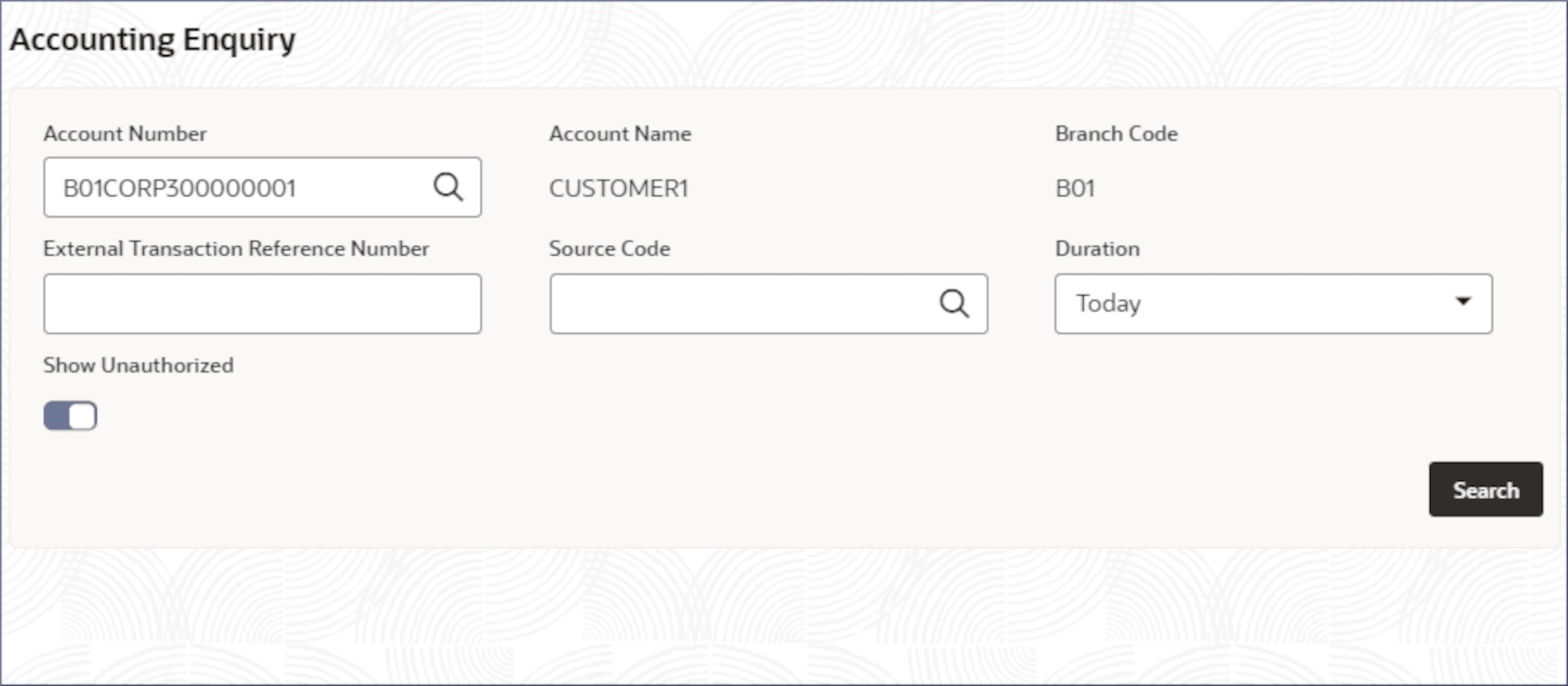
The accounting enquiry page displays the details of the internal transactions booked on an account. This topic explains the systematic instructions to perform the accounting enquiry.
- On Home screen, click Corporate Account Enquiries. Under Corporate Account Enquiries, click Accounting Enquiry.The Accounting Enquiry page displays.To fetch the account number:
- Click Fetch.
The Account Number dialog displays.
- Search for the required account by providing some or all of the following:
- Account Number
- Account Name
- Account Currency
- Select the required account from the results.
- Click Fetch.
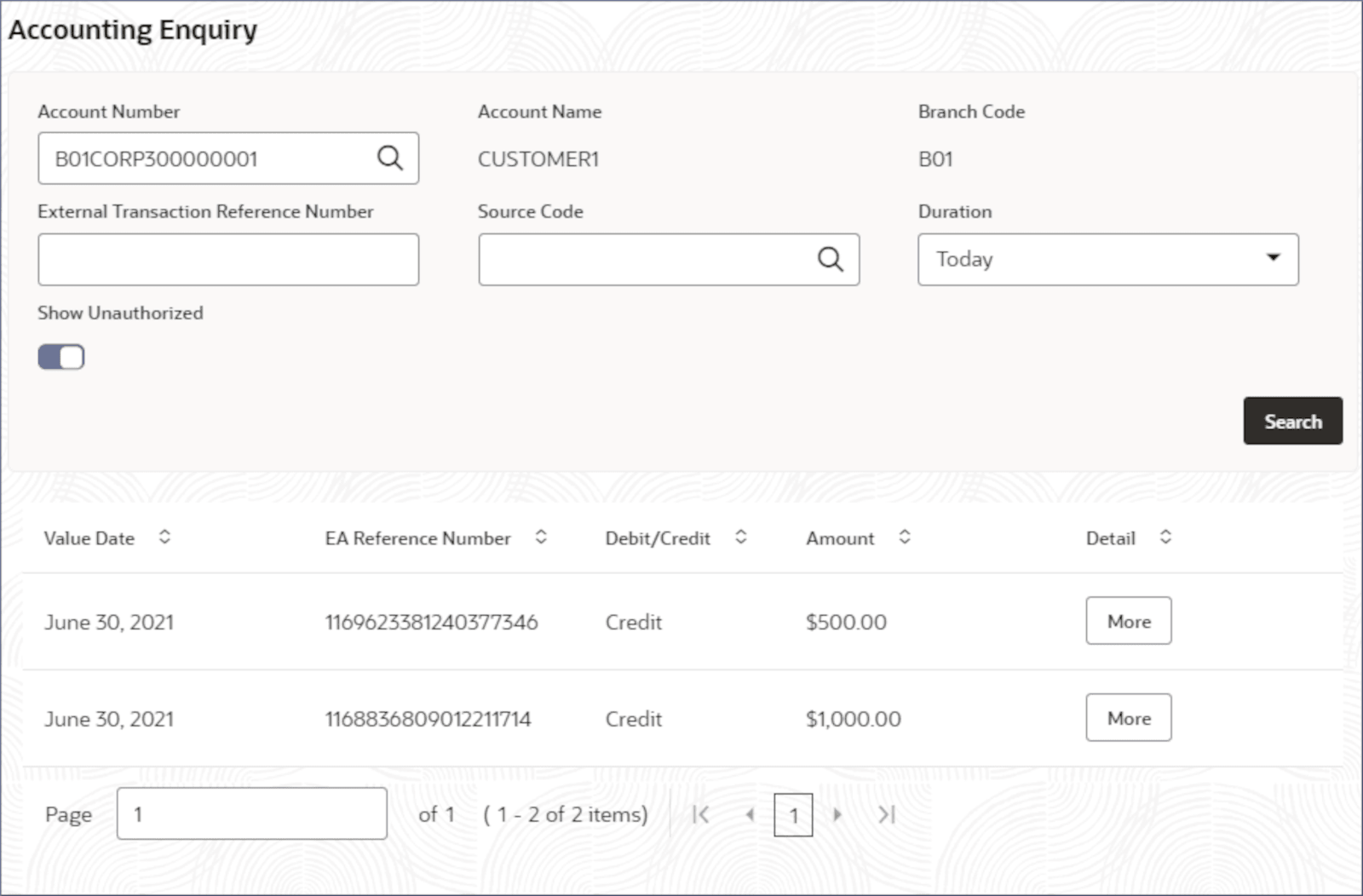
- Click Search.The transaction entries matching the search criteria display. For more information on fields, refer to the field description table below:
Table 3-14 Account Enquiry - Search Result - Field Description
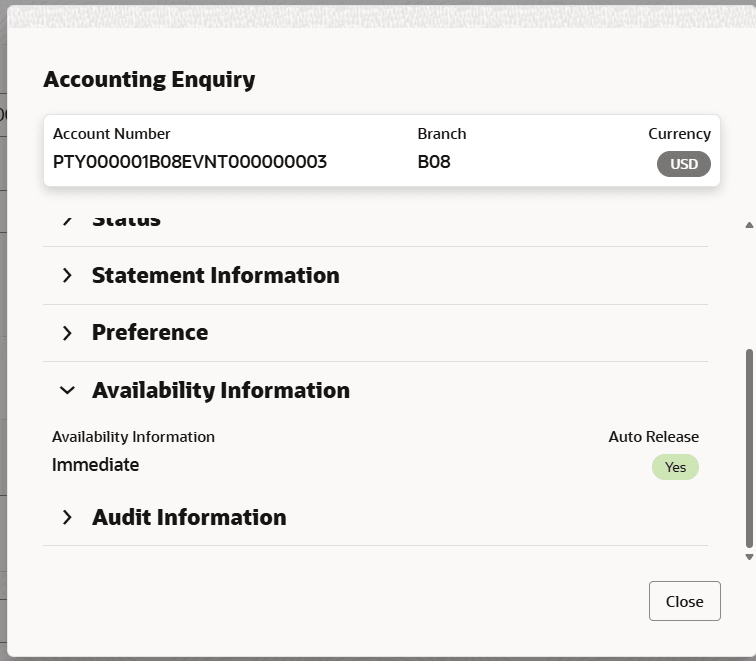
Column Description Value Date Displays the value date of the transaction. EA Reference Number Displays the transaction reference number in the External Account (EA). Debit or Credit Displays the type of transaction, Debit or Credit. Amount Displays the transaction amount in the account's currency. Detail Displays the details if any, provided about the transaction. - Click More in the Detail field of a transaction.The Accounting Enquiry dialog displays the transaction details.For more information on fields, refer to the field description table below:
Figure 3-40 Accounting Enquiry - Transaction Details
Table 3-15 Transaction Details - Field Description
Field Name Description Accounting Reference Displays the accounting reference number for the transaction in the internal system. EA Reference Displays the accounting reference number for the transaction in the external system. Transaction Reference Displays the transaction reference number. Source Displays the DDA source system for the transaction. Transaction Amount Displays the transaction amount in the original transaction currency. Exchange Rate Displays the exchange rate to convert the original currency to the currency of the local branch. LCY Amount Displays the amount in the currency of the local branch. Debit/Credit Displays the type of transaction. the possible options are: - Debit
- Credit
Reversal Displays if the transaction is a reversal transaction. Instrument Number Displays the instrument number used for the transaction. For example, the check number for a credit transaction. Value Date Displays the value date of the credit or debit transaction. GL Posting Date Displays the posting date of the transaction in the GL. Transaction Status Displays the status of the transaction. For example, an Unauthorized transaction. Write Back Displays if a reversal of the transaction is allowed. Transaction Code Displays the transaction code used when posting the transaction. Transaction Description Displays the description provided for the transaction. Statement Narrative Displays the statement remarks provided for the transaction. Force Post Displays if the transaction was force posted. RTL Allowed Displays if a real-time limit is allowed on a debit transaction. Availability Information Displays the availability information. The possible options are: -
- Immediate - This indicates the future value dated transaction will be available immediately for usage.
- On Value Date - This indicates the future value dated transaction will be available on the value date for usage.
Auto Release Displays whether the release is auto released. The possible options are: - Yes: This option is based on the availability date, the uncollected amount gets added to the available balance.
- No: This option is based on the uncollected amount do not get added to the available balance.
Parent topic: Corporate Account Enquiries