4.11 Customer Transfer
This topic describes the systematic instructions to transfer customer account.
This feature allows changing customer associated with the existing account. This helps customers access new account features more easily while following certain rules.
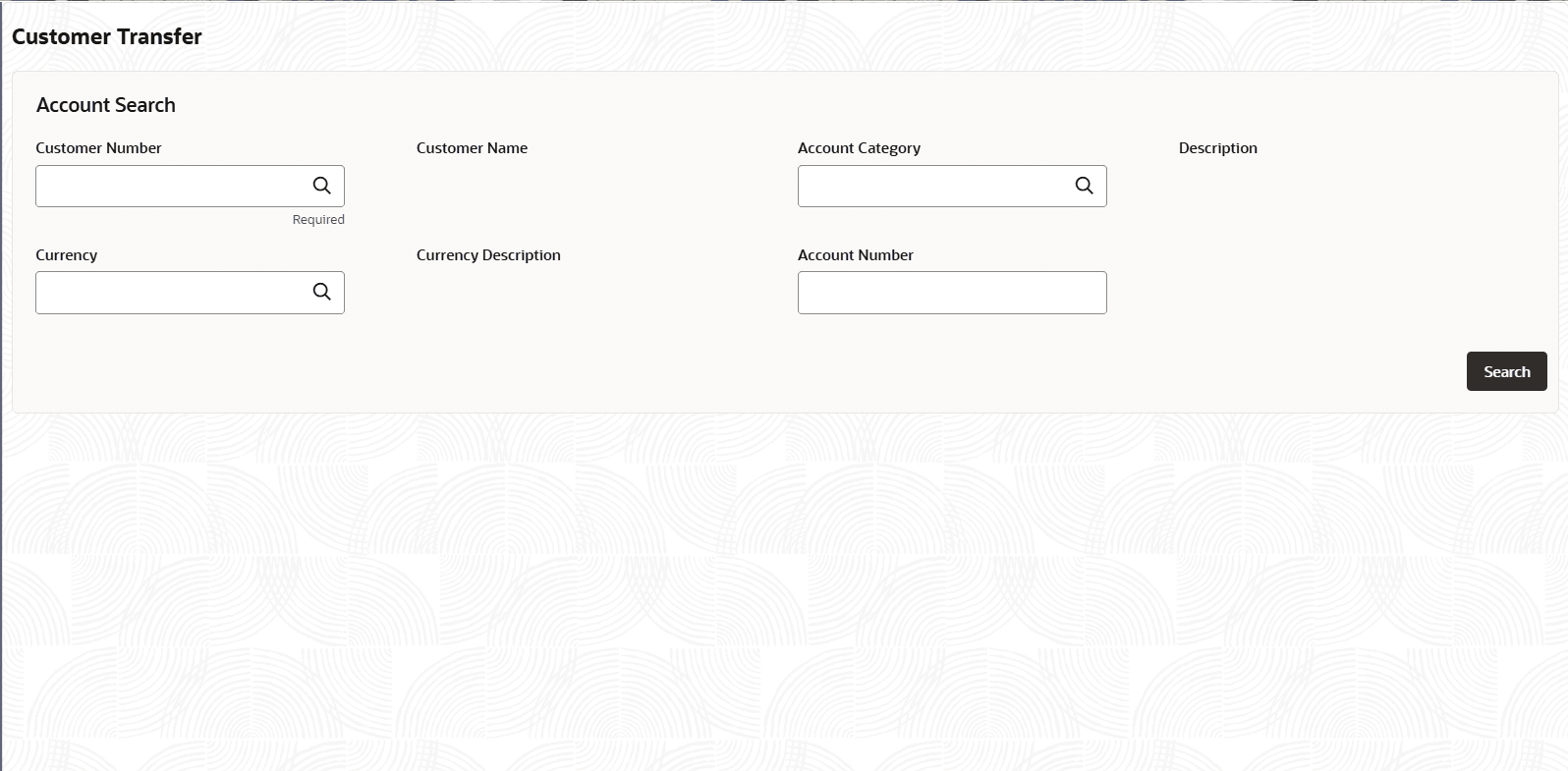
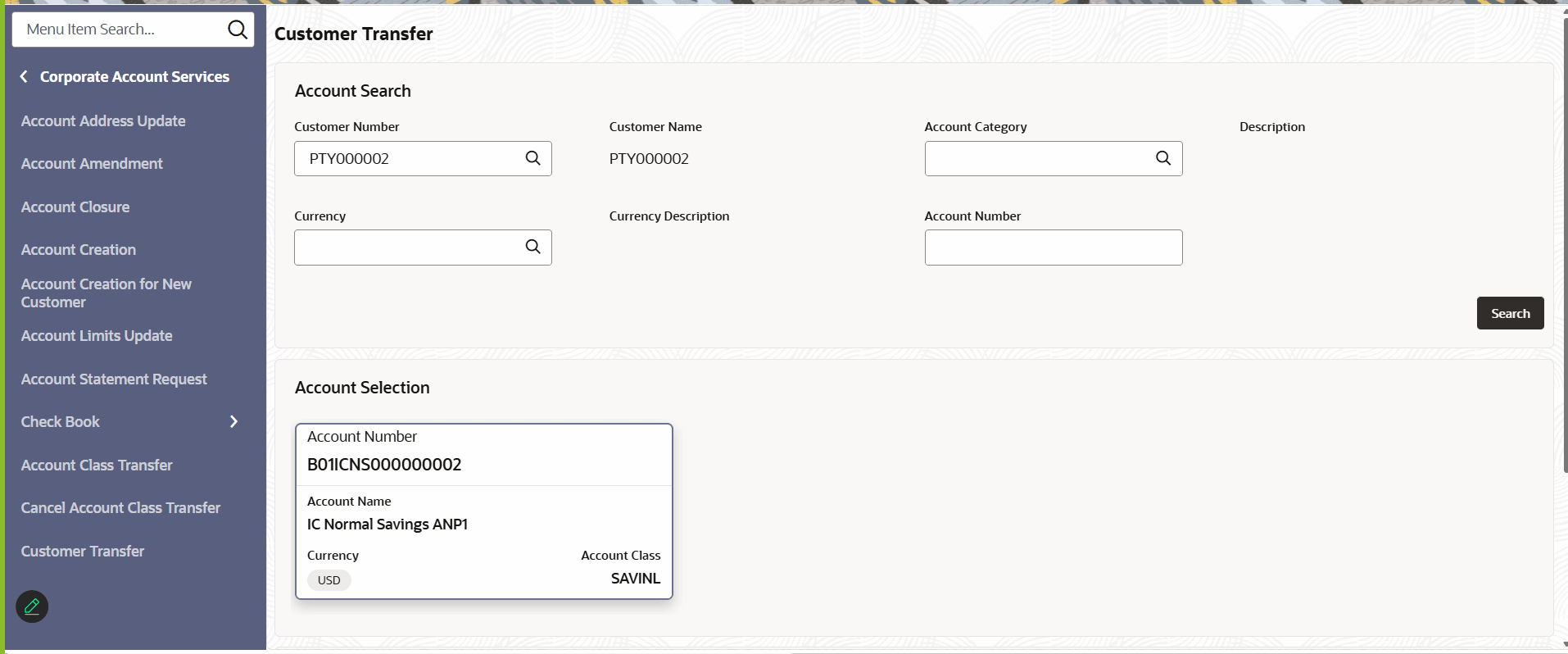
- On Home screen, click Corporate Account Services. Under Corporate Account Services, click Customer Transfer.The Customer Transfer screen displays.
- In the Account Search section, specify one or more fields. For more information on fields, refer to the field description table.
Table 4-34 Account Search - Field Description
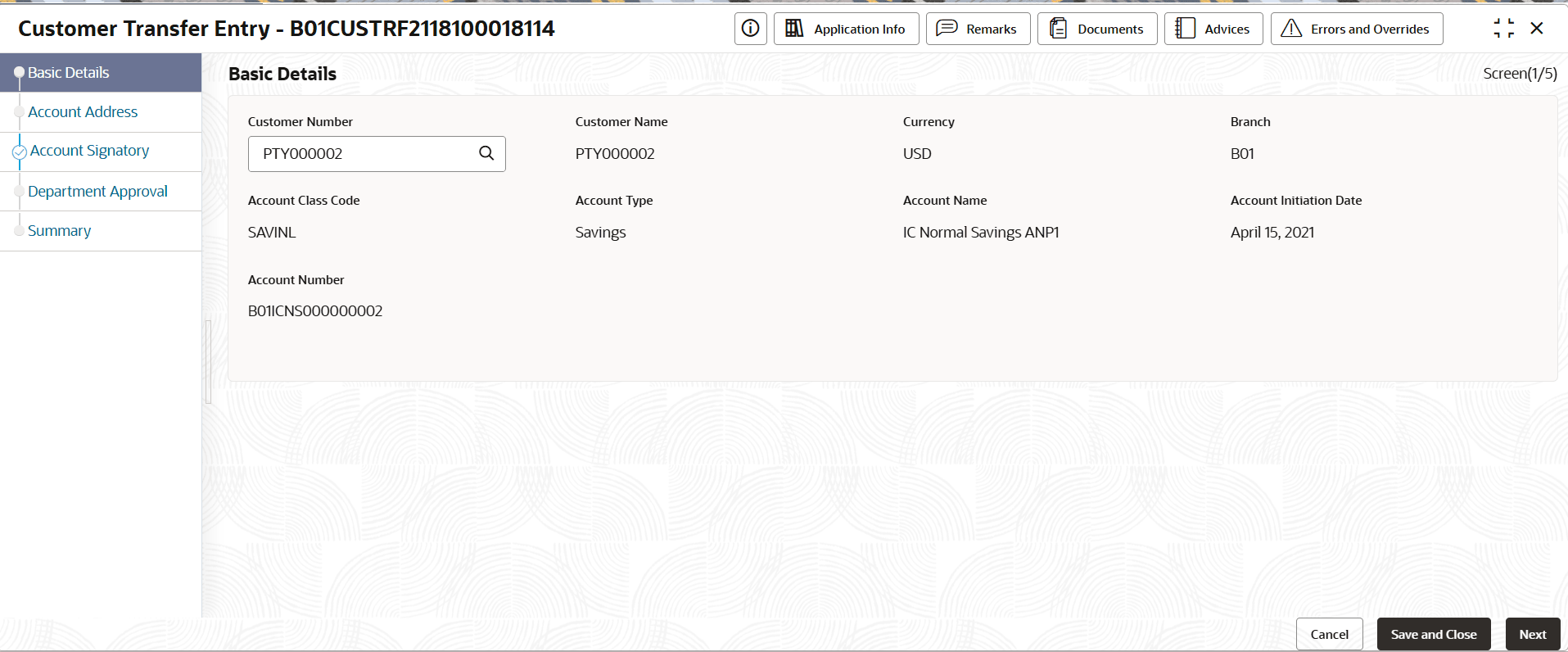
Field Description Customer Number Specify the CIF number of the customer owning the account. Customer Name The name of the selected customer is auto-populated. Account Category Specify the account category to which the account belongs. Description Displays the description of the selected account category. Currency Specify the operating currency of the account. Currency Description Displays the description of the operating currency. Account Number Specify the account number. - Click an account tile to select it and then click Initiate.The Customer Transfer Entry screen displays the Account Basic Details section.
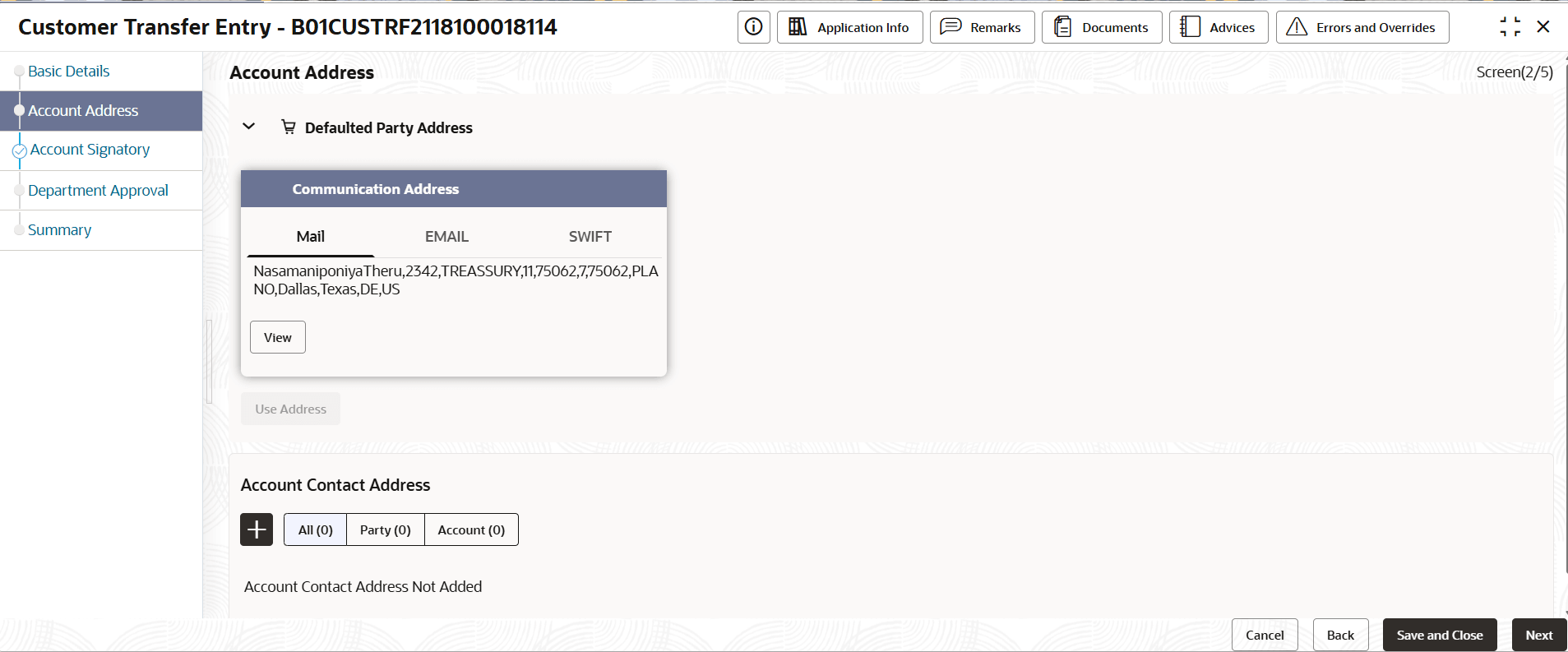
- The user is allowed to change the customer number. Review the account details on each tab and click Next.The Account Address page displays.
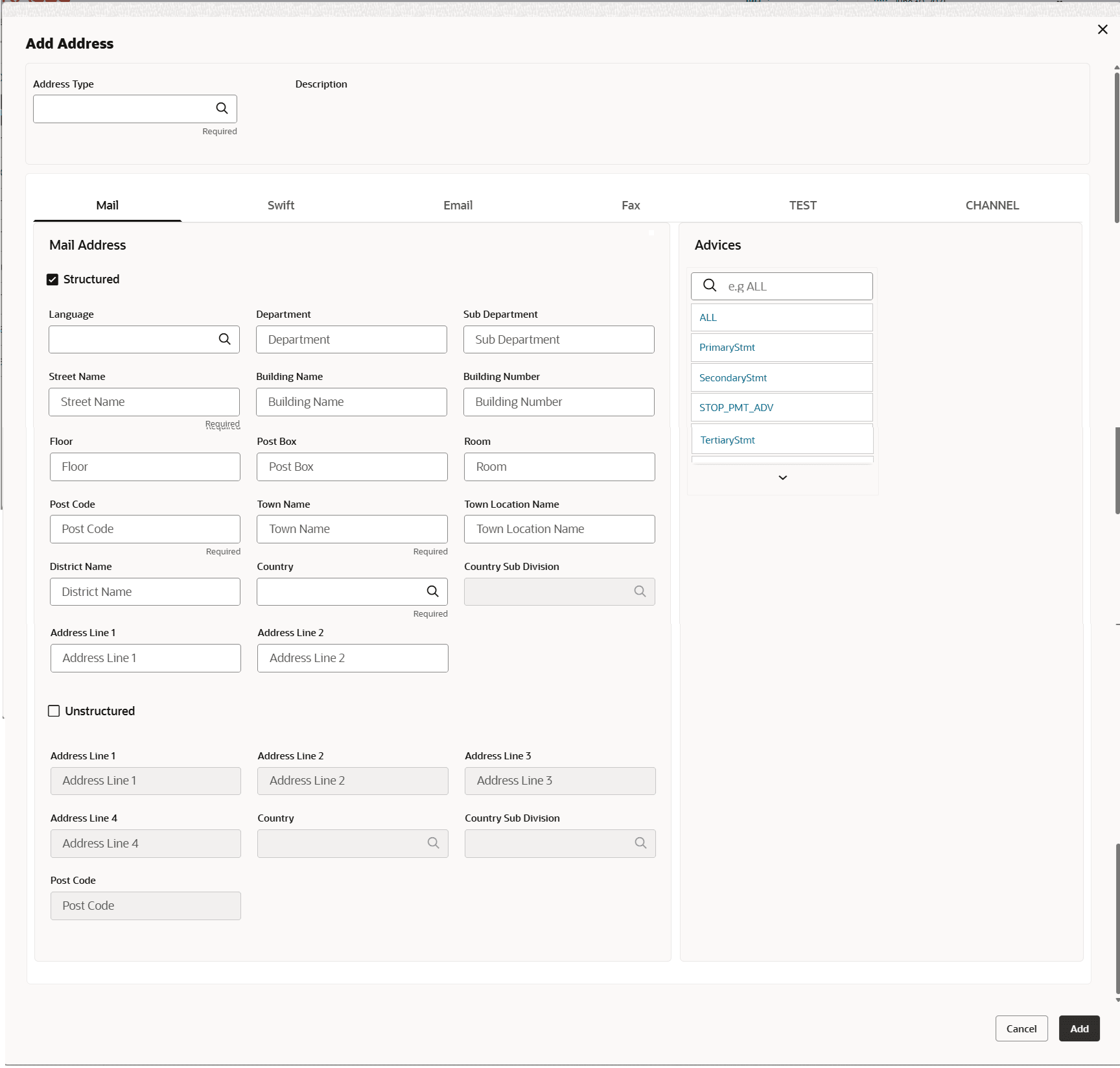
- The user is allowed to review the defaulted details and can change or add additional details if required. To add a new address, Click Add.The Add Address dialog displays.
For more information on fields, refer to the field description table.
Table 4-35 Account Address - Field Description
Field Description Language Specify the language of the address details. Department Specify the department which identifies a division of a large organization or building. Sub Department Specify the sub-division of a large organization or building. Street Name Specify the street or thoroughfare name. Building Name Specify the building name. Building Number Specify the building number. Floor Specify the floor within a building. Post Box Specify the numbered box in a post office, assigned to a person or organization, where letters are kept until called for. Room Specify the room number in the building. Post Code Specify the code consisting of a group of letters and/or numbers that is added to a postal Address to assist the sorting of mail. Town Name Specify the name of a built-up area, with defined boundaries, and a local government. Town Location Name Specify the specific Location name within the town. District Name Specify a subdivision within a country sub-division. Country Sub Division Specify a subdivision of a country such as state, region, county. Country Specify the nation with its own government. Address Line 1 The first line of the current address, typically including the building name or primary address details. Address Line 2 The second line of the address, usually containing the street name or additional address details. Unstructured Select Unstructured check box to enter address. Address Line 1 Specify the Address Line 1. Address Line 2 Specify the Address Line 2. Address Line 3 Specify the Address Line 3. Address Line 4 Specify the Address Line 4. Country Click  icon to select the country
Country Sub Division Click icon to select country sub division.
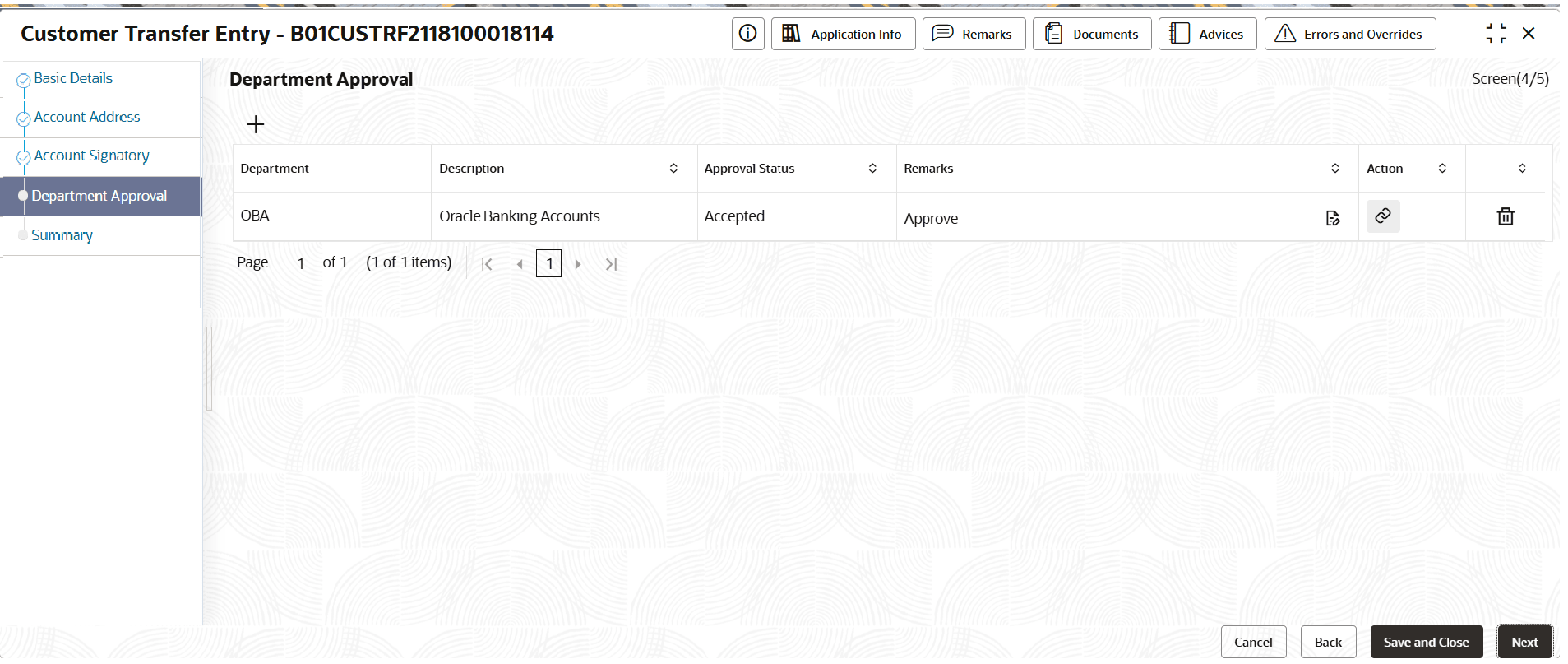
Post Code Specify the code consisting of a group of letters and/or numbers that is added to a postal Address to assist the sorting of mail. - The user is allowed to review the defaulted details and can change or add additional details if required. click Next.The Department Approval page displays.
For more information on fields refer to the field description table.
Table 4-36 Department Approval - Field Description
Field Description Department Name Displays the department name considering the source code. Description Auto populate the description of the department name. Approval Status Displays the current status. Remarks Provide remarks about the department approval or any other remarks Action To upload the documents.
Parent topic: Corporate Account Services