5.3.1 Referral Queue
This topic describes the systematic instructions to view all transactions entries and exception details in the referral queue.
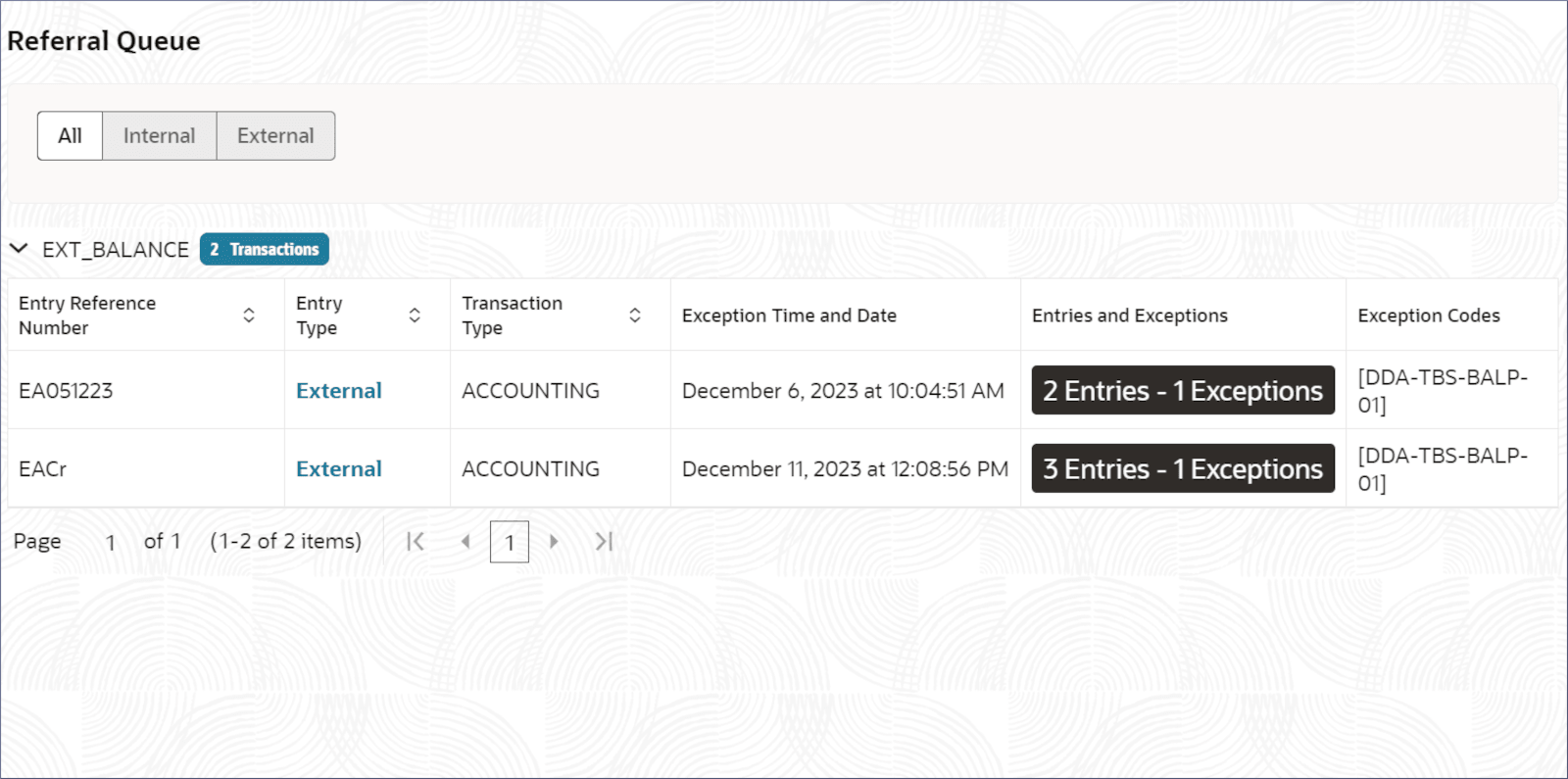
- Click Corporate Account Transactions and under Corporate Account Transactions, click Referral Queue.The Referral Queue screen displays the internal and external balances of transactions in the referral queue.
- Click All, Internal, or External option, to view the transactions in the corresponding referral queues.
- In the Referral Queue screen, verify the fields.
Table 5-8 Referral Queue - Field Description
Field Description Entry Reference Number Displays the transaction entry reference number. Entry Type Displays the type of the entry. The possible options are: - Internal
- External
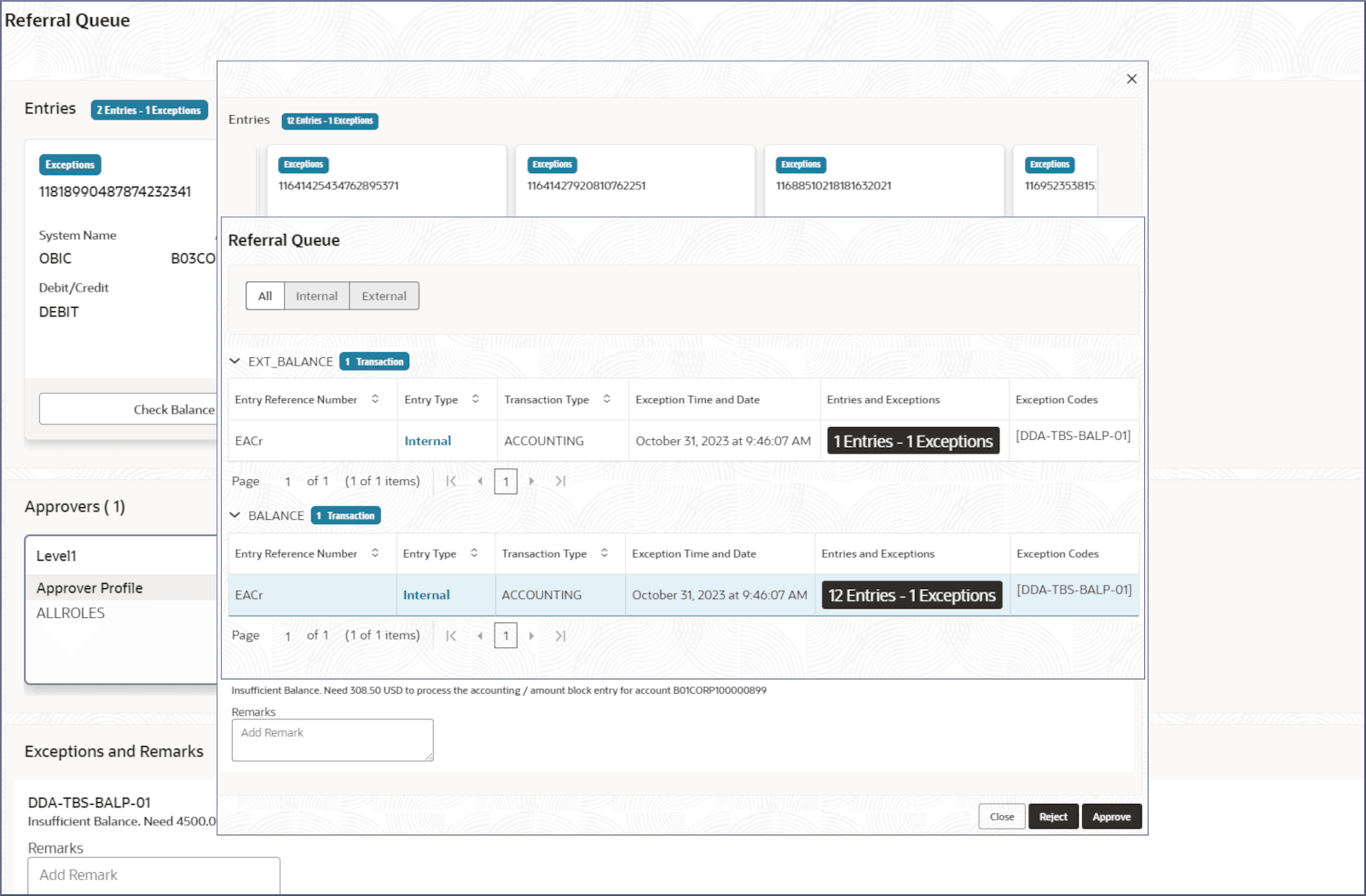
Transaction Type Displays whether the exception appears as part of EA or ECA. Exception Time and Date Displays the date and time stamp when the transaction processing exception occurred. Entries and Exceptions Displays the Entries and Exceptions button. As user select this button, it displays the number of entries for the transaction and number of exceptions that occurred. Exception Codes Displays the list of unique error codes (referable) across all transactions. - Select Entries and Exceptions link to open the referral queue.The Referral Queue screen displays the transaction entry tiles in the Entries section and the list of approver tiles in the Approvers section.
Table 5-9 Entries and Exceptions - Field Description
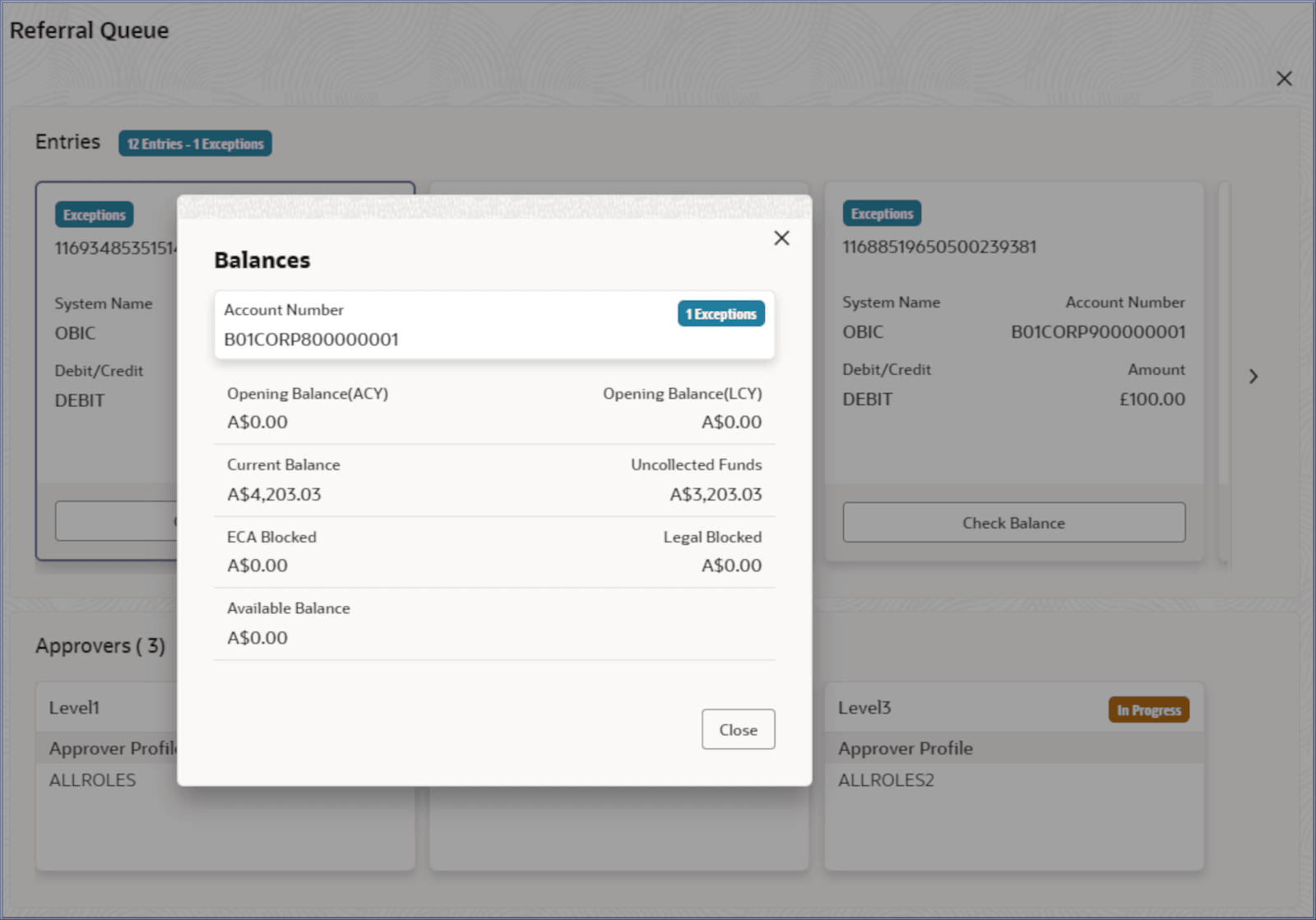
Field Description Number The exception number is added as the title in the tile header. It does not have a field label. System Name Displays the system name that sent this entry to corporate accounts. Account Number Displays the account number. Debit/Credit Displays whether the entry is for credit or debit transaction. Amount Displays the transaction amount to be blocked and the currency. Check Balance Click to display the account balances. When user clicks, the system calls the Account Balance Query service and retrieves account balance details. Note:
- Each entry is displayed in a tile. The tile header displays the Entry Reference Number and the number of exceptions for the entry. User can scroll the listed tiles.
- In case user decide to approve the exception then user can enter the remarks for each exception code and click the Approve button to approve the entry. Similarly Reject or Cancel button are also available to reject the entry or cancel the approval.
- To select a required option, click the tile.
- Verify the balances in the account and click Check Balance.The Balances dialog displays.
- Select the required approver tile.The exception details display in the Exceptions and Remarks section.
Figure 5-16 Referral Queue- Exceptions and Remarks
- In the Remarks field, specify any observations.
- Click Approve.The referral is approved.
Note:
- Referrals can be rejected or closed.
- Depending on the queue and approval level, the Approvers section displays the approval details for the entry in a tile having one tile for each level of approval. The tile displays the Approval Role, the User-name, and the time-stamp of approval. In case a particular level approval is completed, then the tile status displays if the approval is Complete, else In Progress.
- When user click the approve button for an entry, the system validates that user rights to approve the entry (based on role) for the approval level, and that they have not authorized any of the preceding levels for the same entry.
- When all the entries and level of approval is performed, then the approval for the entry is said to be complete and it can be removed from the Referral Queue.
- When a transaction is getting into referral queue, the status of check leaf is updated as Blocked and corresponding debit amount is updated in the account. When the same check is rejected in the referral queue, the status of the check leaf is updated back to Unused and the debit transaction is also removed from the account.
Parent topic: Referral Queue