1.13.1 Create ESA Plans

This topic explains the systematic instructions to create ESA plans.

Note:

The fields marked as Required are mandatory.
  1. On Home screen, under Menu, click Retail Account Configurations. Under Retail Account Configurations, click ESA Plans Configuration.
  2. Under ESA Plans Configuration, click Create ESA Plans.
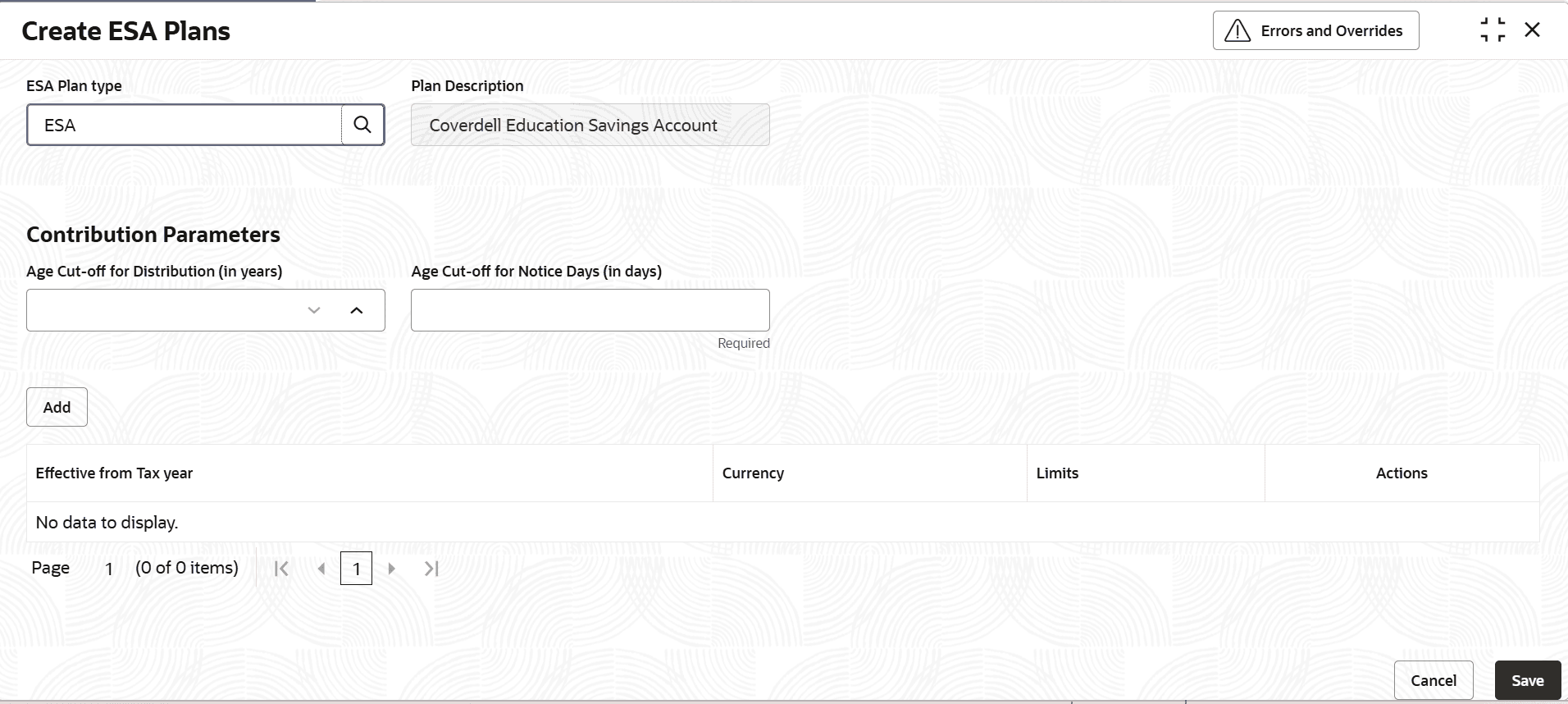
    The Create ESA Plans screen is displayed.
  3. Specify the fields on Create ESA Plans screen.

    For more information on fields, refer to the field description table below.

    Table 1-53 Create ESA Plans - Field Description

    Field Description
    ESA Plan type Click the Search icon to select the ESA from the list.
    Plan Description Based on the selection of the ESA Plan Type, the plan description is displayed.
    Age Cut-off for Contribution (Years) This field specifies the age of the ESA owner, by which the funds in the ESA account must be used or transferred. This will not be applicable if the ESA owner is a special needs beneficiary. There will be a system level validation to allow modification to ONLY increase the Age Cut-off for distribution from the current value.
    Age Cut-off for Notice Days (in days) This field determines the no. of days before the ESA owner turns the age cut-off for distribution (30 years currently as per regulation and as configured in the previous field) a notification to be published to Event Delivery Platform (EDP) with the required data. There will be a system level validation to allow modification to ONLY decrease of the no. of notice days modification for the plan (this is because notice days are at customer-plan level and if there is an increase in the notice days, there is a possibility that the notice has already been sent to the customer).
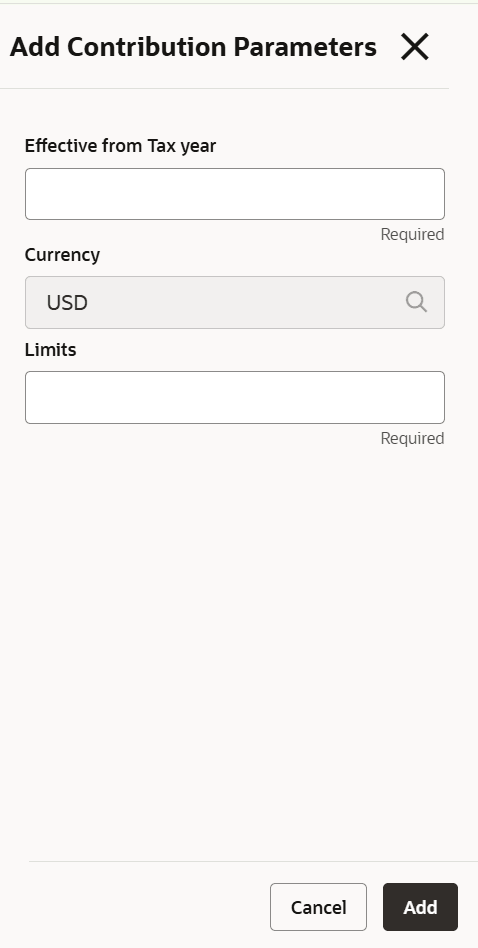
  4. Click Add button in the Contribution Parameters section.
    The Add Contribution Parameters screen is displayed.

    Figure 1-51 Add Contribution Parameters


    For more information on fields, refer to the field description table below.

    Table 1-54 Create ESA Plans_Add Contribution Parameters - Field Description

    Field Description
    Effective from Tax year The user can set Financial Year wise contribution limits in this screen. The user will select the value of the Financial Year (from the financial year list maintained as part of Interest and charges period code definition) to set the contribution limits for the mentioned financial year. If there are no contribution limits set for the current Financial Year, then the system will consider the latest set Financial Year limits as contribution limits for the ESA plan.
    Currency This field denotes the currency for defining the contribution limit amounts for the plan. This can always be USD for ESA plans.
    Limits This amount field defines the contribution limit for the plan for the tax year.
  5. Click Add button to add the contribution parameters detail in the main screen, or Click Cancel button to close the Add Contribution Parameters screen.