1.10.1 Create IRA Customer Plan Configuration
This topic explains the systematic instructions to create IRA Customer plans.
Note:
The fields marked as Required are mandatory.- On Home screen, under Menu, click Retail Account Configurations. Under Retail Account Configurations, click IRA Customer Plans Configuration.
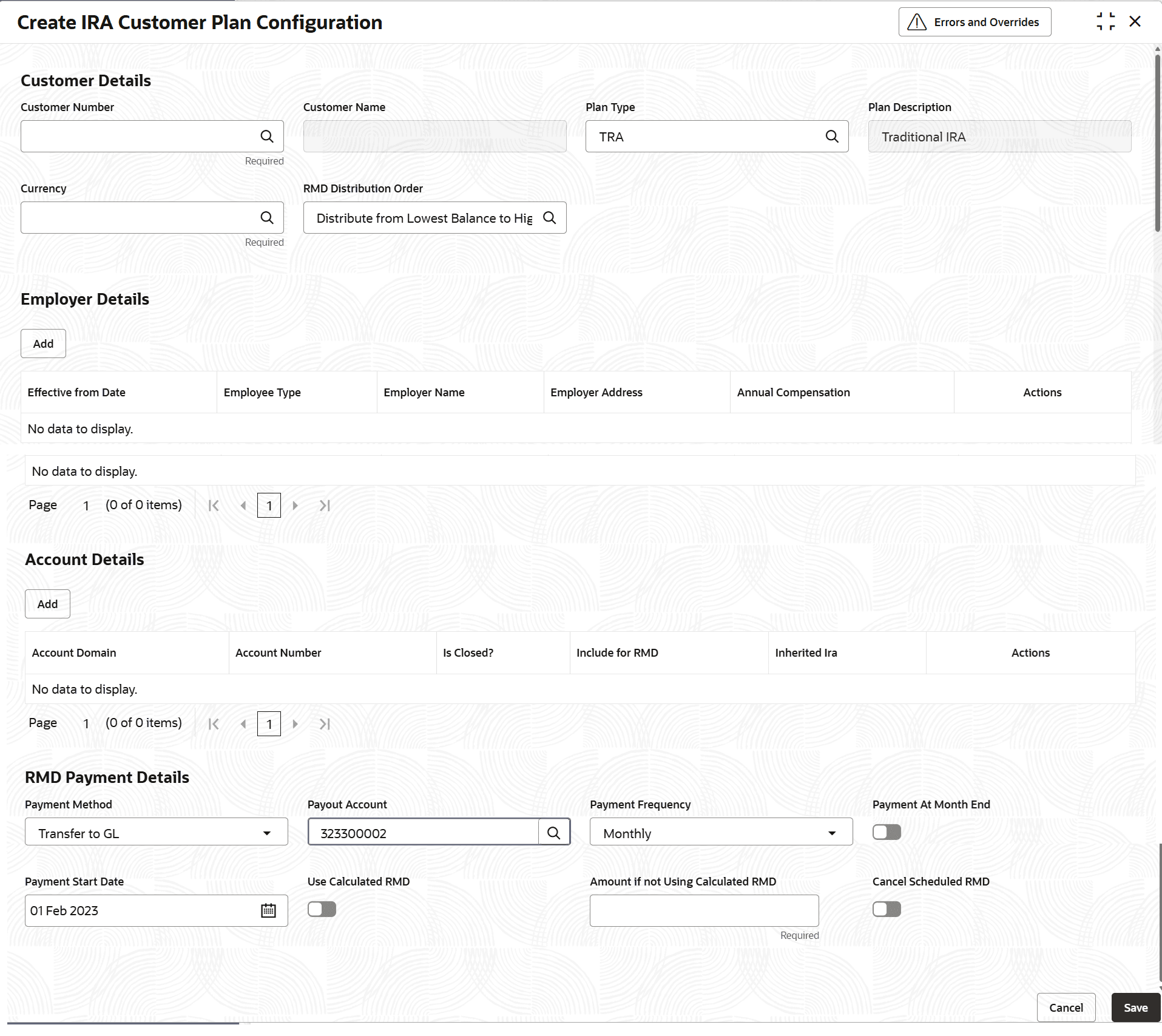
- Under IRA Customer Plans Configuration, click Create IRA Customer Plans.The Create IRA Customer Plans Configuration screen is displayed.
Figure 1-36 Create IRA Customer Plans Configuration
- Specify the fields on Create IRA Customer Plans Configuration screen.
For more information on fields, refer to the field description table below.
Table 1-39 Create IRA Customer Plans - Field Description
Field Description Customer Details Displays the employment history for the customer with the required details as expected by the plan. This is a multi-grid field. Customer Number The customer ID of the customer who holds the plan Customer Name Name of the customer who holds the plan. This is automatically populated based on the selected Customer ID IRA Plan Type This is the plan of the customer, in which the transaction is being carried out. This can take values TRA for Traditional or ROT for Roth or SEP for SEP as available in the static maintenance provided. Plan Description The description of the IRA plan type selected. This is automatically populated based on the selected Plan Type. Currency This LOV allows the user to select the currency under which the “Annual Compensation” of the employee will be defined. In case of IRA – this currency value can be defaulted to “USD” as required. RMD Distribution Order Click Search icon and select the distribution order from the drop-down list. The available options are:- Distribute from Lowest Rate to Highest Rate - RMD is withdrawn starting from the account with the lowest current interest rate at the time of distribution. Once that account is exhausted, withdrawals continue from accounts with progressively higher interest rates.
- Distribute from Lowest Balance to Highest Balance - RMD is withdrawn first from the account with the lowest available balance at the time of distribution. If additional funds are required, the system proceeds to accounts with higher balances in ascending order.
- Distribute from Lowest to Highest Account Number - RMD is withdrawn from accounts in ascending order of account numbers. The system begins with the lowest account number and continues to the next higher numbers until the required RMD amount is fulfilled.
- Distribute from Shortest Term to Longest Term - RMD is withdrawn based on the shortest to longest account term. IRA CDs are processed according to their term, while IRA Savings and IRA MMSA are treated as 0-term accounts and used first. If multiple accounts share the same opening date, Savings accounts are processed before MMSA.
- Distribute as Sequence Given - RMD is withdrawn based on the custom sequence defined for the accounts under the plan. The system follows the specified withdrawal order to complete the distribution.
- Not Applicable: If RMD is not applicable for the customer the RMD distribution option can be chosen as "Not Applicable". When this option is chosen, the user can "Waive RMD" for the customer by enabling the Waive RMD flag in this screen. The Waive RMD flag will be displayed only if the distribution option is selected as "Not Applicable"
This field will be enabled, if the Plan Type is selected as SEP and TRA.
Waive RMD: This flag is enabled and displayed for selection only if the RMD distribution option selected is "Not Applicable". This flag will determine if the customer wants RMD to be waived for the plan held at the Bank/ FI. If this flag is checked, there will be no RMD processing and payouts for this plan for the customer by the Bank Employer Details Maintains the employment history for the customer with the required details as expected by the plan. This is a multi-grid field. Effective from Date Denotes the “effective from” date of the employment for the owner/ customer. Employee Type "Denotes the type of employment the customer held with the employer. This is a LOV/ drop-down and the supported values are: - Employee
- Self-Employed
Employer Name This is a free text field. The employer name is captured as part of this field. Employer Address This is a free text field. The employer address is captured as part of this field. Annual Compensation This field will capture the annual compensation of the employee using which the contribution limits will be defined at plan level for SEP IRA. Actions It allows the user to edit or delete the record. Account Details This multi-grid will display all the accounts ALREADY associated to the IRA plan selected for the customer. This grid will also allow user to ADD any customer IRA accounts for which there is no plan associated (that is, a plan was not associated/ user missed associating a plan to the account during origination). When the account is added to the grid, then this IRA account of the customer will automatically be assigned to the mentioned plan selected in the maintenance screen. Account Domain Denotes the account domain. Retail Accounts for IRA savings accounts and Retail Deposits for IRA CD accounts. Account Number Denotes the IRA Savings OR IRA CD account number that is associated to the plan for the customer. Is Closed? Denotes if the said IRA account is closed/ not. Include for RMD Here user will have the option to update if the account under the plan can be included for RMD processing in the “Include for RMD” field. The default value for this will be “N” which means the account is excluded by default from RMD distribution. If the user wants the account to be part of RMD distribution, then this needs to be updated to Yes, which is “Y”. If the user chooses to not include any account under the plan for auto-distribution of RMD sequence, then that account will not be considered for RMD distribution Inherited IRA This field will identify those accounts that are Inherited IRA accounts. Actions It allows the user to edit or delete the record. RMD Priority Order The user can provide the order of the sequence for the accounts under the plan of the customer in the field “RMD Priority Order”. This is applicable if the user has selected the “RMD Distribution Order” as “Distribute as Sequence Given”. The balance will be utilized for RMD distribution as per the mentioned order. It is to be noted that, the priority order can be provided only to those accounts that are “Include for RMD” = “Y”. RMD Payment Details This section will allow the user to maintain the payment instructions for RMD payouts that needs to be made to the customer. Based on the payment method, payment account, frequency, and start date maintained, the system will schedule and generate RMD payments accordingly. The user can choose to distribute using the calculated RMD for the year or provide a manual amount when required. This section also allows the user to temporarily cancel scheduled RMDs and restart them later, with payments resuming from the next due date and no arrears paid for the cancelled period. Payment Method Select the payment method from the drop-down list. This field indicates payment method by which the customer receives the distribution payment. The available options are:- Transfer to Internal Account
- Transfer to GL
Payout Account Click Search icon and select payout account from the list. Payment Frequency Select the frequency of RMD payments issued to the customer from the drop-down list. The available options are:- Weekly
- Monthly
- Quarterly
- Annual
Payment At Month End Select the toggle to make the payment at the last working day of the month. For a payment frequency in months or multiples of a month (for example: quarterly, half yearly, every two months, etc.,), the user can select payment has to be carried out as of the last working day of the month.
Payment Start Date Specify the date when the scheduled RMD auto-payments begin. Subsequent payments follow the selected payment frequency from this date. Use Calculated RMD Click the toggle status to indicates whether the payment amount is based on the system-calculated RMD for the year. If not selected, the user must enter the RMD amount manually. Amount if not Using Calculated RMD Click the toggle to manually enter the RMD amount instead of using the system-calculated amount. This field is displayed only when Use Calculated RMD is unchecked.
Cancel Scheduled RMD Click the toggle status to temporarily pauses scheduled RMD auto-distributions when enabled. When disabled, payments resume from the next scheduled payment date without catch-up for the paused period. - After specifying all the details, click Save to complete the steps. Or, click Cancel to exit without saving.
Parent topic: IRA Customer Plan Configuration