1.5.2 Portfolio Screening
This topic explains the flow for computing the account data into clear investment opportunities, enabling advisors to convert idle cash into stable bank liabilities while maximizing returns for the customer.
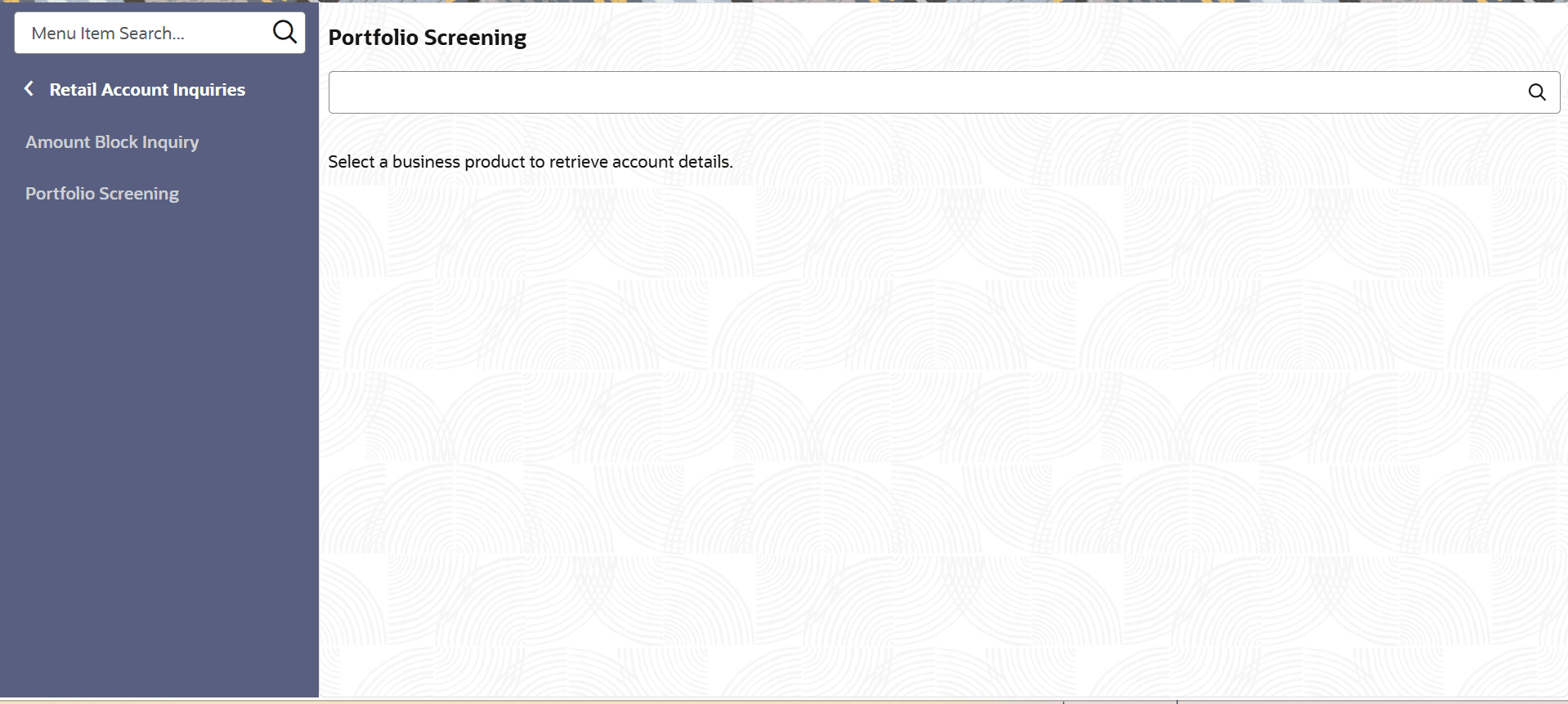
- 1. On Home screen, under Menu, click Retail Account Inquiries. Under Retail Account Inquiries, click Portfolio Screening.The Portfolio Screening screen is displayed.
- Click
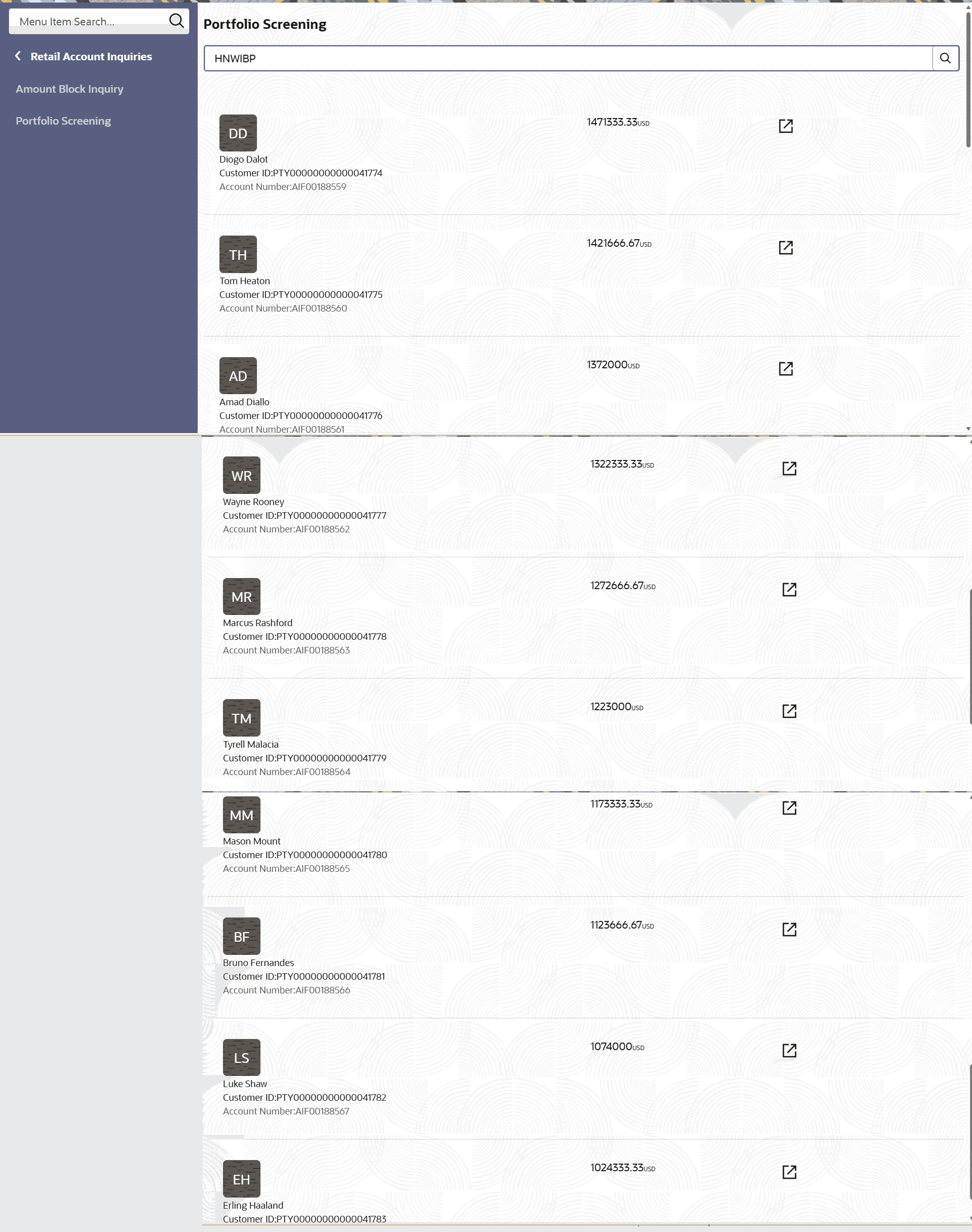
 icon select the Business Product from the list.
 - Select the required customer details for analysis.The Customers details screen is displayed.
- Specify the details on the Customer Details screen.
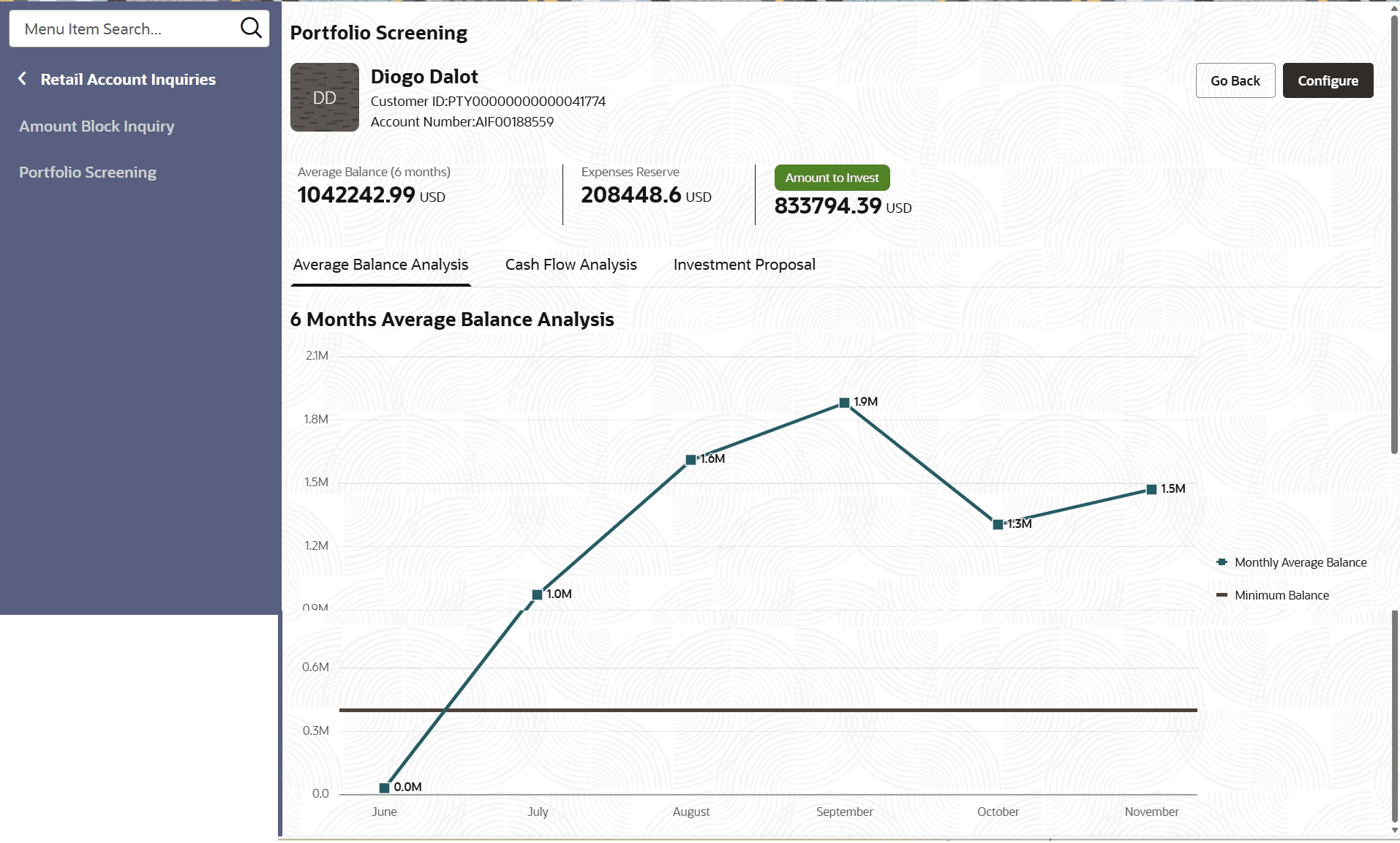
- Click Average Balance Analysis to displays the average balance for 6 months.
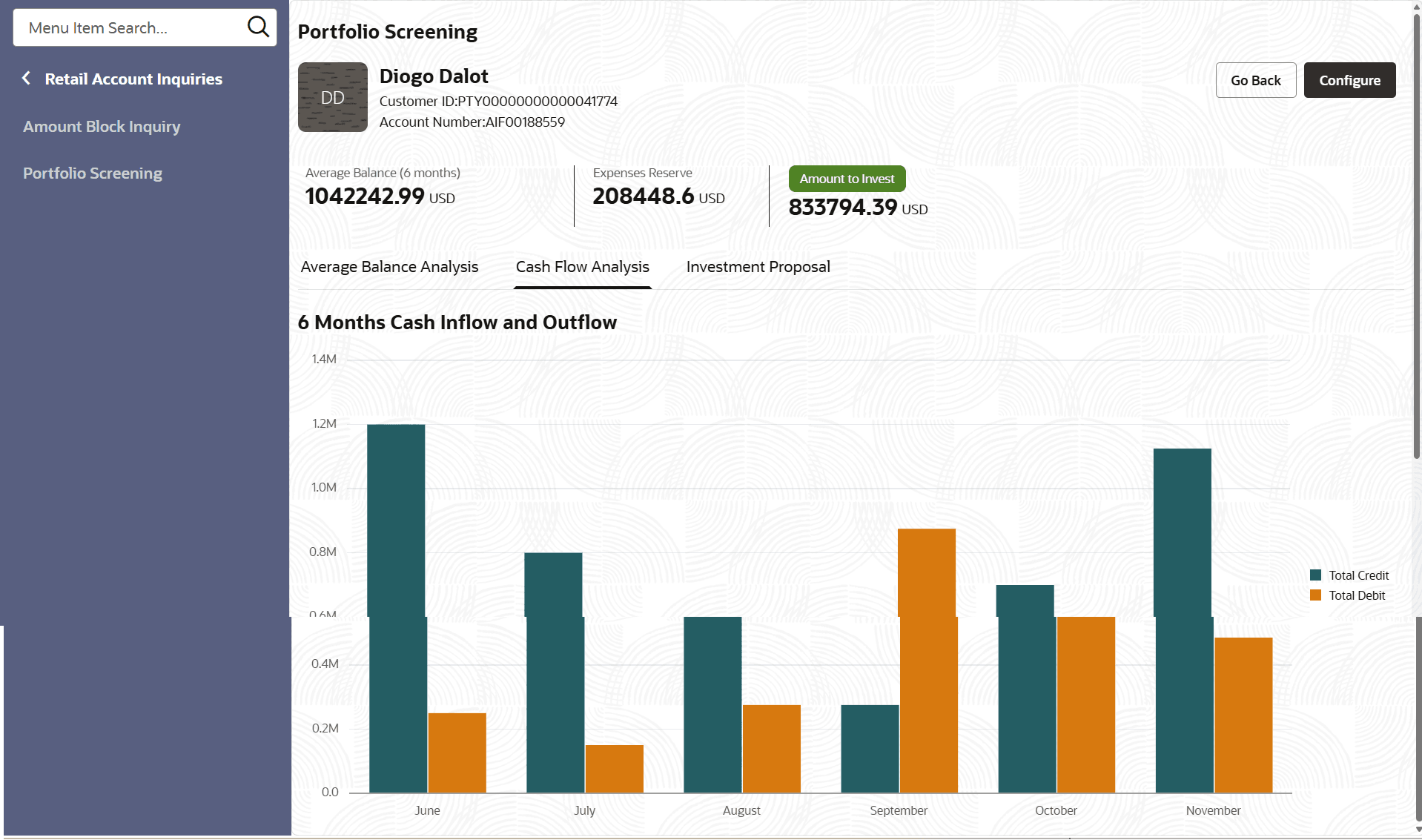
- System displays the Inflow and Out flow of the account for analytical interpretation with the details of Expenses Reserve and Amount of invest.
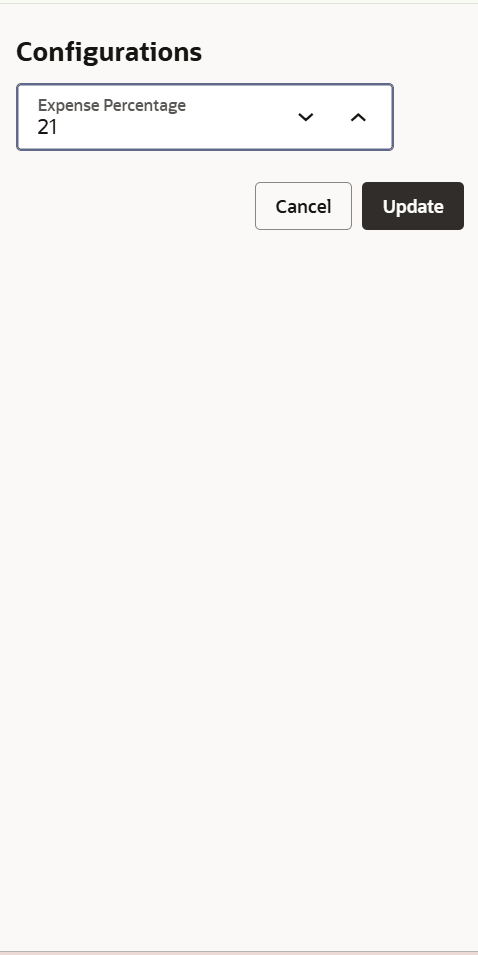
- User can modify the expenses reserve by updating the value under ‘configurations’ button and basis the value, Amount to Invest value is instantly recalculated by system.
- Click Configure button to specify the details.The configuration screen is displayed.
- Click Cash Flow Analysis to displays the average balance for 6 months.
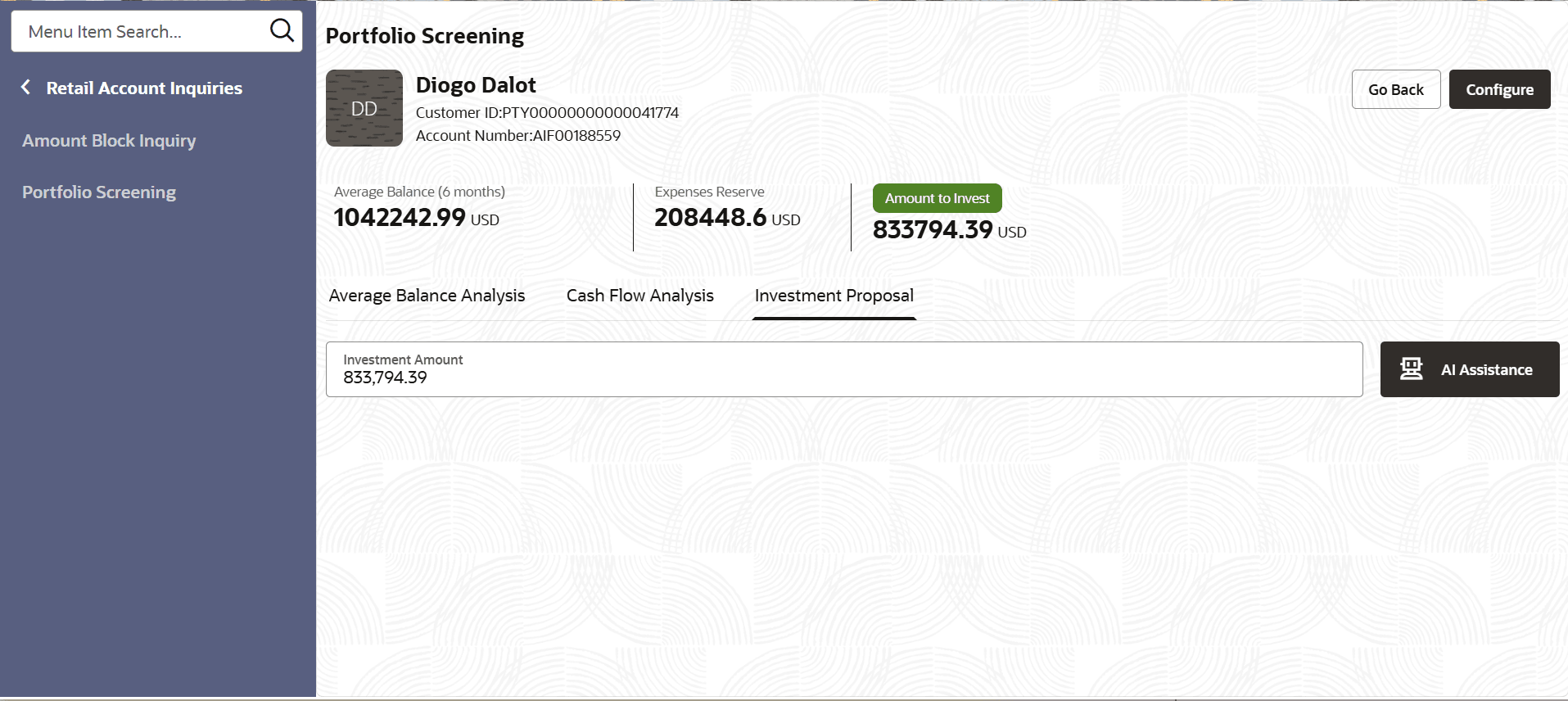
- Click Investment Proposal to displays the average balance for 6 months.In the AI Assist window
- System displays interest benefit basis the configured tenors and interest rates, in the form of a bar chart with applicable tenors and interest benefit and maturity value.
- Further RM basis the conversation with Customer, will start interacting with AI in natural language with input of simple queries, eg : invest 4M for 2 years OR invest 6M for 12M.
- LLM will do Natural Language Processing to identify the intent and prompts user to act upon.
- Click Average Balance Analysis to displays the average balance for 6 months.