3.2 Contribution and Distribution
User can capture the details of contributions into or distributions out of their ESA plans using the Contribution and Distribution screen.
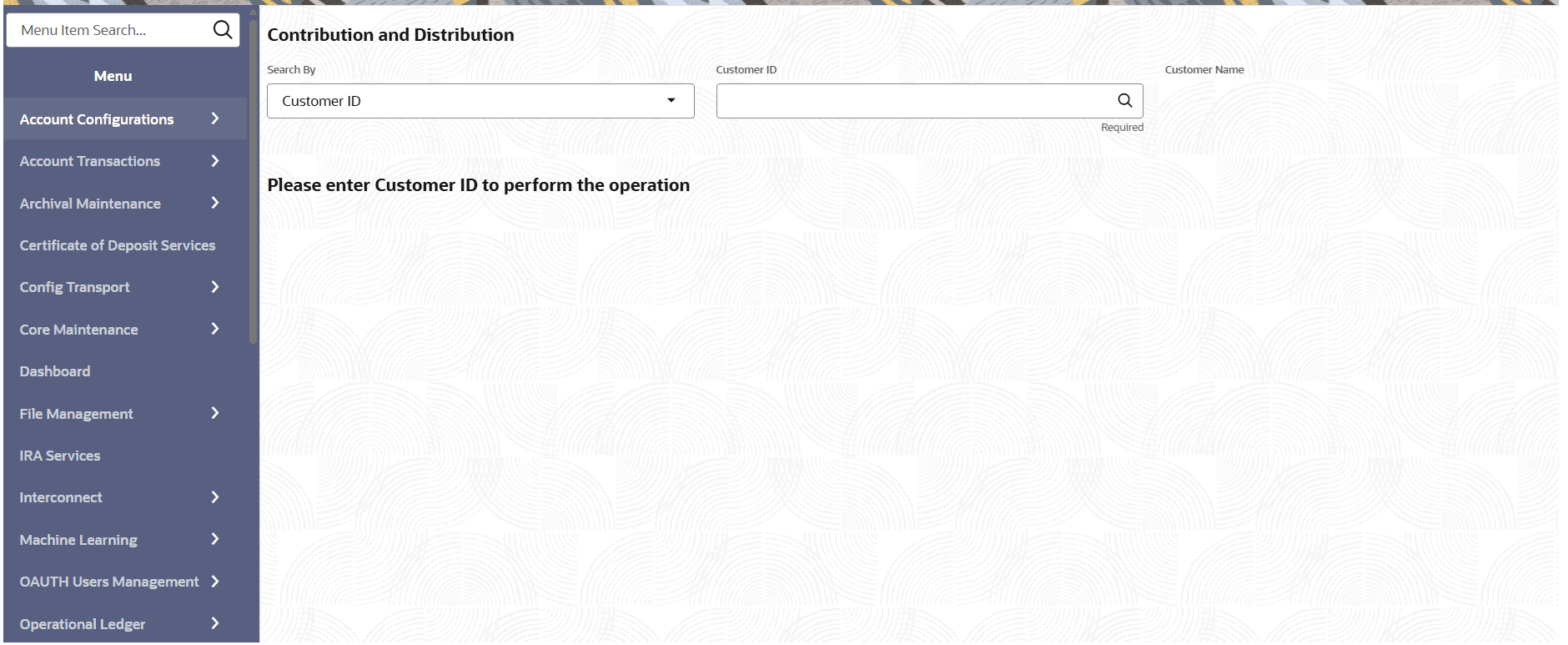
- On the Home screen, from ESA Services, under Transactions click Contribution and Distribution, or specify the Contribution and Distribution in the Search icon bar.The Contribution and Distribution virtual screen is displayed.
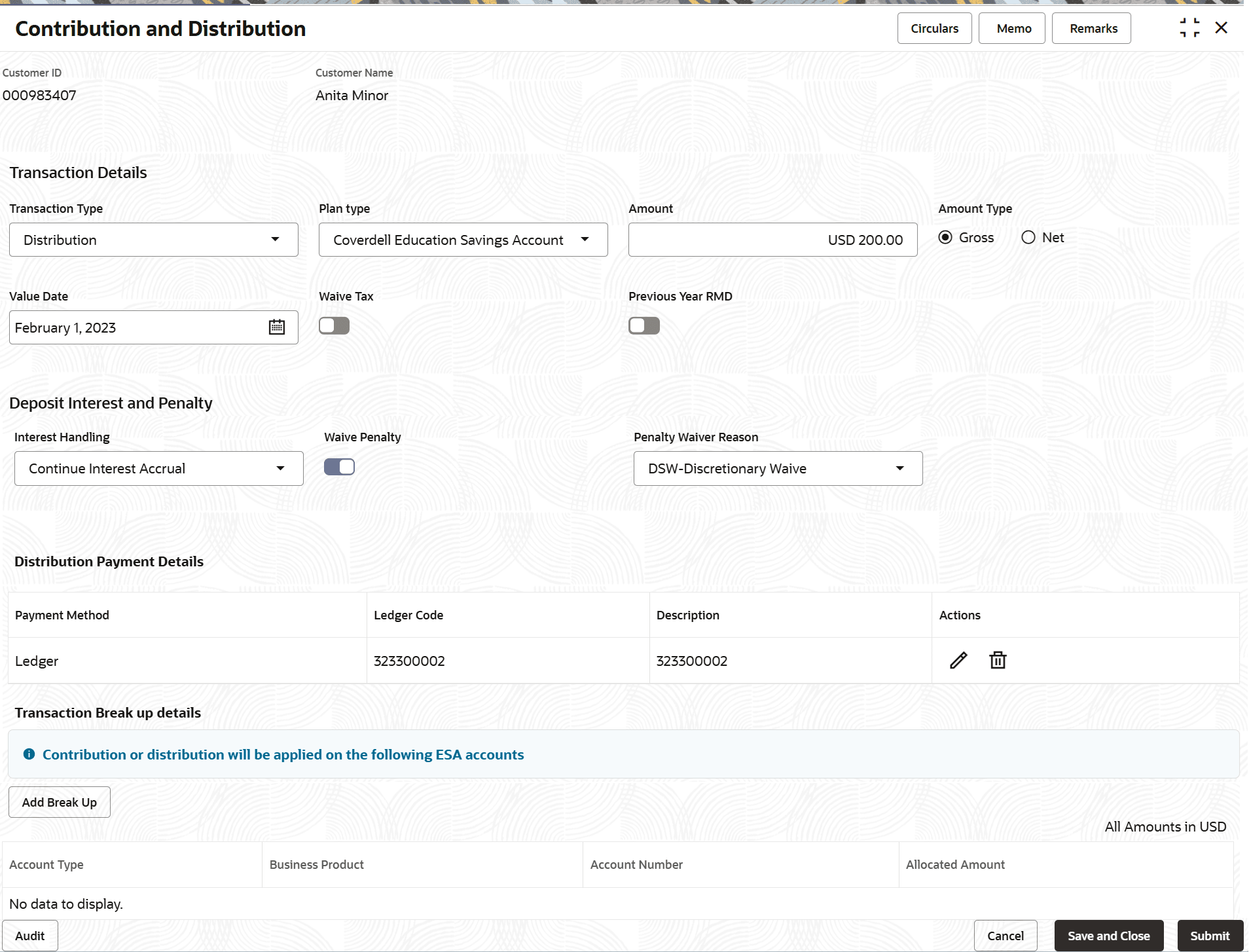
- On the Contribution and Distribution screen, specify the details.The fields to capture contribution and distribution are displayed in respective sections.
Figure 3-16 Maintain Contribution and Distribution
For more information on fields, refer to field description table below:Table 3-12 Contribution and Distribution – Field Description
Field Description Search By User can begin by entering a Customer ID in the input field. A specific customer ID can be searched by providing the customer name or customer ID in the LOV search. Customer ID can also be searched using Tax Identification Number, mobile or email ID of the customer. Transaction Details
This section displays the fields to capture the details of ESA transactions. Transaction Type Select the transaction type of account. The options are: - Contribution
- Distribution
- Trustee to Trustee Transfer
Plan Type Select the plan type for the transaction. The option is: - Coverdell Education Savings Account
Contribution Year Select the year of contribution. The options are: - Current
- Previous
Note: This field is displayed if Contribution option is selected from Transaction Type field.
Amount Specify the contribution amount. Amount Type Select the type of transaction amount. The options are: - Gross
- Net
Note:
This field is displayed if Distribution or Trustee to Trustee Transfer option is selected from Transaction Type field.Value Date Select or specify the value date for the transaction. Value date will be defaulted to the current business date. It cannot be future valued. However it can be back dated.
Waive Tax Switch the toggle ON if the tax is to be waived for the transaction. Note: This field is displayed if Distribution or Trustee to Trustee Transfer option is selected from Transaction Type field.
Previous Year RMD Switch the toggle ON, to enable the previous year's RMD. Note:
This field is displayed if Distribution option is selected from Transaction Type field.Deposit Interest and Penalty This section displays the fields for maintaining the interest and penalty. Note:
This section is displayed if Distribution or Trustee to Trustee Transfer option is selected from Transaction Type field.Interest Handling Select the option for handling the deposit interest. The options are: - Payout Accrued Interest
- Continue Interest Accrual
- Forfeit Accrued Interest
Waive Penalty Switch the toggle ON to waive the penalty on the deposit. Penalty Waiver Reason Select an appropriate option for waiving the penalty on the deposit. Note:
This field is displayed if Waive Penalty toggle is ON.Distribution Payment Details or Contribution Payment Details This section displays the distribution or contribution payment details of the customer, based on the Transaction Type selected. Note: The details in this section are displayed as the user specifies a value in the Amount field.
Payment Method Displays the payment method. Note: During a contribution transaction, if the customer has a single account with balance equal to or greater than the contribution amount, the account gets defaulted as the payment method. Users can modify the defaulted option by clicking on the Change Defaults button. During a distribution transaction, if the customer has a single account, it gets defaulted as the payment method and it can be modified at user's discretion.
Account Number Displays the payment account number. Depending on the Transaction Type, the account number serves as a Debit account in case of a contribution or serves as a Credit account in case of a distribution.Note:
This field is displayed if the payment type is Account.Account Name Displays the account name. Note:
This field is displayed if the payment type is Account.Ledger Code Displays the ledger code for payment. Note:
This field is displayed if the payment type is Ledger.Description Displays the description for the ledger code. Note:
This field is displayed if the payment type is Ledger.Drawer Account Number Displays the drawer account number used for the payin. Note:
This field is displayed if the payment type is Instrument.Drawer Name Displays the drawer name for payin. Note:
This field is displayed if the payment type is Instrument.Check Number Displays the check number used to payment. Note:
This field is displayed if the payment type is Instrument.Check Date Displays the date on the check used for payment. Note:
This field is displayed if the payment type is Instrument.Actions Displays the following icons: - Edit: Click this icon to edit the details. A Payment Details section is displayed. For more information, refer the Add Payment Details section.
- Delete: Click this icon to delete the entry.
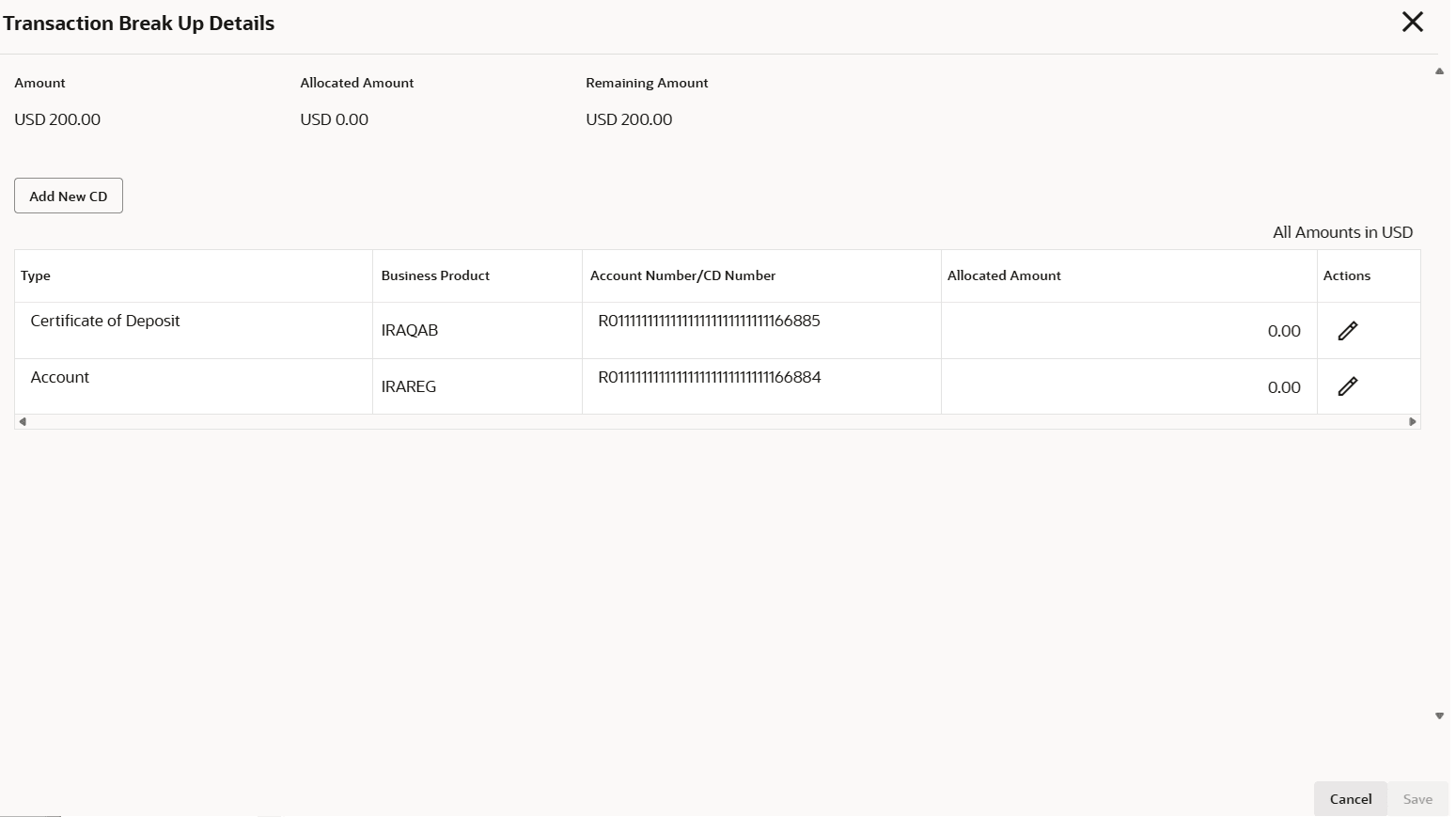
Transaction Break up details This section displays the details of the transaction breakup. When user clicks Add Break Up, this section lists all the Accounts and Deposits linked to the Plan Type. In case of a contribution transaction, user can select the accounts and deposits into which contribution is to be made. In case of a distribution transaction, user can select the accounts and deposits from which amounts will be withdrawn to perform the transaction.
Account Type Displays the type of an account as either a Certificate of Deposit or Account. Business Product Displays the business product. Account Number or CD Number Displays the account number or CD number. Allocated Amount Displays the amount entered by the user either during contribution or distribution transaction. During a contribution or distribution transaction the entered amount must match the amount entered in the main transaction page in the 'Amount' field. The entire contribution or distribution amount can be allocated either to a single account or deposit within the Plan or can be distributed among multiple accounts and deposits.
The transaction can be saved only after the amount of contribution or distribution is completely allocated. During a contribution transaction, users can also choose to create a new Deposit. Click on the Add new CD button. A new row gets inserted into the table grid. Select the business product under which the new CD should be created. Enter the contribution amount and click save. The amount entered must be equal to or lesser than the total contribution amount.
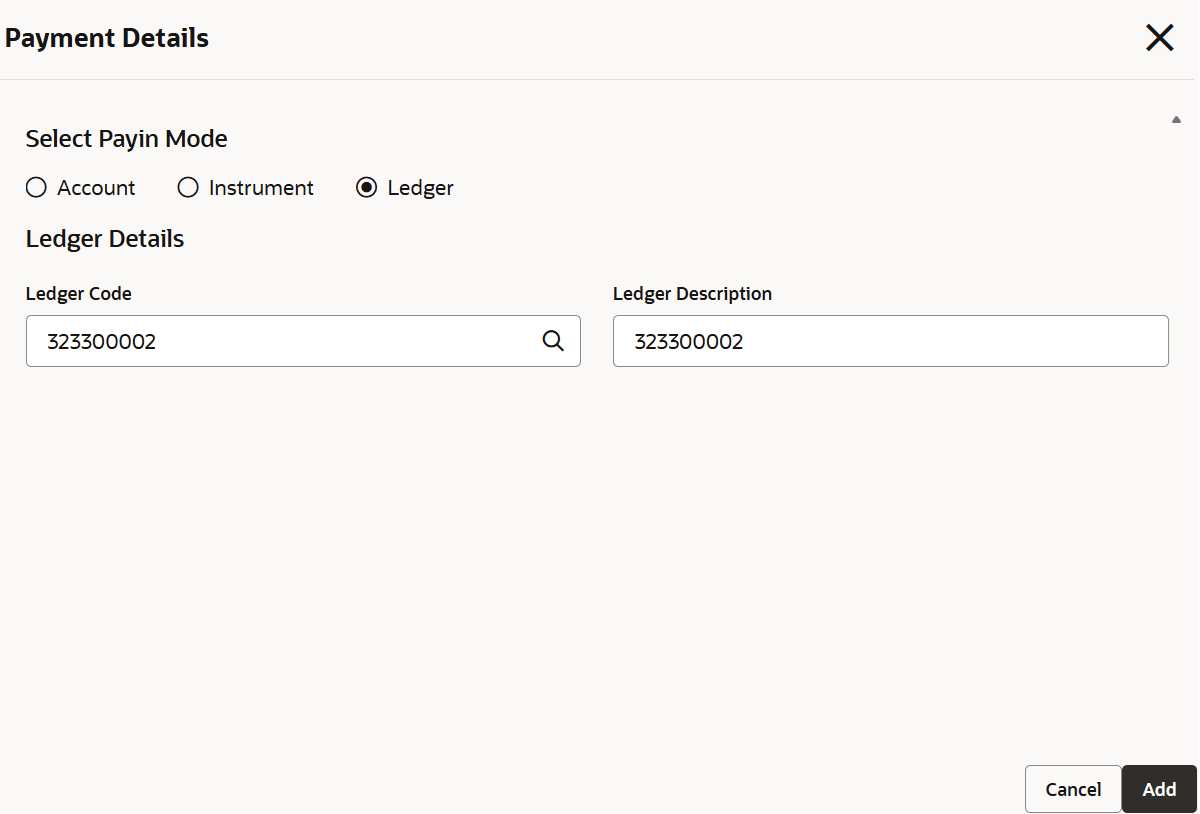
To add payin details:- From the Contribution Payment Details section, click Add Payment Details. This button is enabled after the user specifies the value in the Amount field.
The Payment Details section is displayed.
- In the Payment Details section, specify the details for the payin mode. For more information on fields, refer to field description table below:
Table 3-13 Payment Details - Payin - Field Description
Field Description Select Payin Mode Select the appropriate payin mode. The options are: - Account
- Instrument
- Ledger
Select Account Number This section displays the account number details. Note: This section is displayed if Account option is selected from the Select Payin Mode field.
Account Number Displays the account number for the payment. Account Name Displays the account name. Account Balance Displays the balance amount in the account. Check Details This section displays the instrument related information for the payin. Note:
This section is displayed if Instrument option is selected from the Select Payin Mode field.Clearing Type Select the type of clearing for the check. Check Date Select or specify the check date for the payin. Check Number Specify the check number used for the payin. Drawer Account Number Specify the drawer account number for the payin. Drawer Name Specify the drawer name associated with the mentioned drawer account number. Bank Code Select the bank code for the payin. Value Date Select or specify the value date for performing the payin. Ledger Details This section displays the ledger details. Note: This section is displayed if Ledger option is selected from the Select Payin Mode field.
Ledger Code Select the ledger code from the list for the payment. Ledger Description Displays a description for the ledger code selected. If required, user can edit the description. - Click Add.
The details are added in the Contribution Payment Details section.
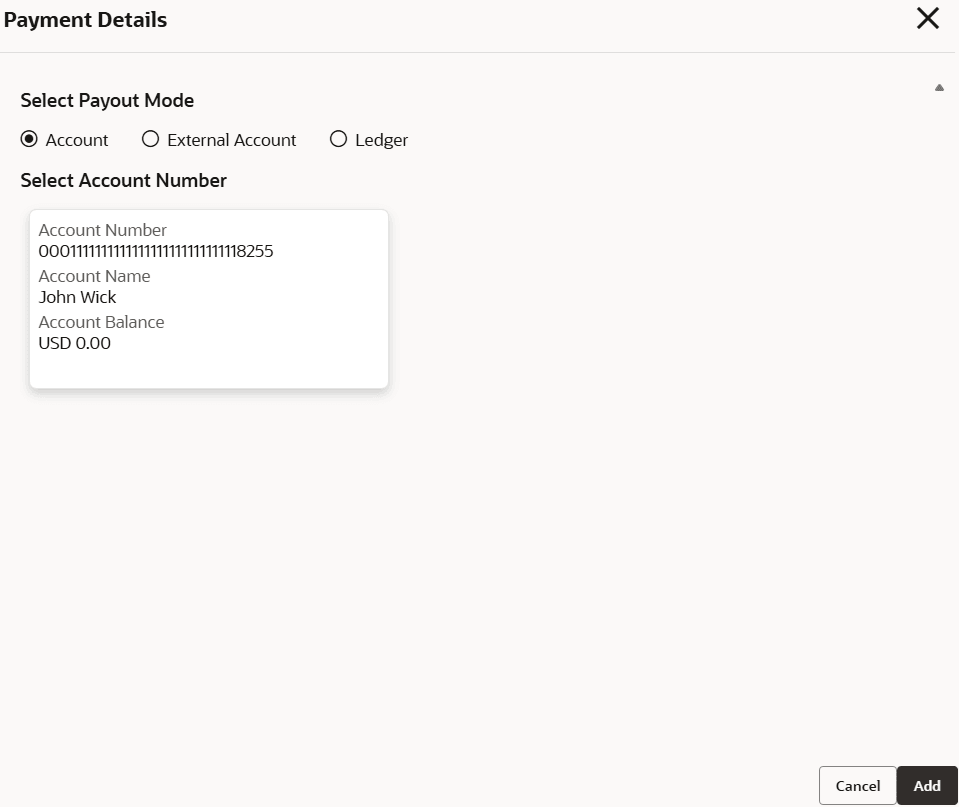
- From the Distribution Payment Details section, click Add Payment Details.
The Payment Details section is displayed.
- In the Payment Details section, specify the fields. For more information on fields, refer to field description table below:
Table 3-14 Payment Details - Payout - Field Description
Field Description Select Payout Mode Select the appropriate payout mode. The options are: - Account
- External Account
- Ledger
Select Account Number This section displays the account number details. Note: This section is displayed if Account option is selected from the Select Payout Mode field.
Account Number Displays the account number for the payment. Account Name Displays the account name. Account Balance Displays the balance amount in the account. Account Details This section displays the external account related information for the payout. Note:
This section is displayed if External Account option is selected from the Select Payout Mode field.Clearing Type Displays the clearing type set for the payout. Account Number Specify the account number for the external account. Account Name Specify the account name for the mentioned account number. Bank Code Select the bank code for the payout. Narrative Specify the narration for the payout, if any. Ledger Details This section displays the ledger details. Note: This section is displayed if Ledger option is selected from the Select Payout Mode field.
Ledger Code Select the ledger code from the list for the payment. Ledger Description Displays a description for the ledger code selected. If required, user can edit the description. - Click Add.
The details are added in the Distribution Payment Details section.
To add break up:- From the Transaction Break Up Details section, click Add Break Up.
Note:
During a distribution transaction, if the distribution payment method is selected as External Account, then the distribution is restricted only to IRA CDs. If the plan type also consists of IRA accounts, it will not be enabled. - In the Transaction Break Up Details section, specify the details. For more information on fields, refer to field description table below:
Table 3-15 Add Break Up – Field Description
Field Description Amount Displays the total amount available for break up. Allocated Amount Displays the amount allocated for payment. Remaining Amount Displays the remaining balance amount. Type Displays the type of account. Business Product Select the business product type. Account Number/CD Number Displays the account number or certificate of deposit account number. Allocated Amount Specify the amount to be allocated. Note: User can click the Edit icon from the Actions field or double click the field to edit the value.
Actions Displays the following icons: - Edit: Click this icon to edit the details.
- Delete: Click to delete the added entry.
- If required, user can click Add New CD, to start a new certificate of deposit.
- Click Save.
Parent topic: Transaction