2.2 IRA 360 - Retail Deposits
User can inquire the details of IRA 360 using the IRA 360 screen.
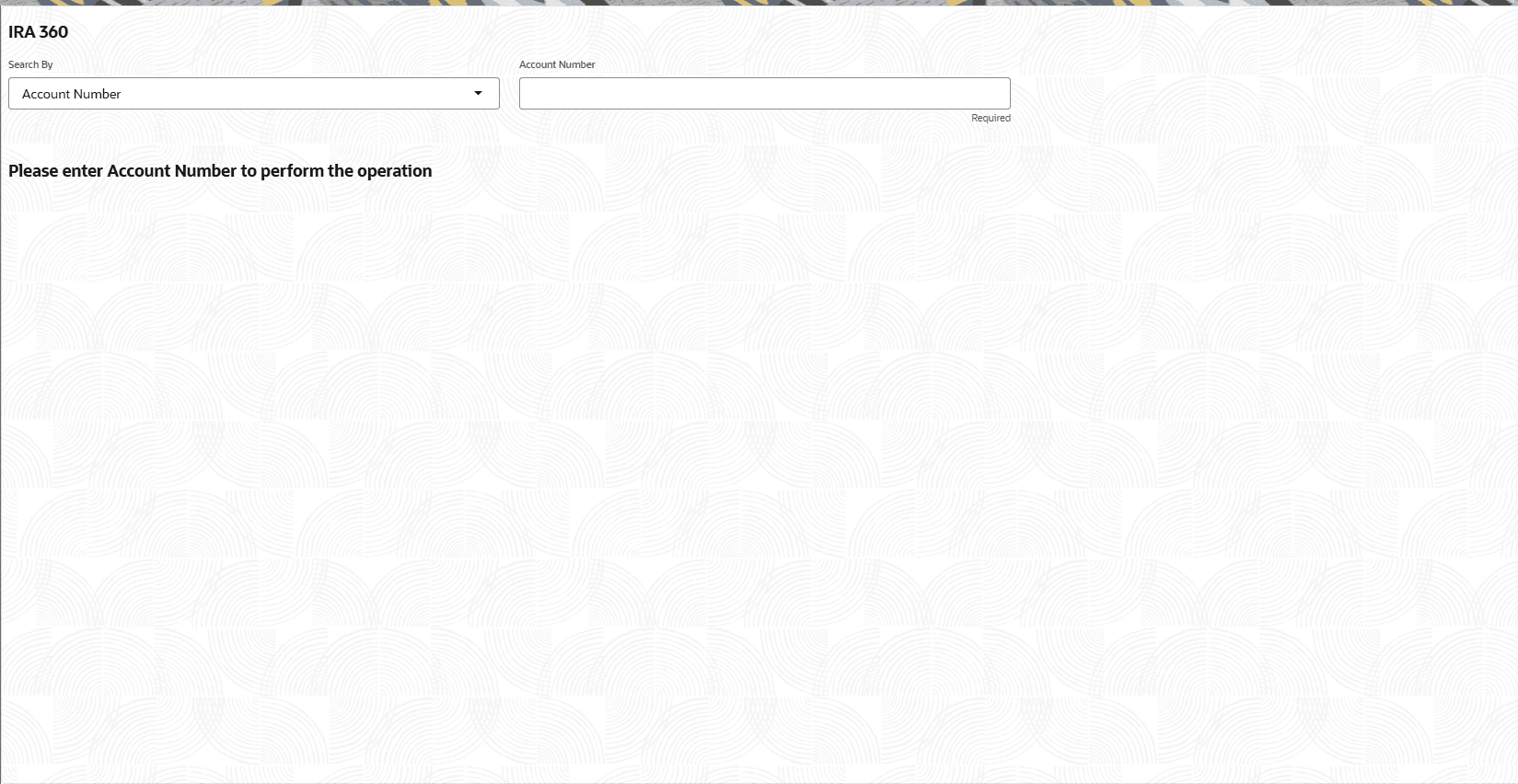
- On the Home screen, from IRA Services, click IRA 360, or specify the IRA 360 in the Search icon bar.The IRA 360 virtual screen is displayed.
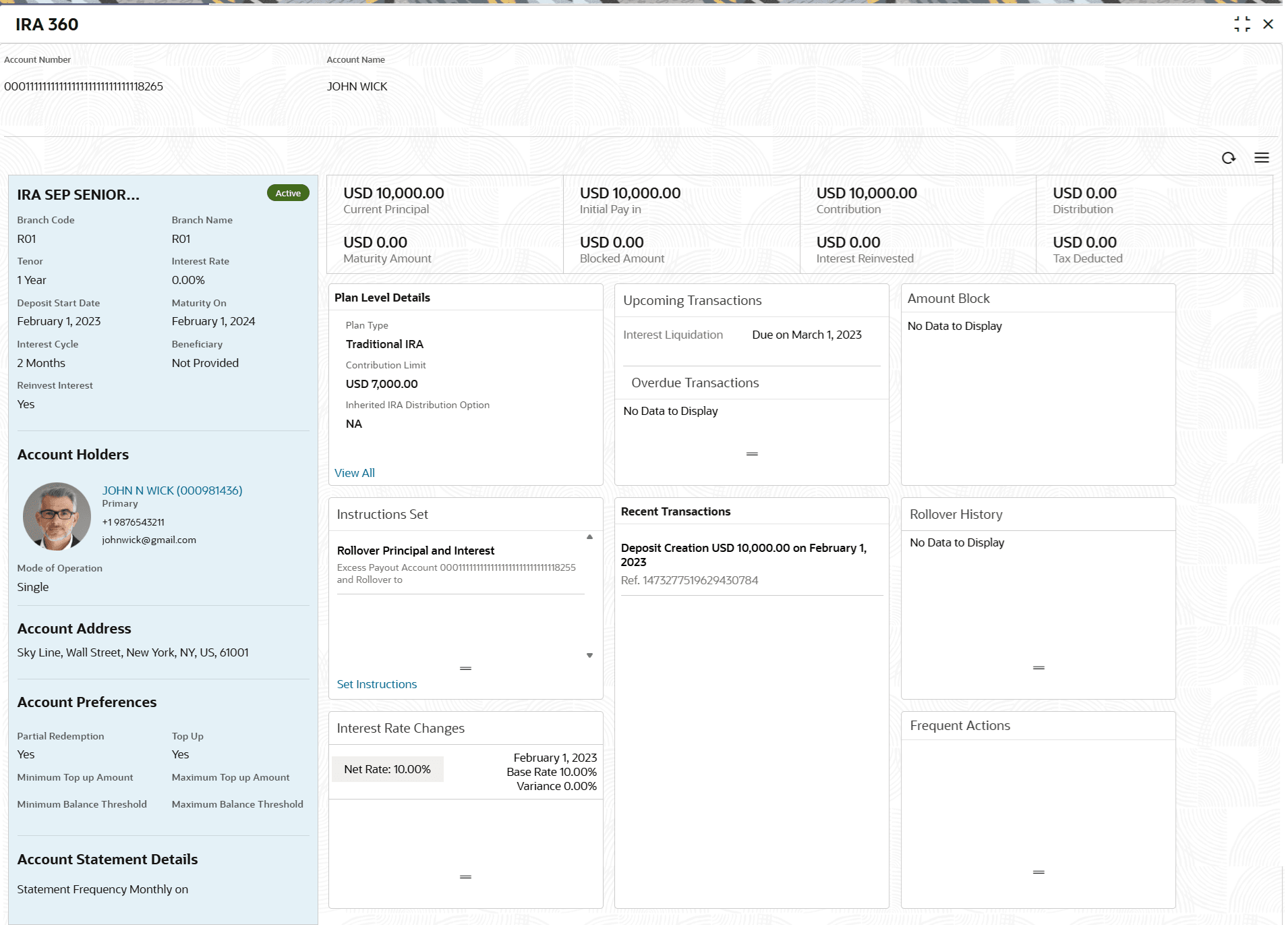
- Perform the required action, based on the option selected from the Search by field.The existing IRA 360 details are displayed.For more information on fields, refer to field description table below:
Table 2-2 IRA 360 Data – Field Description
Field Description Search By Users can search for an account number by using any of the available search criteria. The account number is set as the default search option. Users can specify the account number directly in the adjacent field or search for an account number by clicking the Search icon. Users can also search for the specific account number by providing customer ID, account number, or account name.
Other search options available in the Search by field are Customer ID, Tax Identification Number, Mobile Number, and Email.
A specific customer ID can be searched by providing the customer name or customer ID. If Tax Identification Number, mobile, or email IDs are chosen to find an account number, the respective IDs have to be input entirely in the adjacent field for the system to display the account number. For a given search criteria, multiple account numbers may be linked.
For example, two or more account numbers can be linked to a single mobile number. In such cases, the system displays all the account number matches and the user can select the relevant account number on which to perform a servicing operation.
Note:- The label of the field adjacent to the Search by field changes dynamically. For example, if the Account number is chosen as the search criteria, the label of the adjacent field is displayed as the Account Number. If Tax Identification Number is chosen as the search criteria, then the adjacent field would display the label as Tax Identification Number.
- If user selects an account with closed status, then an appropriate message is displayed. The user will not be allowed to proceed with the required action in the screen.
Product Name Displays the product name from the product master. Status Displays the status. The options for the status are: - Active
- Matured
- Closed
Branch Code Displays the branch code or identifier where the account is held. Branch Name Displays the name of the branch where the account is held. Tenor Displays the duration of the term deposit. Interest Rate Displays the applicable interest rate for the deposit. Deposit Start Date Displays the date when the deposit was made. Maturity On Displays the date when the deposit matures. Interest Cycle Displays the frequency of interest calculation. Beneficiary Displays the status of beneficiary nomination. Reinvest Interest Displays the reinvest interest. Account Holders
This widget displays the account holders detail.
<Name (Customer ID)>
Displays the name and customer ID of the account holder. This information is displayed as link. User can click this link, to view the Customer 360 view.
<Relationship>
Displays relationship of the account holder. The possible options are:- Primary
- Secondary
<Mobile> Number
Displays the mobile number with ISD code of the customer.
<Email ID>
Displays the email ID of the customer.
Mode of Operation Displays the mode of operation for the deposit. Account Address Displays the address associated with the account. Account Preferences Displays the Preferences such as facilities or banking channels enabled for the account. Account Statement Details Displays the information on statement frequency and options for requesting ad hoc statements. Current Principal Displays the current principal amount in the account. Initial Pay In Displays the original amount initially deposited. Contribution Displays the amount contributed to the account. Distribution Displays the amount distributed/withdrawn from the account. Maturity Amount Displays the maturity value upon completion of the tenure. Blocked Amount Displays the amount blocked or on hold; not available for use. Interest Reinvested Displays the amount of interest that has been reinvested. Tax Deducted Displays the tax amount deducted as part of the account's transactions. Plan Level Details This widget displays the IRA plan level details for the account. User can view more plan details on the account from this widget.
Plan Type Displays the plan type. Contribution Limit Displays the contribution limit on the account. Inherited IRA Distribution Option Displays the option set for the inherited IRA distribution. Instructions Set This widget displays the payout instructions set on the CD account. This includes maturity instruction, payout mode, related payout account number or ledger number. In the case of a rollover, the related rollover product name is displayed. Note:
To create new set of instructions or modify existing details for the CD account, click the Set Instructions link.Interest Rate Changes This widget displays changes or current interest rate details. Upcoming Transactions This widget displays the scheduled and future transactions related to the account. Overdue Transactions This widget displays the transactions that are overdue. Amount Block This widget displays the amount block details of the account. In this widget, the total amount blocks, bill due, expiry date, and amount block nature is displayed.
Note:
To manage the amount blocks, click the Manage Amount Blocks link.Recent Transactions This widget displays the summary of latest transactions, amounts, and references. Rollover History This widget displays details about rollover actions. Frequent Actions This widget displays the common features.
Parent topic: Account View