1.10.1 Account Garnishment
You can apply garnishment (amount block) order received against a customer or for a specified account, after calculating the protected amount using the Account Garnishment screen.
Note:
The fields marked as Required are mandatory.A garnishment order is received from the Federal Government for a customer and at the discretion of the Operations Officer, garnishment related holds are placed on a specific account or multiple accounts of the customer. Post garnishment set up on the account, the customer can withdraw only the protected amount (eligible credits calculated in look back period) and the credits received after the garnishment start date plus the balance over and above the blocked balance.
To apply garnishment:
- On the Home screen, from Retail Account
Services, under Amount Block, click
Account Garnishment, or specify the
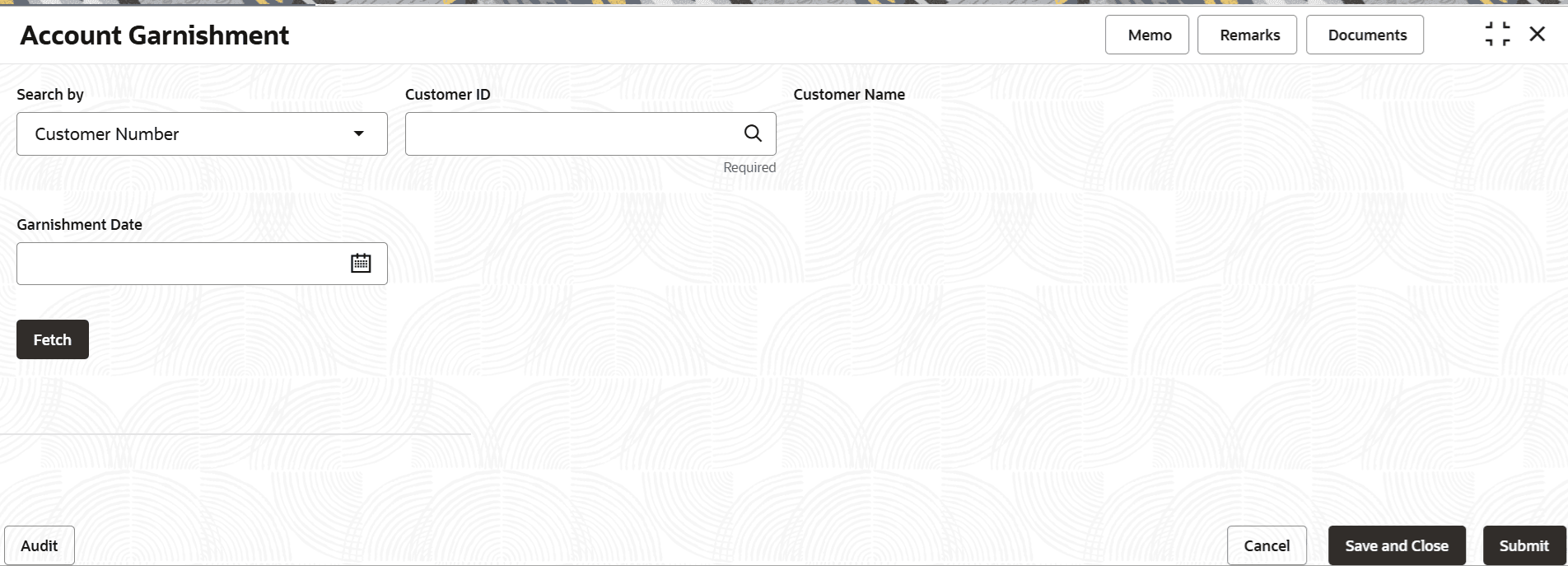
Account Garnishment in the Search icon bar.The Account Garnishment screen is displayed.
- Click Fetch.The existing customer's garnishment details are displayed.
Figure 1-57 Account and Garnishment Information
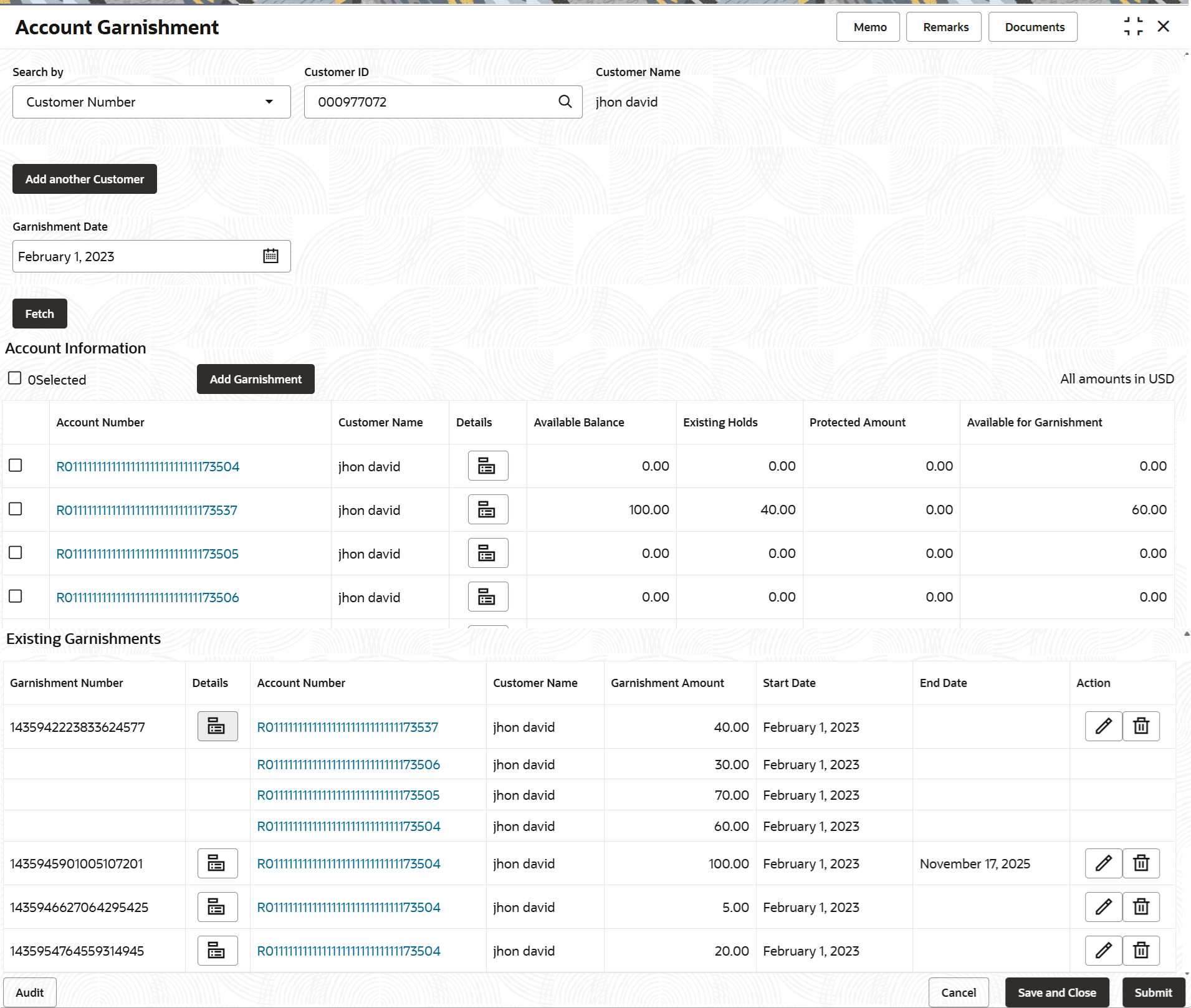
Description of "Figure 1-57 Account and Garnishment Information" - In the Account Information and Existing Garnishments sections, view or manage the details. For more information on fields, refer to the field description
table.
Table 1-29 Account Garnishment - Field Description
Field Description Search By Users can search for an account number by using any of the available search criteria. The account number is set as the default search option. Users can specify the account number directly in the adjacent field or search for an account number by clicking the Search icon. Users can also search for the specific account number by providing customer ID, account number, or account name.
Other search options available in the Search by field are Customer ID, Tax Identification Number, Mobile Number, and Email.
A specific customer ID can be searched by providing the customer name or customer ID.If Tax Identification Number, mobile, or email IDs are chosen to find an account number, the respective IDs have to be input entirely in the adjacent field for the system to display the account number. For a given search criteria, multiple account numbers may be linked.
For example, two or more account numbers can be linked to a single mobile number. In such cases, the system displays all the account number matches and the user can select the relevant account number on which to perform a servicing operation.Note:
The label of the field adjacent to the Search by field changes dynamically. For example, if the Account number is chosen as the search criteria, the label of the adjacent field is displayed as the Account Number. If Tax Identification Number is chosen as the search criteria, then the adjacent field would display the label as Tax Identification Number.Garnishment Date Select or specify the date of garnishment. Account Information This section displays the accounts and term deposit accounts, where the customer is the sole owner. Also, the joint accounts that were opened after the garnishment date. When multiple customer ID are selected, then single active accounts of the specified party IDs and joint accounts where these multiple party IDs are only joint holders are displayed.
<Select> Select the option to place the garnishment for that specific account. Note:
As you select the accounts, the total selected accounts count are displayed above the table.Account Number Displays the account number of the customer. Note:
This account number is displayed as a link. As the user clicks this link, the Customer Information section is displayed on the right. For more information on customer information, refer Customer Information.Customer Name Displays the customer name. Details Displays the following icon:  : Click to view more account related information.
Account Description Displays the account description. Note:
This field is displayed, if you click the Details icon from the Details field.Product Type Displays the product type of the account. The possible options are: - Savings
- Current
- Term Deposit
Note:
This field is displayed, if you click the Details icon from the Details field.Account Type Displays the type of account. The possible options are: - Single
- Joint
Note:
This field is displayed, if you click the Details icon from the Details field.Customer ID Displays the customer ID. Note:
This field is displayed, if you click the Details icon from the Details field.Customer Name Displays the customer name. Note:
This field is displayed, if you click the Details icon from the Details field.Holding Type Displays the type of holding. The possible options are: - Primary
- Joint
Note:
This field is displayed, if you click the Details icon from the Details field.Available Balance Displays the available balance in each account. Existing Holds Displays the existing hold amount. Protected Amount Displays the protected amount for the account. Available for Garnishment Displays the amount available for garnishment. Existing Garnishments This section displays the existing garnishments on the customer account. Garnishment Number Displays the unique garnishment number. Details Displays the following icon: - : Click to view more account related information.
Account Number Displays the account number. Note:
This account number is displayed as a link. As the user clicks this link, the Customer Information section is displayed on the right. For more information on customer information, refer Customer Information.Customer Name Displays the customer name. Garnishment Amount Displays the garnishment amount. Start Date Displays the start date of the garnishment. End Date Displays the end date of the garnishment. Action Displays the following actions: - Edit: Click to edit the garnishment details.
- Delete: Click to delete the garnishment order.
Note:
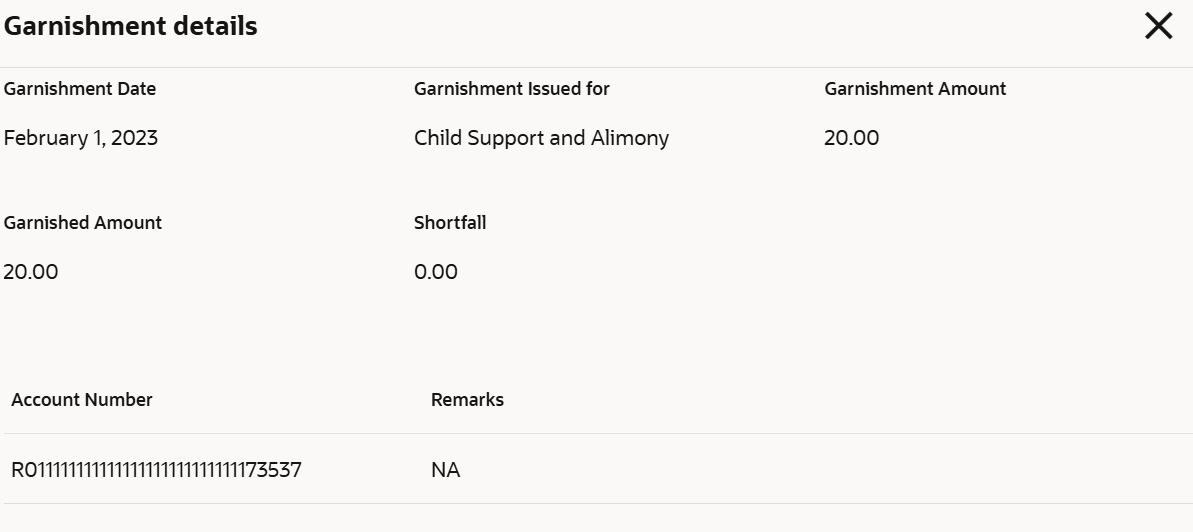
The editing or deletion will happen at garnishment order level and not at individual account level under a garnishment order.If user clicks the Details icon from Detail field in the Existing Garnishment section, then the following section is displayed:
Table 1-30 Garnishment details – Field Description
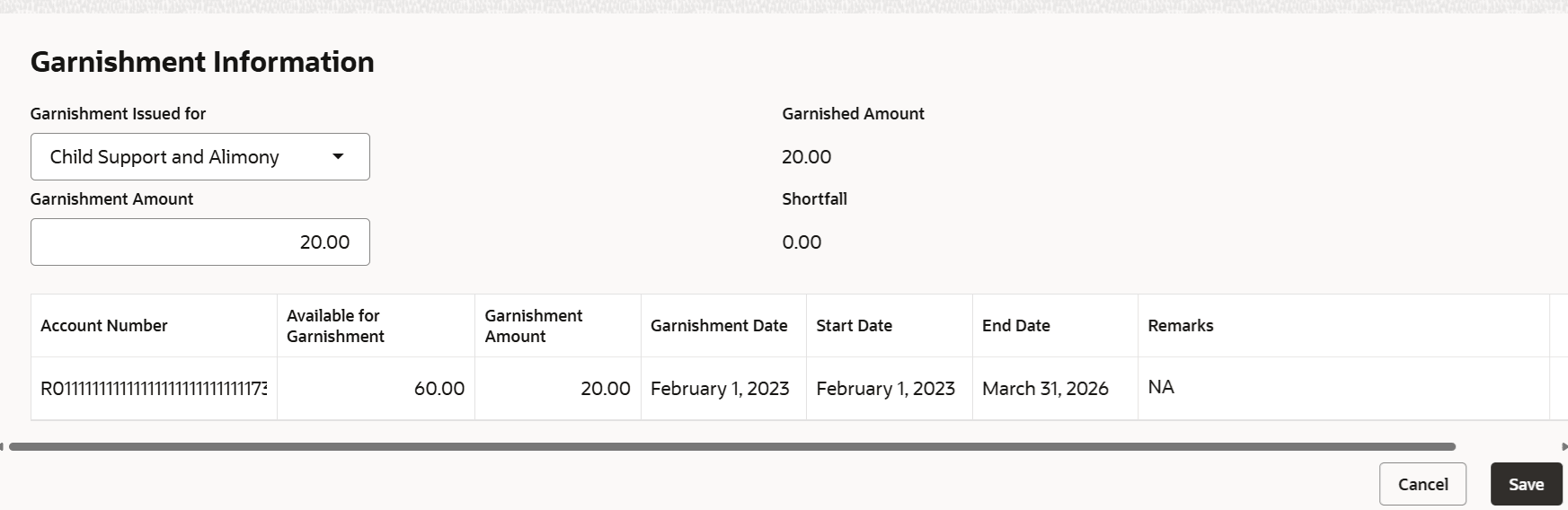
Field Description Garnishment Date Displays the date of garnishment. Garnishment Issued For Displays for whom the garnishment is issued. Garnishment Amount Displays the garnishment amount. Garnished Amount Displays the total garnished amount. Shortfall Displays the total shortfall amount. Account Number Displays the available customer account number. Available for Garnishment Displays the amount available for garnishment. Remarks Displays the remarks separately for each account in the garnishment record. User can add new garnishment order to the account by performing the following action:- From the Account Information section, click Add Garnishment.
The Garnishment Information section is displayed.
- Specify or select the required garnishment details. For more information on fields, refer to the field description
table.
Table 1-31 Add Garnishment - Field Description
Field Description Garnishment Issued For Select for whom the garnishment is issued. Garnishment Amount Specify the garnishment amount. Garnished Amount Displays the total garnished amount. Shortfall Displays the total shortfall amount. Account Number Displays the available customer account number. Available for Garnishment Displays the amount available for garnishment. Garnishment Amount Specify the garnishment amount. Note:
This field is enabled if the user clicks Edit from the Action field or double clicks the row.Garnishment Date Displays the date of garnishment. Start Date Displays the start date of the garnishment. End Date Select or specify the end date of the garnishment. Note:
This field is enabled if the user clicks Edit from the Action field or double clicks the row.Remarks Specify the remarks for garnishment, if any. Note:
This field is enabled the user clicks Edit from the Action field or double clicks the row.Action Displays the following actions: - Save: Click to save the details specified.
- Edit: Click to edit the details.
- Delete: Click to delete the entry.
- Click Save.
Note:
Once the details are saved, a New Garnishment section is displayed above the Existing Garnishment section in the screen.

Parent topic: Amount Block