1.7.2 Account Statement
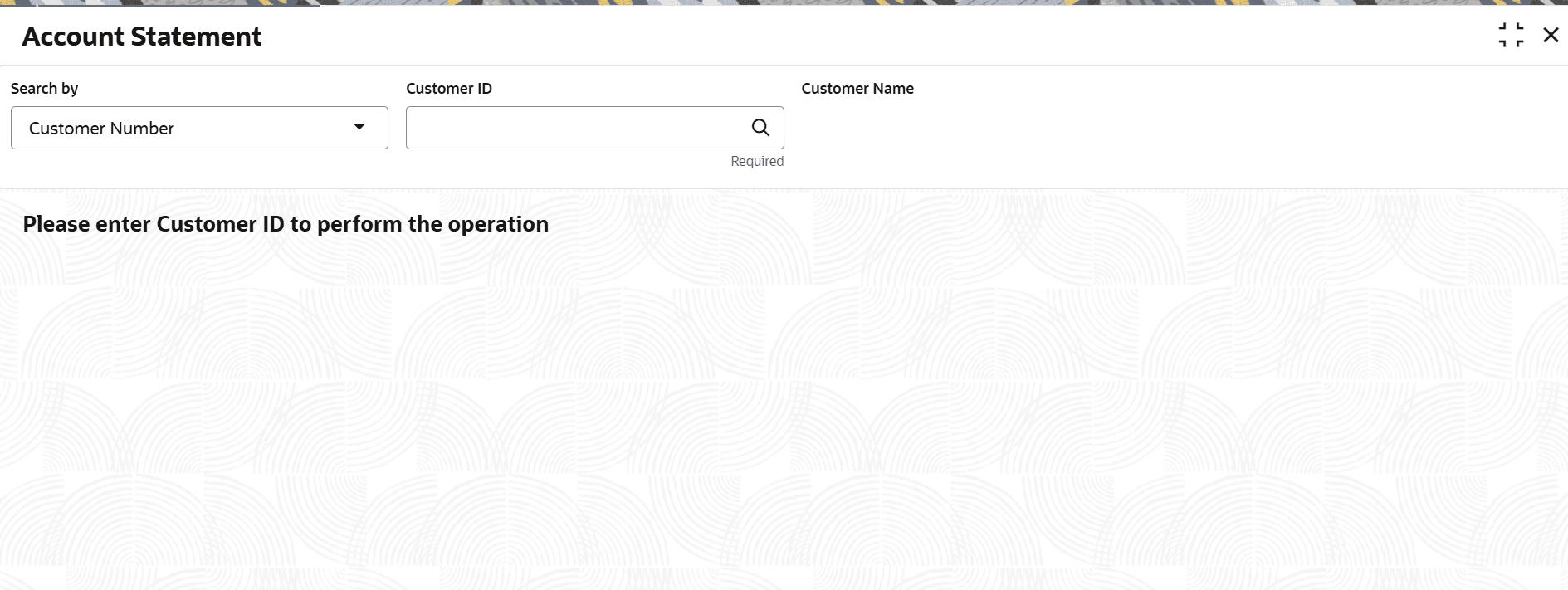
This topic describes the systematic instruction to generate a consolidated adhoc statement or view periodic statement that covers multiple accounts of a customer.
Note:
The fields marked as Required are mandatory.To generate a statement:
- On Home screen, from Retail Account Services, under Statement, click Account Statement, or specify the Account Statement in the Search icon bar.The Account Statement screen is displayed.
- On Account Statement screen, specify the fields.
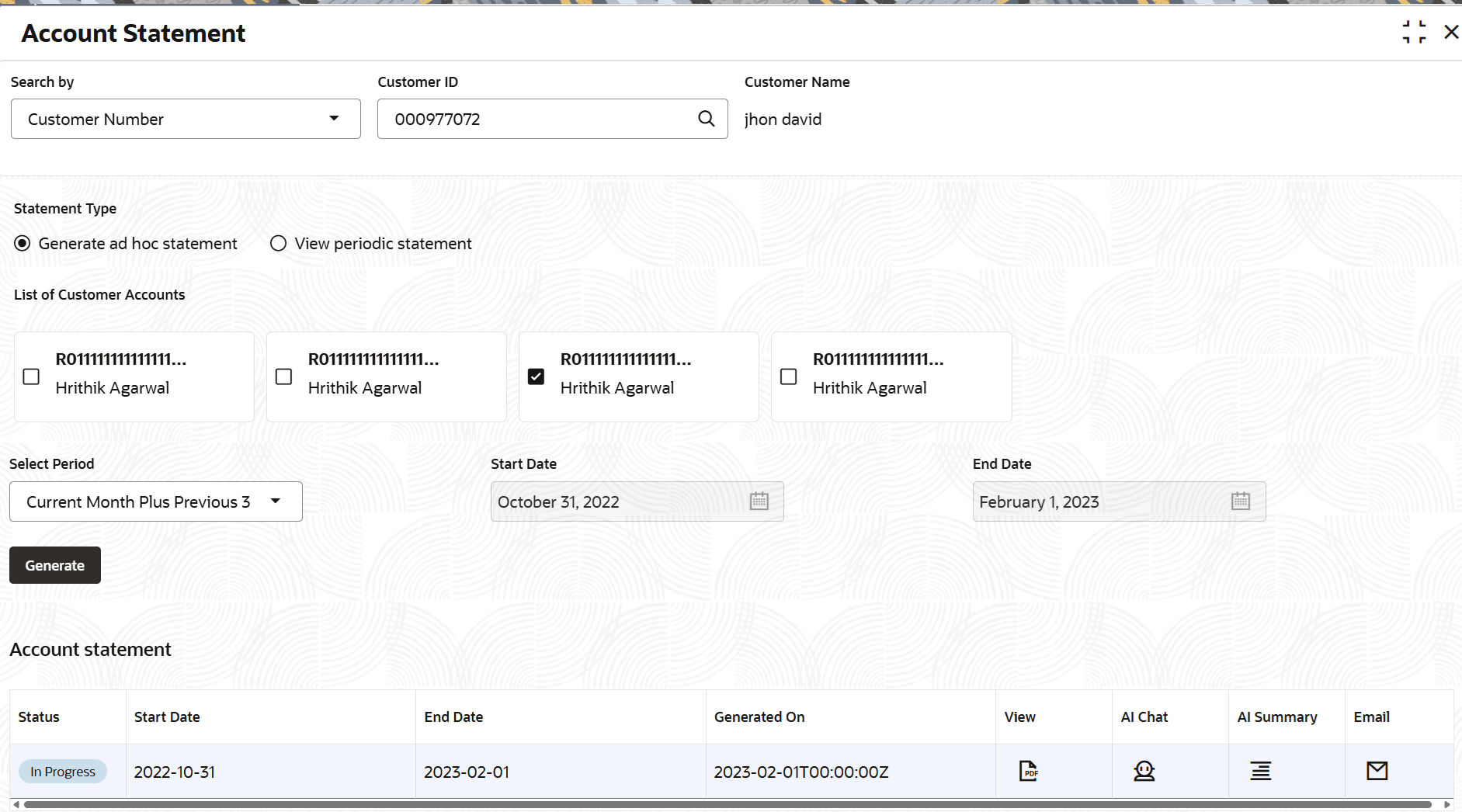
- If from the Statement Type section, Generate ad hoc statement option is selected, then follow the steps below:
- From the List of Customer Accounts field, select the account.
- From the Select Period field, select the required period.
- Click Generate.
- If from the Statement Type section, View periodic statement option is selected, then follow the steps below:
- From the List of Customer Accounts field, select the account.
- Select the Start Date and End Date.
- Click Fetch.
The multiple ad hoc statements can be generated on the same day. All the generated statements are displayed as tiles with account number and account name. Once the date moves to the next working day, all statements generated the previous day is cleared.
The Account statement section is displayed.For more information on fields, refer to the field description table below.Table 1-25 Account Statement - Field Description
Field Description Search By Users can search for an account number by using any of the available search criteria. Search options available in this field are Customer ID, Tax Identification Number, Mobile Number, and Email.
A specific customer ID can be searched by providing the customer name or customer ID. If Tax Identification Number, mobile, or email IDs are chosen to find an account number, the respective IDs have to be input entirely in the adjacent field for the system to display the account number. For a given search criteria, multiple account numbers may be linked.
Note: The label of the field adjacent to the Search by field changes dynamically. For example, if Tax Identification Number is chosen as the search criteria, then the adjacent field would display the label as Tax Identification Number.
Statement Type Select the required type of statement to be generated or viewed. The options are: - Generate ad hoc statement
- View periodic statement
List of Customer Accounts Select the account(s) from the list to generate the statement. The type of accounts that are displayed as follow: - Accounts that are open and authorised.
- Accounts where customer is the primary account holder.
- Joint accounts where the customer is a joint holder.
Select Period Select the appropriate period for which the statement is to be viewed or generated. The options are: - Current Month
- Current Month Plus Previous Month
- Current Month Plus Previous 3 Month
- Current Month Plus Previous 6 Month
- Date Range
By default, the related date will be defaulted while selecting the period is to be added.
Start Date Select or specify the date from which the statement is to be generated. Note:
This field is enabled if the Date Range option is selected from the Select Period field.End Date Select or specify the date till which the statement is to be generated. Note:
This field is enabled if the Date Range option is selected from the Select Period field.Account statement This section displays the account statement details for the selected account. Note:
This section is displayed if user clicks the Generate button.Status Displays the current status of the statement. Start Date Displays the start date of the statement. End Date Displays the end date of the statement. Generated On Displays the date on which the statement is generated. View Displays the following icon:  : Click to view the statement in PDF format.
AI Chat Displays the following icon:  : Click to initiate a chat with the AI.
AI Summary Displays the following icon:  : Click to view a summary of a particular statement.
Email Displays the following icon:  : Click to share a particular statement through an Email.
- If from the Statement Type section, Generate ad hoc statement option is selected, then follow the steps below:
Parent topic: Statement