1.6.4.1 Add Beneficiary
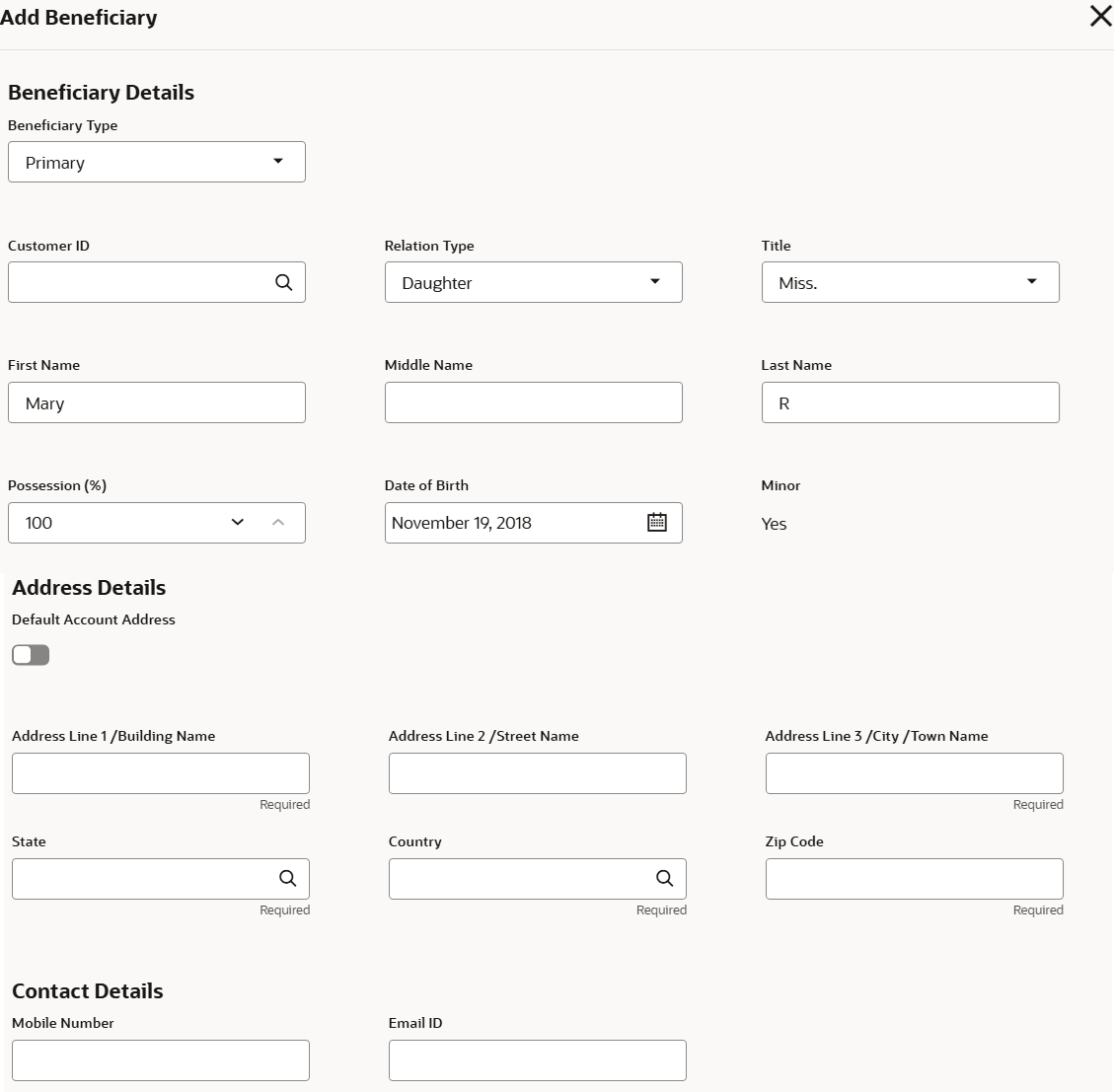
User can add a beneficiary to an account.
Note:
The fields marked as Required are mandatory.To add a beneficiary:
- In the Beneficiary Details section, click Add
Beneficiary.The Add Beneficiary section is displayed.
- You can maintain the required details in the sections displayed. For more
information on fields, refer to the field description table.
Table 1-17 Add Beneficiary Details – Field Description
Field Description Beneficiary Details This section displays the fields for capturing the basic beneficiary details. Beneficiary Type Select the type of beneficiary to be added to the account. The options are: - Primary
- Contingent
Customer ID Select or specify the customer ID to be added as a beneficiary. Relationship Type Select the relationship type with the beneficiary. Title Select a title for the beneficiary. First Name Specify the beneficiary's first name. Middle Name Specify the beneficiary's middle name. Last Name Specify the beneficiary's last name. Date of Birth Select or specify the beneficiary's date of birth. Minor Displays whether the added beneficiary is a minor based on the date of birth selected or specified. Note:
The minor status will be derived from the customer file.Address Details This section displays the fields to capture the beneficiary's address. Default Account Address Switch to toggle ON to default the account address specified.
Switch to toggle OFF to not to default the account address specified.
Address Line 1/Building Name Specify the building of the beneficiary. Address Line 2/Street Name Specify the street of the beneficiary. Address Line 3/City/Town Name Specify the city or town of the beneficiary. State Specify the state of the beneficiary or click Search and select the state from the list of values. Country Country is defaulted based on the state selected and the user is allowed to change it. Zip Code Specify the zip code of the beneficiary. Contact Details This section displays the fields to capture the contact details. Mobile Number Specify the mobile number of the guardian. Email ID Specify the email ID number of the guardian. Note:
A minor or emancipated minor can be a beneficiary without a guardian.When a minor or an emancipated minor is added as a beneficiary to an account, the system displays a validation message indicating that a minor is being designated as a beneficiary. The user is given the option to either proceed with or decline the transaction. Providing guardian details for minor beneficiaries is optional.
- Click Save.The beneficiary details are saved and displayed in the Beneficiary Details Update section.
- Click Submit.The screen is successfully submitted for authorization.
Parent topic: Beneficiary Details Update