3.7.1.1 Create Exact Reconciliation Rule Definition
This topic describes the systematic instruction for setting up recon rule for Exact reconciliation category.
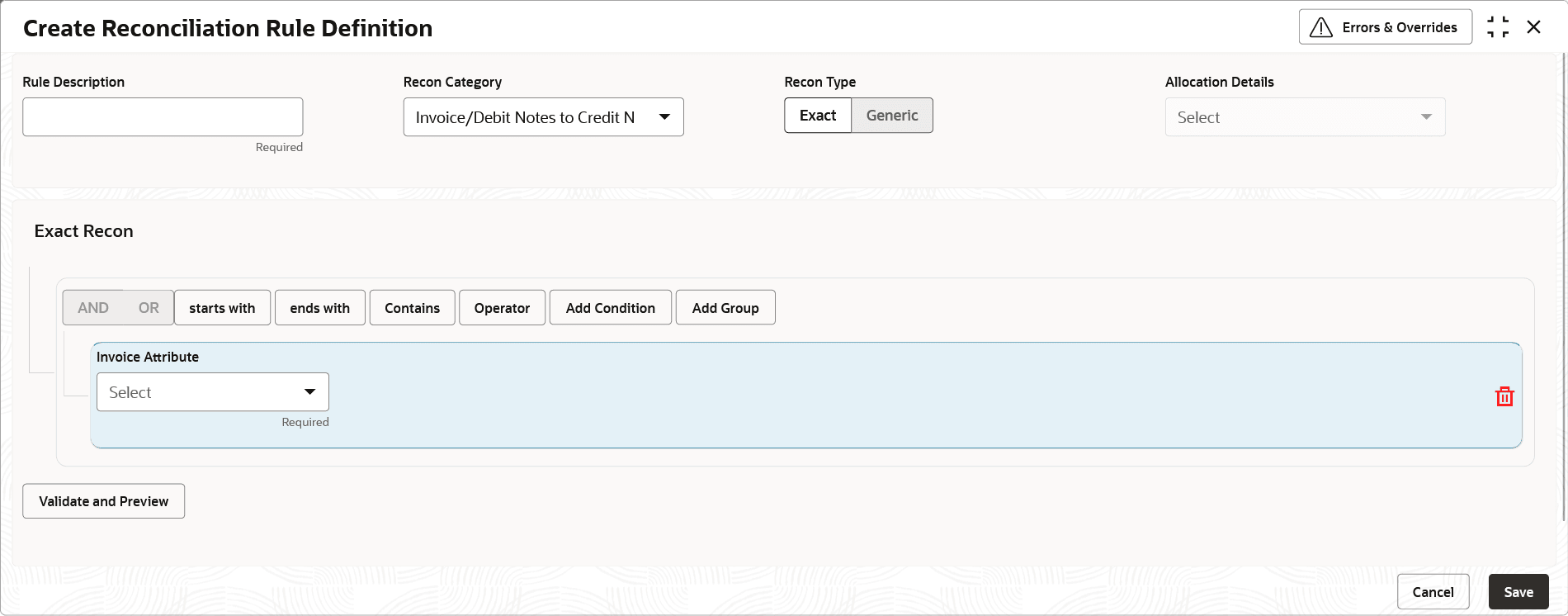
- Under Reconciliation Rule Definition, click Create Reconciliation Rule Definition.The Create Reconciliation Rule Definition screen displays.
Figure 3-44 Create Exact Reconciliation Rule Definition
- In the Exact Recon section, perform the following steps to create conditions or group of conditions:
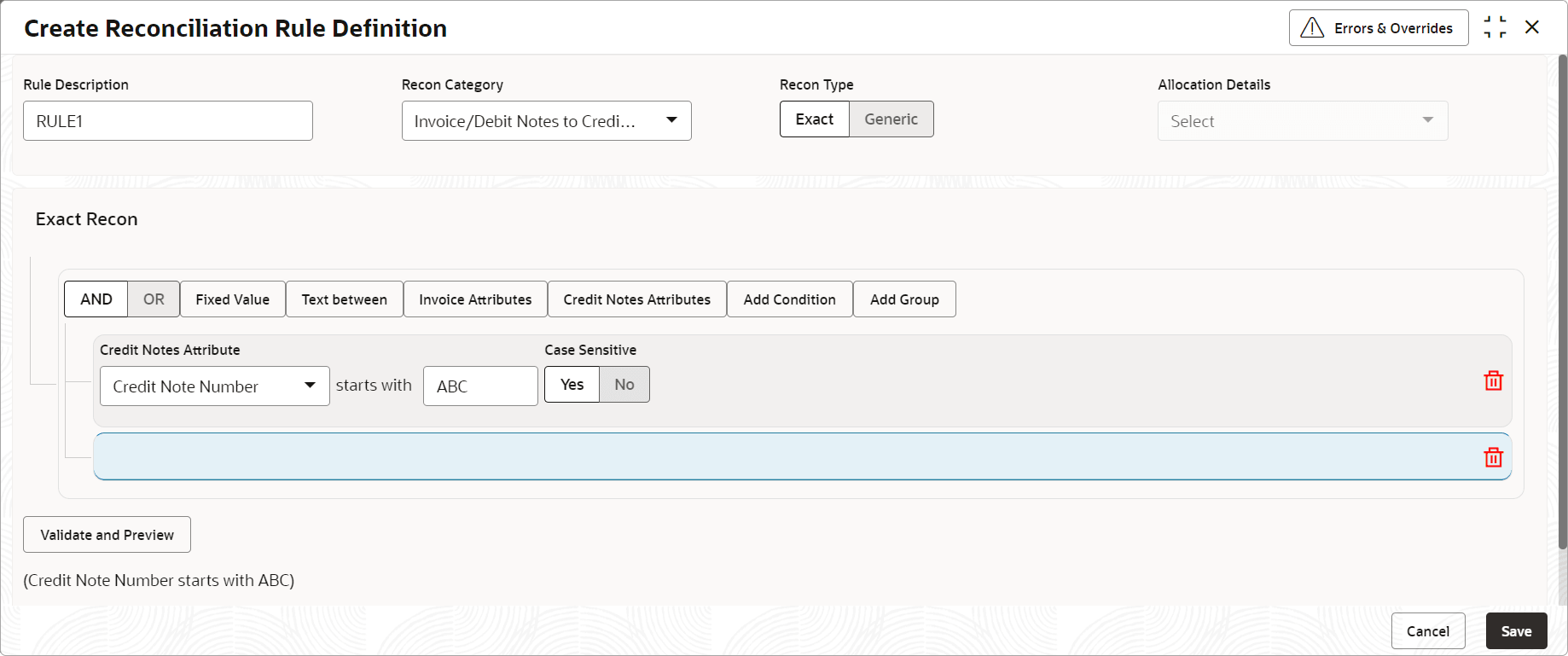
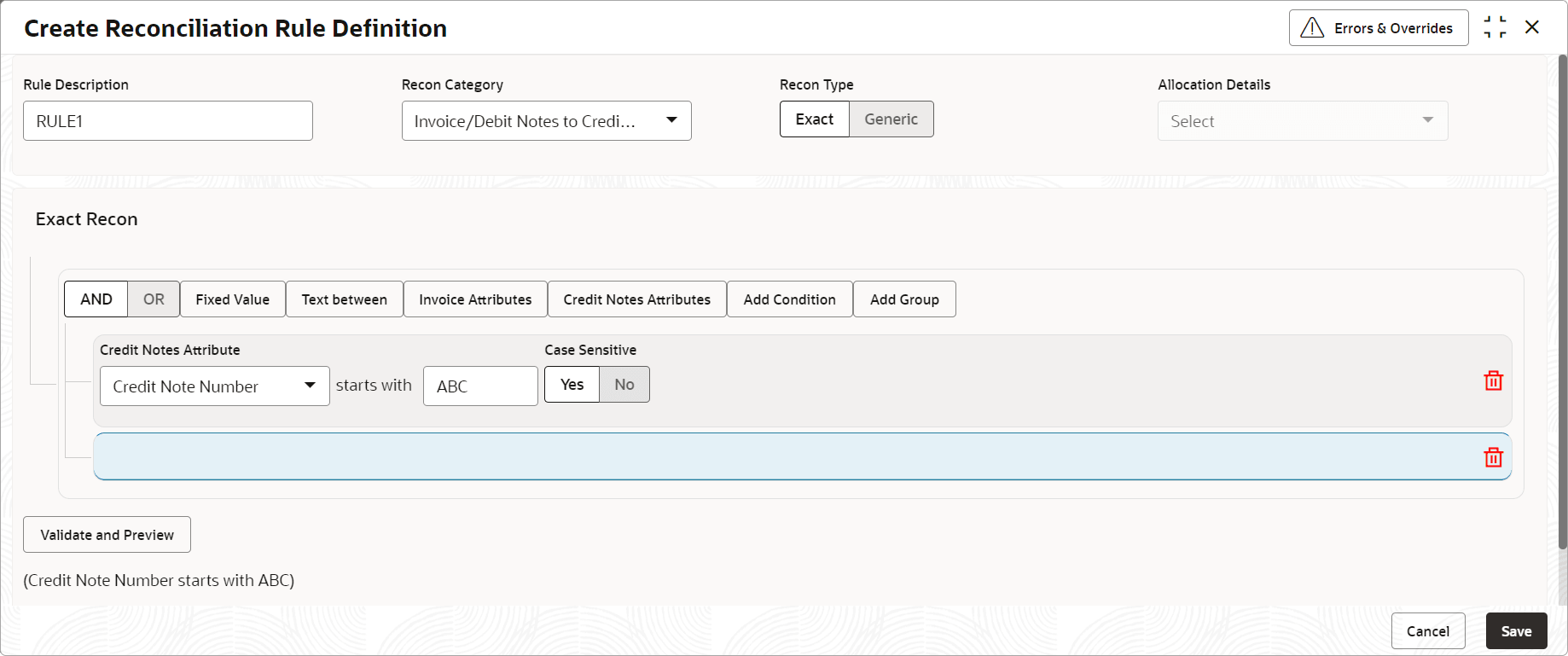
- Click inside the added container to view buttons for adding condition details.The Exact Recon - Condition/Group Details screen displays with the Fixed Value, Text between, Invoice/Payment Attributes, or Payment Attributes (depending on the selected recon category).
Figure 3-45 Exact Recon - Condition/Group Details
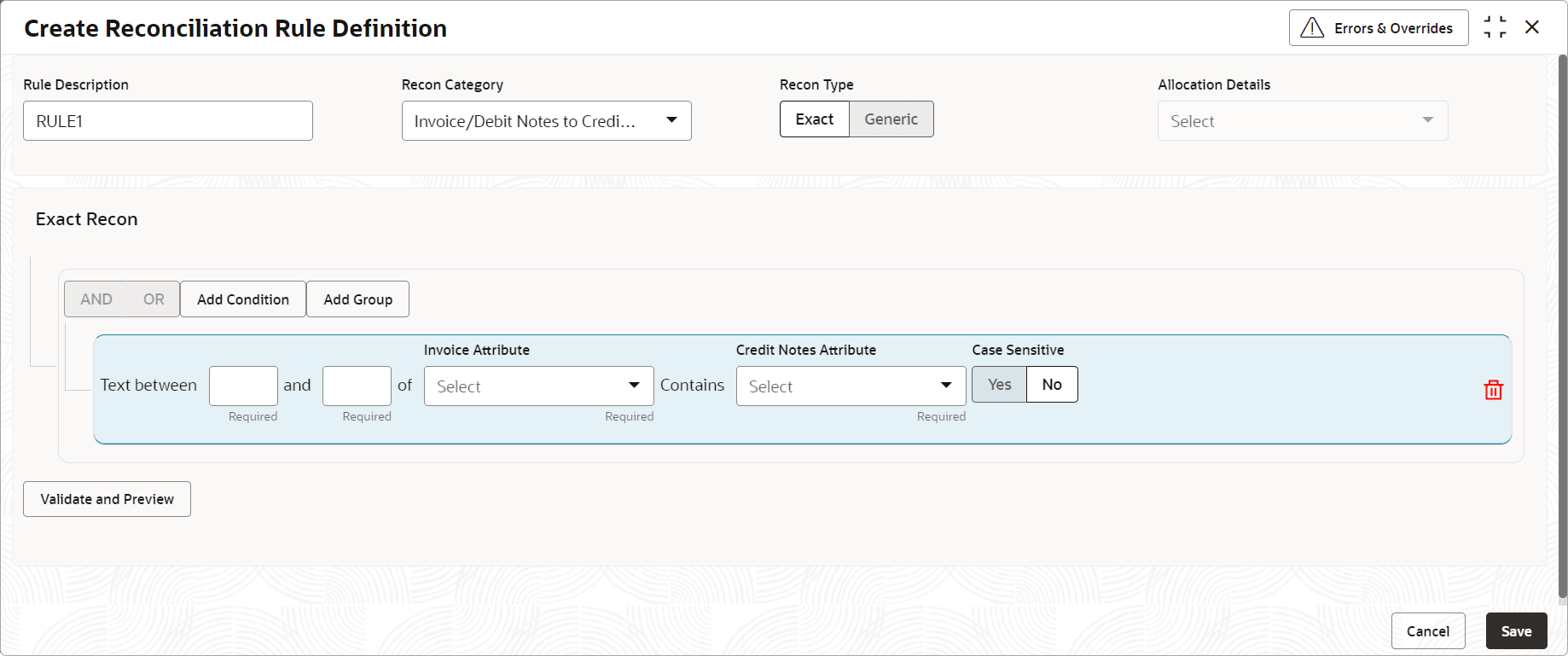
- Click Text between to define the range of text to be validated.The Exact Recon - Text Between screen displays.
- Click to define condition for invoice/ details. Or click
Payment Attributes to define condition for payment
details.The Exact Recon - Attributes screen displays.
For more information on the attributes, refer the following attributes table.
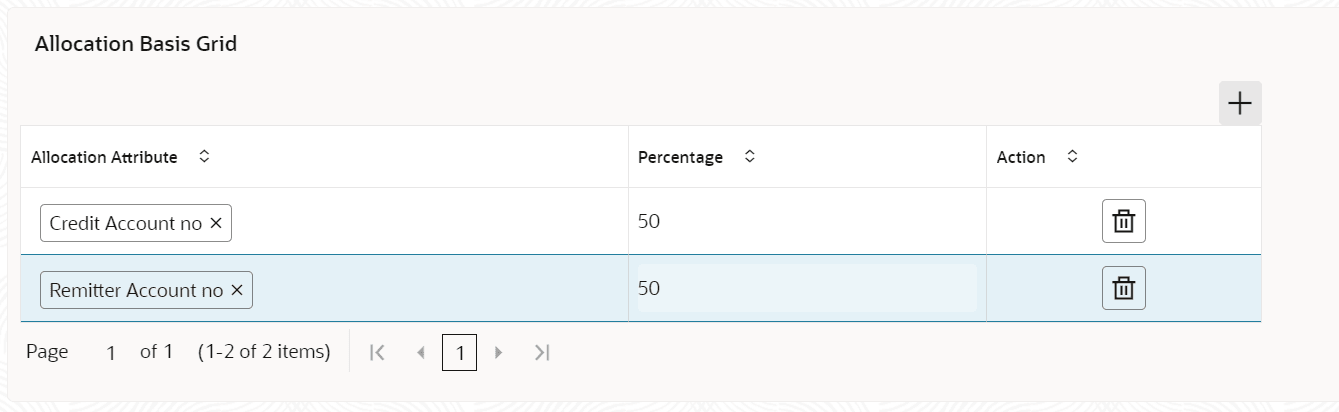
- Click Validate and Preview to check if the added conditions are valid or not.The Allocation Basis Grid displays.
For more information on fields, refer to the field description table.
Table 3-23 Allocation Basis Grid - Field Description
Field Description Narration Specify the narration. The narration entered in the Reconciliation Rule Definition will be sent to VAM during the auto-allocation of the payment to the Virtual Account, so it can be recorded in the statement.
Allocation Account Click  to search and select the Allocation Account
from the LOV.
to search and select the Allocation Account
from the LOV.
Real Account Number Displays the Real Account Number based on the selected Allocation Account. Percentage Specify the percentage of allocation.
- Click inside the added container to view buttons for adding condition details.
- In the Allocation Basis Grid section, perform the following steps to define percentage of account/attribute allocation:
- Click
 to add a new row.
 - Double click the row to add/edit attribute and percentage.
- Repeat the above steps to add more attributes.
- Click
 under Action column to remove the
allocation row.
under Action column to remove the
allocation row.
- Click
Parent topic: Reconciliation Rule Definition