8.2 Reconcile
This topic describes the systematic instruction to select multiple records or single record to reconcile.
- On Manual Recon screen, specify the required details and
click Search.The Reconciliation screen displays with the invoices/debit notes and payments/credit notes are populated in the grid. In case, multiple unreconciled invoices/debit notes and/or payments/credit notes will be populated.
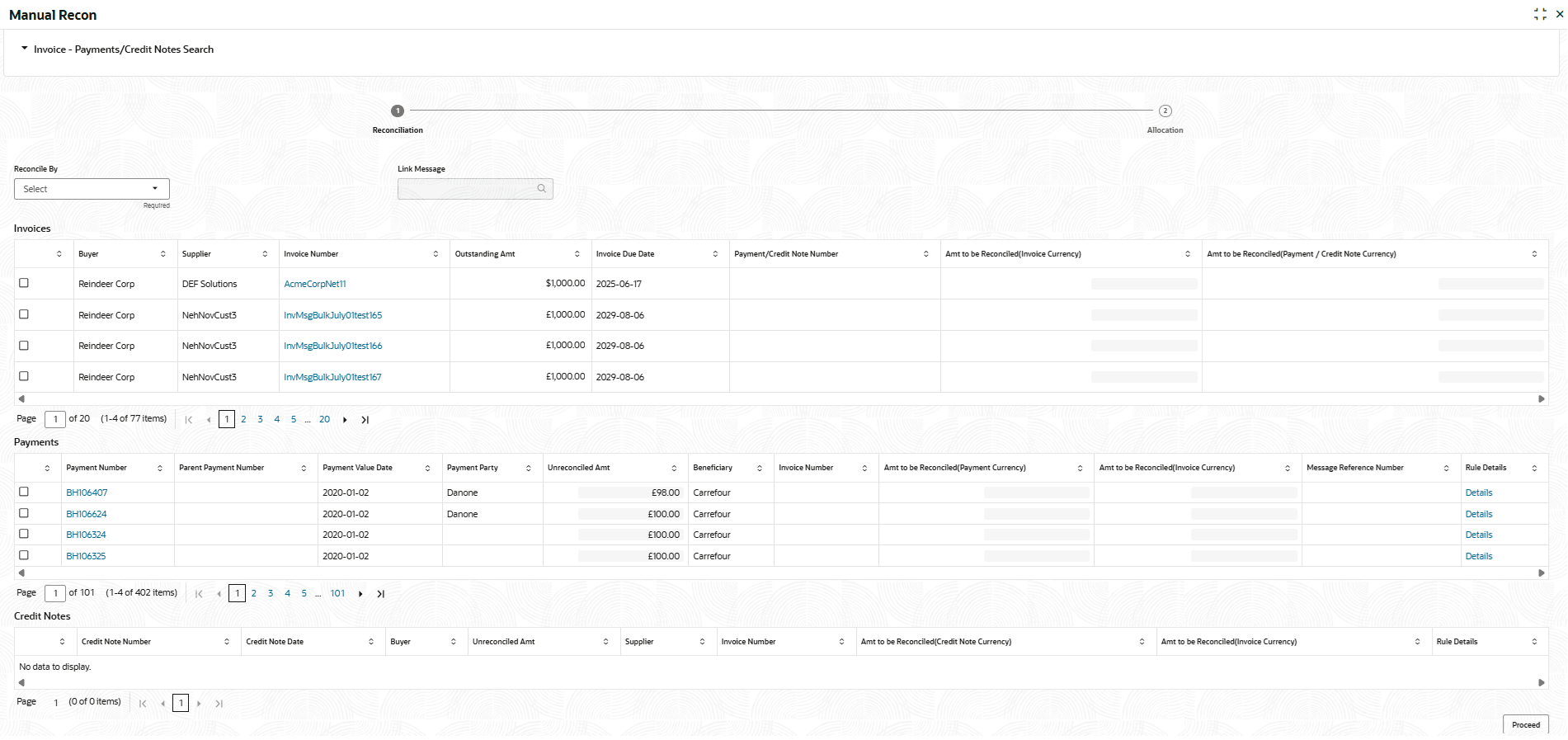
- In the Reconcile By field, select any of the following:
- One Invoice to Many Payment/Credit Notes – To reconcile single invoice from multiple payments/credit notes.
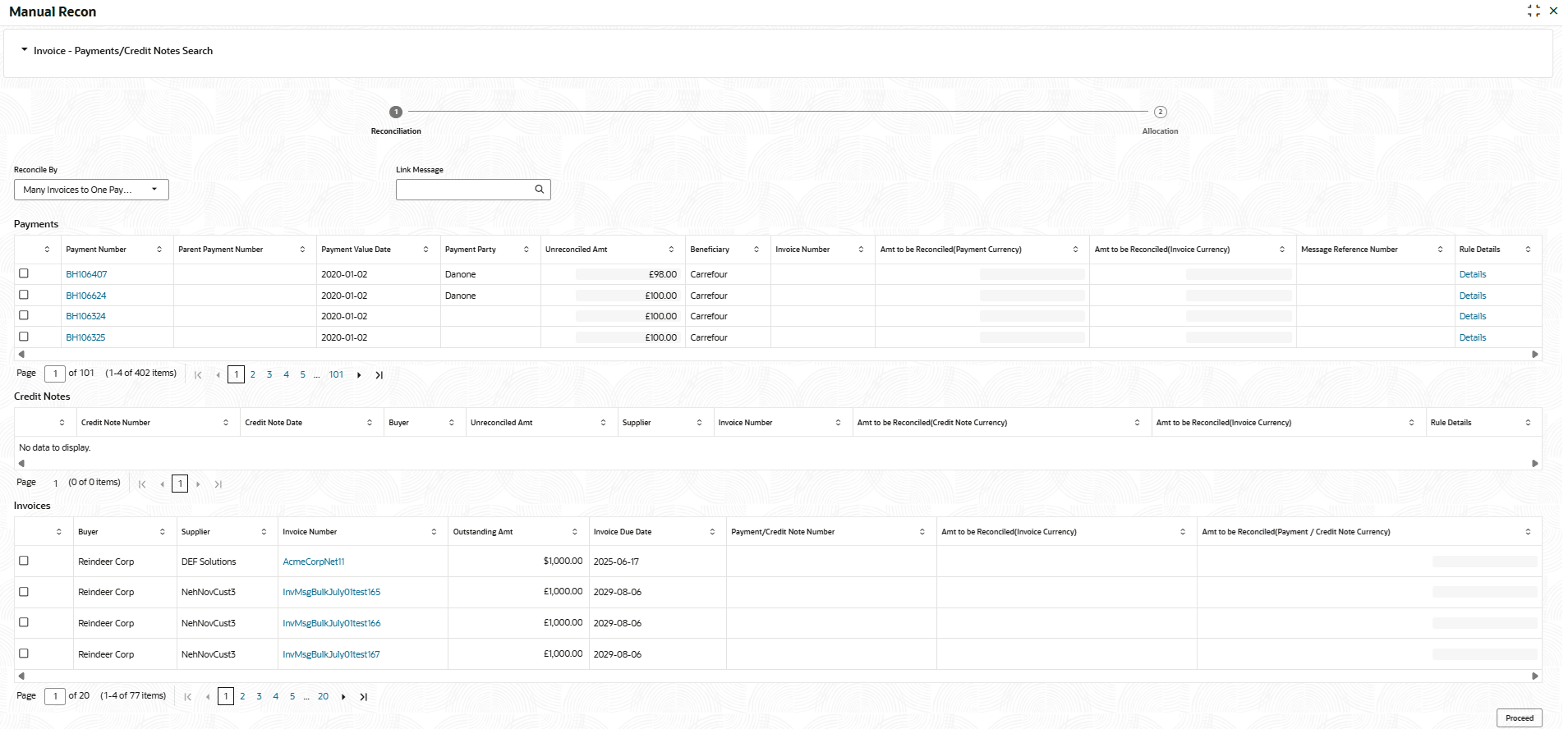
- Many Invoice to One Payment/Credit Note – To reconcile multiple invoices from single payment/credit note.
For One Invoice to Many Payment/Credit Notes:
- In the Invoices/Debit
Notes section, select the invoice/debit note to reconcile.The One Invoice to Many Payment/Credit Notes option selected.
- In the Payments/Credit Notes section,
- Select the payment(s)/credit notes to reconcile.
- In the Amt to be Reconciled (Pay/Cr Note Ccy) column, enter the amount to reconcile in payment/credit notes currency.
For Many Invoices to One Payment/Credit Note:
- In the Payments/Credit Notes section, select the
payment/credit note to reconcile by.The Many Invoices to One Payment/Credit Note option selected.
Figure 8-5 Many Invoices to One Payment/Credit Note
- In the Invoices section,
- Select the invoice(s) to be reconciled.
- In the Amt to be Reconciled (Inv Ccy) field, enter the amount to be reconciled in invoice currency.
- Optional: In the Rule Details column, click Details hyperlink to view rule details.
- Click Proceed to move to the Allocation
stage.The Allocation screen displays.
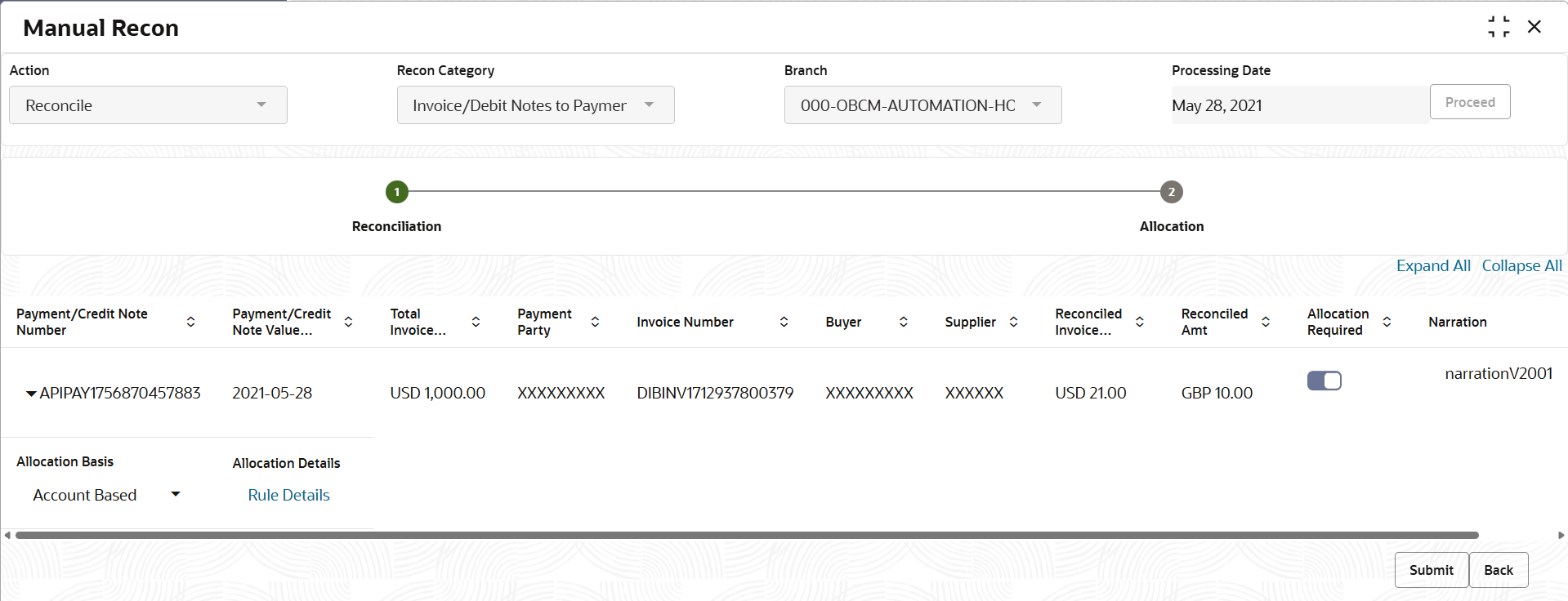
- Specify the fields on Manual Recon - Allocation
screen.
Note:
The fields marked as Required are mandatory.For more information on fields, refer to the field description table.
Table 8-3 Manual Recon - Allocation - Field Description
Field Description Payment/Credit Note Number Displays the payment/credit note number. Payment/Credit Note Value Date Displays the payment/credit note value date. Total Invoice Amount Displays the total invoice amount post calculating base invoice amount, discount, and tax. Payment Party Displays the party making the payment. Invoice Number Displays the unique reference number of the invoice. Buyer Displays the name of the buyer. Supplier Displays the name of the supplier. Reconciled Invoice Amt Displays the Reconciled invoice amount. Reconciled Amt Displays the reconciled amount. Allocation Required Switch on the toggle, if allocation required. Narration Display the default narration value from the Recon Rule Definition maintenance as an editable field. If the narration is not provided in the recon rule maintenance, the system should display a blank text field. The user can edit this field, if Allocation Required toggle is enabled.
Allocation Basis Select the allocation basis to specify whether the allocation should be done based on the account or attribute of entity like cashflow/payment/invoice. The available options are:- Account Based
- Attribute Based
This field is displayed, if Allocation Required toggle is enabled.
Allocation Details Displays the Rule Details link. Click the link to specify the allocation details
This field is displayed, if Allocation Required toggle is enabled.
- In the Allocation Required column, enable the toggle to allocate the payment manually.
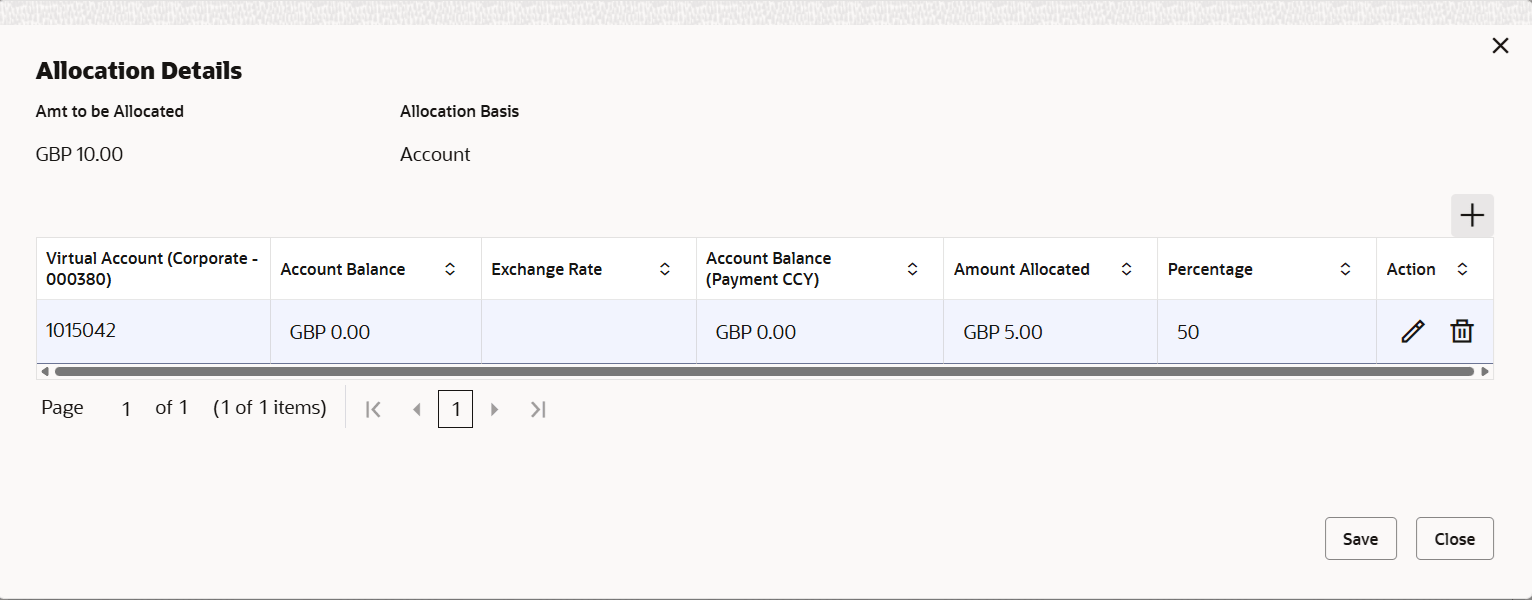
- Click the Rule Details link in the Allocation Details screen. The Allocation Details overlay screen displays.
- Specify the fields on Allocation Details screen.
For more information on fields, refer to the field description table.
Table 8-4 Allocation Details - Field Description
Field Description Amount to be Allocated Displays the amount to be allocated to the virtual account. Allocation Basis Displays the allocation basis that is, whether the allocation is done based on the Account or Attribute. Virtual Account Displays the default Virtual Account, if available, defined in the rule definition for Recon Category Allocation to Virtual Account.
Or click the Search icon and select the virtual account.
Account Balance Displays the account balance of Virtual Account in account currency. The Virtual Account balance is fetched from VAM on selection of the Virtual Account.
Exchange Rate Displays the spot exchange rate (payment ccy and account ccy) from Common Core. Account Balance (Payment CCY) Displays the account balance of the selected virtual account for allocation in payment currency. Note: The account balance in the payment currency is checked by the system against the allocated amount. If the account balance in the payment currency is exceeded by the allocated amount, a warning message will be shown: 'The amount to be allocated is greater than the account balance. Please adjust the allocation amount or the allocation account.'
Amount Allocated Specify the amount allocated to the selected virtual account. Percentage Specify the percentage of the amount. Action Click edit icon to edit the Allocation details. Click delete icon to delete the Allocation details row.
- In the Virtual Account column, select the account to be allocated.
- In the Allocated Amount column, specify the amount to be allocated for the respective virtual account.
- In the Percentage column, specify the percentage of the amount.
- Click Submit to confirm the reconciliation and send the record for authorization.
Parent topic: Manual Reconciliation