3 Create Cashflow Transaction
This topic describes the systematic instruction to create Cashflow transaction.
The screen allows the back office user to capture the data to create cashflow through UI / Screen in Oracle Banking Cash Management.
- On Home screen, click Cash Management. Under Cash Management, click Cashflow.
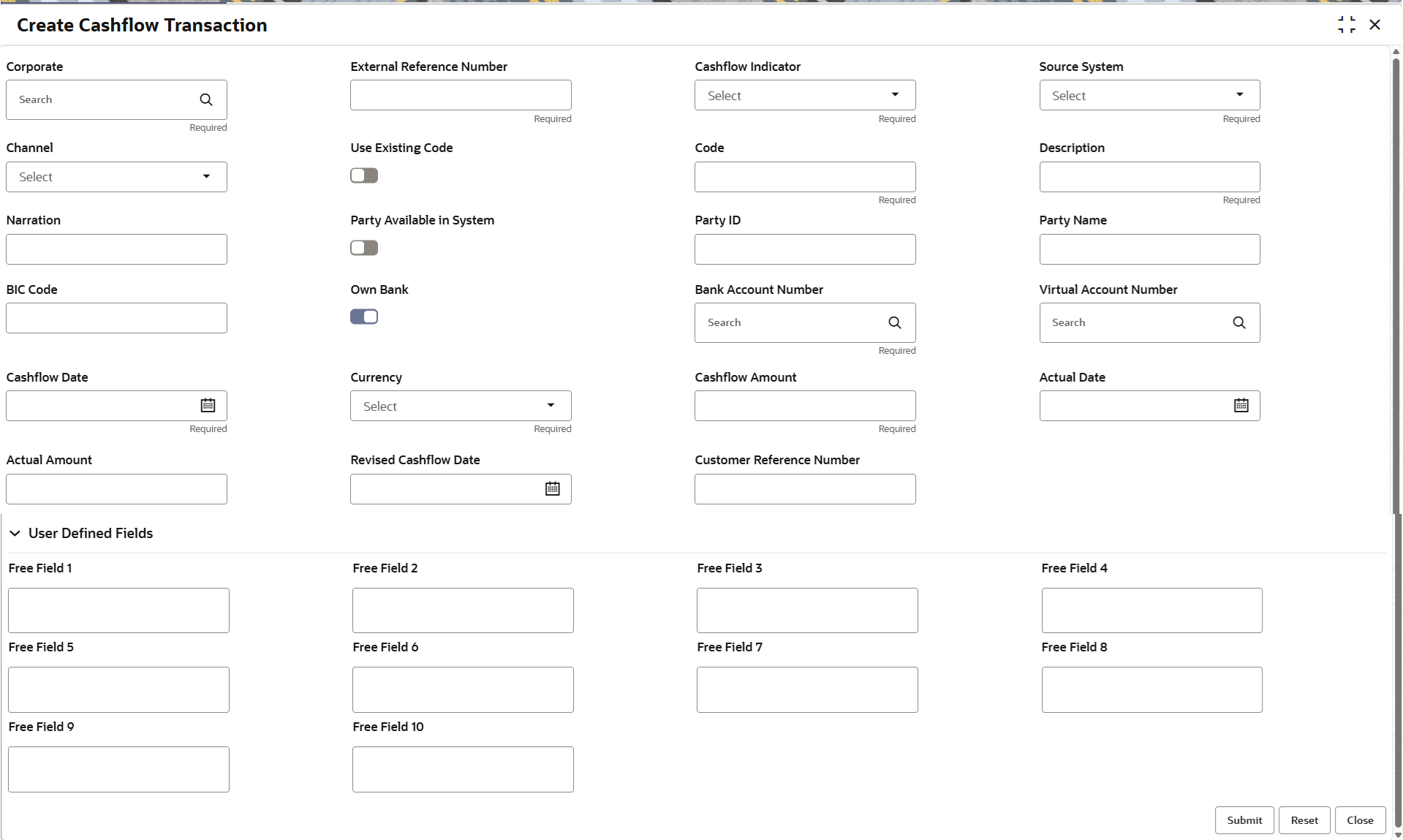
- Under Cashflow, click Create Cashflow Transaction.The Create Cashflow Transaction screen displays.
- Specify the fields on Create Cashflow Transaction screen.For more information on fields, refer to the field description table.
Note:
The fields marked as Required are mandatory.Table 3-1 Create Cashflow Transaction - Field Description
Field Description Corporate Click the Search icon to select a specific customer for whom the cashflow transaction needs to be created. External Reference Number Specify a reference number that have been generated in the external system. This number helps to search the cashflow in inquiry screens and for edit.
Cashflow Indicator Select whether the cashflow is an Inflow or outflow. The options are:- Inflow
- Outflow
Source System Select the source of the expected cashflow. The options are:- OBCM
- OBDX
- OBSCF
- OTHER
Channel Select the channel of the expected cashflow. The options are:- OBCM
- OBDX
- OBSCF
- OTHER
Use Existing Code Switch the toggle On to search for existing cashflow codes that are created in the Cashflow Code Maintenance screen. Code Specify a new code for the recurring cashflow. Click Search icon to select the code if Use Existing Code option is enabled.
Description Specify the description of the new code if Use Existing Code switch is disabled. This field will display the description as saved for the code in Cashflow Code Maintenance screen if the Use Existing Code switch is enabled.
Narration Specify the narration of the cashflow transaction. Party Available in System Switch the toggle On to search for corporate already available in Oracle® Banking Cash Management. Party ID Specify the Party Id to or from whom the cashflow is expected. Click Search icon to select the Party Id, if Party Available in System switch is enabled.
Party Name Specify the party name to or from whom the cashflow is expected. This field will display the party name, if the Party Available in System switch is enabled.
BIC Code Specify the BIC code. BIC code is a Bank Identifier Code that helps to identify external bank accounts in a data storing system.
Own Bank Switch the toggle On to indicate if the bank account where the cashflow is received / paid is from own bank or external bank. Bank Account Number Click Search icon to search and select the customer bank accounts from common core or OBLM. Virtual Account Number Specify the virtual account number. Click Search icon to fetch the Virtual Account of the corporate from VAM, if the Own Bank switch is enabled.
Cashflow Date Select the date on which the cashflow is expected. This date can be backdated or future dated based on the system parameter in back end.
Currency Select the currency of the cashflow transaction. Cashflow Amount Specify the amount of expected cashflow. Actual Date Select the date on which the actual amount is received. Actual Amount Specify the amount if any or some part of the expected cashflow is already received / paid / reconciled in an outside system or before entering in OBCM. Revised Cashflow Date Select the date if the expected cashflow date is changed or modified; user can modify the same here Customer Reference Number Specify the reference number other than external reference number. This reference number is typically provided by customer especially when input from channel.
User Defined Fields This section displays the User Defined fields. Free Field 1 to 10 Specify the additional information, if required. - Perform any of the following steps as per your requirement:
- Click Submit to create a new cashflow transaction.
- Click Reset to reset / clear the data on the screen.
- Click Close to close the page.
The created cashflow transaction goes to Free Tasks for Approval if Auto Auth flag is enabled in System Parameter.