3.14.3.2 View Alert Decisioning
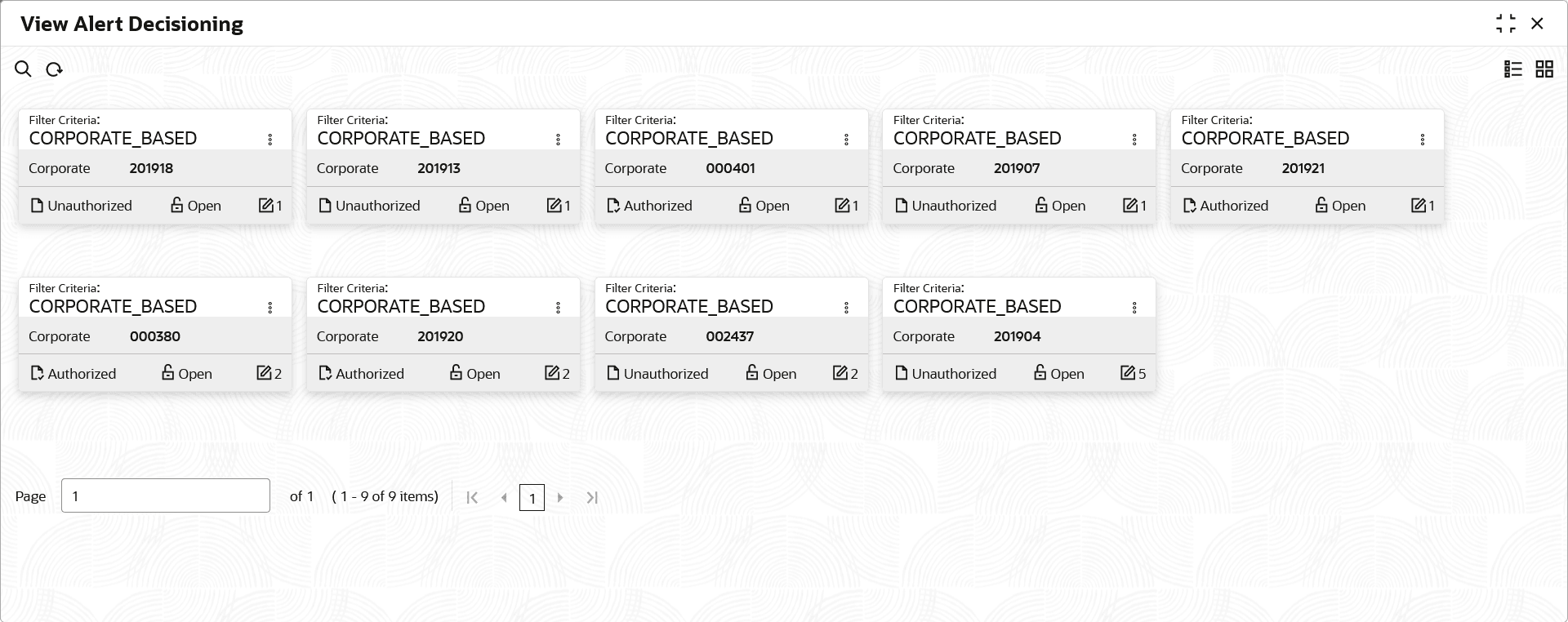
This topic describes the systematic instruction to view, modify, or authorize alert decisioning record details.
A tile is present for each record that has been created. The bottom
portion of each record-tile displays the following:
- The status, whether Authorized, Unauthorized, or Rejected.
- Open or Closed.
- The number of times the record has been submitted by the Maker added.
Specify User ID and Password, and login to Home screen.
- Under Alerts, click Alert Decisioning. Under Alert Decisioning, click View Alert Decisioning.The View Alert Decisioning screen displays.
- Click Options icon and then, select any of the following options:
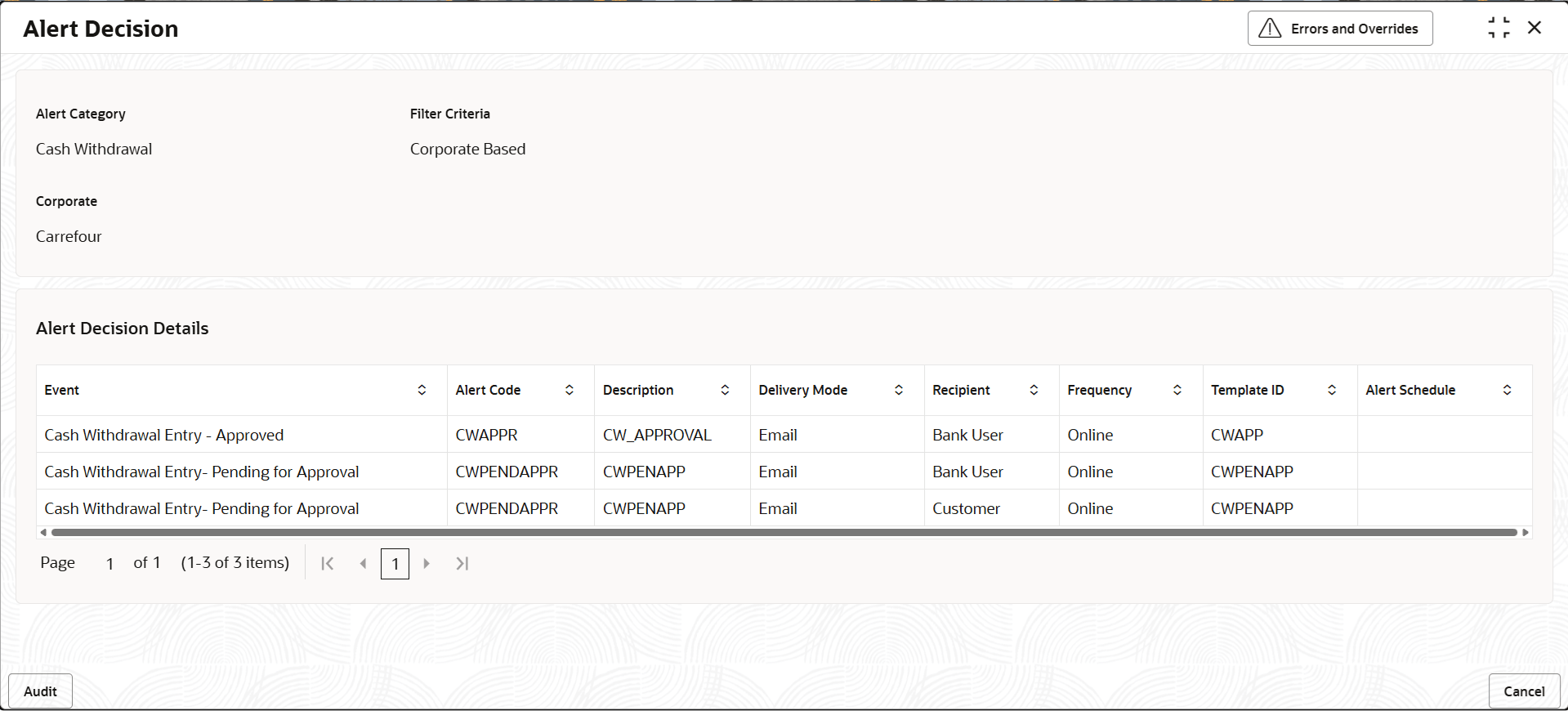
- View – To view the record details. The Alert Decision screen displays.
For more information on fields, refer to the field description table.
Table 3-39 Alert Decision - Field Description
Field Description Alert Category Displays the category of the event for which the alert needs to be set. Filter Criteria Displays the filter criteria for specific application of alerts. Corporate Displays the corporate for which the decisioning record has been created. Alert Decision Details This section displays the alert decesion details. Event Displays the event for which the alert should be used. The list of events are displayed based on the selected category. Alert Code Displays the alert code. Description Displays the description of the alert code. Delivery Mode Displays the mode through which the alert should be sent. If the Plato Alert Integration toggle is enabled at the System Parameters screen, then the available options are:- Dashboard
- SMS
If the Plato Alert Integration toggle is disabled at the System Parameters screen, then the available options is:Recipient Displays the recipient to whom the alert should be sent. Frequency Displays the frequency to send the alerts as follows: - Online - if the alert should be sent only when the event is generated.
- Scheduled - if the alert should be sent one or more times prior to the generation of the event.
Template ID Displays the template ID mapped to the event and alert code when the frequency is set to 'Online'. Alert Schedule Displays the alert schedule. Click the View link to view all the associated template IDs and their alert schedule details on the overlay screen.
The link is displayed when the frequency is selected as Scheduled.
- View – To view the record details. The Alert Decision screen displays.
Parent topic: Alert Decisioning