16.1 Process to Create Fees and Charges
This topic describes the information about Create a Fees and Charges.
To create a fees and charge:
- From Homescreen, click Collections. Under Collections, click Maintenance.
- Under Maintenance, click Product
Processor. Under Product Processor, click
Create Fees and Charges.The Create Fees and Charges screen is displayed.
Figure 16-1 Create Fees and Charges
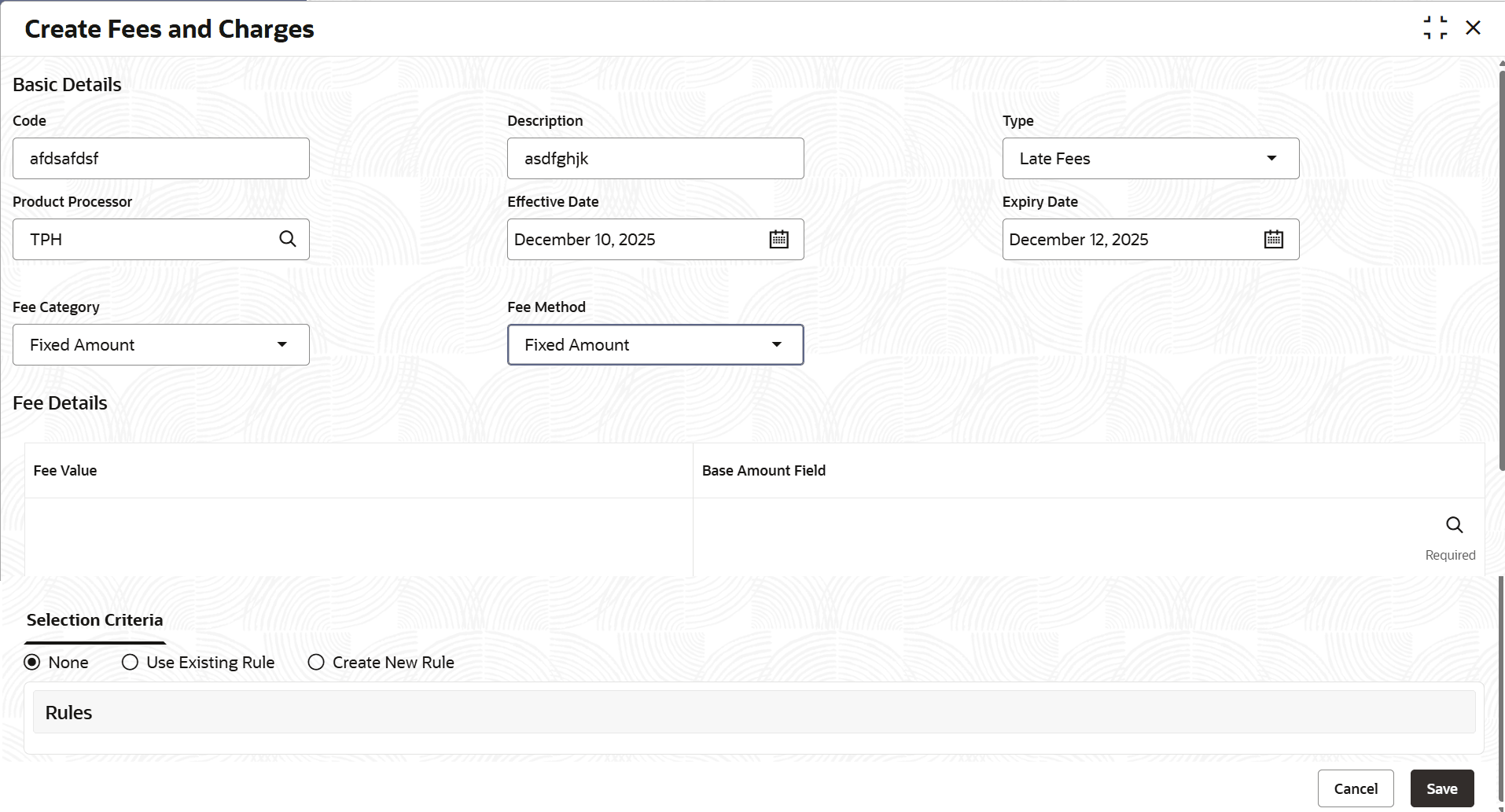
- Specify the fields on the Create Fees and Charges
screen.For more information on fields, refer to the field description table.
Note:
The fields marked as Required are mandatory.Table 16-1 Create Fees and Charges
Field Name Description Code Indicates the unique identification code of the fees and charge. Description Indicates the description of the fees and charge. Type Select the type of fee to be calculated. The options are: - Late Fees
- PTP Broken Reversal
- Legal Charges
- Agency Fees
- Repossession Charges
- Bankruptcy Charges
- Others
Product Processor Indicates the product processor applicable for the fees and charge. Effective Date Indicates the date from when the fees and charge is effective in the system. Note: The date should be later than or equal to the business date. However, it must be earlier than or equal to the expiry date.
Expiry Date Indicates the date till when the fees and charge is effective in the system. Note: The date should be later than or equal to the business date. However, it must be later than or equal to the effective date.
Fee Category Indicates the category of the fee to be calculated. The options are: - Fixed Amount
- Fixed Percent
Fee Method Indicates the method used for fee calculation. The options are displayed dynamically depending on the fee category selected: - Fixed Amount
- Fixed Percent
Fee Value Indicates the actual value of Fee that will be calculated and applied. Base Amount Field Select the Amount field based on which fee will be calculated. The options are: - Overdue Amount
- Outstanding Amount
- Promised Amount
- Received Amount
- Principal Amount
- Interest Amount
Selection Criteria This section is used to configure rules for auto calculation of fees and charge by the system. For more information on how to configure rules, see Oracle Banking Common Core User Guide. - Perform one of the following action:
- Click Save to save the details.The Fees and Charges is successfully created and can be viewed using the View Fees and Charges screen.
- Click Cancel to discard the changes and close the screen.
- Click Save to save the details.
Once the fees and charge is created, user can view the same using the View Fees and Charges page. Upon creation, the authorization status of the fees and charge is Unauthorized and the record status is Open. After a fees and charge is created, it must be authorized to be effective in the system.
Parent topic: Fees and Charges
