13.1 Process to Create Promise Type
This topic describes the information about Create a Promise Type.
- From Homescreen, click Collections. Under Collections, click Maintenance.
- Under Maintenance, click Promise
Type. Under Promise Type, click
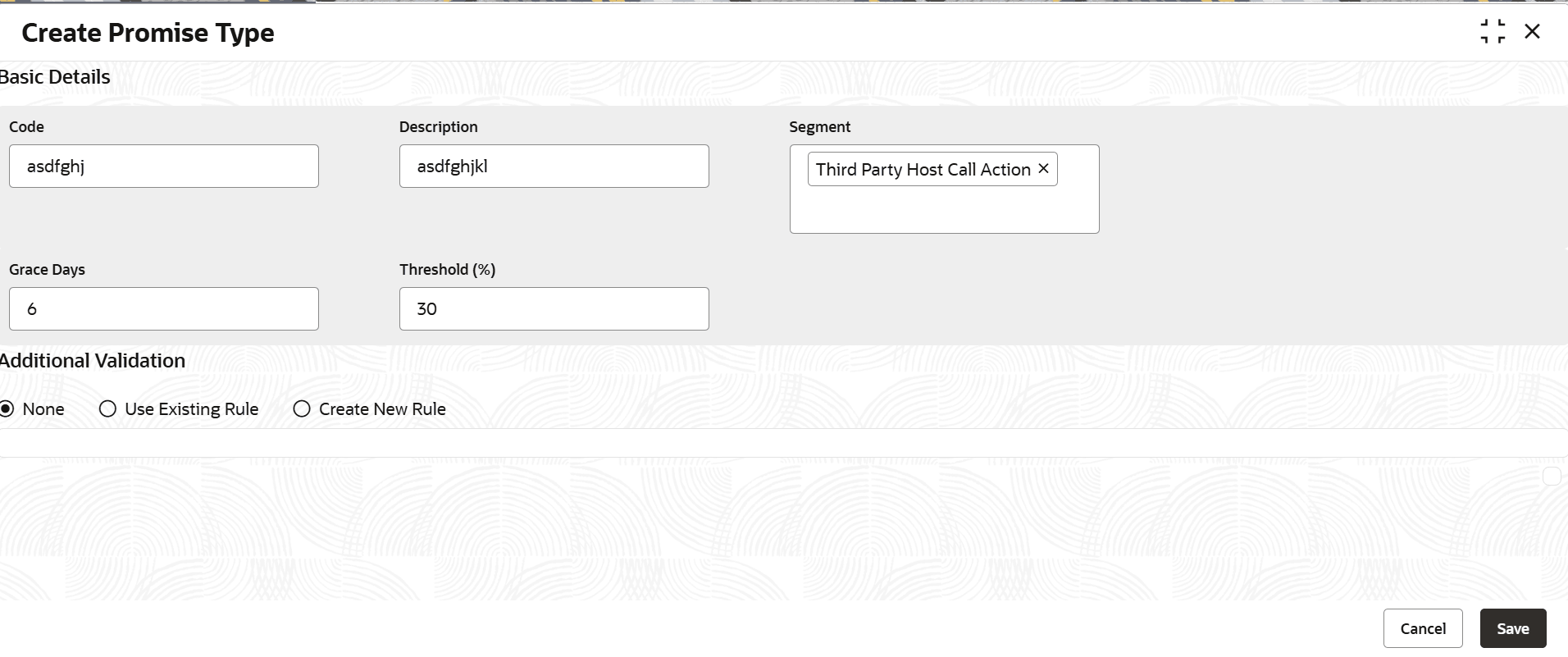
Create Promise Type.The Create Promise Type screen is displayed.
- Specify the fields on the Create Promise Type
screen.For more information on fields, refer to the field description table.
Note:
The fields marked as Required are mandatory.Table 13-1 Field Description: Create Promise Type
Field Name Description Basic Details This section is used to provide basic information of the promise type. Code Indicates the unique identification code of the promise type. Description Indicates the description of the promise type. Segment Indicates the segment to which the promise type is associated. User can select multiple segments. If user do not select any segment, the promise type is applicable for all segments by default.
Grace Days Indicates the number of grace days allowed to the customer for payment of the promised amount against the promise to pay. It is the additional number of days allowed to make payment if the customer fails to pay on the promised date. Threshold (%) Indicates the threshold limit in percentage of the promised amount. Note: The limit should not be greater than 100%.
Alert Configuration This tab is used to set configurations for sending alerts to the customer. Event Indicates the event for which user want to configure alert. The options are:- Reminder
- PTP Capture
- PTP Kept
- PTP Broken
Note: If user are configuring multiple communication modes for an event type, ensure that each event type and communication mode combination is unique. However, this is not applicable if user select event type as Reminder.
Reminder Days Indicates the number of days prior to the promised date of payment when the reminder should be sent to the customer. Note: This field is enabled only if user select Reminder option in the Event field.
Recipient Type Indicates the recipient type to which the alert is to be sent. The options are:- Primary
- Financial Owners
- All
Communication Mode Select the mode of communication for sending the alert. The options are:- SMS
- Letter
Template/Rule Select the template in which the alert will be sent using the communication mode. The options are:- Template: Select this option if user want to select a template.
- Rule: Select this option if user want to select a rule based on which the template will be selected by the system.
Based on the option selected, user need to select template or rule in the adjacent field.
Additional Validation This tab is used to configure rules for additional validations for the promise type. For more information on how to configure rules, refer Oracle Banking Common Core User Guide. - Perform one of the following action:
- Click Save to save the details.The Promise Type is successfully created and can be viewed using the View Promise Type screen.
- Click Cancel to discard the changes and close the screen.
- Click Save to save the details.
Parent topic: Promise Type