12.1 Process to Create User Assignment
This topic describes the information about Create an User Assignment.
- From Homescreen, click Collections. Under Collections, click Maintenance.
- Under Maintenance, click User
Assignment. Under Product Processor,
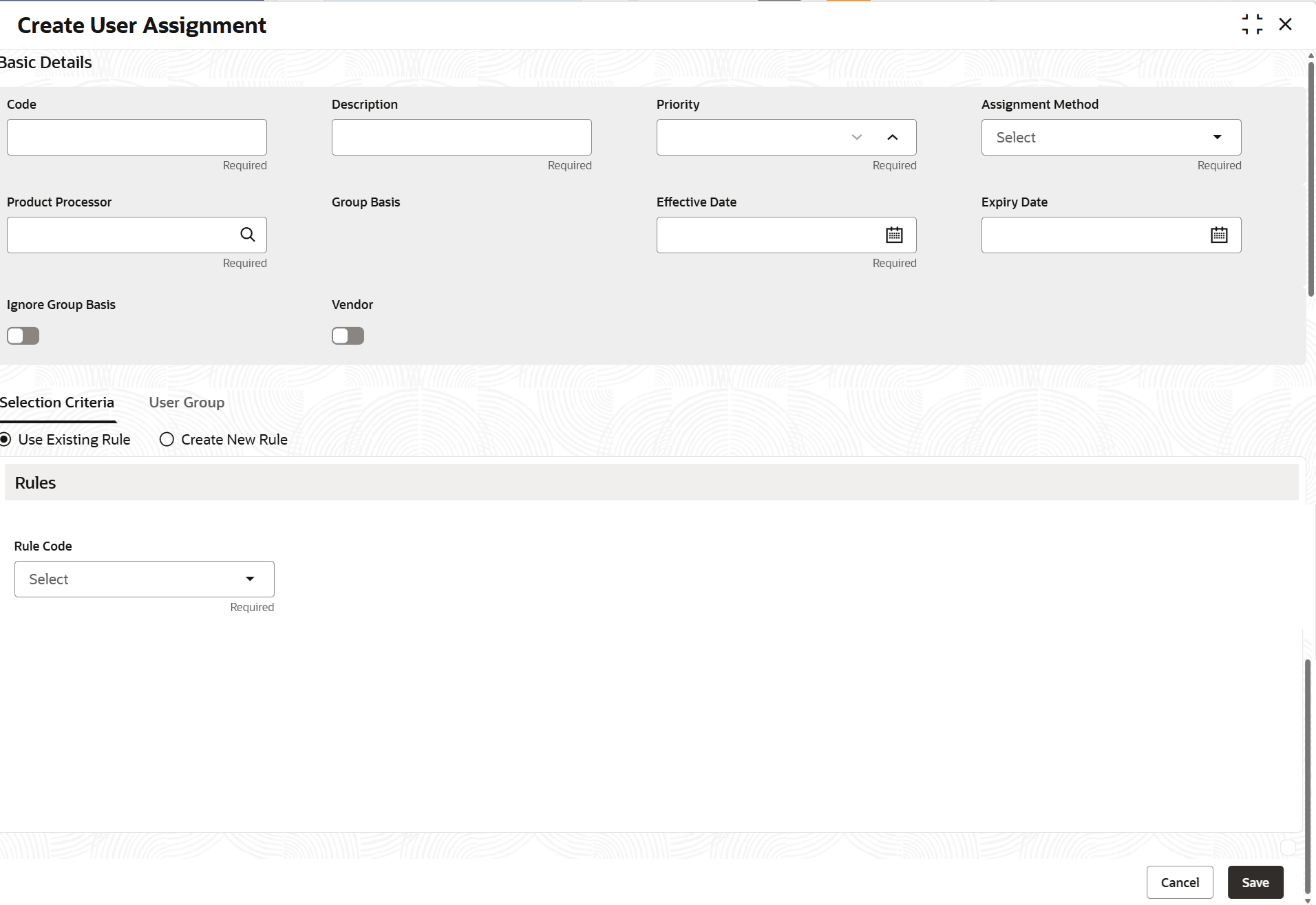
click Create User Assignment.The Create User Assignment screen is displayed.
- Specify the fields on the Create User Assignment
screen.For more information on fields, refer to the field description table.
Note:
The fields marked as Required are mandatory.Table 12-1 Field Description: Create User Assignment
Field Name Description Basic Details This section is used to provide basic information of the user assignment. Code Indicates the unique identification code of the user assignment. Description Indicates the description of the user assignment. Priority Indicates the priority for execution of the user assignment. Note: Priority must be unique for each user assignment. This field is disabled if Ignore Group Basis switch is turned on.
Assignment Method Indicates the assignment method. The options are:- Round Robin
Product Processor Indicates the product processor applicable for user assignment. Group Basis Displays the group basis. The possible options are:- Account
- Customer
Note: The group option appears as defined for the selected product processor.
If the grouping option is Account, accounts received from the product processor are assigned to different collectors. Also, all the user tasks created on the accounts are assigned to different collectors.
If the grouping option is Customer all the accounts related to a customer are assigned to only one particular collector. All the tasks related to the customer are also assigned to one particular collector.
Ignore Group Basis Toggle to indicate whether group basis is ignored for user assignment. Note: If the toggle switch is enabled, then:- configurations set for rules in Selection Criteria tab are not applicable.
- grouping basis of customer or account is ignored and tasks are assigned to various collectors based on skills and expertise.
Specialized Toggle to indicate whether this is specialized user assignment. Note: When Ignore Group Basis is selected, the toggle switch is displayed.
Agency Toggle to indicate whether this is agency assignment. Effective Date Indicates the date from when the user assignment is effective in the system. Note: The date should be later than or equal to the business date. However, it must be earlier than or equal to the expiry date.
Expiry Date Indicates the date till when the user assignment is effective in the system. Note: The date should be later than or equal to the business date. However, it must be later than or equal to the effective date.
Selection Criteria This tab is used to configure rules based on which system assigns the segment to a user group. It also identifies the accounts or customers to be assigned to the user group. For more information on how to configure rules, refer Oracle Banking Common Core User Guide.
User Group This tab is used to associate user groups to the user assignment. User Group Indicates the user group. If agency toggle is not selected , the list displays all the open and authorized user groups which are non-agency groups.
If agency toggle is selected , the list displays all the open and authorized user groups which are agency groups.
Description Displays the description of the user group. Active Toggle to indicate whether user group association is active for the user or agency assignment. - Perform one of the following action:
- Click Save to save the details.The User Assignment is successfully created and can be viewed using the View User Assignment screen.
- Click Cancel to discard the changes and close the screen.
- Click Save to save the details.
Parent topic: User Assignment