17.1.1 Process to Create Vendor

This topic describes the information about Create Vendor.

For creating Vendor, user need to specify details, such as agency code and agency name.
To create Vendor:
  1. From Homescreen, click Collections. Under Collections, click Maintenance.
  2. Under Maintenance, click Vendor Onboarding. Under Vendor Onboarding, click Create Vendor.
    The Create Vendor screen is displayed.

    Figure 17-1 Create Vendor
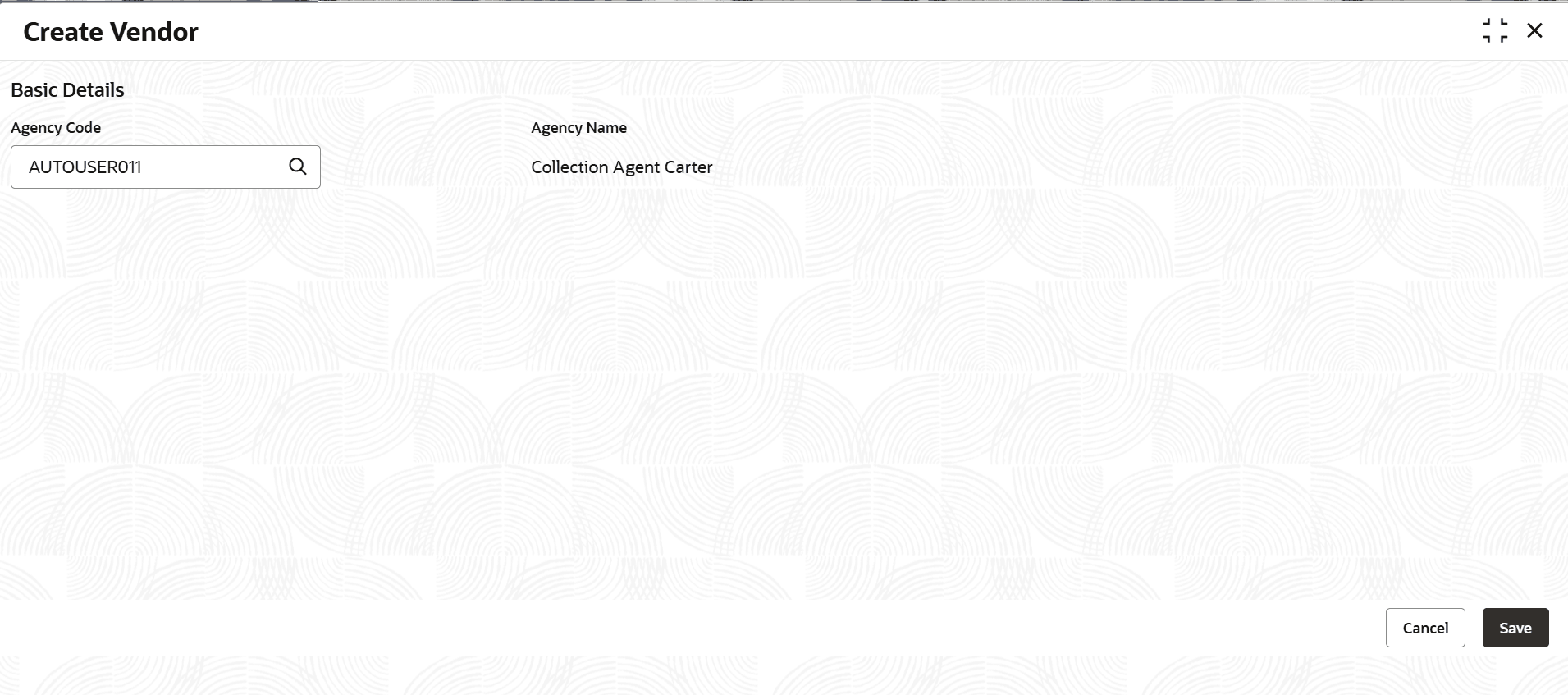


  3. Specify the fields on the Create Vendor screen.

    Note:

    The fields marked as Required are mandatory.
    For more information on fields, refer to the field description table.

    Table 17-2 Field Description: Create Vendor

    Field Name Description
    Agency Code Indicates the unique agency code.

    The list displays all the open and authorized users created in the system.

    Agency Name Indicates the name of the agency.
  4. Perform one of the following action:
    1. Click Save to save the details.
      The Vendor is successfully created and can be viewed using the View Vendor screen.
    2. Click Cancel to discard the changes and close the screen.
Once the vendor is created, user can view the same using the View Vendor page. Upon creation, the authorization status of the Vendor is Unauthorized and the record status is Open. After an agency is created, it must be authorized to be effective in the system.