17.2.1 Process toView Vendor
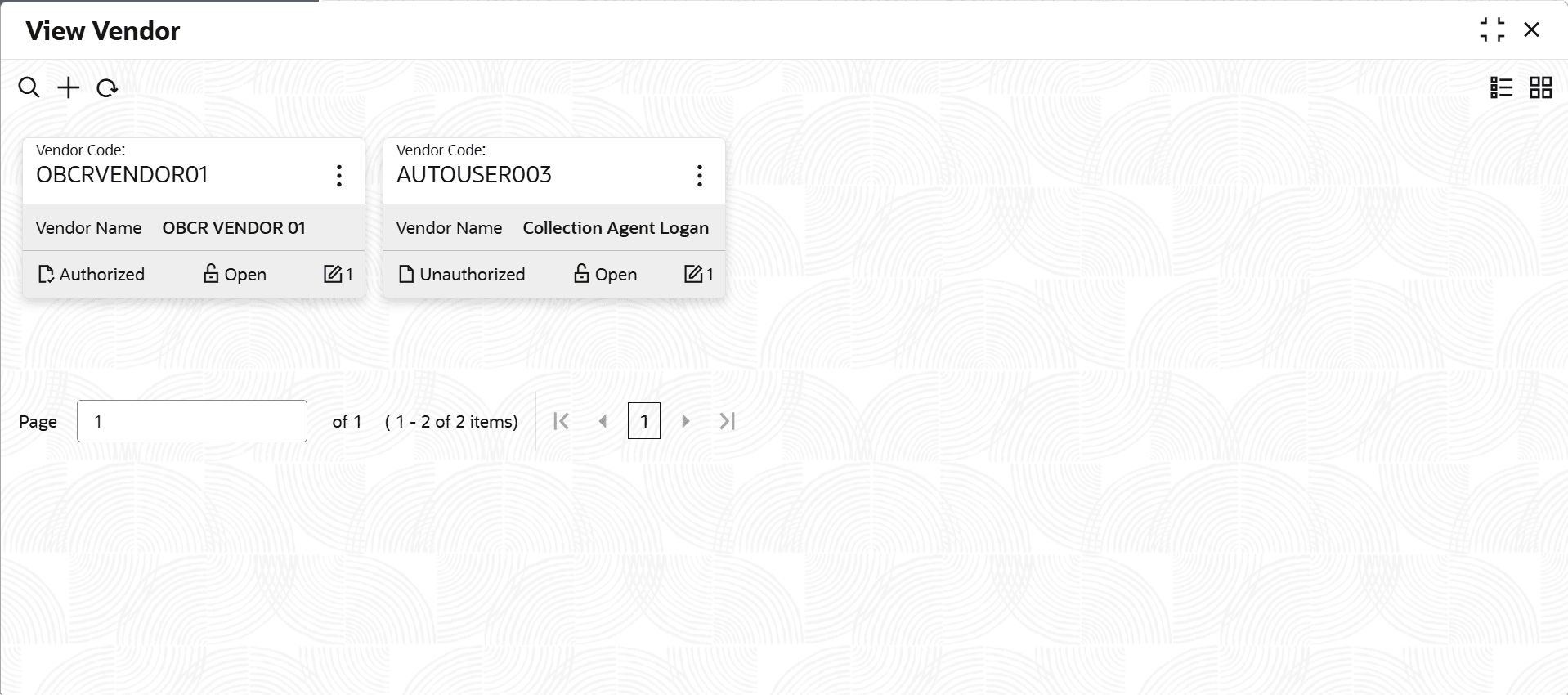
This topic describes the information about View Vendor.
User can view the list of agency created in the system and search for a
particular vendor.
To view the list of Vendors:
- Under Maintenance, click Vendor
Onboarding. Under Vendor Onboarding,
click View Vendor.The View Vendor screen is displayed. For more information on fields, refer to the field description table.
Table 17-5 Field Description: View Vendor- Tile
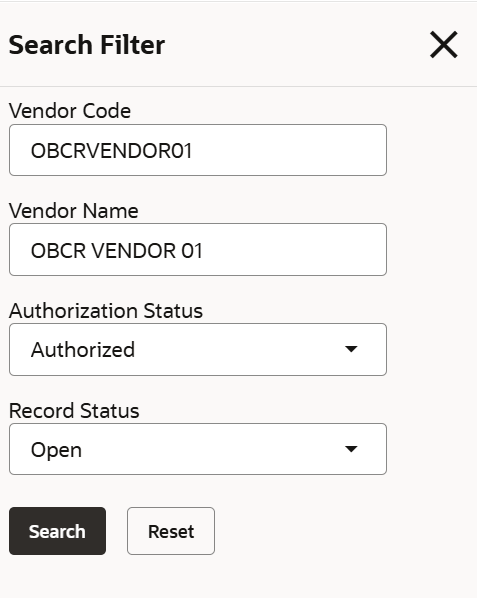
Field Name Description Agency Code Displays the agency code. Agency Name Displays the name of the agency. - On the View Vendor screen, click

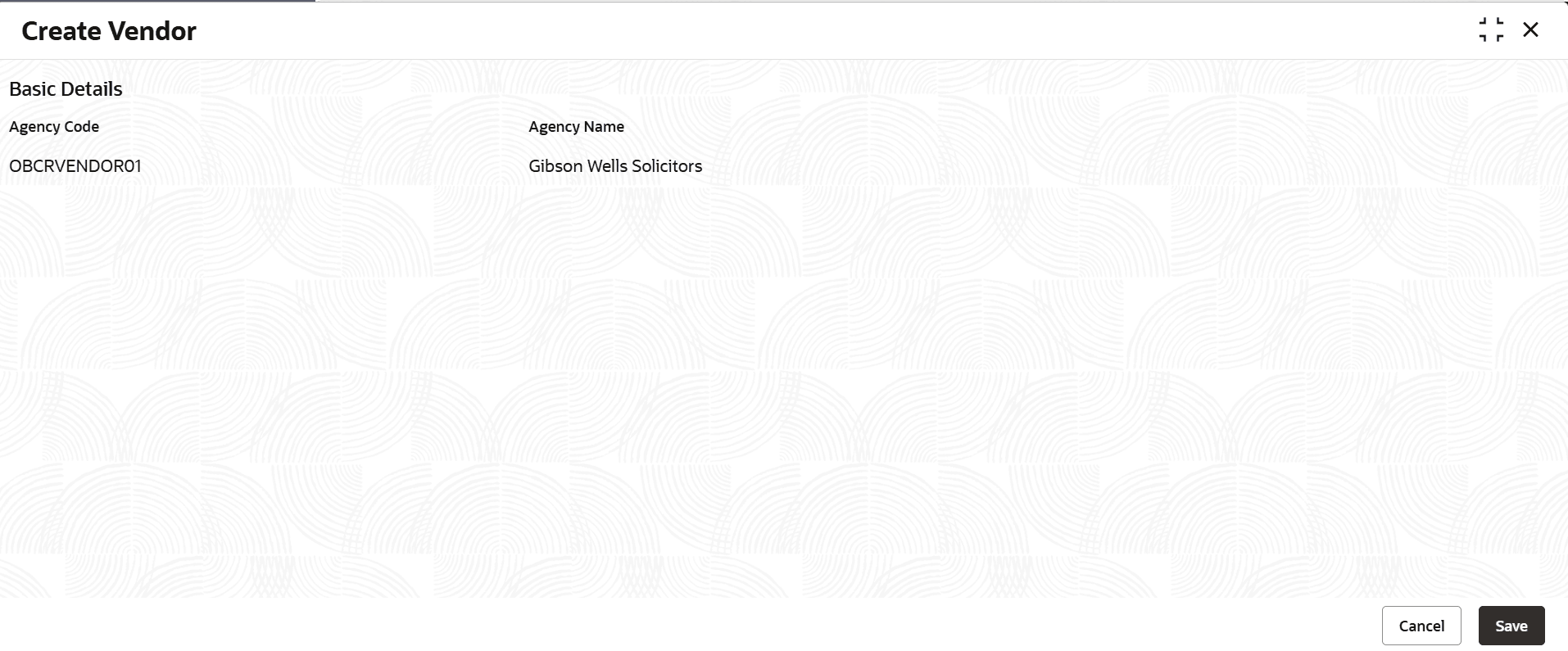
icon.The View Vendor - Search screen is displayed. - Click Unlock to modify the created Vendor.The Create Vendor - Modify screen is displayed.
For more information on fields, refer to the field description table.
Table 17-7 Create Vendor - Modify - Field Description
Field Name Description Agency Code Indicates the unique agency code. The list displays all the open and authorized users created in the system.
Agency Name Indicates the name of the agency. - Click View to view the created product processor
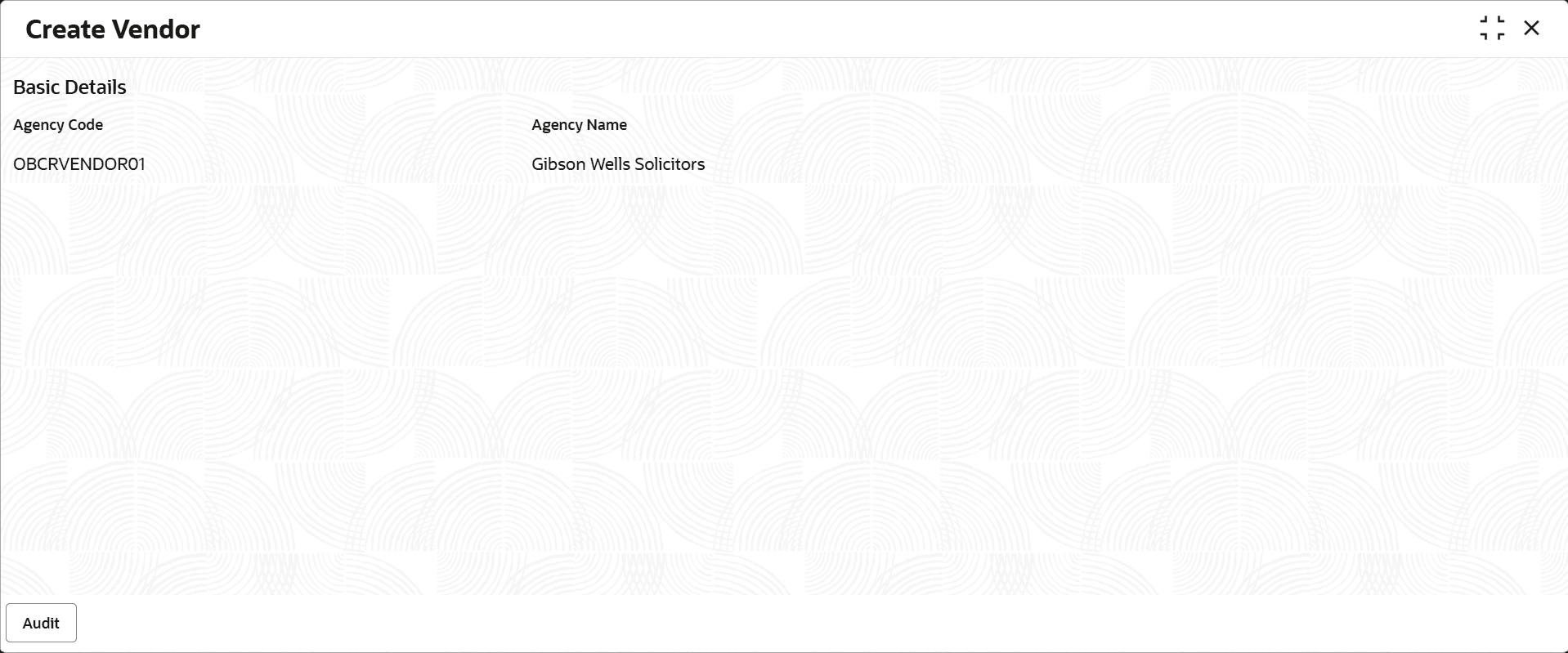
code.The Create Vendor - View screen displayed.
For more information on fields, refer to the field description table.
Table 17-8 Create Vendor - View - Field Description
Field Name Description Agency Code Indicates the unique agency code. The list displays all the open and authorized users created in the system.
Agency Name Indicates the name of the agency.
Parent topic: View Agency