8.2 Process to View Call Action
This topic describes the information about View List of Call Actions.
User can view the list of call actions created in the system and search for a particular call action.
To view the list of call actions:
- Under Maintenance, click Call
Action. Under Call Action, click
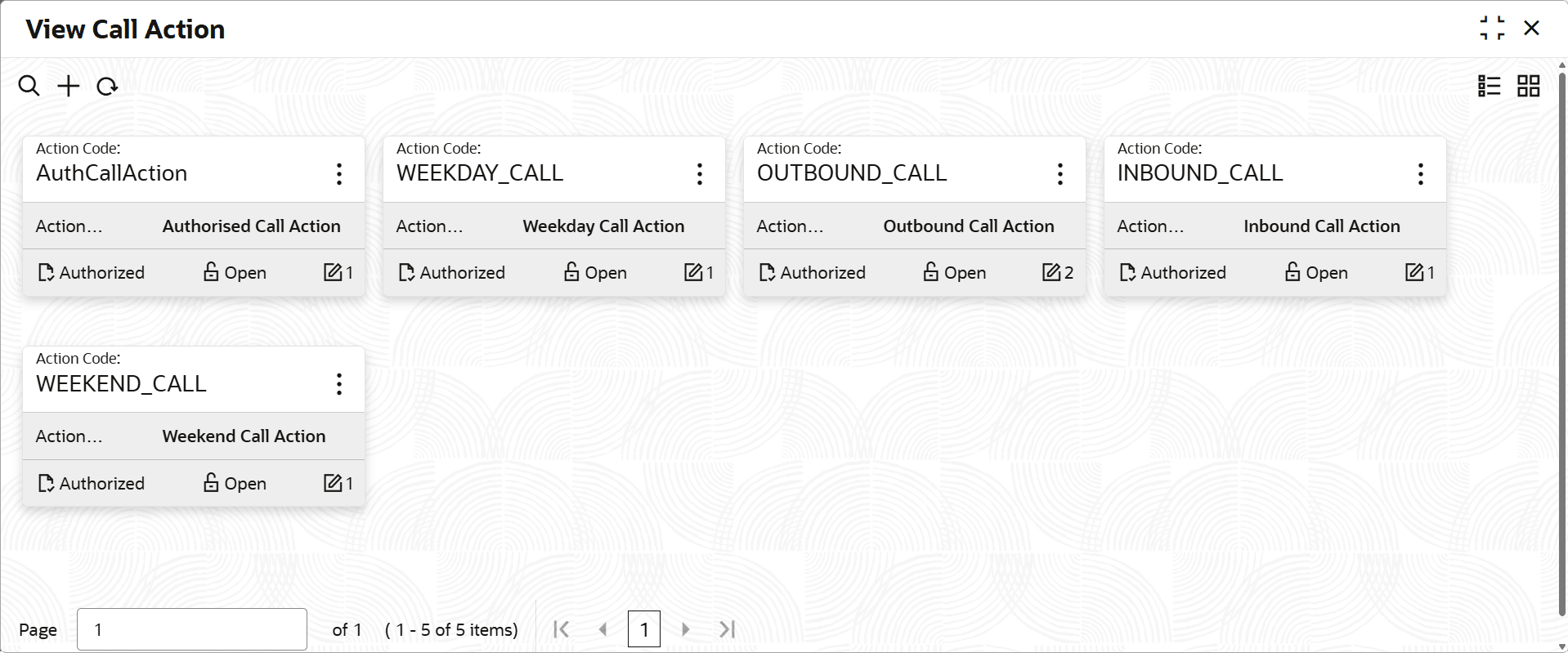
View Call Action.The View Call Action screen is displayed. For more information on fields, refer to the field description table.
Table 8-2 Field Description: View Call Action - Tile
Field Name Description Action Code Displays the call action code Action Description Displays the description of the call action. <Authorization Status> Select the authorization status of the call action. The possible options are:- Unauthorized
- Authorized
<Record Status> Select the status of the record. The possible options are:- Open
- Closed
- On the View Call Action screen, click

icon.The View Call Action - Search screen is displayed. - Click Unlock to modify the created Product
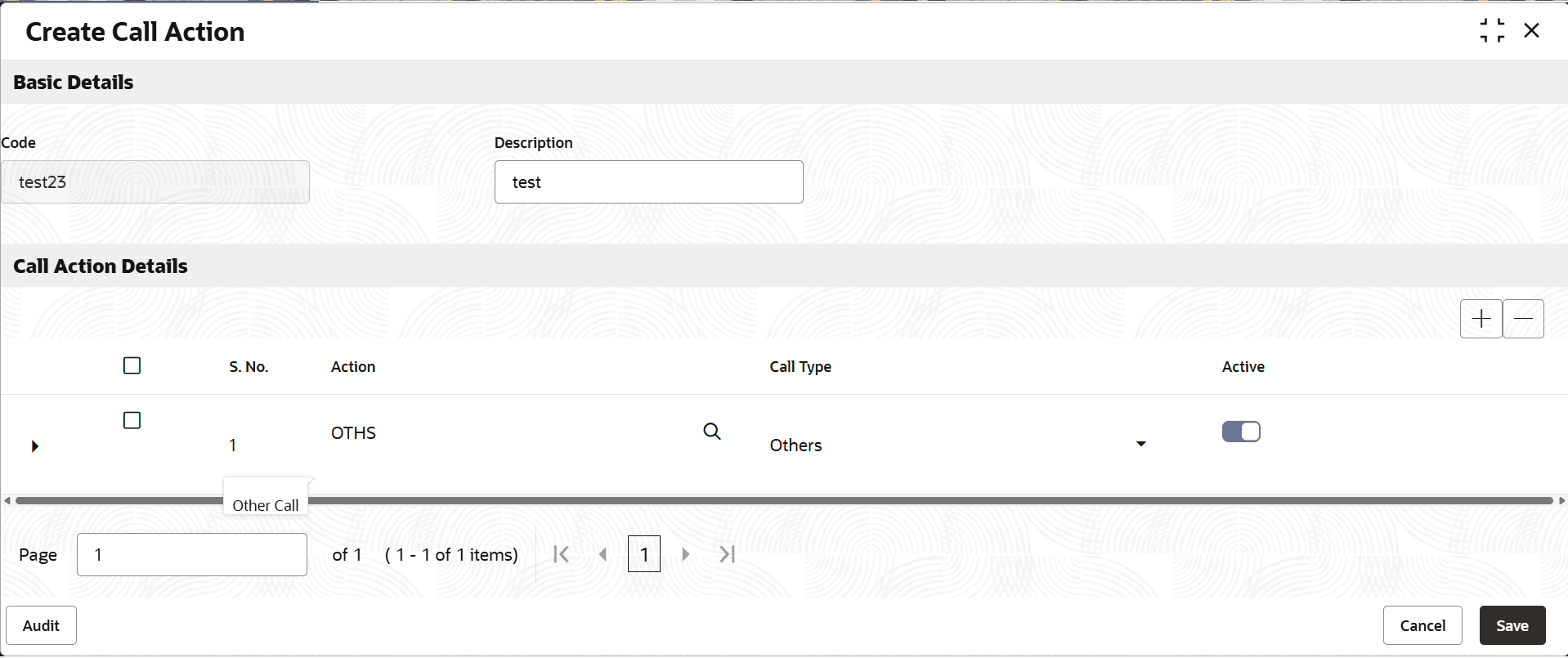
Processor.The Create Call Action - Modify screen is displayed.
For more information on fields, refer to the field description table.
Table 8-4 Field Description: Create Call Action
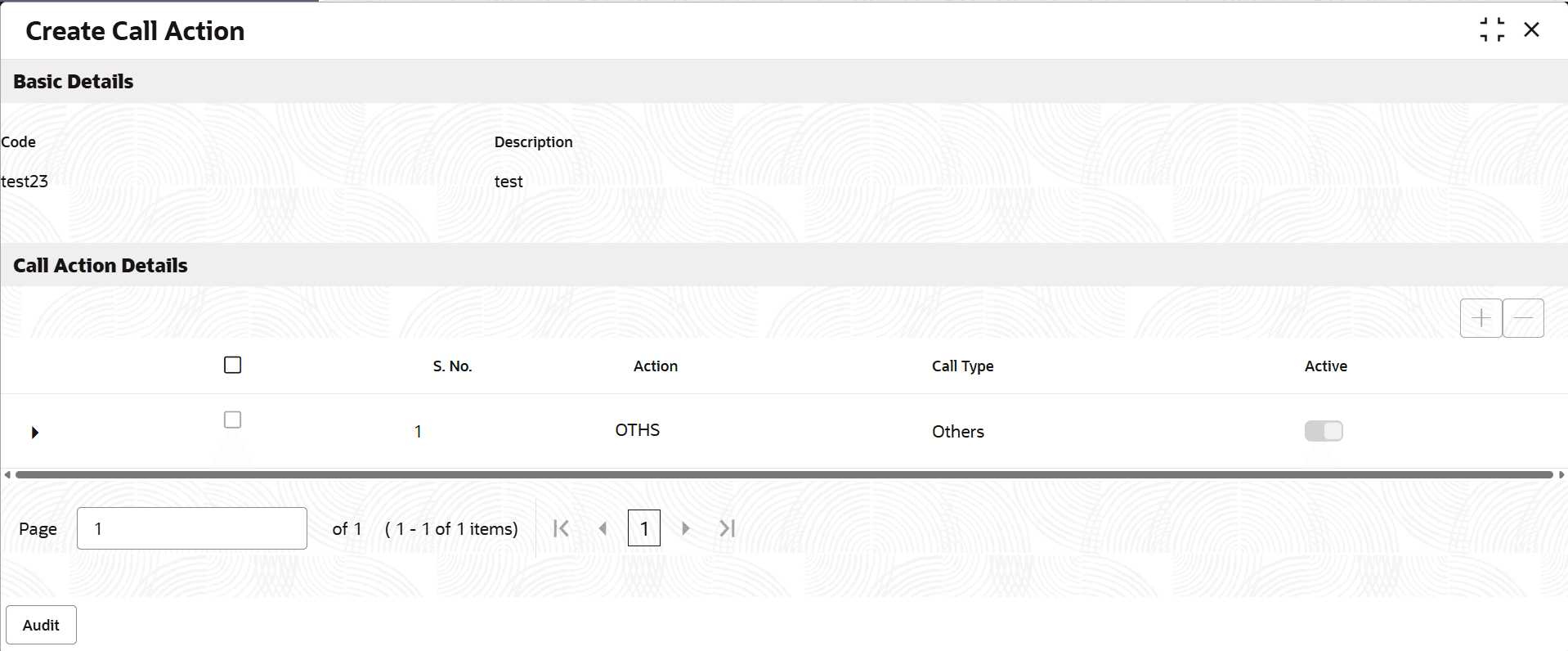
Field Name Description Basic Details This section is used to provide basic information of the call action. Code Indicates the unique identification code of the call action. Description Indicates the description of the call action. Call Action Details This section is used to specify details of the actions. S. No. Displays the serial number of the record. Action Indicates the action type. Call Type Indicates the call type. Active Toggle to indicate whether the call action record is active. Result Details This section is displayed if user click corresponding to a row in the Call Action Details table. In this section, user can specify details of the results that user want to configure for a particular action. Result Indicates the result for the action type. Right Party Contacted Indicates whether right party contact is enabled for action and result combination. Status Click Manage to configure the collection statuses for the action and result combination. Active Toggle to indicate whether the result is active. Status Details This section is displayed if you click Manage in the Status field of Result Details section. It is used to specify collection status details for an action and result combination. Collection Status Indicates the collection status of the action and result combination. Action Indicates whether the collection status is open or closed for the action and result combination. - Click View to view the created Call Action code.The Create Call Action - View screen is displayed.
For more information on fields, refer to the field description table.
Table 8-5 Create Call Action - View - Field Description
Field Name Description Basic Details This section is used to provide basic information of the call action. Code Indicates the unique identification code of the call action. Description Indicates the description of the call action. Call Action Details This section is used to specify details of the actions. S. No. Displays the serial number of the record. Action Indicates the action type. Call Type Indicates the call type. Active Toggle to indicate whether the call action record is active. Result Details This section is displayed if user click corresponding to a row in the Call Action Details table. In this section, user can specify details of the results that user want to configure for a particular action. Result Indicates the result for the action type. Right Party Contacted Indicates whether right party contact is enabled for action and result combination. Status Click Manage to configure the collection statuses for the action and result combination. Active Toggle to indicate whether the result is active. Status Details This section is displayed if you click Manage in the Status field of Result Details section. It is used to specify collection status details for an action and result combination. Collection Status Indicates the collection status of the action and result combination. Action Indicates whether the collection status is open or closed for the action and result combination.

Parent topic: Call Action