14.2 Process to View Seed Data
This topic describes the information about View List of Seed Data.
User can view the list of seed data created in the system and search for a
particular seed data.
To view the list of seed data:
- Under Maintenance, click Seed
Data. Under Seed Data, click
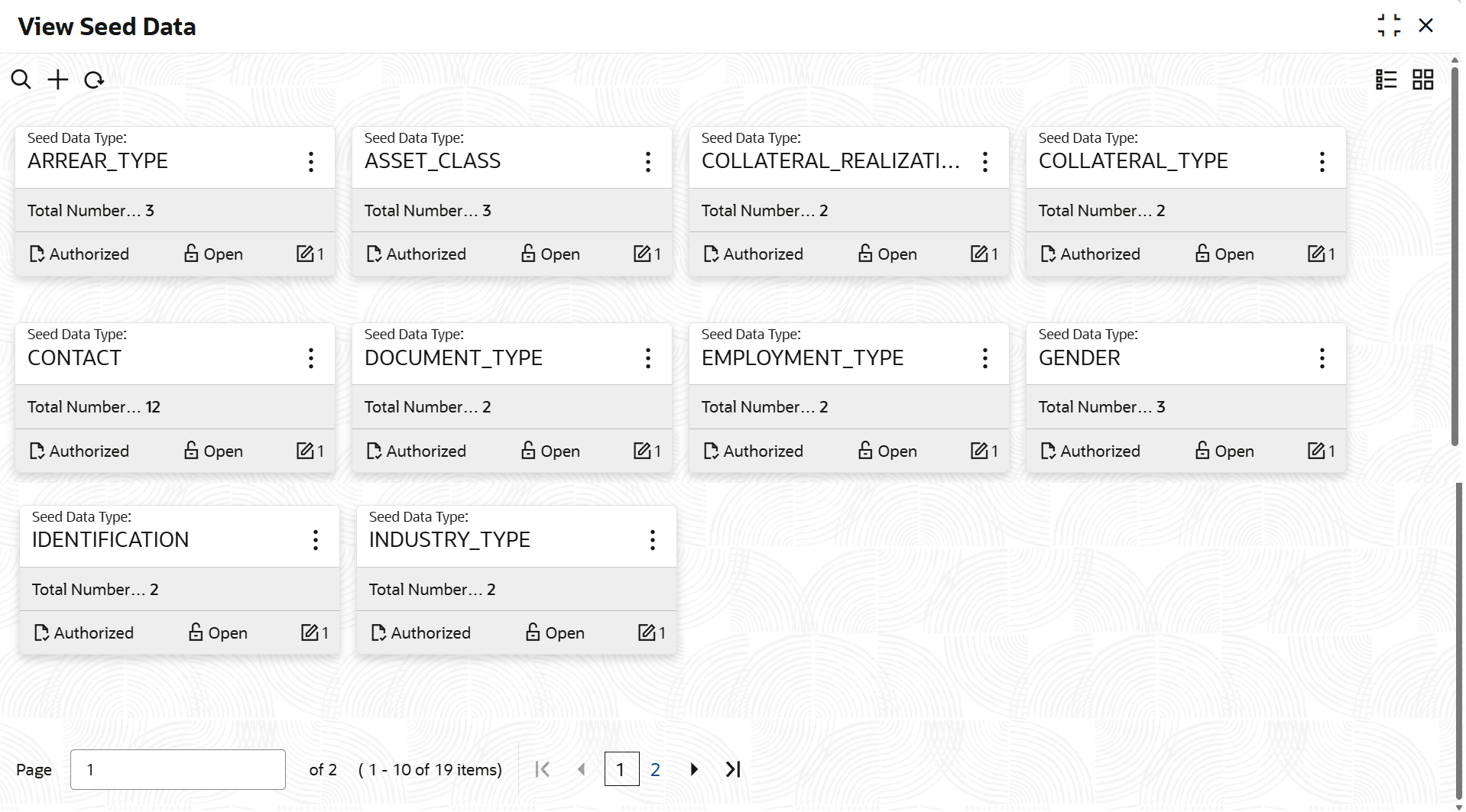
View Seed Data.The View Seed Data screen is displayed. For more information on fields, refer to the field description table.
Table 14-2 Field Description: View Seed Data - Tile
Field Name Description Seed Data Type Displays the seed data type. Total Number of Codes Displays the total number of codes defined for the seed data type. <Authorization Status> Select the authorization status of the seed data. The possible options are:- Unauthorized
- Authorized
<Record Status> Select the status of the record. The possible options are:- Open
- Closed
- On the View Seed Data screen, click

icon.The View Seed Data - Search screen is displayed. - Click Unlock to modify the created Product
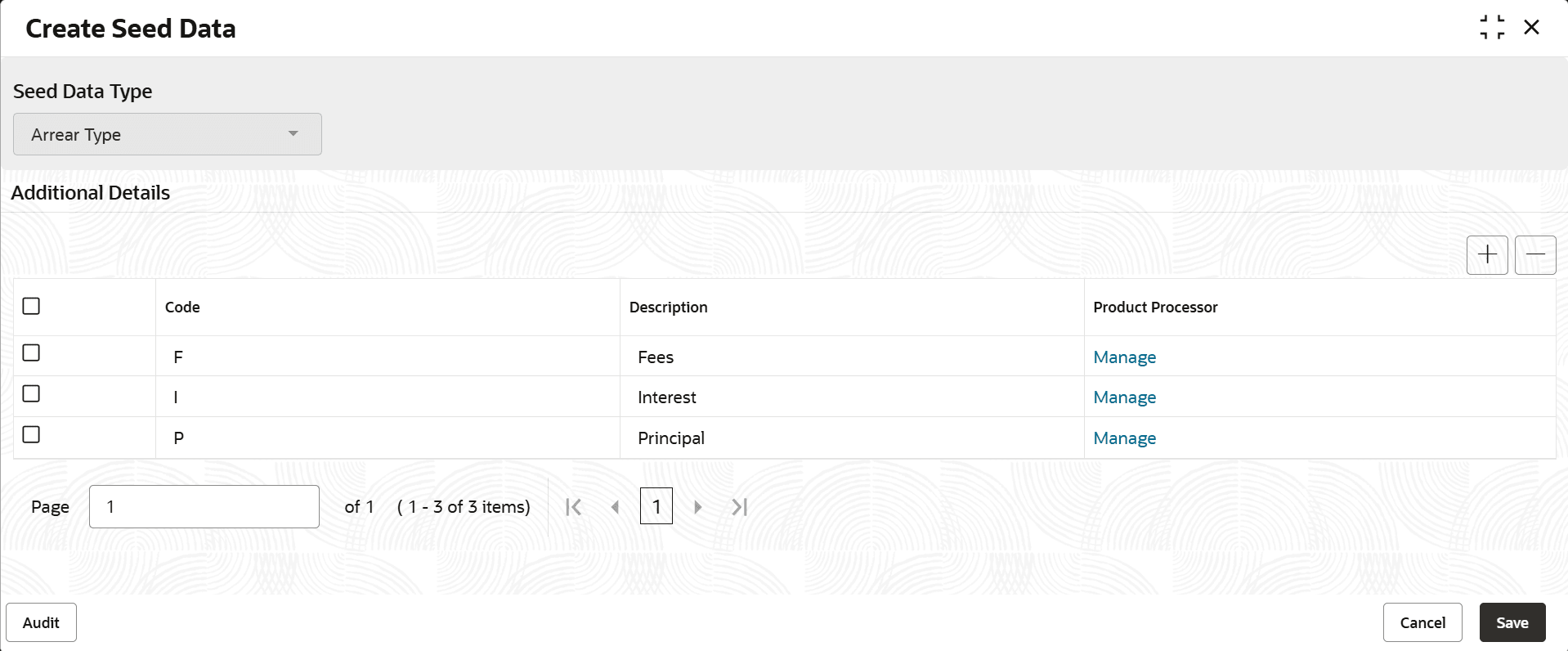
Processor.The Create Seed Data - Modify screen is displayed.
For more information on fields, refer to the field description table.
Table 14-4 Field Description - Create Seed Data - Modify
Field Name Description Seed Data Type Displayes the seed data type for which user want to create seed data. Additional Details This section is used to specify seed data code details for the selected seed data type. Code Indicates the unique identification code of the seed data. Description Indicates the description of the code. Category Displayes the category of contact type. Primary Toggle to indicate whether the specified name type is primary. Primary Party Toggle to indicate whether the specified relationship is the primary party. Product Type Indicates the product type. For example, loans, overdraft, and credit card. Product Processor Mapping This section appears if user click  corresponding to a row in the Additional
Details table. It is used to specify details
of the product processor to which user want to map the seed
data. User can map one or more product processors with a
seed data.
corresponding to a row in the Additional
Details table. It is used to specify details
of the product processor to which user want to map the seed
data. User can map one or more product processors with a
seed data.
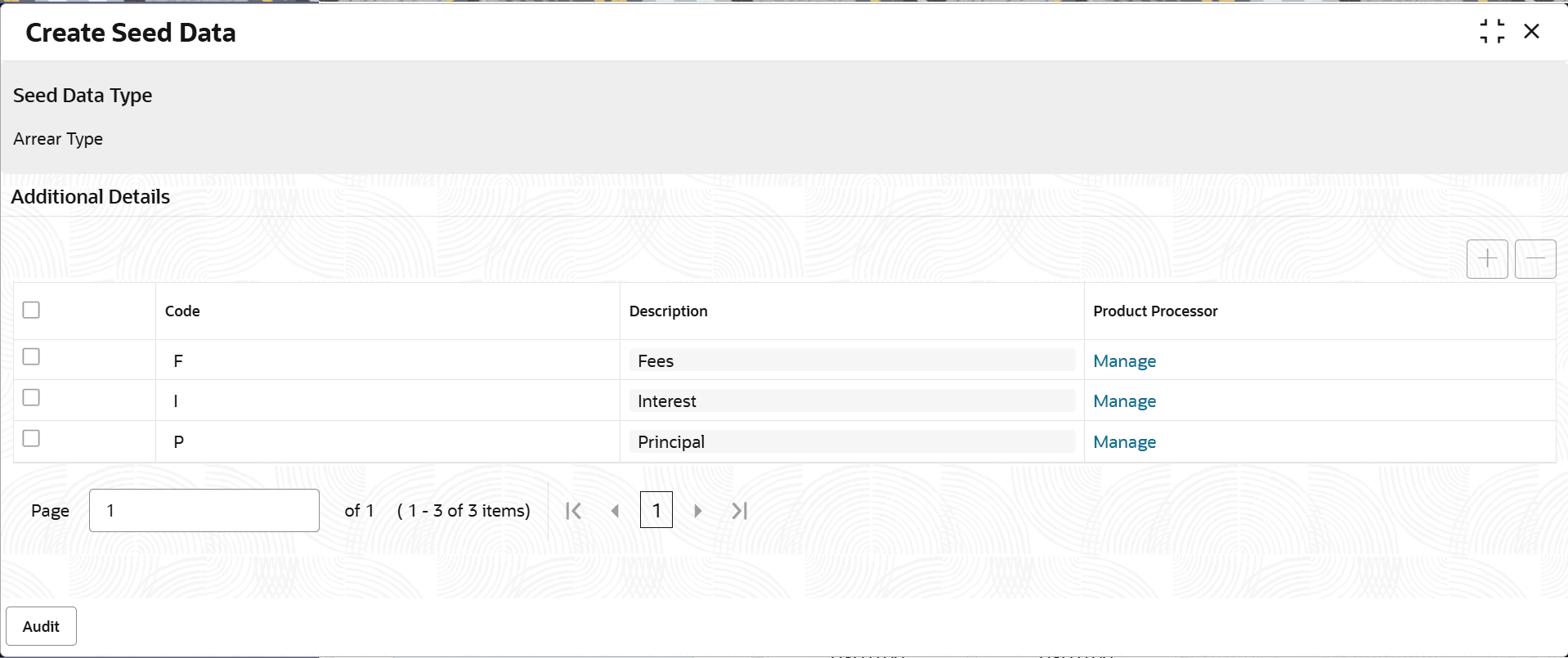
Product Processor Indicates the product processor to which user want to associate the seed data. Value Indicates the corresponding value received from the product processor for the configured seed data code. Comment Indicates any comments related to the product processor. - Click View to view the created Seed Data code.The Create Seed Data - View screen is displayed.
For more information on fields, refer to the field description table.
Table 14-5 Create Seed Data - View - Field Description
Field Name Description Seed Data Type Displayes the seed data type for which user want to create seed data. Additional Details This section is used to specify seed data code details for the selected seed data type. Code Indicates the unique identification code of the seed data. Description Indicates the description of the code. Category Displayes the category of contact type. Primary Toggle to indicate whether the specified name type is primary. Primary Party Toggle to indicate whether the specified relationship is the primary party. Product Type Indicates the product type. For example, loans, overdraft, and credit card. Product Processor Mapping This section appears if user click corresponding to a row in the Additional
Details table. It is used to specify details
of the product processor to which user want to map the seed
data. User can map one or more product processors with a
seed data.
Product Processor Indicates the product processor to which user want to associate the seed data. Value Indicates the corresponding value received from the product processor for the configured seed data code. Comment Indicates any comments related to the product processor.

Parent topic: Seed Data