10.2 Process to View Segments
This topic describes the information about View List of Segments.
To view the list of segments:
- Under Maintenance, click
Segments. Under Segments, click
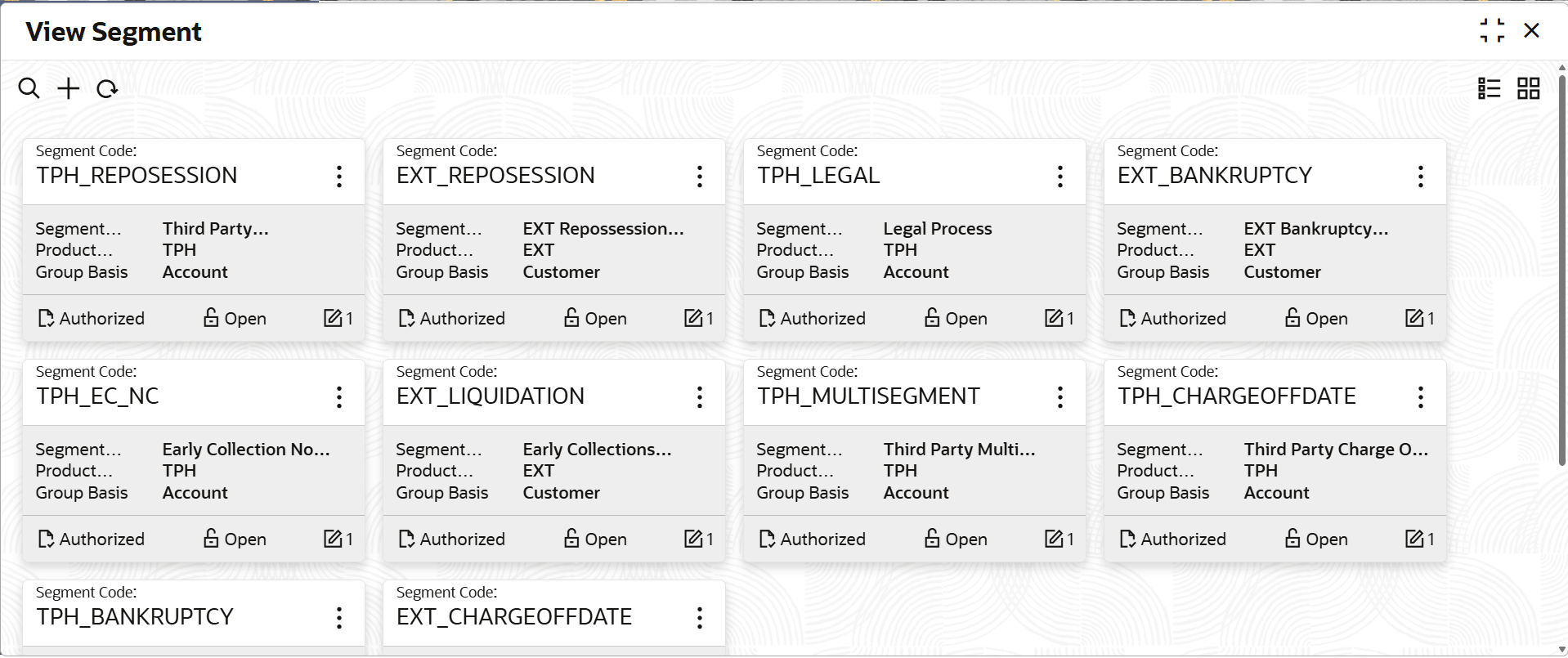
View Segments.The View Segments screen is displayed. For more information on fields, refer to the field description table.
Table 10-2 Field Description: View Segment - Tile
Field Name Description Segment Code Displays the segment code. Segment Description Displays the description of the segment. Product Processor Displays the product processor for the segment. Group Basis Select the group basis of the segment. The possible values are:- Customer
- Account
<Authorization Status> Select the authorization status of the segment. The possible values are:- Unauthorized
- Authorized
<Record Status> Select the status of the record. The possible options are:- Open
- Closed
- On the View Segments screen, click icon.The View Segments - Search screen is displayed.
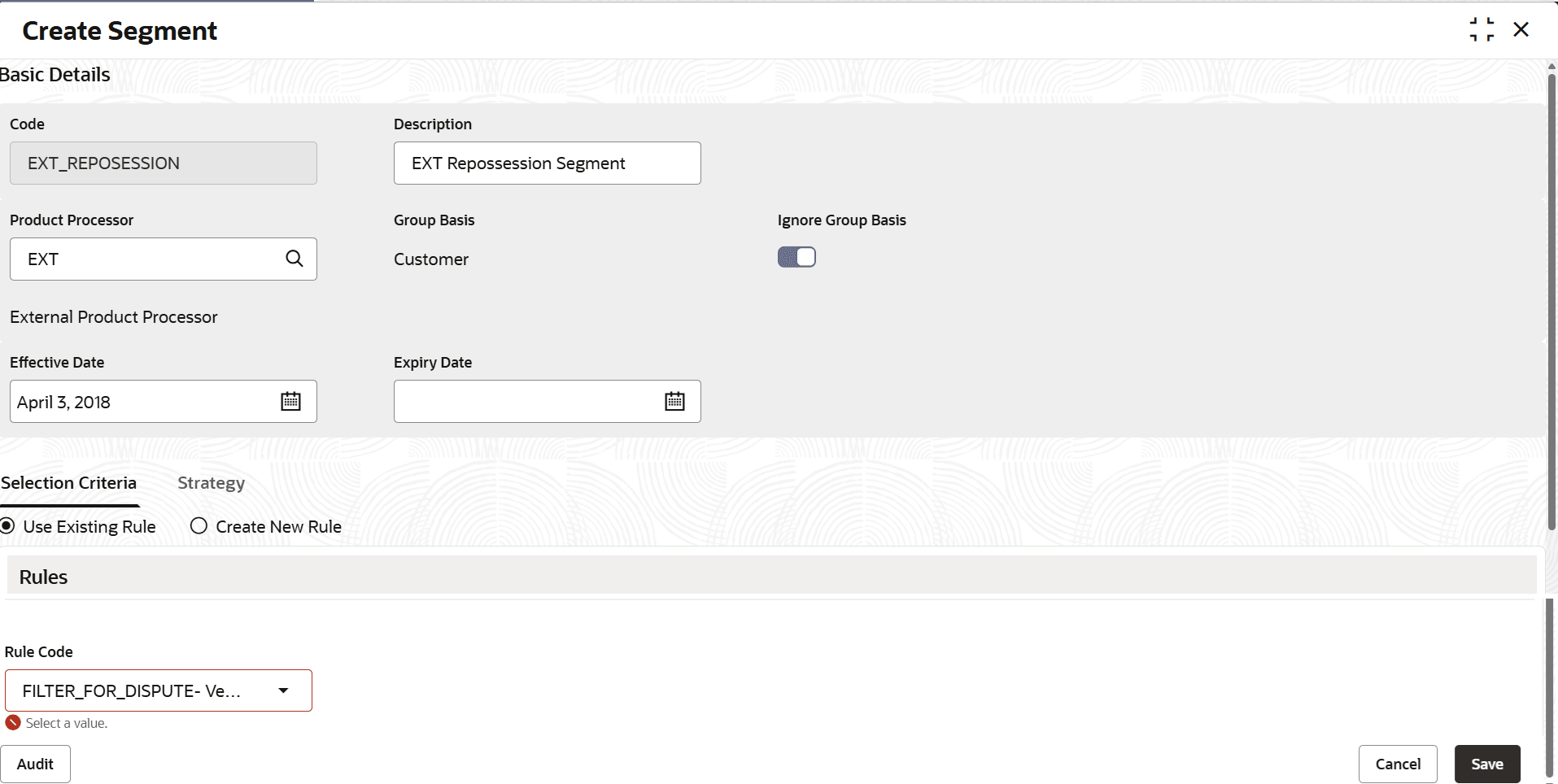
- Click Unlock to modify the created Segment .The Create Segment - Modify screen is displayed.
For more information on fields, refer to the field description table.
Table 10-4 Field Description: Create Segment
Field Name Description Basic Details This section is used to provide basic information of the segment. Code Displays the unique identification code of the segment. Description Displays description of the segment. Product Processor Displays the product processor applicable for the segment. Group Basis Select the group basis of the product processor that is applicable on the segment. The possible values are:- Account
- Customer
The group basis is displayed as per configurations defined for the selected product processor.
Note: The value in this field is displayed once user select the product processor.
Ignore Group Basis Toggle to indicate whether the strategies mapped to the segment should be assigned to a specific collector. If the toggle switch is enabled, strategies in the segment are assigned to a specific collector. If the toggle switch is not enabled, strategies in the segment are assigned to the default collector of the account.
Note: If the switch is enabled, the allocation of tasks is done based on the user assignment code selected in the User Assignment field in Strategy tab.
Effective Date Displays the date from when the segment is effective in the system. Note: The date should be later than or equal to the business date. However, it must be earlier than or equal to the expiry date.
Expiry Date Displays the date till when the segment is effective in the system. Note: The date should be later than or equal to the business date. However, it must be later than or equal to the effective date.
Selection Criteria This tab is used to configure rules based on which account are allocated to the segment. For more information on how to configure rules, refer Oracle Banking Common Core User Guide. Strategy This tab is used to associate strategies that are applicable on the segment. Note: User can associated one or more strategies with the segment.
S.No Displays the sequence number of the strategy. Strategy Displays the strategy associated with the segment. User Assignment Displays the user assignment code based on which all the tasks related to the strategies are allocated to the users. Note: This field is displayed only if Ignore Group Basis switch is turned on.
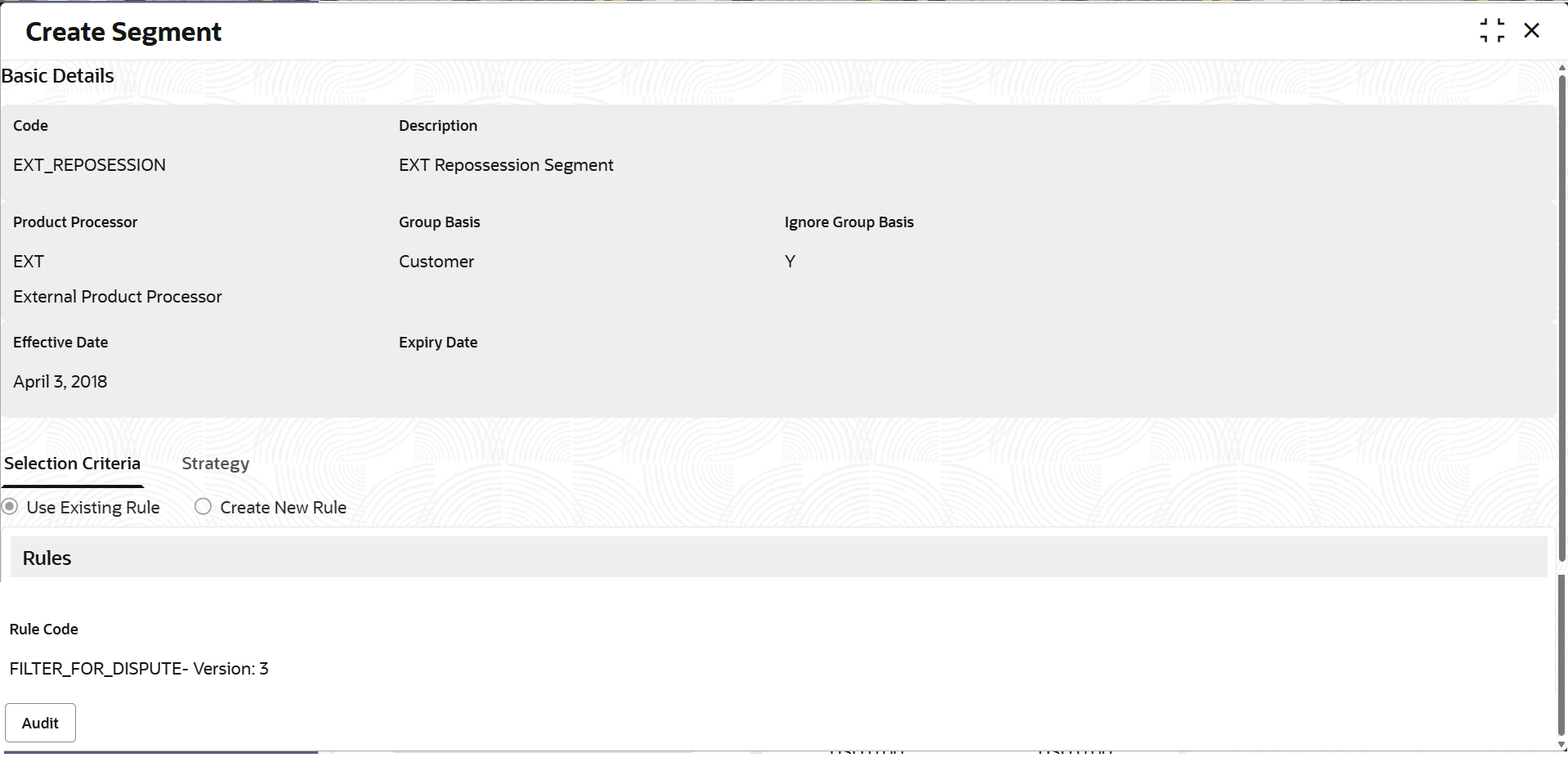
Call Details Displays the call action applicable for the strategy. Enabled Toggle to indicate whether the strategy is enabled for the segment. - Click View to view the created Segment code.The Create Segment - View screen is displayed.
For more information on fields, refer to the field description table.
Table 10-5 Field Description: Create Segment
Field Name Description Basic Details This section is used to provide basic information of the segment. Code Displays the unique identification code of the segment. Description Displays description of the segment. Product Processor Displays the product processor applicable for the segment. Group Basis Displays the group basis of the product processor that is applicable on the segment. Ignore Group Basis Toggle to indicate whether the strategies mapped to the segment should be assigned to a specific collector. Effective Date Displays the date from when the segment is effective in the system. Expiry Date Displays the date till when the segment is effective in the system. Selection Criteria This tab is used to configure rules based on which account are allocated to the segment. For more information on how to configure rules, refer Oracle Banking Common Core User Guide. Strategy This tab is used to associate strategies that are applicable on the segment. Role Code Displays the Role code.

Parent topic: Segment