2.2 Process to View Lookup
This topic describes the information about View a List of Lookups.
To view the list of lookups:
- Under Maintenance, click Lookups.
Under Lookups, click View
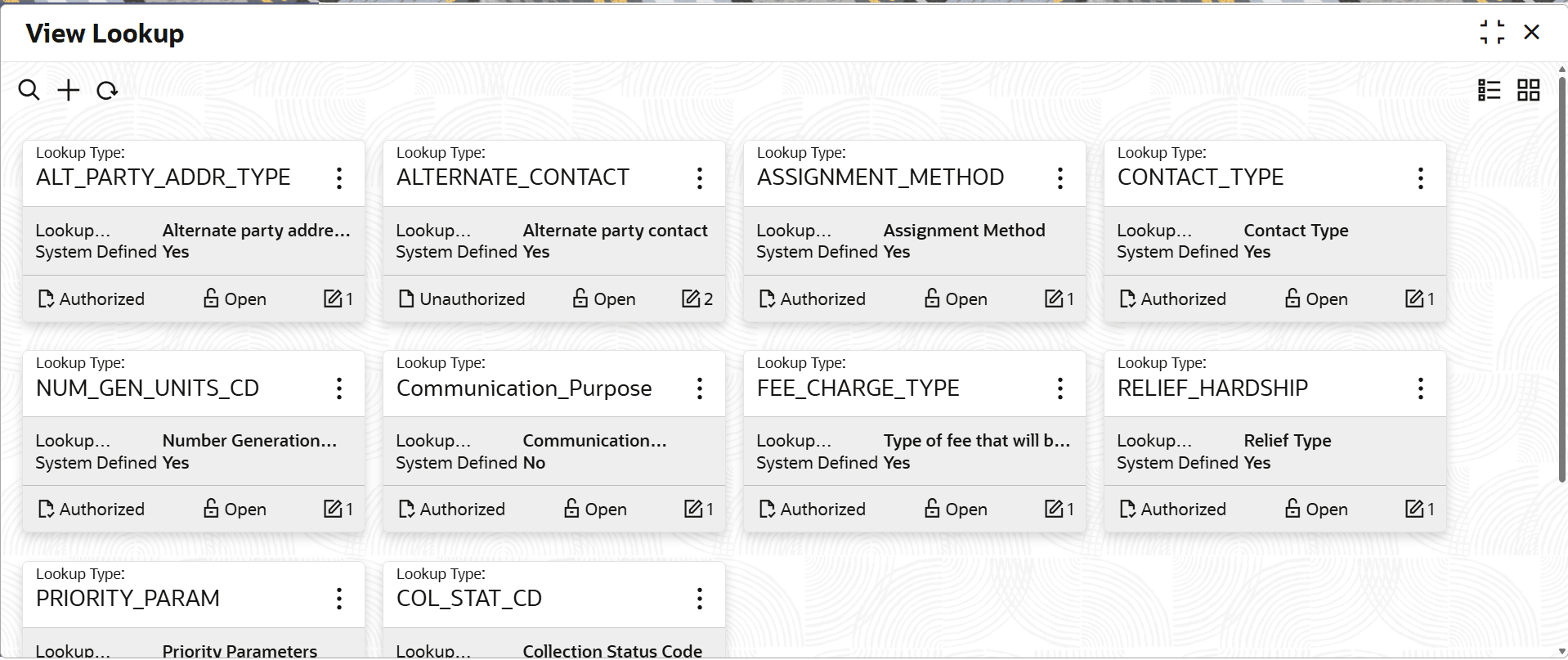
Lookup.The View Lookup screen is displayed. For more information on fields, refer to the field description table.
Table 2-2 Field Description: View Lookups - Tile
Field Name Description Lookup Type Displays the lookup type. Lookup Description Displays the description of the lookup. System Defined Displays whether the lookup is system defined. The possible options are:- Yes: This option is displayed for the system-defined lookups.
- No: This option is displayed for the user-defined lookups.
Authorization Status Displays the authorization status of the lookup. The possible options are:- Unauthorized
- Authorized
Record Status Displays the status of the record. The possible options are:- Open
- Closed
- On the View Lookup screen, click

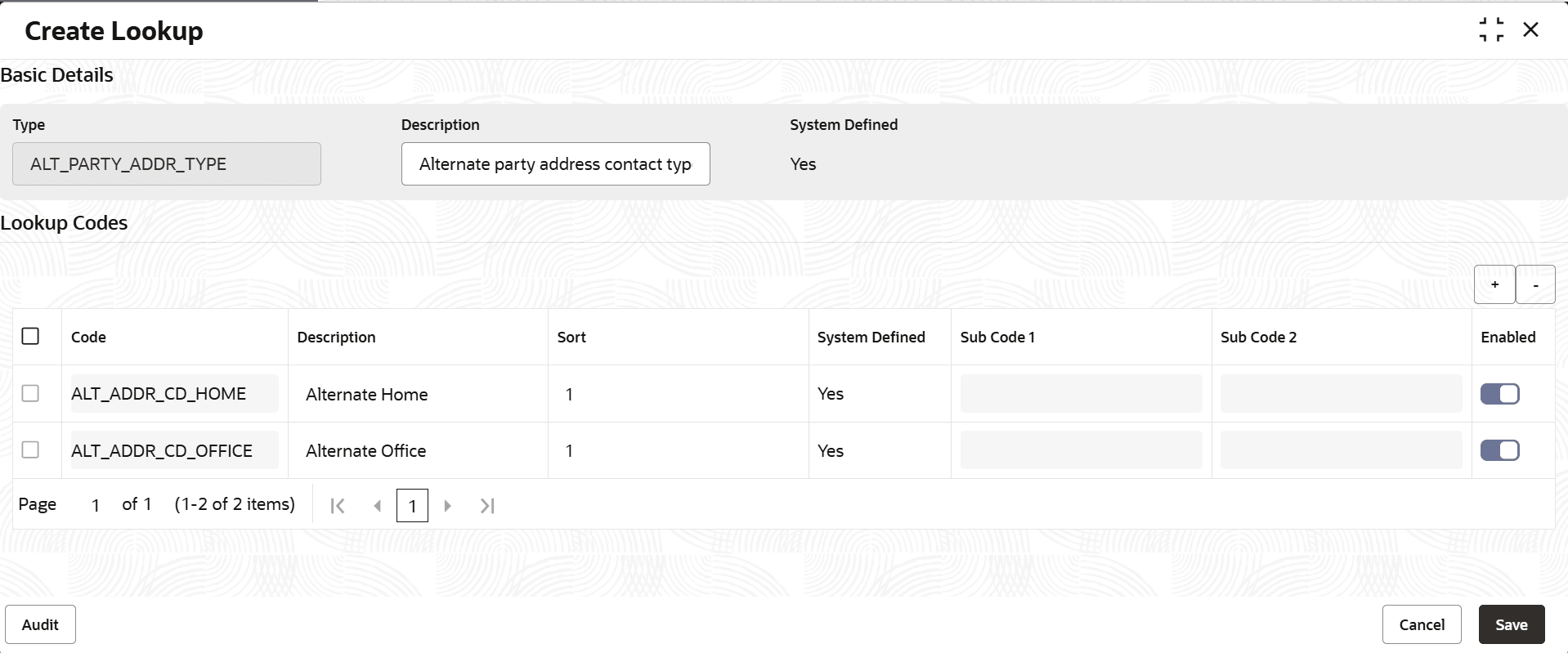
icon.The View Lookup - Search screen is displayed. - Click Unlock to modify the created lookup.The Create Lookup - Modify screen is displayed.
For more information on fields, refer to the field description table.
Table 2-4 Create Lookup - Modify - Field Description
Field Description Lookup Type Displays lookup type name. Description Displays the short description of the lookup. This field is editable.
Lookup Code Displays the lookup code for the created lookup. This field is editable.
Description Displays the description for the created lookup. Sort Order Displays the sort order for the created lookup. This field is editable.
Dependent Identifier Displays the dependent Identifier for the created lookup. This field is editable.
Enable Click toggle status to enable the lookup. This field is editable.
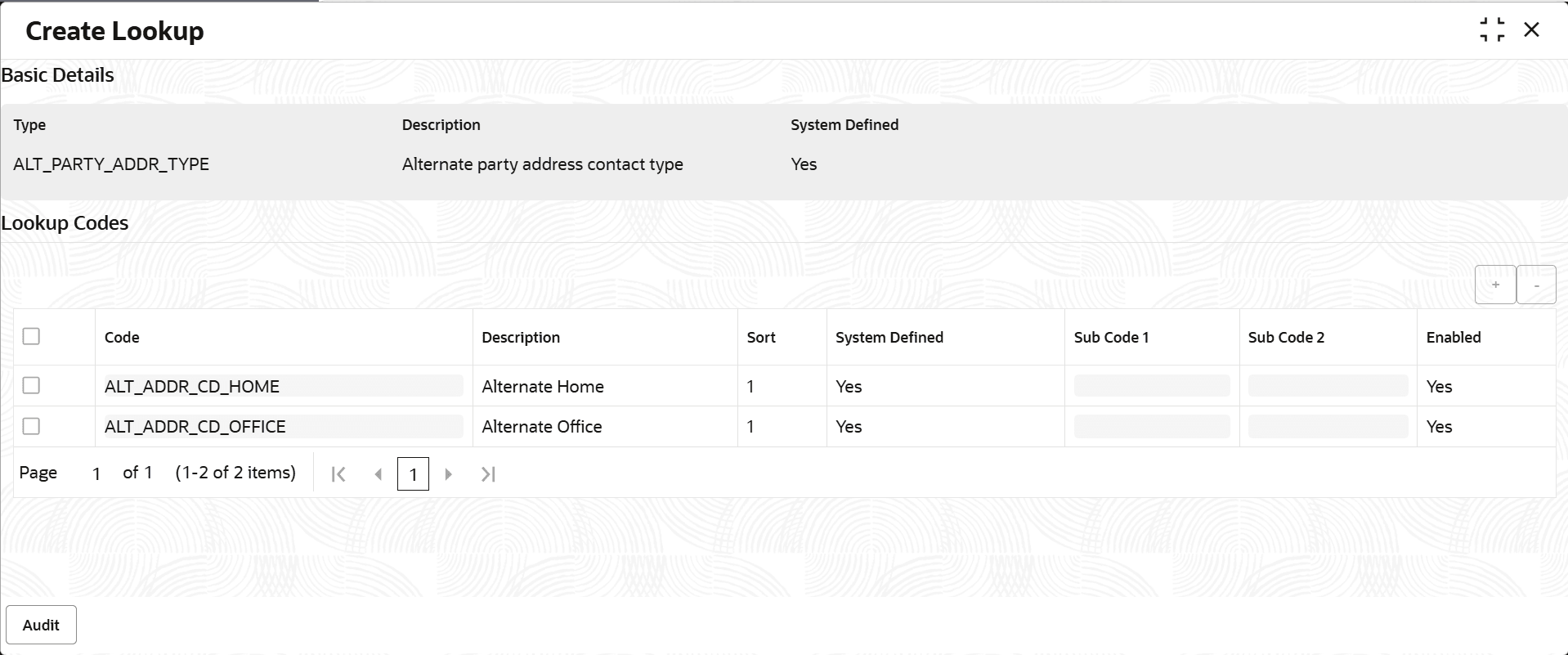
- Click View to view the created lookup code.The Create Lookup - View screen is displayed.
For more information on fields, refer to the field description table.
Table 2-5 Create Lookup - View - Field Description
Field Description Lookup Type Displays the created lookup type. Description Displays the description for the created lookup. Lookup Code Displays the lookup code for the created lookup. Description Displays the description for the created lookup. Sort Order Displays the sort order for the created lookup. Dependent Identifier Displays the dependent identifier for the created lookup. Enable Displays the lookup code if enabled for the created lookup.

Parent topic: Lookups