7.2 Process to View Tasks
User can view the list of tasks created in the system and search for a
particular task.
To view the list of tasks:
- UnderMaintenance menu, click Task
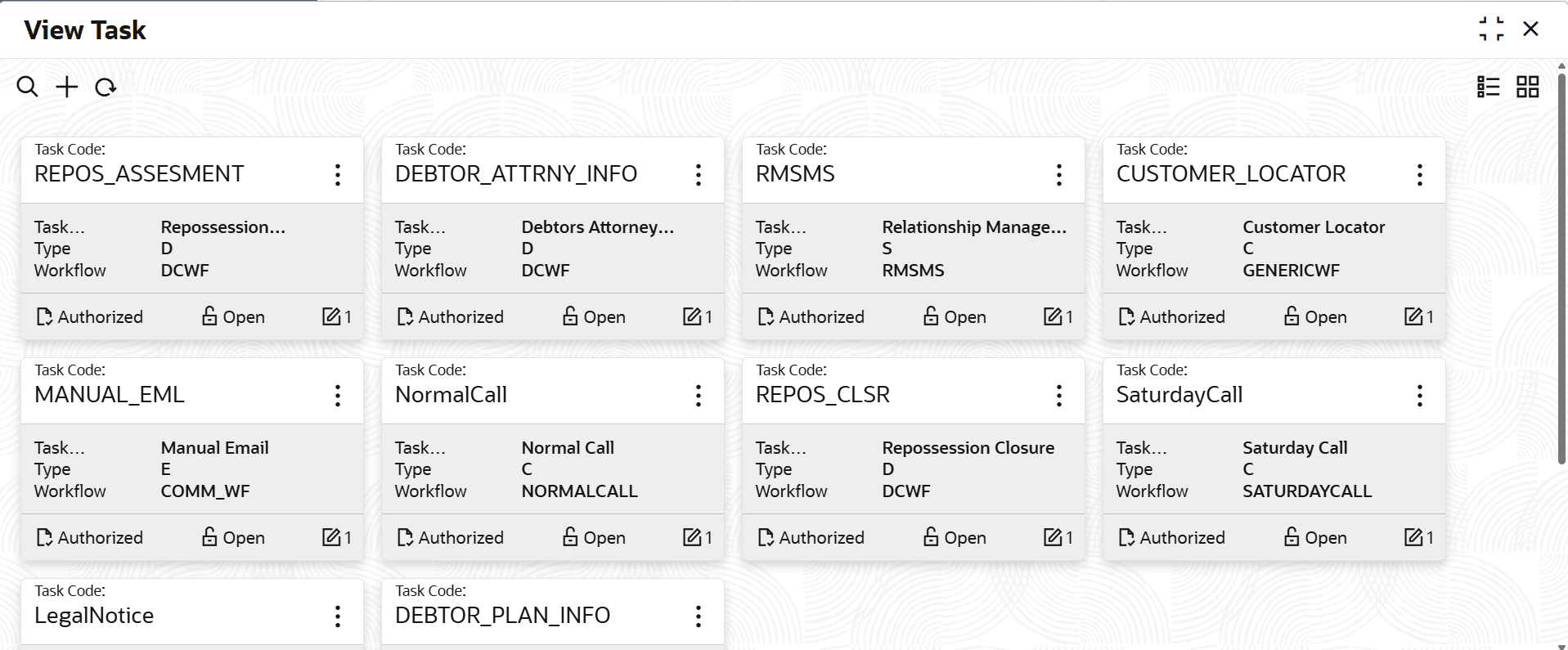
and then click View Task.The View the list of tasks screen is displayed. For more information on fields, refer to the field description table.
Table 7-2 Field Description: View Task - Tile
Field Name Description Task Code Displays the task code. Task Description Displays the description of the task. Type Displays the task type. Workflow Displays the task workflow. User Defined Field Displays the user defined field. <Authorization Status> Displays the authorization status of the task. The possible options are:- Unauthorized
- Authorized
<Record Status> Displays the status of the record. The possible options are:- Open
- Closed
Modification Number Displays the number of modification performed on the record. - On the View Task screen, click

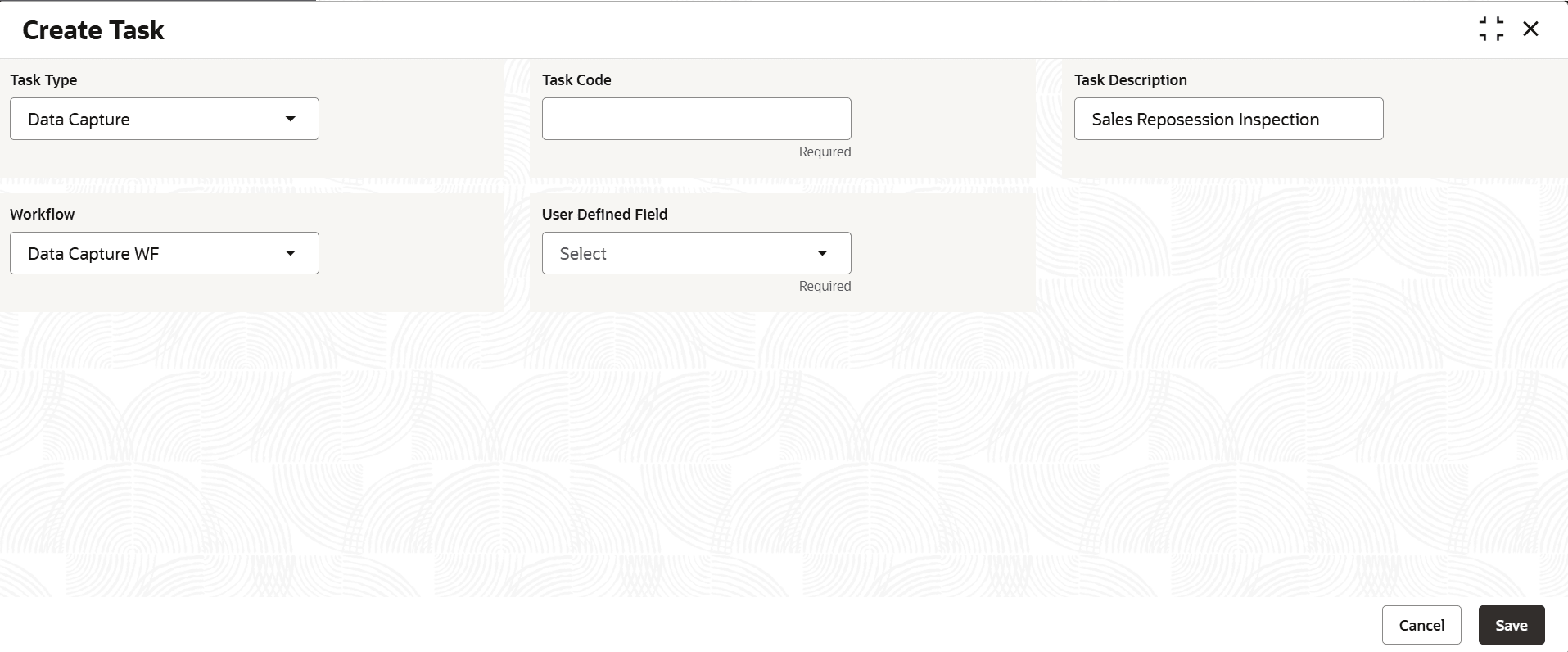
icon.The View Task - Search screen is displayed. - Click Unlock to modify the created Task.The Create Task - Modify screen is displayed.
For more information on fields, refer to the field description table.
Table 7-4 Create Task - Modify - Field Description
Field Description Task Type Displays the Task Type. Task Code Displays the Task Code. Task Description Displays the description of the task. Workflow Select the Workflow of the Create Task. The available options are:- SMS Workflow
- RM SMS Workflow
- Normal Call Workflow
- Saturday Call Workflow
- Sunday Call Workflow
- Office Call Workflow
- Contact RM Workflow
- First Notice Workflow
- Second Notice Workflow
- Legal Notice Workflow
- Email Workflow
- Communication Workflow
- Charge-Off Date Workflow
- Data Capture WF
- Generic Workflow
User Defined Field Select the User Defined Field of the Create Task. The available options are:- Repo Assessment
- Sales Inspection
- Repo Closure
- Sale Info
- Filing Information
- Debtor Attorney Info
- Trustee_Info
- Bankruptcy_Info
- Debtor_Plan_Info
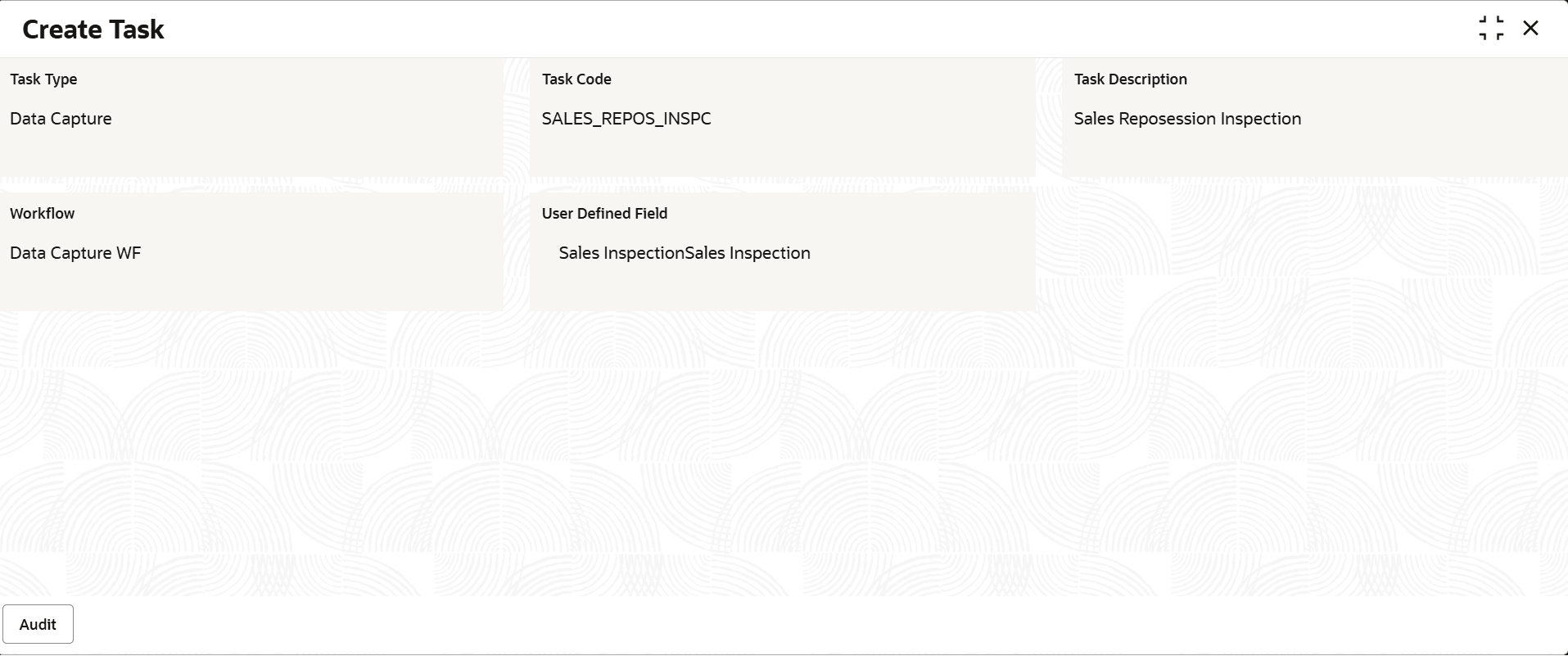
- Click View to view the created Task.The Create Task - View screen is displayed.
For more information on fields, refer to the field description table.
Table 7-5 Create Task - View - Field Description
Field Description Task Type Displays the Task Type . Task Code Displays the Task Code . Task Description Displays the description of the task. Workflow Displays the Workflow. User Defined Field Displays the User Defined Field.

Parent topic: Task