4.2 Process to View Approval
This topic describes the information about View a List of Approval Condition.
User can view the list of approval condition created in the system and
search for a approvals.
To view the list of approval condition:
- Under Maintenance, click
Approval. Under Approvals, click
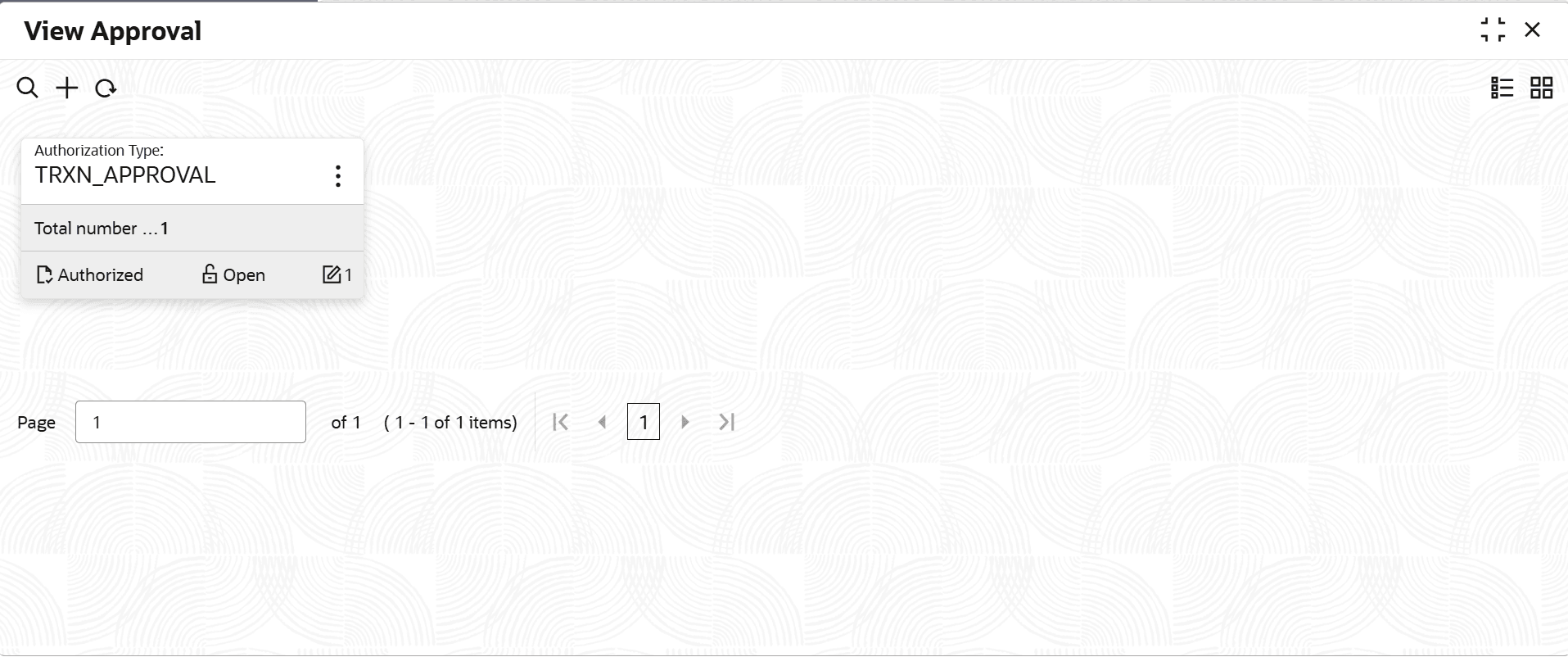
View Approval.The View Approval screen is displayed. For more information on fields, refer to the field description table.
Table 4-2 ViewApproval - Field Description
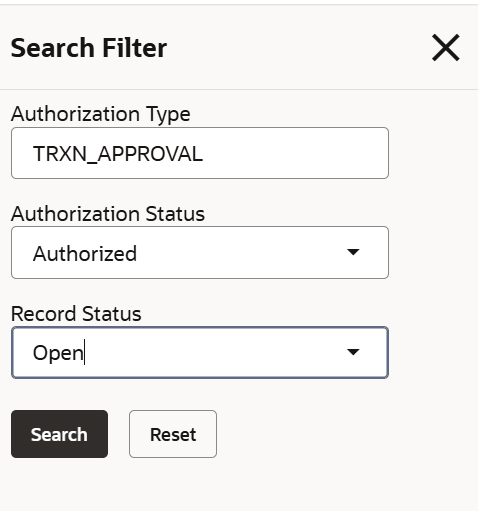
Field Name Description Authorization Type Indicates the type of transaction. Total number of processes Displays the count of processes defined which requires approval. <Authorization Status> Select the authorization status of the strategy. The possible options are:- Unauthorized
- Authorized
<Record Status> Select the status of the record. The possible options are:- Open
- Closed
- On the View Approval screen, click

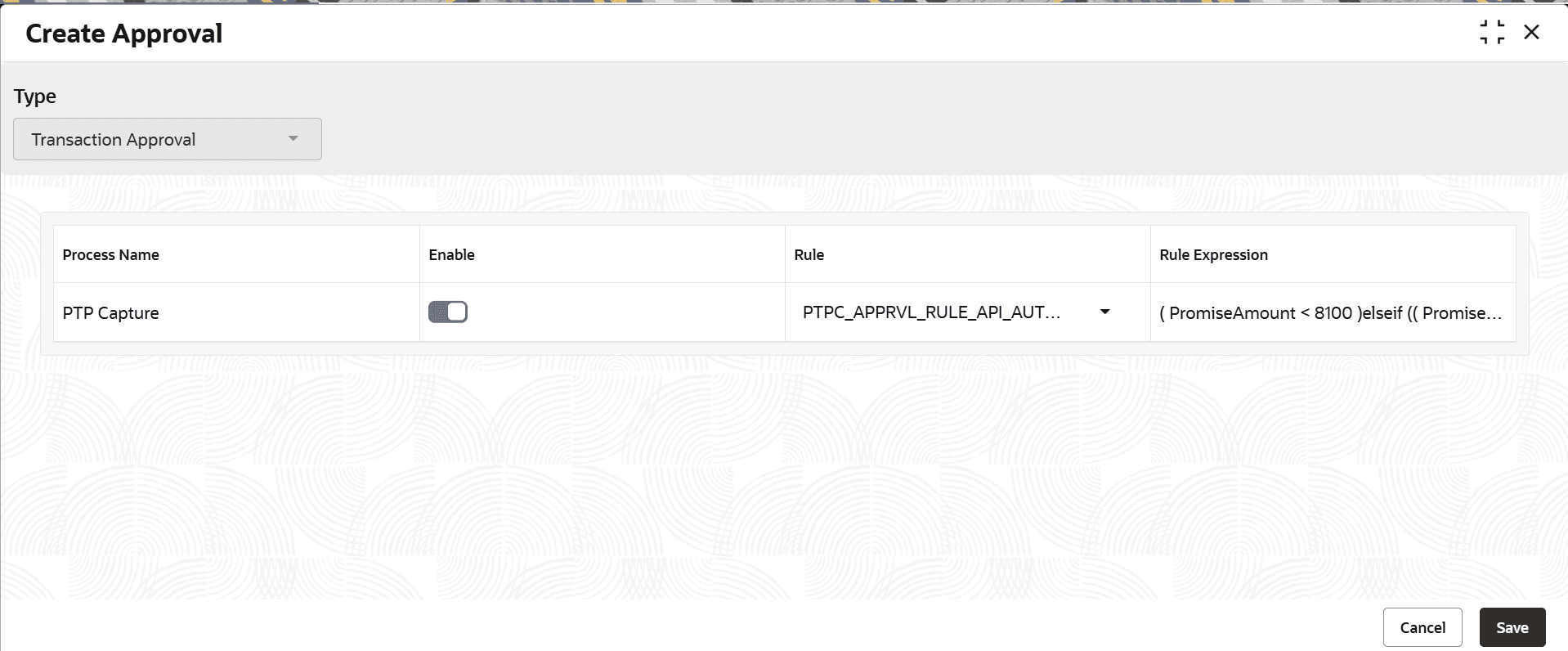
icon.The View Approval- Search screen is displayed. - Click Unlock to modify the created Approval.The Create Approval - Modify screen is displayed.
For more information on fields, refer to the field description table.
Table 4-4 Create Approval - Modify - Field Description
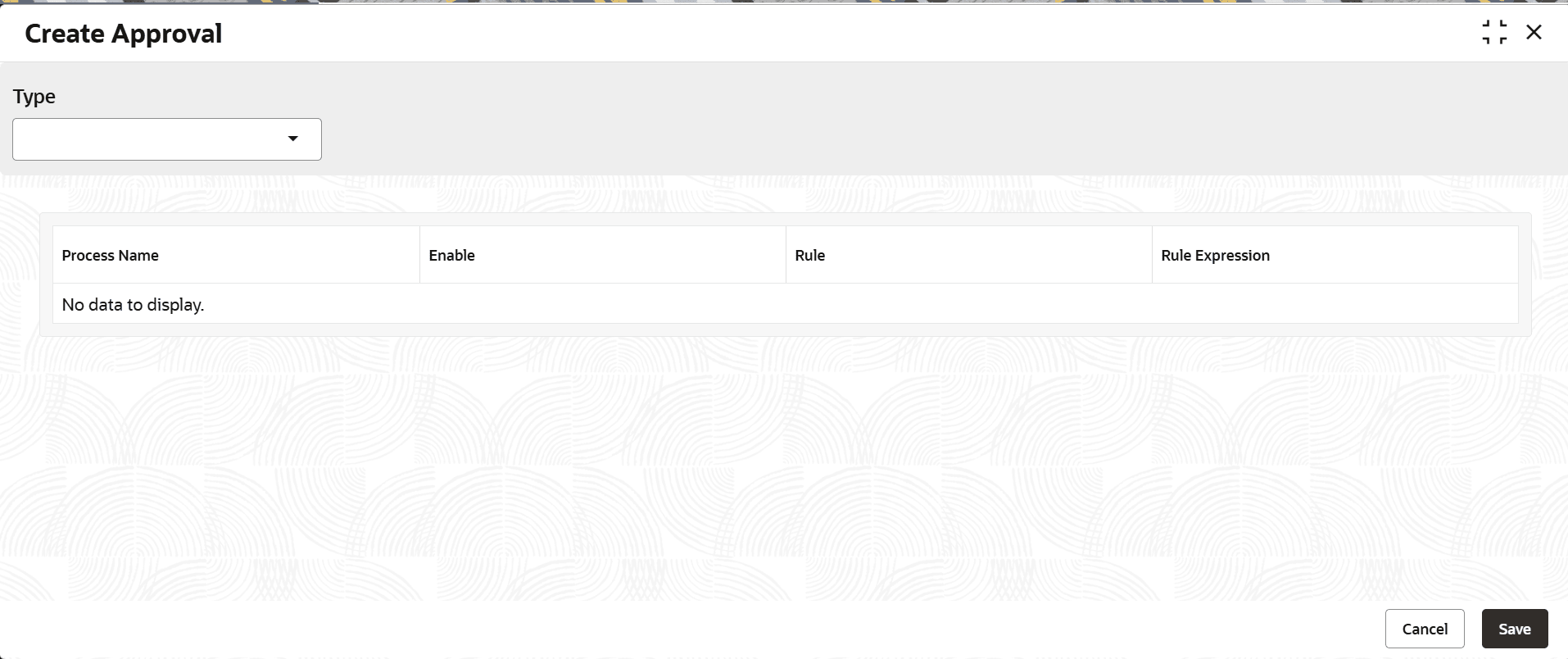
Field Name Description Type Indicates the type of transaction. Its value will always be Transaction Approval Process Name Indicates the name of process or transaction which requires approval. Enable Toggle to indicate the process is enabled or not. Rule Select the rule condition which decides whether the required transaction should go for approval or not Rule Expression Detailed expression of the selected rule. - Click View to view the created Approval code.The CreateApproval - View screen displayed.
For more information on fields, refer to the field description table.
Table 4-5 Create Approval - View - Field Description
Field Name Description Type Indicates the type of transaction. Its value will always be Transaction Approval Process Name Indicates the name of process or transaction which requires approval. Enable Toggle to indicate the process is enabled or not. Rule Select the rule condition which decides whether the required transaction should go for approval or not Rule Expression Detailed expression of the selected rule.
Parent topic: Approval