4.3 Customer
This topic describes the information about Customer.
This widget displays details of the customers associated with the account number selected in the Accounts widget. It displays various customer details, such as the customer ID, phone number, address, and email.
Table 4-7 Field Description: Customer
| Field Name | Description |
|---|---|
| <Customer Name> | Indicates the name of the customer.
The list displays the names of the customers associated with the account selected in the Account widget. The customer type is displayed adjacent to the customer name. |
| Customer ID | Displays the customer ID and relationship type of the customer with the account. |
| Phone | Displays the preferred phone number of the customer.
If user hover over |
| SSN | Displays the social security number of the customer. |
| Displays the preferred email address of the customer. | |
| Address | Displays the preferred address of the customer. |
| Call Advice | This section appears if user hover over  in the Phone field. It displays the call
preference details of the customer that helps user to decide whether
user can call the customer for a follow up call at the current
time. in the Phone field. It displays the call
preference details of the customer that helps user to decide whether
user can call the customer for a follow up call at the current
time.
|
| Customer's Time | Displays the current time in the customer's time zone for the contact number.
Note: This field does not display any details if the customer's time zone is not available. |
| Permission To Call | Displays whether the customer has given permission to the bank for
follow up calls.
It displays the following icons that help
user to decide whether you can call the customer for a follow up
call at the current time:
Note: These icons are displayed only if the customer's time zone details are available. |
| Preferred Time - Weekdays | Displays the start time and end time of the period during which the
customer can be contacted during weekdays.
It displays
the following icons that help user to decide whether user can call
the customer for a follow up call at the current time:
Note: These icons are displayed only if the customer's time zone details are available. |
| Preferred Time - Weekends | Displays the start time and end time of the period during which the
customer can be contacted during weekends.
It displays
the following icons that help you to decide whether usr can call the
customer for a follow up call at the current time:
Note: These icons are displayed only if the customer's time zone details are available. |
| Do Not Disturb | Displays the Do Not Disturb (DND) start date and end date.
It displays the following icons that help user to
decide whether user can call the customer for a follow up call at
the current time:
Note: These icons are displayed only if the customer's time zone details are available. |
 : Indicates that user can call the customer.
 : Indicates that user cannot call the customer.
If user click  , the Customer Summary section is displayed.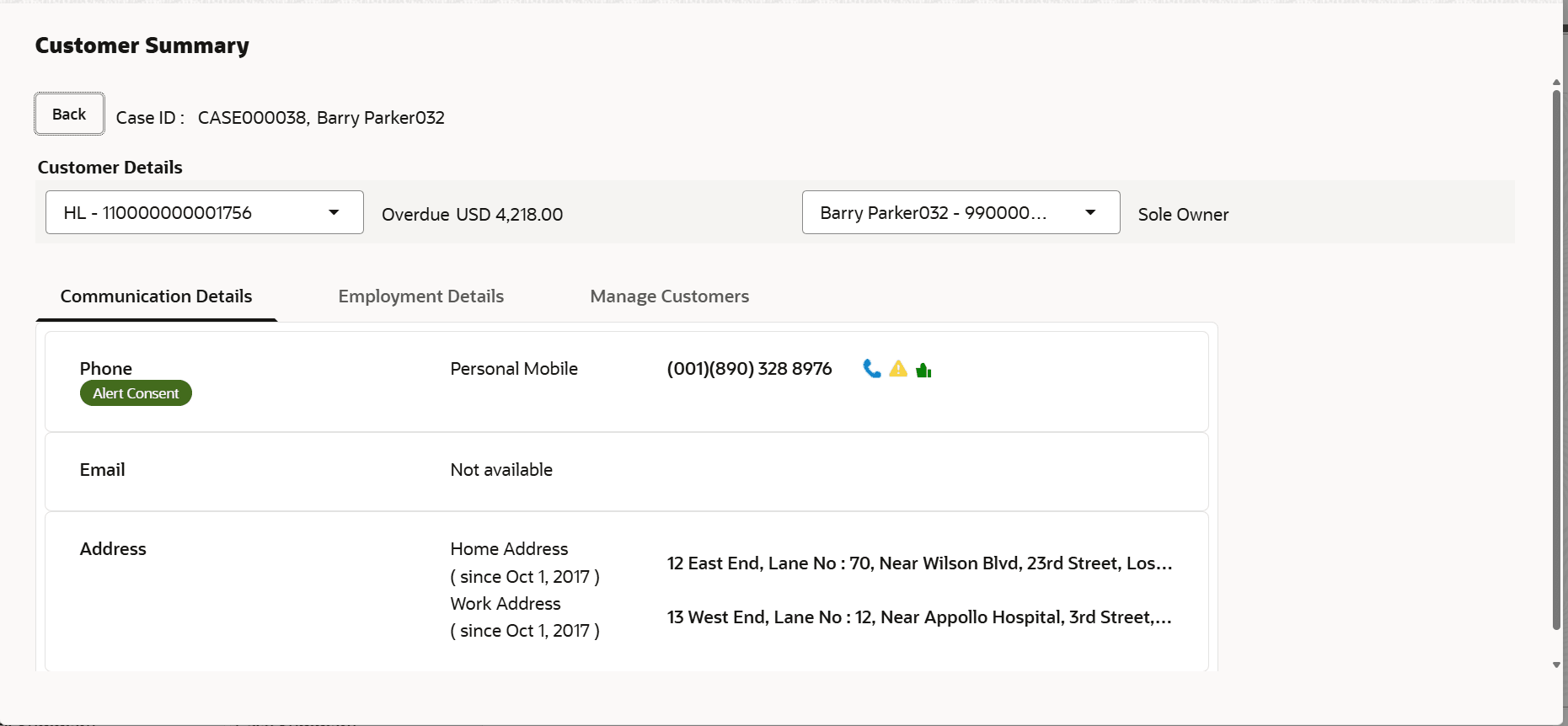
Description of the illustration customer-summary2.png
Table 4-8 Field Description: Customer Details
| Field Name | Description |
|---|---|
| Case ID, <Customer Name> | Displays the case ID and name of the customer. |
| Customer Details | This section displays details of the customer. |
| <Product Sub Type - Account Number> | Indicates the product sub type and account number.
The list displays all the account numbers associated with the case. |
| <Account Status> < Overdue Amount> | Displays the account status and overdue amount on the account. |
| <Customer Name - Customer ID> | Displays the customer name and customer ID associated with the selected account.
Note: The list displays the customer name and ID of the customers associated with the selected account. You can select the required customer name and ID to view the related details. |
| <Relationship> | Displays the customer's relationship with the account. |
| Communication Details | This tab displays communication details of the customer. |
| Phone | Displays the phone numbers of the customer. For example, Home Mobile, Work Mobile, and Landline Home. It also indicates if the customer has given consent to receive follow-up calls and alert messages on phone.
The following icons are displayed next to a phone number:
|
| Displays the email address of the customer. For example, Home Email and Work Email. It also indicates if the customer has given E-Sign consent to receive alert emails on the electronic mailing address.
It displays |
|
| Address | Displays the address details of the customer and the month and year since when the customer is located at the mentioned address. |
| Social Networking | Displays the social networking profile IDs of the customer.
Note: This field is displayed only if this information is available for the customer. |
| Messenger | Displays the messenger ID of the customer for messaging application.
Note: This field is displayed only if this information is available for the customer. |
| Call Advice | This section appears if you hover over
|
| Customer's Time | Displays the current time in the customer's time zone for the contact number.
Note: This field does not display any details if the customer's time zone is not available. |
| Permission To Call | Displays whether the customer has given permission to the bank for follow up calls.
It displays the following icons that help you to decide whether you can call the customer for a follow up call at the current time:
Note: These icons are displayed only if the customer's time zone details are available. |
| Preferred Time - Weekdays | Displays the start time and end time of the period during which the customer can be contacted during weekdays.
It displays the following icons that help you to decide whether you can call the customer for a follow up call at the current time:
Note: These icons are displayed only if the customer's time zone details are available. |
| Preferred Time - Weekends | Displays the start time and end time of the period during which the customer can be contacted during weekends.
It displays the following icons that help you to decide whether you can call the customer for a follow up call at the current time:
Note: These icons are displayed only if the customer's time zone details are available. |
| Do Not Disturb | Displays the Do Not Disturb (DND) start date and end date.
It displays the following icons that help you to decide whether you can call the customer for a follow up call at the current time:
Note: These icons are displayed only if the customer's time zone details are available. |
| Employment Details | This tab displays employment details of the customer.
Note: The companies that the customer has previously worked with are marked as Previous and the current company is marked as Current. By default, all the companies are displayed. If you want to view details of only the current employer, switch on the Only Current Employer toggle. |
| <Company Name> | Displays the name of the company. It also indicates whether the company is current or previous company of employment of the customer. |
| <Designation> | Displays the designation of the customer with the company.
Note: The information for this field is displayed only if it is available. |
| Type | Displays the employment type of the customer. For example, Salaried and Self Employed. |
| Industry | Displays industry in which the customer is employed.
Note: The information for this field is displayed only if it is available. |
| Start Date | Displays the start date of employment with the company. |
| End Date | Displays the end date of employment with the company.
Note: The value for this field is blank for current employer. |
| Manage Customers | This tab enables collector to manage the contact details of the customer and add additional alternate contacts. |
| Customer Name | Displays the name of the customer. |
| Relationship | Displays the relationship of the customer with the account . |
| Duration Applicable | Displays the applicability time period . |
| Address | Provides the ability to view and manage customer address details and preferences. Refer Manage Address section below . |
| Phone | Provides the ability to view and manage customer address details and preferences. Refer Manage Address section below . |
| Provides the ability to view and manage customer email details and preferences. Refer Manage Email section below . | |
| Indicators | Provides the ability to view and manage customer email details and preferences. Refer Manage Email section below . |
| Apply to All Accounts | Displays if party is applicable to all the accounts linked with the case. Applicable only for the new contact added. |
| <Manage Address> | Opens Manage Address popup. |
| < Action > | Click + and – icon to add or remove a new row. |
| <Checkbox> | To select an existing row.
Note: Only manually added rows can be selected. |
| Address | Indicates the complete address of the customer. |
| Pincode | Indicates the pincode of the customer. |
| City | Indicates the city of the customer. |
| State | Indicates the state of the customer. |
| Country | Indicates the country of the customer. |
| Type | Indicates the type of address of the customer. |
| Preferred | Indicates the address is a preferred address. |
| <Manage Phone> | Opens Manage Phone popup. |
| <Action > | Click + and – icon to add or remove a new row. |
| <Checkbox> | Click + and – icon to add or remove a new row. |
| ISD Code | Indicates the ISD code of the phone number. |
| Phone No | Indicates the phone number of the customer. |
| Time Zone | Indicates the time zone of the customer. |
| Type | Indicates the type of the phone number. |
| Preferred | Indicates the phone number is a preferred number to contact. |
| Message Alerts | Indicates if message alerts is enabled for the phone number. |
| Permission to Call | Indicates if call permission is provided by customer for the phone number. |
| Permission to Record | Indicates if permission to record call is provided by customer for the phone number. |
| DND | Indicates if do not disturb is enabled by customer for the phone number. |
| DND Duration | Indicates the do not disturb date range provided by customer for the phone number. |
| Contact Time - Weekday | Indicates the preferred contact time during weekdays provided by customer for the phone number. |
| Contact Time - Weekend | Indicates the preferred contact time during weekdays provided by customer for the phone number. |
| <Manage Email> | Opens Manage Email popup. |
| < Action > | Click + and – icon to add or remove a new row. |
| <Checkbox> | To select an existing row.
Note: Only manually added rows can be selected. |
| Indicates the email address of the customer. | |
| Type | Indicates the type of the email address. |
| E-Sign Consent | Indicates if the customer has given E‑Sign consent to receive alert emails. |
| Preferred | Indicates the email address is a preferred email to contact. |
| <Manage Indicators> | Opens Manage Indicators popup. |
| Indicator | Displays the indicators to be enabled for customer. |
| Value | Displays if the indicator is enabled. |
| <Add Contact> | Opens Add New Contact Popup to add an alternate party. |
| Customer Full Name | Indicates the full name of the party. |
| Relationship | Indicates relationship of the party with the account. |
| Duration Applicable | Displays the applicability time period. |
| Apply to All Accounts | Displays if party is applicable to all the accounts linked with the case. |
| Delete Contact | Deletes the selected customer. Note that only manually added customer record can be deleted. |
 : Indicates that the customer has given consent to receive alert messages on the particular phone number.
 : Indicates that it is the preferred phone number of the customer to receive follow-up calls.
Parent topic: Case Summary