1.1.1 Process Address Changes
This topic explains the systematic instructions to capturing and maintaining address adhering to the SWIFT standards.
New address fields are created which captures both structured, unstructured
and hybrid address types. This change is implemented in the party maintenance
screen.
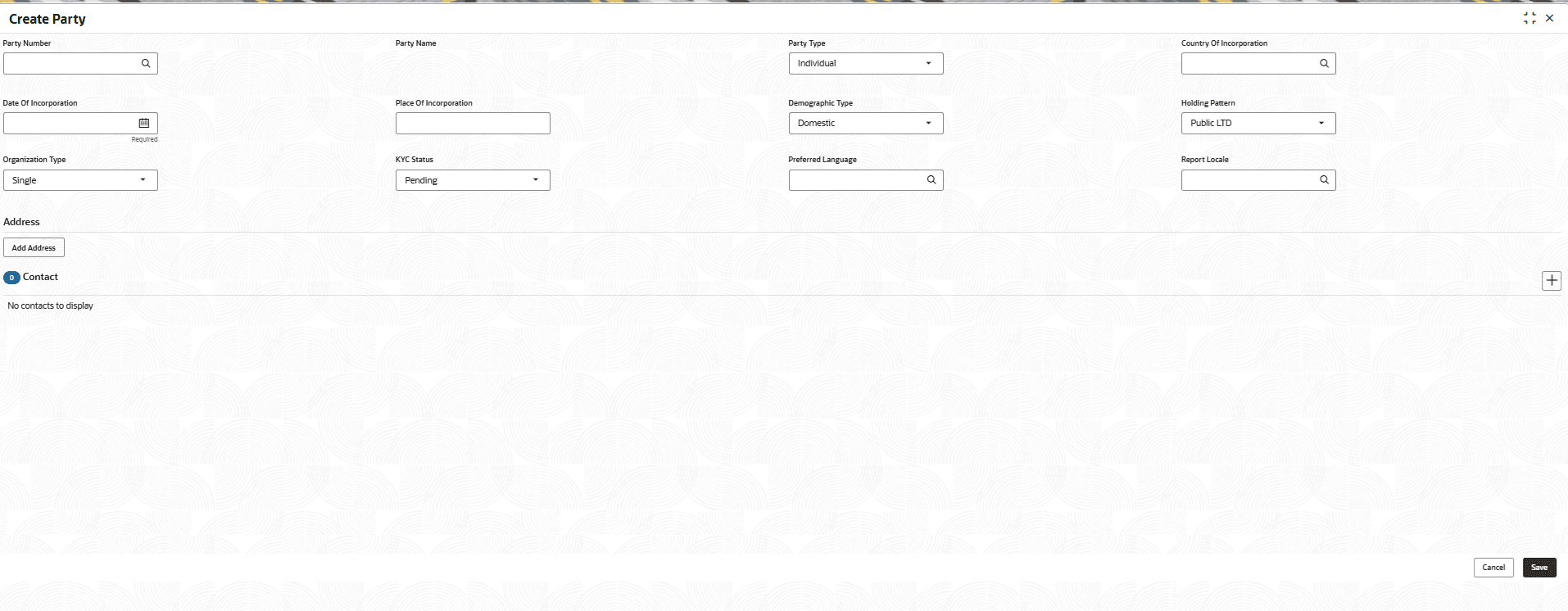
- From Maintenance, click Party
Maintenance and then click Create
Party.The Create Party screen displays.
For more information on fields, refer to the field description table.
Table 1-1 Create Party - Field Description
Field Description Party Number Click search to view and select the required party. Party Name Displays the party name. Party name gets auto-populated. Party Type Select the type of the party. The available options are: - Individual
- Corporate
Country Of Incorporation Click search to view and select the required country. Date Of Incorporation Select the date from the drop-down calendar. Place Of Incorporation Specify the place of incorporation. Demographic Type Select the demographic type. The available options are: - Domestic
- Global
Holding Pattern Select the holiday pattern. The available options are: - Public LTD
- Private LTD
- Proprietorship
- Government Owned
- Trust
- Society
- Limited Liability Partnership
- Others
Organization Type Select the organization type. The available options are: - Single
- Conglomerate
KYC Status Select the KYC status. The available options are: - Pending
- Completed
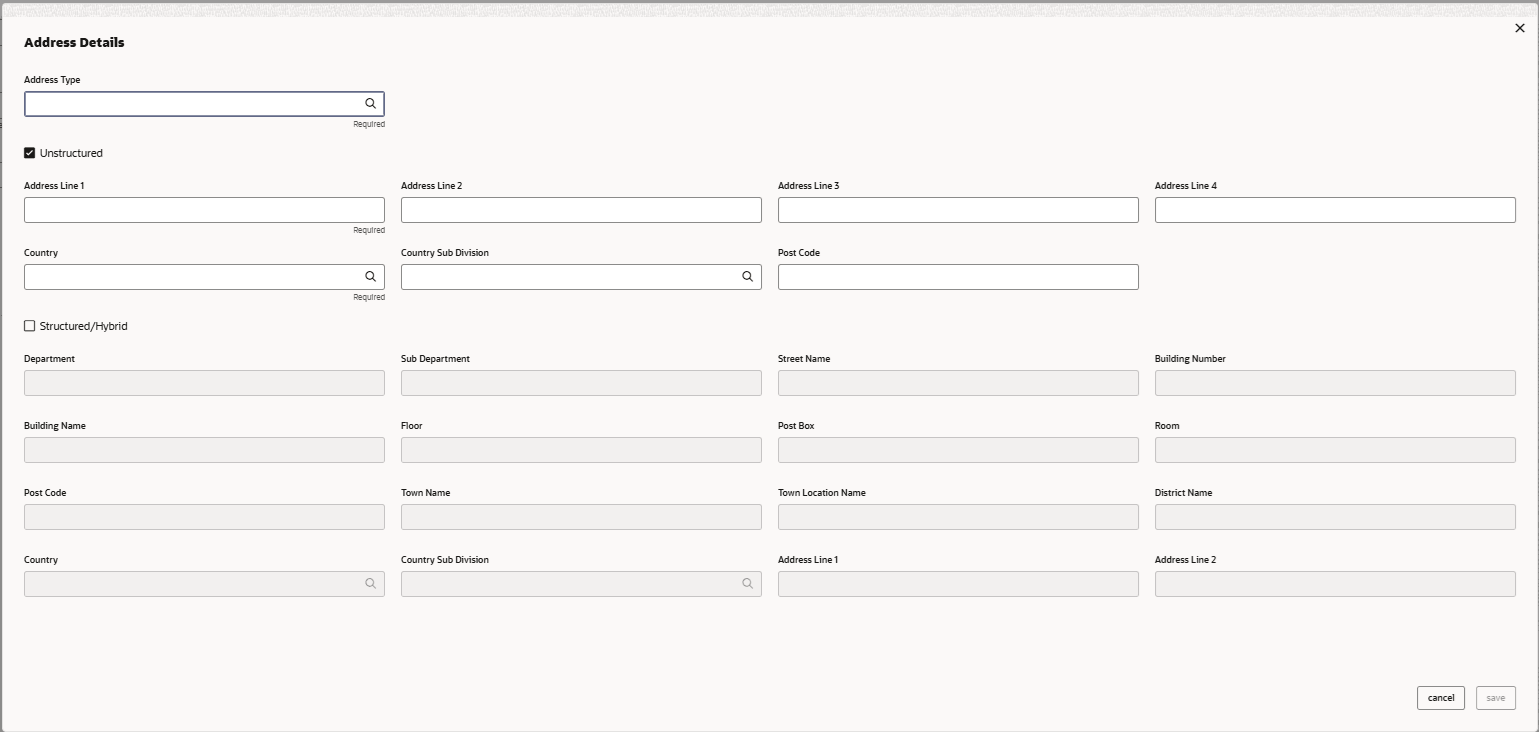
Preferred Language Specify the preferred language to the party. Report Locale Select the preferred advice language for the Party. - In the Create Party screen, click the Add
Address button.The Address Details screen displays.
For more information on fields, refer to the field description table.
Table 1-2 Address Details - Field Description
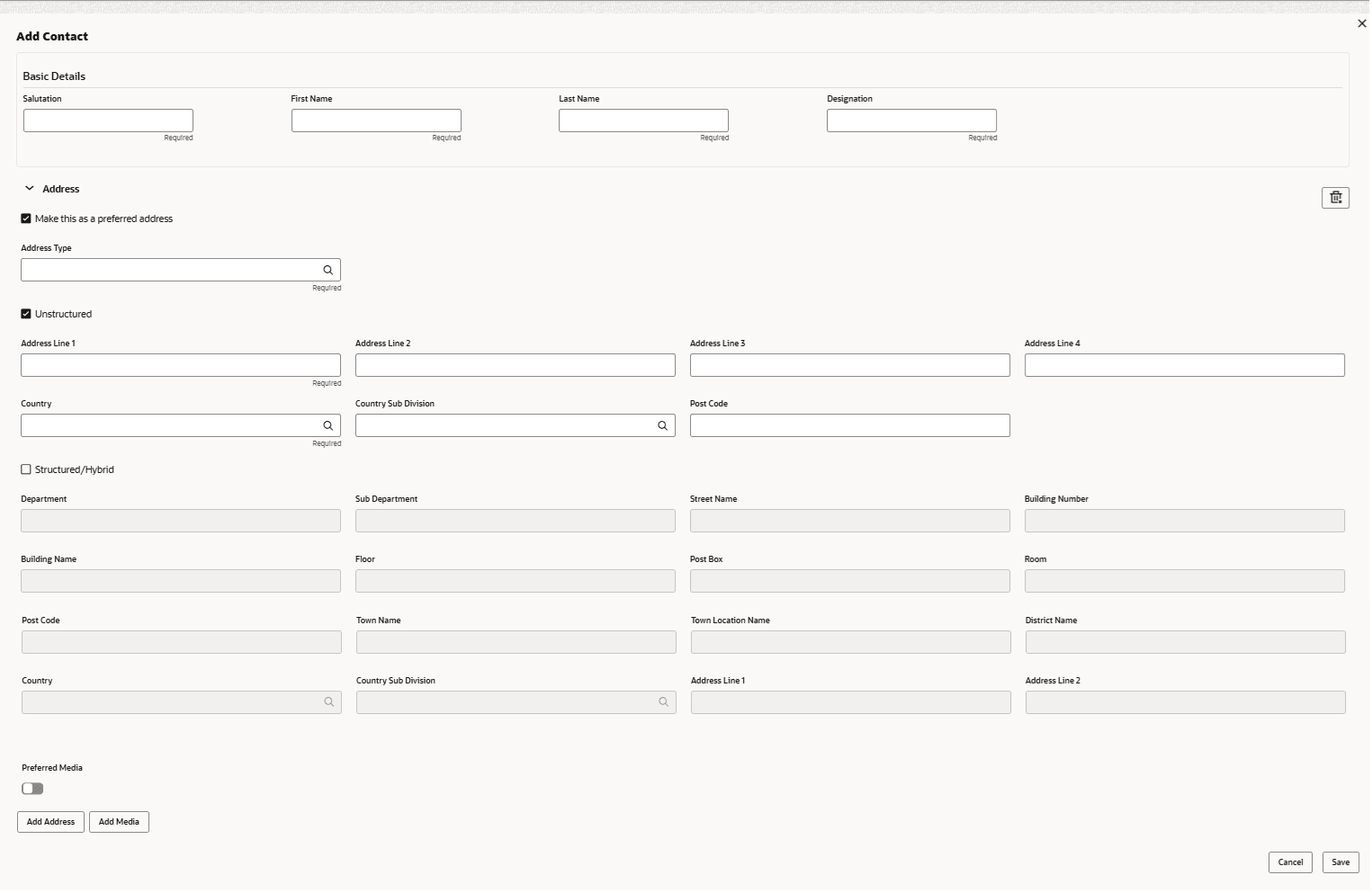
Field Description Address Type Specify the address type. Address Line 1-4 Enter the unstructured address line 1 to 4. Country Specify the country. Country Sub Division Specify the unstructured country sub division. Post Codes Enter the zip code. Department Enter the structured department. Sub Department Enter the structured sub department. Street Name Enter the street name. Building Number Enter the building number. Building Name Enter the building name. Floor Enter the floor details. Post Box Enter the post box details. Room Enter the room details. Post Code Enter the zip code. Town Name Enter the town name. Town Location Name Enter the town location name. District name Enter the district name. Country Enter the country name. Country Sub Division Enter the country sub division details. Address Line 1 -2 Enter the structured address line 1 to 2. - In the Create Party screen, click
 to add the contact details.The Add Contact pop up displays.
For more information on fields, refer to the field description table.
Table 1-3 Add Contact - Field Description
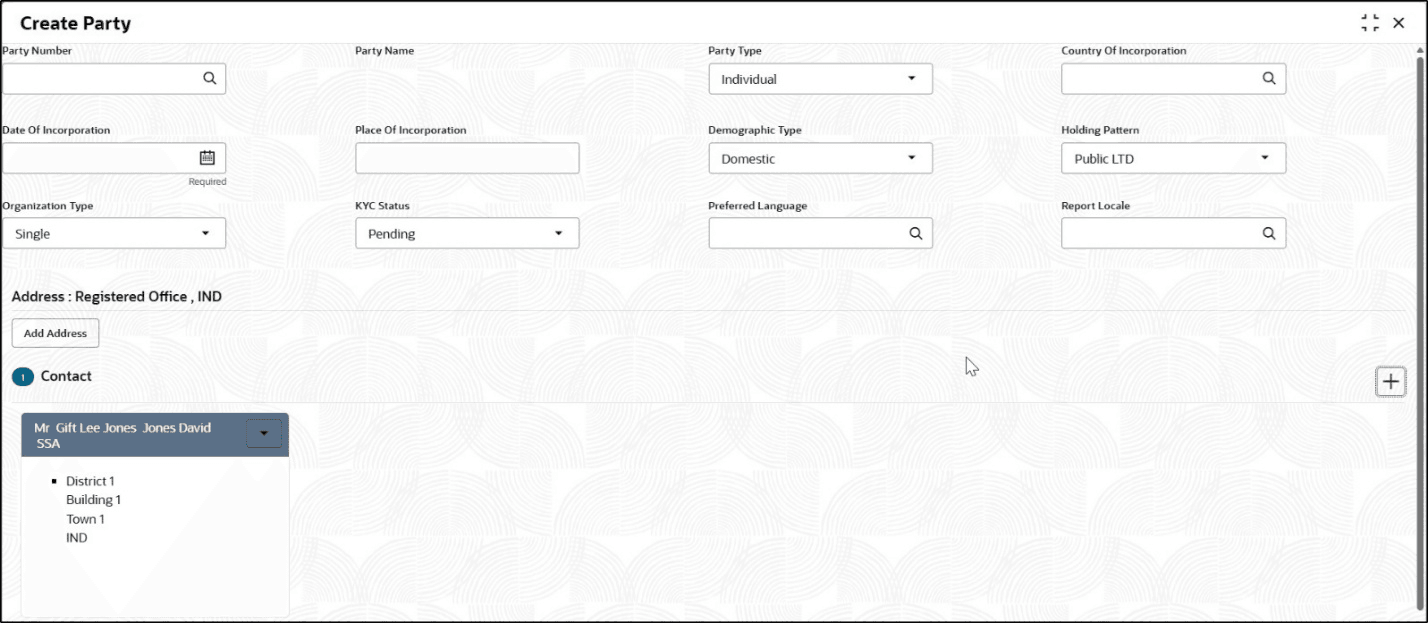
Field Description Salutation Enter the salutation. First Name Enter the first name. Last Name Enter the last name. Designation Enter the designation details. - Click Save to save the party details.The Create Party screen with the added contact displays.
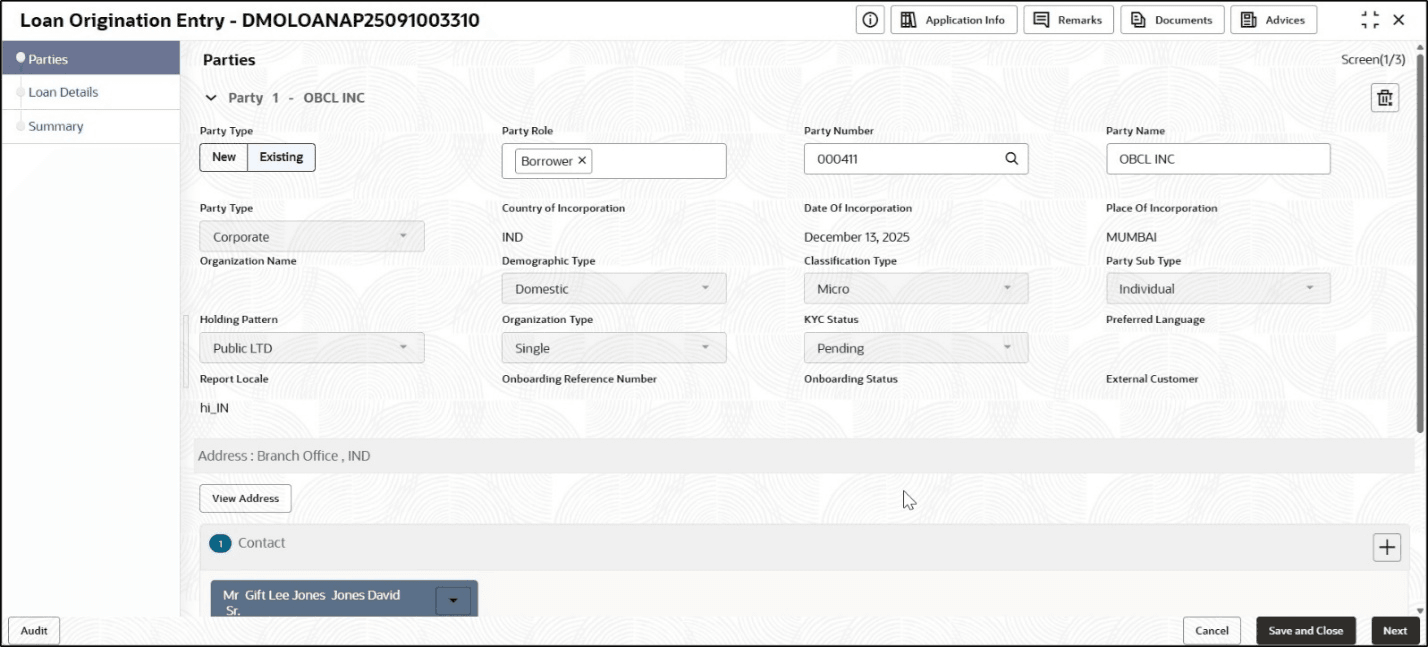
- In the loan parties data segment, existing party details are displayed in the
updated format.The Parties screen with details displays.
Parent topic: Business Process Maintenance