2.3.2 Change ELCM Data Source Password
This topic explains systematic instructions to change the password of the ELCM data source in the Oracle WebLogic application server.
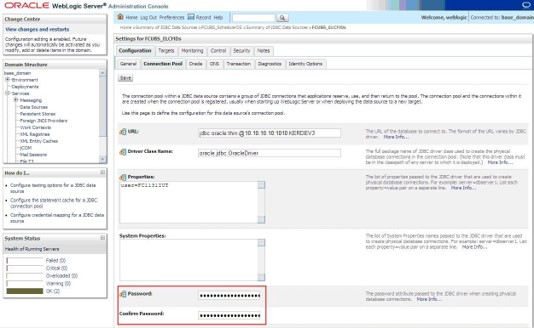
- On the Settings for FCUBS_ELCMDs screen, click the Connection Pool tab.The Connection Pool tab displays.
Figure 2-8 Settings for FCUBS_ELCMDs - Connection Pool Tab
For more information, refer to the fields description table.
Table 2-4 Connection Pool Tab - Field Description
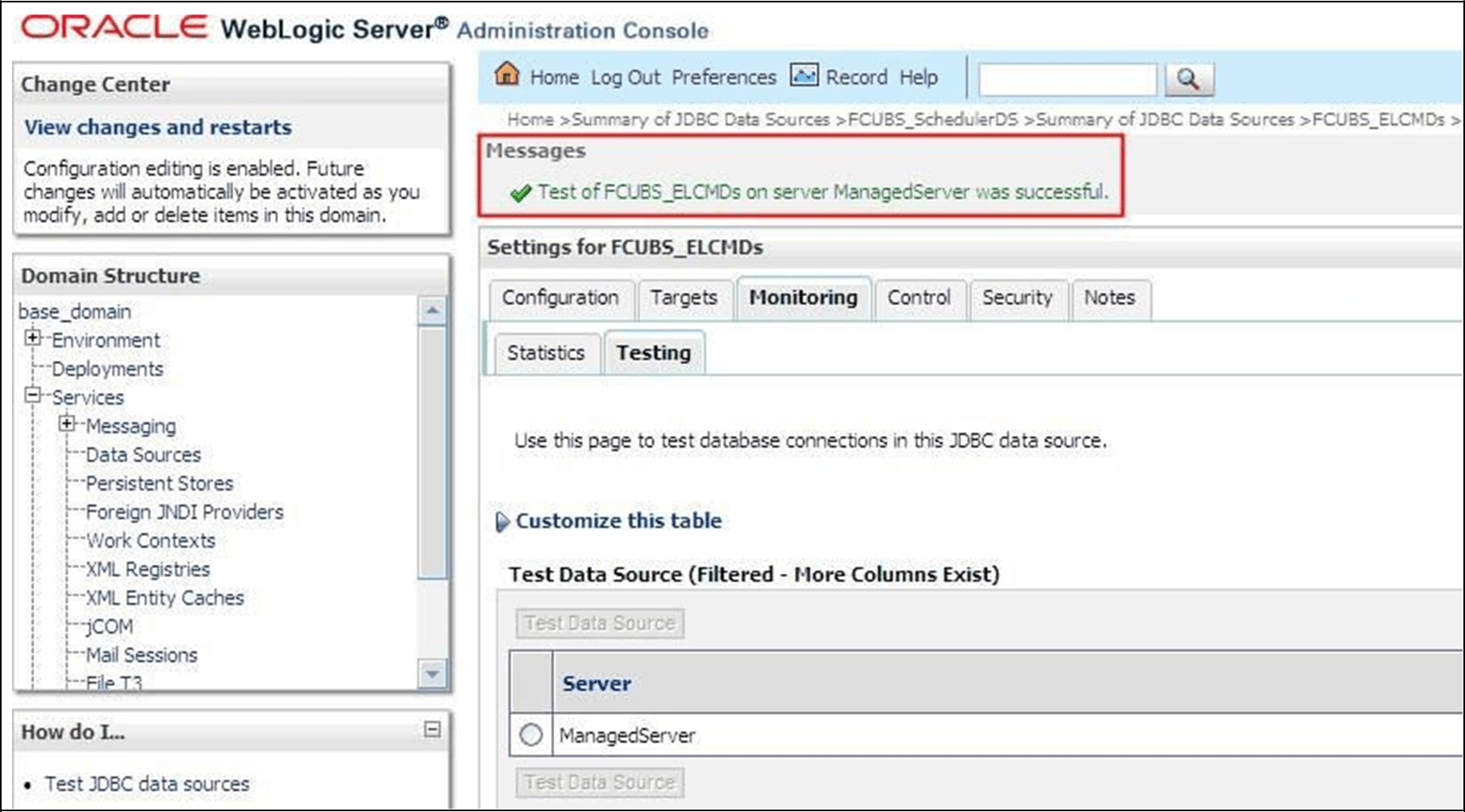
Field Description Password Specify the new password. Confirm Password Specify the new password again. - Select the target server, and click Test Data Source.The system displays a message confirming successful testing.
Figure 2-9 Settings for FCUBS_ELCMDs - Testing Message
You need to change the branch schema password after the above steps. Refer to the topic Change Password in Decentralized Setup for more information on changing the branch schema password from Oracle Universal Banking Solution Installer.
Note:
Try the above process in UAT or any other test environment before changing the password in a production environment.
Parent topic: Change ELCM Data Source Password