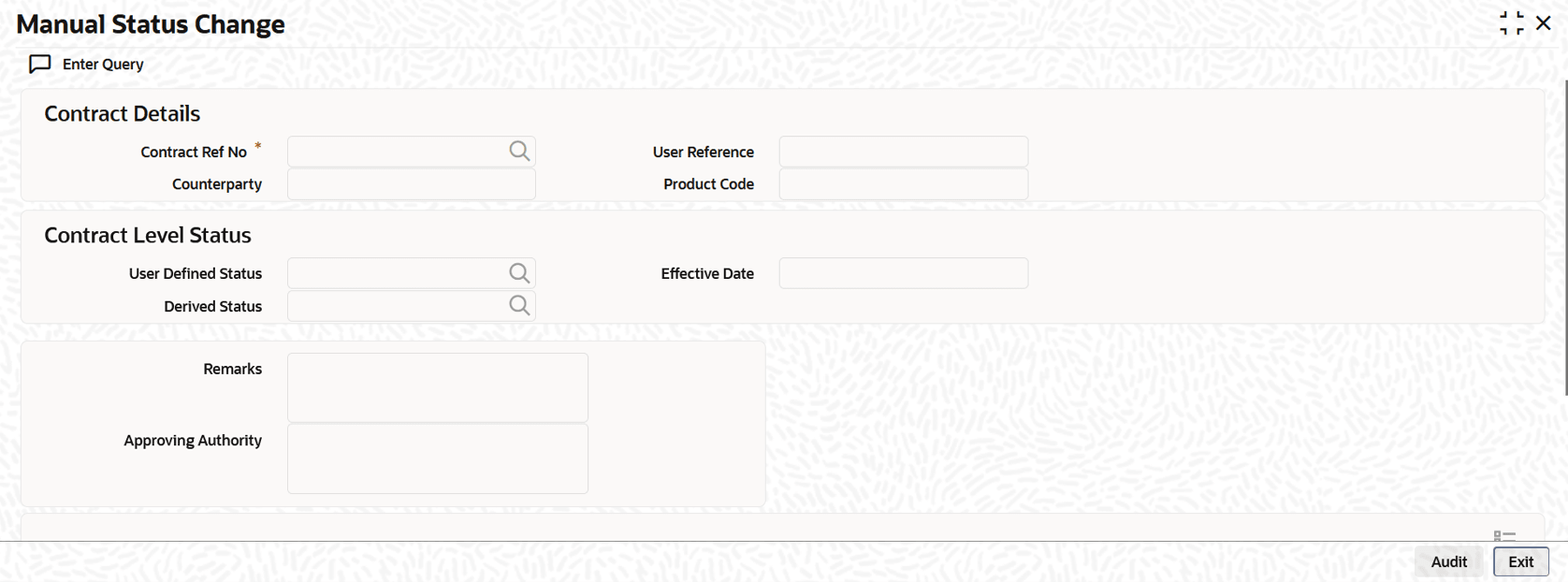
If you have chosen a contract involving a product for which
status processing for schedules has been allowed, then you can only change the
status of any of the schedules, as required, and not for the contract. Select
the new status in the Status field, for the schedule.
If you have
chosen a contract involving a product for which status processing for
schedules has not been allowed, you can only change the status of the
contract, and not for individual schedules. Select the new status for the
contract in the User Defined Status field.
In this screen, if the
contract you have selected is a commitment and you have selected the
Propagate Status To Loan (at the product or contract
level), then the status change that you specify here for the commitment is
assigned to all the active contracts underlying the commitment. If the contract
selected is a loan and you select a status that does not match the status of the
commitment, the system displays an error message.
For instance,
if the commitment status is
Performing, the status of
the corresponding loan is also
Performing. You cannot
change the status of the loan from
Performing to
Non-performing. Similarly, if the commitment
status is
Non-performing, the corresponding loan also
has the
Non-performing status. You cannot change it
from
Non-performing to
Performing. Cost to credit valuation is
applicable for performing and non-performing commitments and loans
underlying them. However, the nature of the valuation differs based on the
status of the contract – performing or non-performing. Once the loan becomes
nonperforming, the system performs certain validations during the EOD batch
as part of cost to credit valuation. However, if the loan status changes to
performing subsequently, the system amends the
validation applicable for cost to credit valuation. To achieve this, the
system checks the value of the backend static parameter
ALLOW_REPERFORMING_LOAN_FUNC. If the value for
this parameter is
Y then the system performs the
applicable validations on the contract during cost to credit valuation based
on the loan status. Additionally, the system also perform the following
during status change of loan and commitment contracts:
- Memo interest reversal – This is done irrespective of
whether the Cost of Credit check box is
selected for the contract or not. This is applicable to loan status
change.
- Release of FAS114 for loan - If FAS 114 reserve
balances exist for the loan, they are reversed only if
Cost of Credit box is checked for the
loan contract.
- Restart of amortization fee accrual – This is done
irrespective of whether the Cost of Credit
check box is selected for the contract or not. This is applicable to
commitment status change.
- Release of FAS114 for commitment – If FAS 114 reserve
balances exist for the commitment, they are reversed only if
Cost of Credit check box is selected for
the contract.
If the value of the parameter is
N, the system
does not perform the above mentioned processes during status change of the
contract. Changes to the user-defined status received from RAPID for
uploaded commitment contracts are also propagated to the loan contracts that
fall under the respective commitment.
Note:
If a contract is pending for
authorization in any screen and if you try to unlock in
OLDMSCDT to do changes, then an error message
Unauthorized amendments exist for contract in function ID
appears.
Specifying Effective Date
You can
specify the effective date as current date or back date.
- If effective date is current date and the user defined
status is set to stop, then reverse accrual is done from current date
onwards. The interest accrual is stopped and reversal of interest
accrual is not done since the effective date is current date. In
addition, there is no interest accrual reversal entries.
- If effective date is back dated and the user defined status
is set to stop and reverse accrual is done from the back date. Since the
effective date is back dated, the system reverses interest from
effective date of status change and stops the accrual.
- In case of any interest collected in advance and user
defined status is set to stop accrual, the interest continues to get
amortised till the next interest period, that is, till the unamortised
interest becomes 0.
Note:
You cannot specify the
effective date as future date.
- Remarks : Capture any notes on the manual status
change
- Approving authority : Input the Name of the authority who
approved the status change, for audit purposes
For more information about fee liquidation, refer to
Processing Upfront
Fee Accruals in this User Manual.