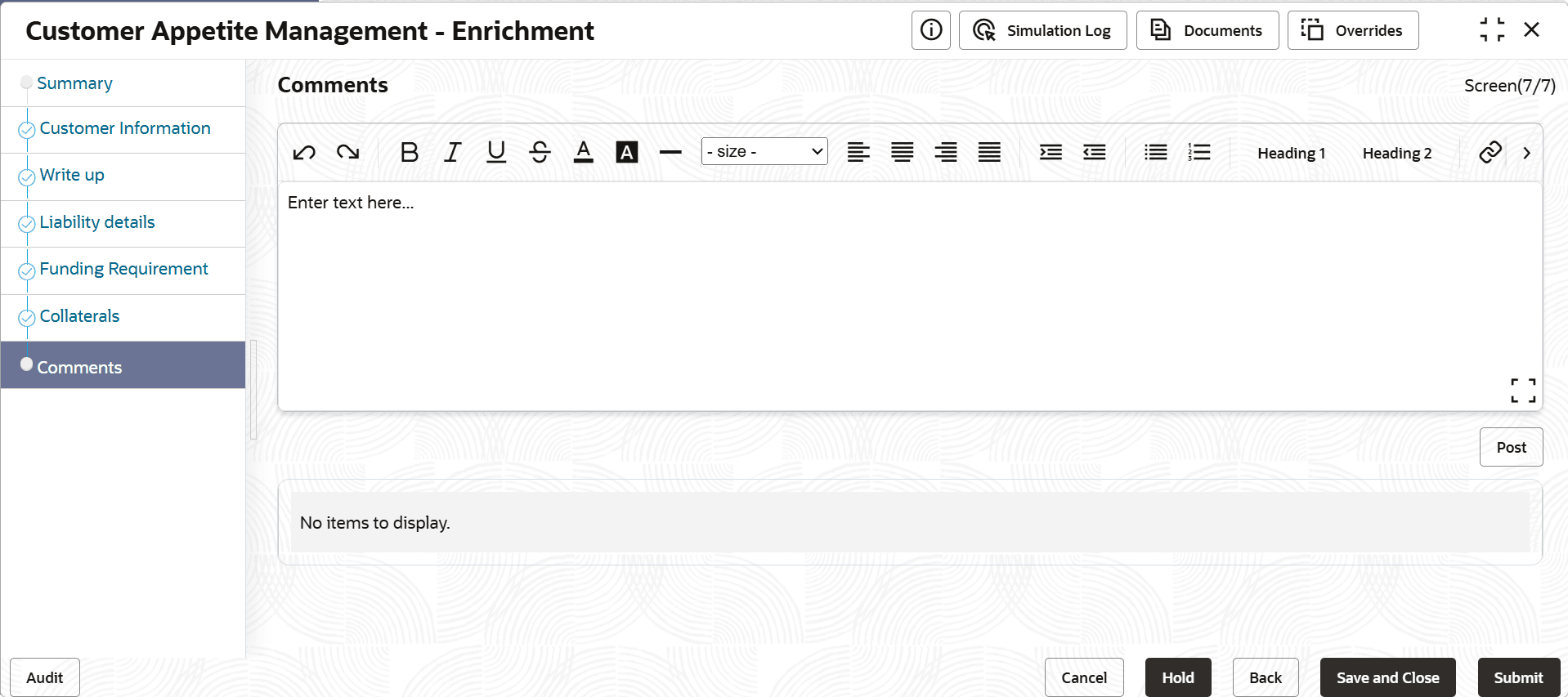
4.3 Enrichment - Write up
Detailed information about the Write up data segment in Appetite Management Enrichment stage.
In this data segment, you can add writeup for any of the writeup categories
maintained in the system.
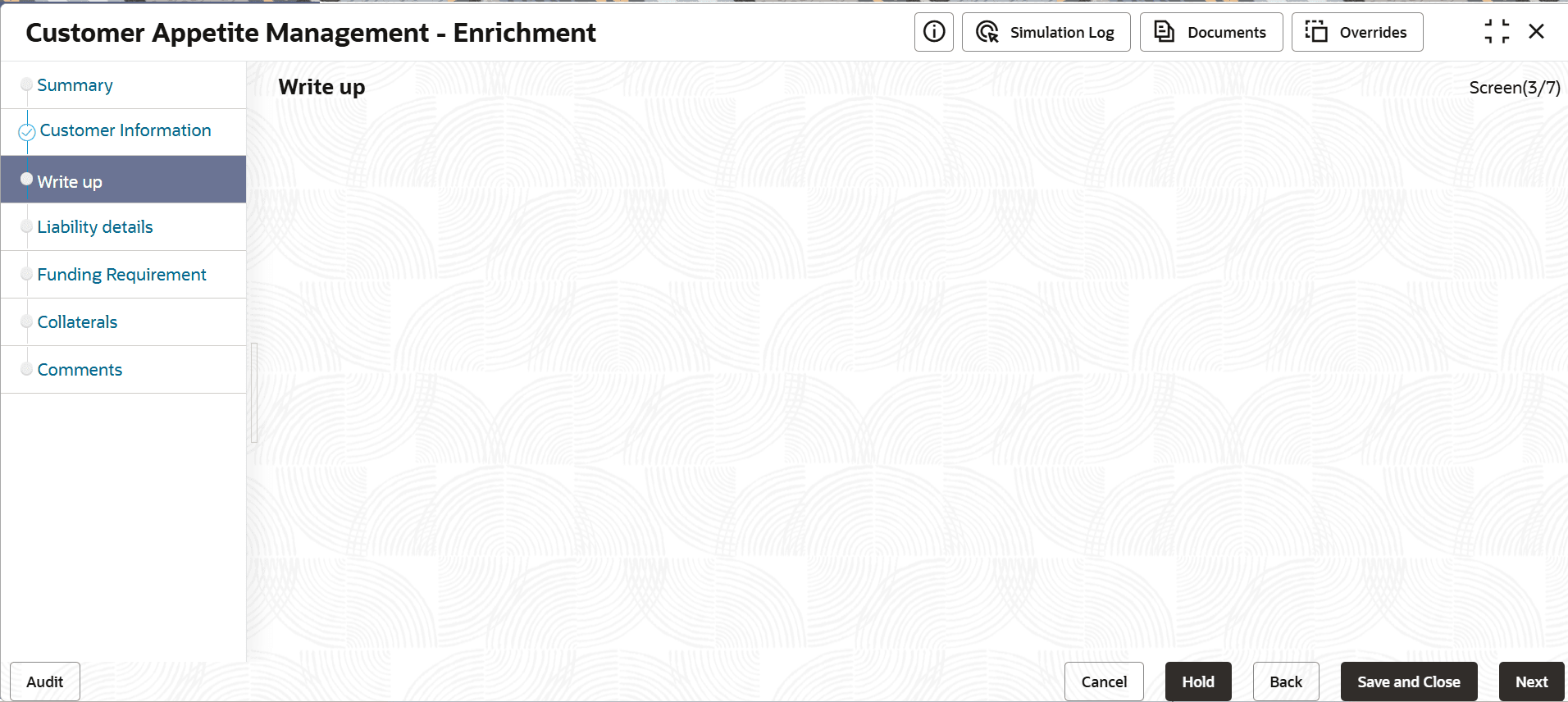
- Click the add icon. The Write Up window is displayed.
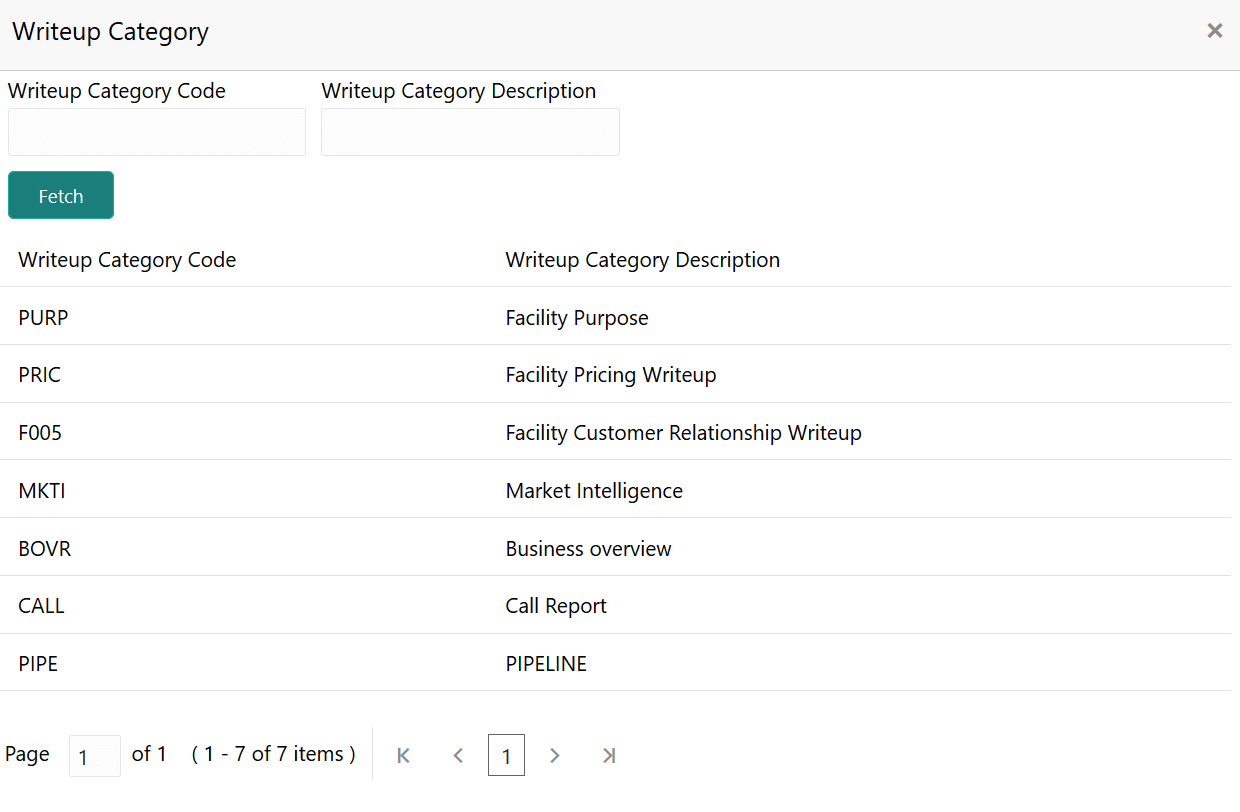
- Click the search icon in the Writeup Category field. The Fetch Writeup
Category window with the list of categories maintained in the Maintenance module
is displayed.
Figure 4-6 Write up Category
- Type the observations in the text box and click Create.
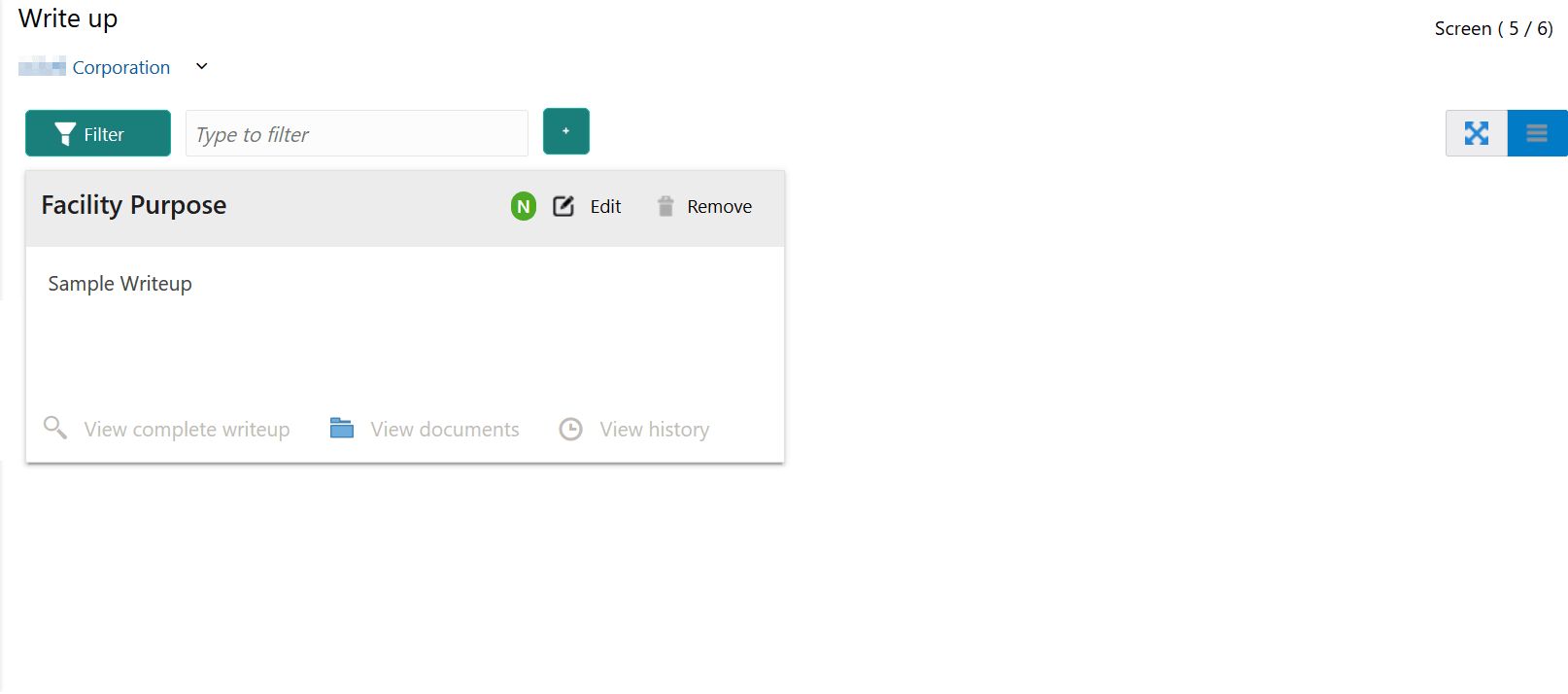
The observations are added in the Write Up page as shown below:
Figure 4-7 Write up
- To change the layout of Write up data segment to the expanded view, click the
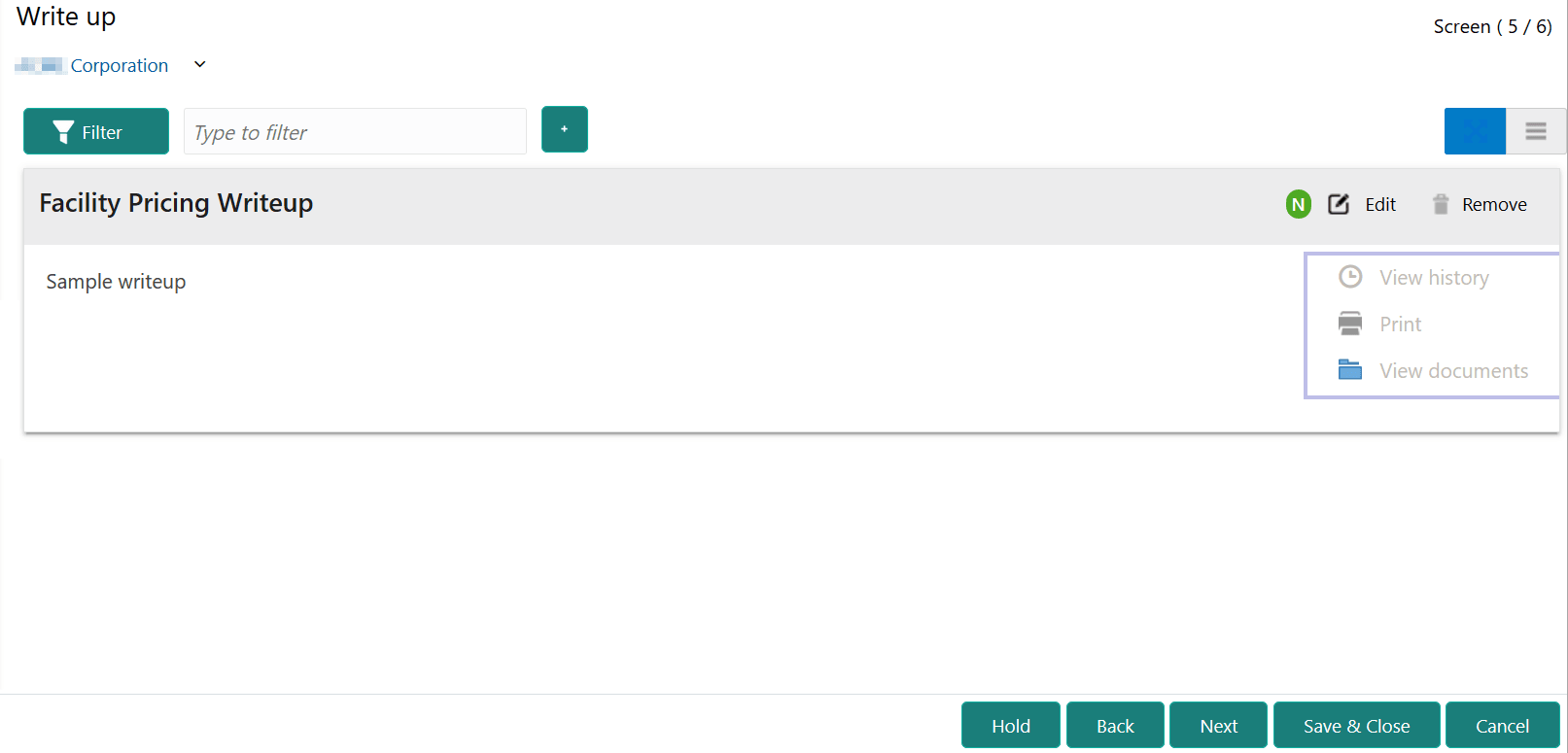
Expanded View icon at the top right corner. The write up is expanded as shown
below:
Figure 4-8 Write up
For information on fields in the Write up screen, refer the below tables.
Table 4-1 Write up
Field Description Edit To modify the writeup, click the Edit icon and change the information. Remove To delete the writeup, click the Remove icon. A confirmation message appears. Yes Click Yes. The writeup is removed. View history To view the writeup history, click the View history icon. Print To print the write up, click the Print icon. Note:
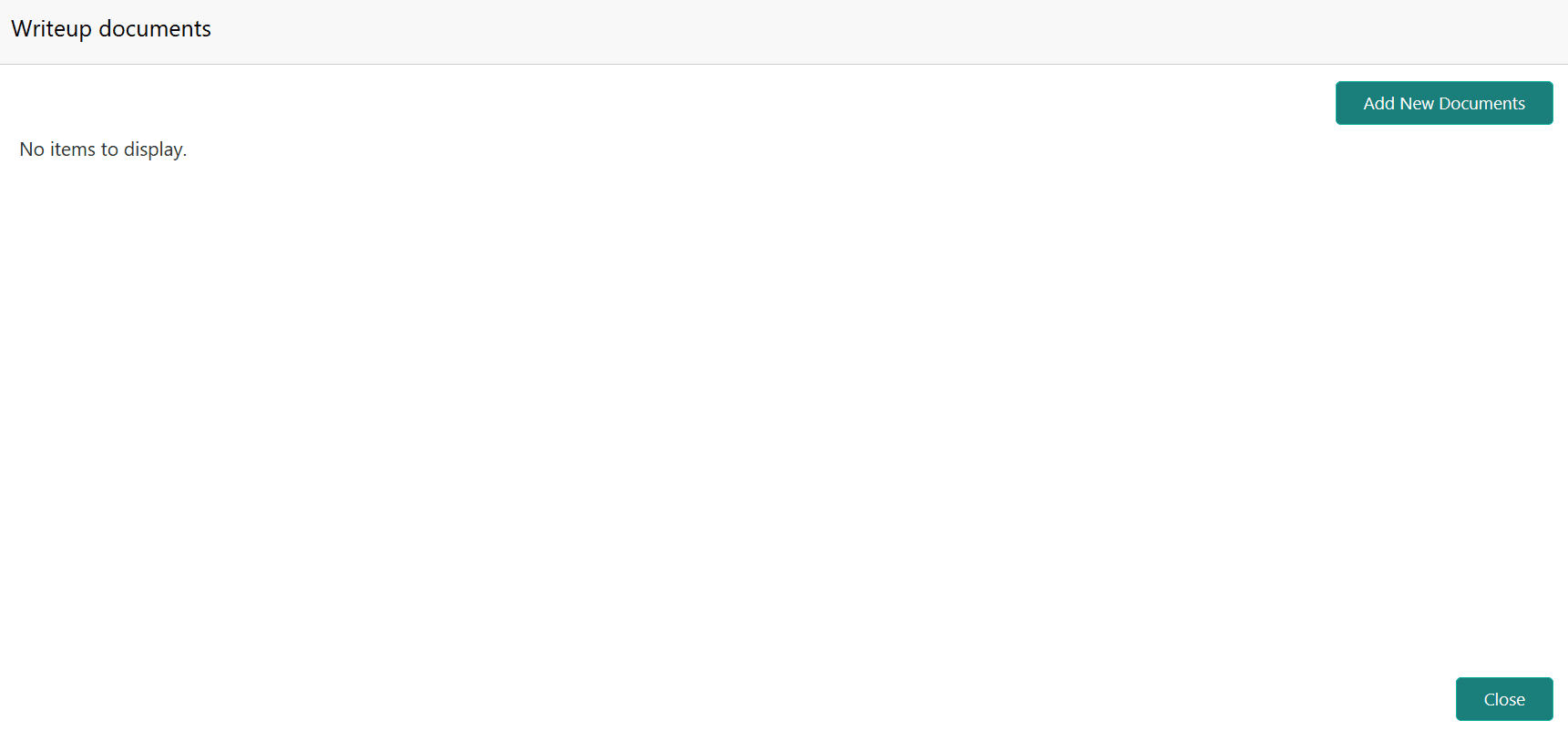
To print the write up from tile view, click the View complete writeup icon and then click the Print icon. - To attach / view writeup related documents, click View Documents icon. The Writeup Documents window is displayed.
Figure 4-9 Writeup Documents