3.6 Initiation - Summary
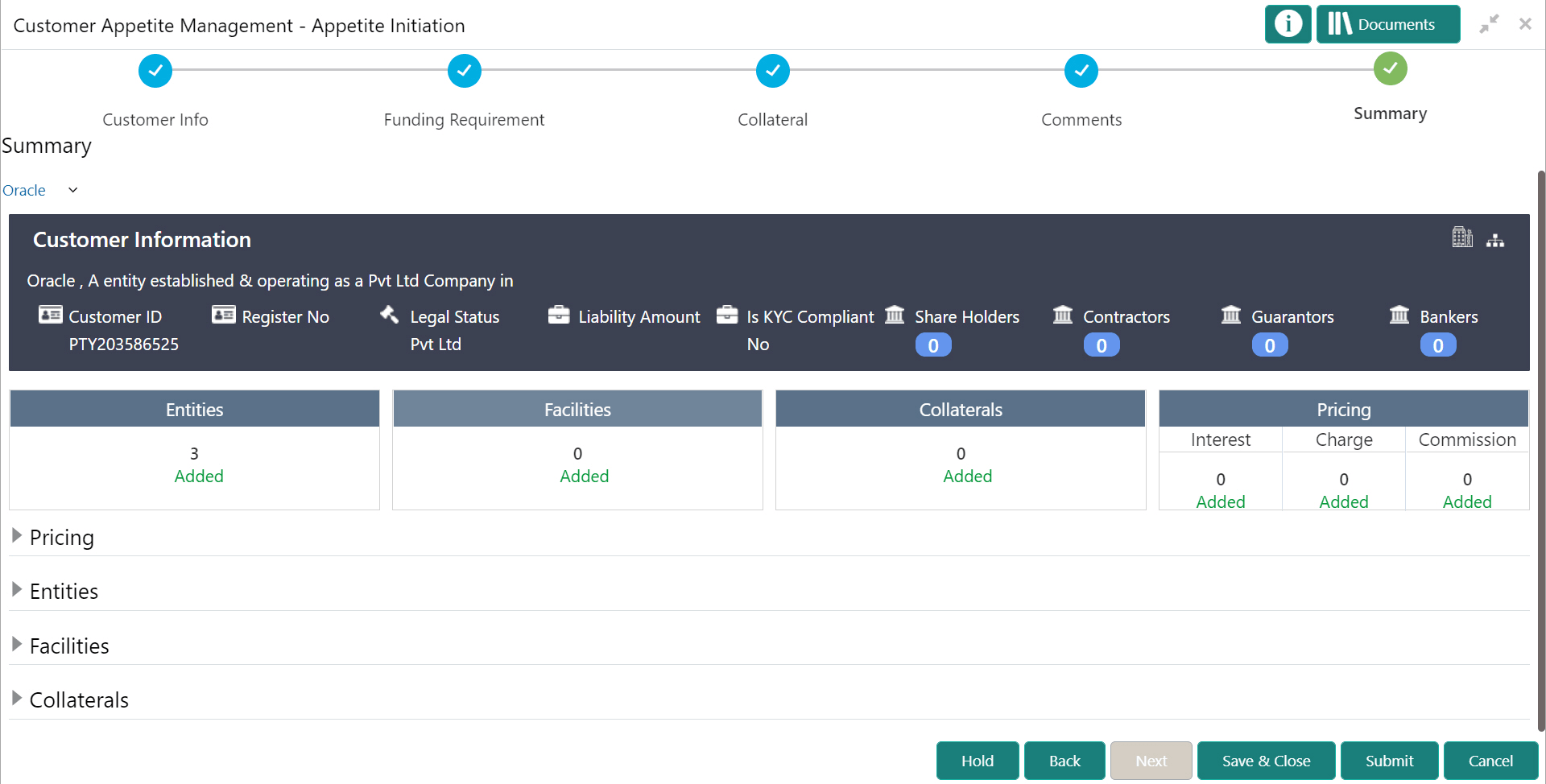
This topci provides systematic instructions about the Initiation - Summary data segment in Appetite Management Initiation stage.
Figure 3-31 Initiation - Summary
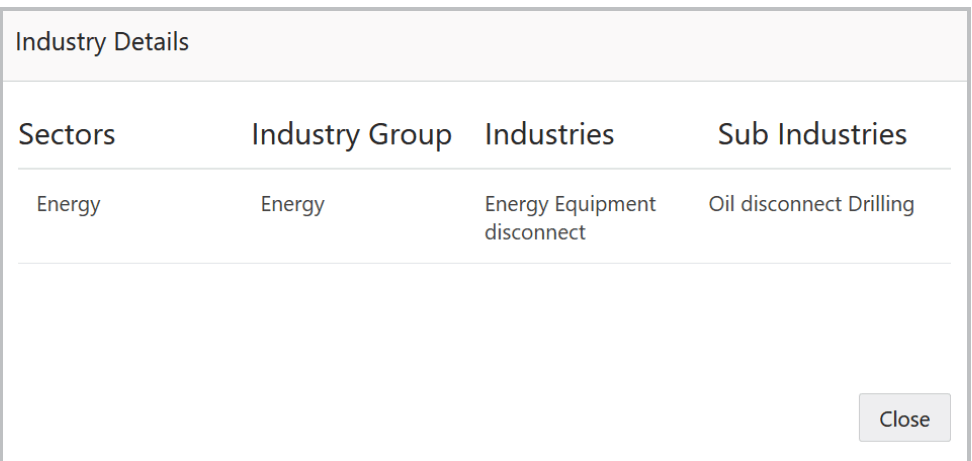
- To view the sector and industry information, click the industry icon in
customer information section. The Industry Details window is displayed.
Figure 3-32 Industry Details
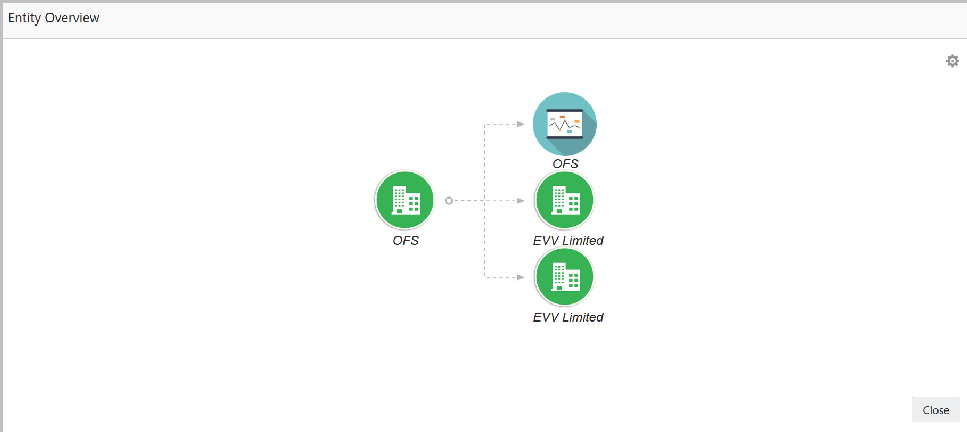
- To view the overview of the organization, click the entity overview icon in
Customer Information section. The Entity Overview window is displayed.
Figure 3-33 Entity Overview
- To change the layout of the entity overview, click the configuration icon at
the top right corner. The Layout window is displayed.
Figure 3-34 Entity Layout
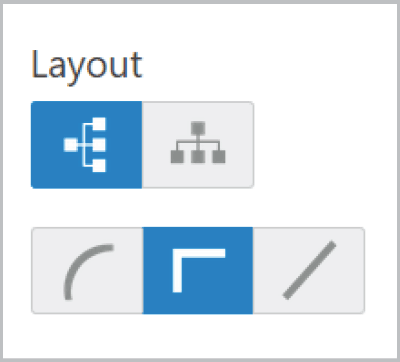
- Select the required layout. Entity Overview is changed to the selected layout
as shown below.
Figure 3-35 Entity Overview
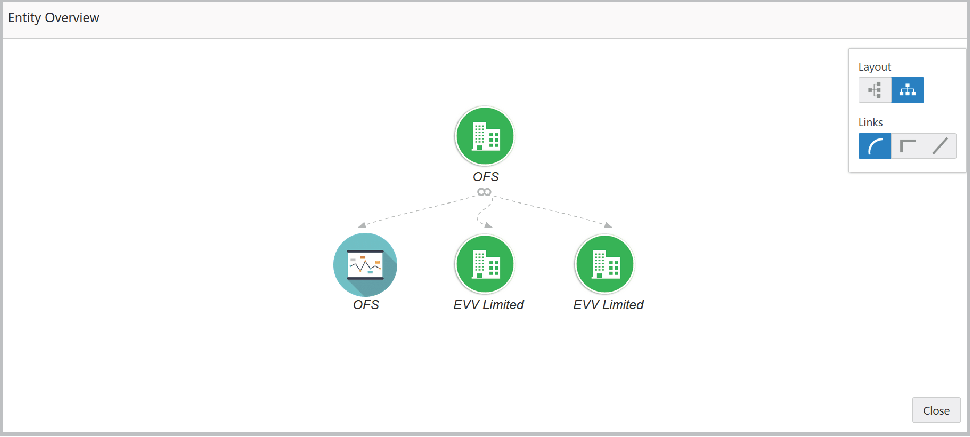
For information on fields in the Entity Overview screen, refer the below tables.
Table 3-30 Entity Overview
Fields Description Close To exit the Entity Overview window, click Close. Pricing, Entities, Facilities and Collaterals To expand Pricing, Entities, Facilities and Collaterals sections, click the number in respective count tables or click the triangle in each section. Hold To hold the Amendment Initiation task, click Hold. Back To go back to the previous page, click Back. Save & Close To save the captured information and exit the page, click Save & Close. Submit To submit the Appetite Management application to the Enrichment stage, click Submit. Cancel To exit the page without saving the captured information, click Cancel. Upon clicking Submit, the Policy Exceptions / Business window appears based on configuration:
Figure 3-36 Policy Exceptions
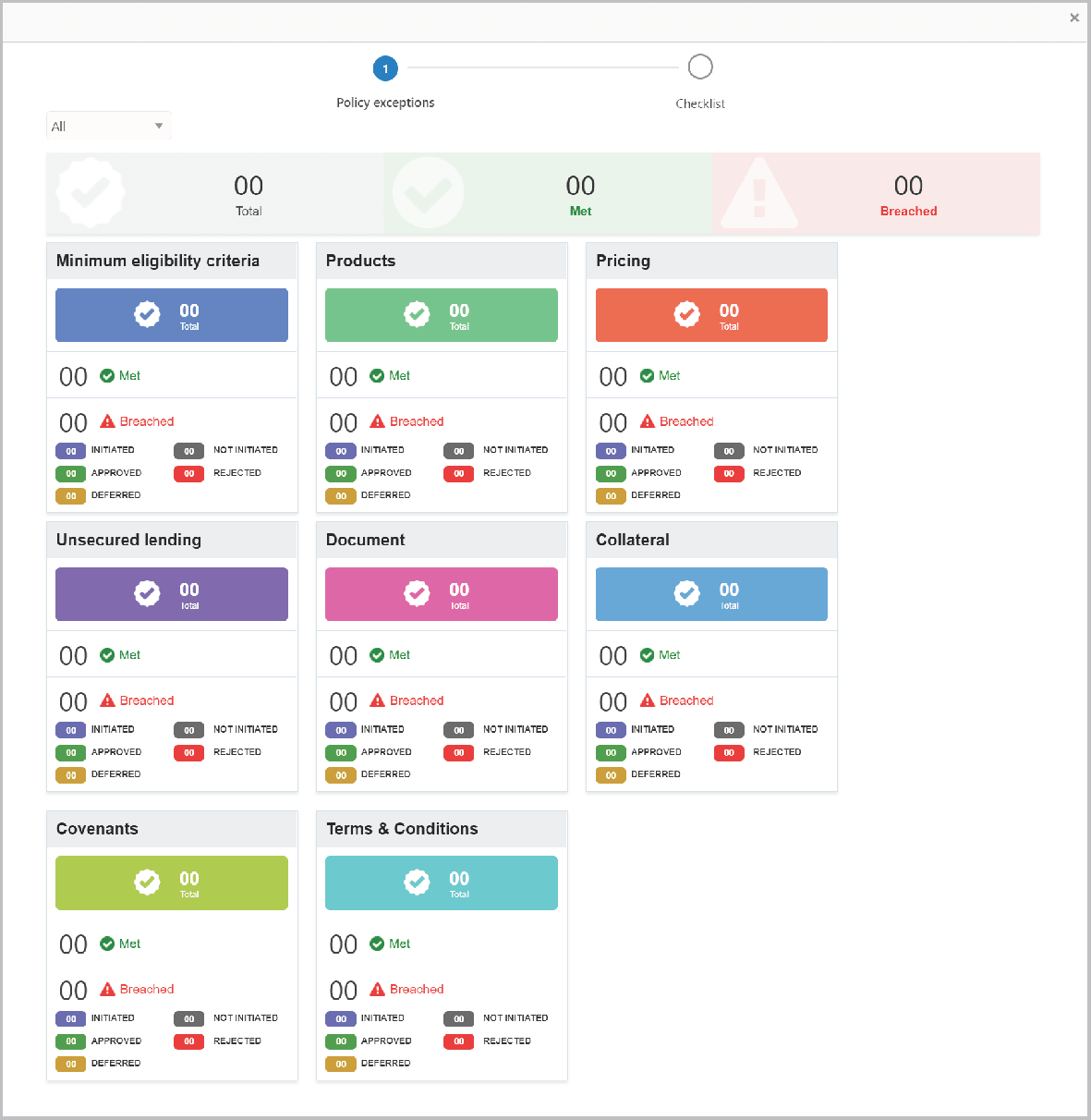
By default, policy exceptions are displayed for both the party and child parties. To view the policy exceptions for particular party / child party, select the required party / child party from the drop down list at top left corner.
- After viewing policy exceptions or overrides, click the Checklist data
segment.
Figure 3-37 Checklist
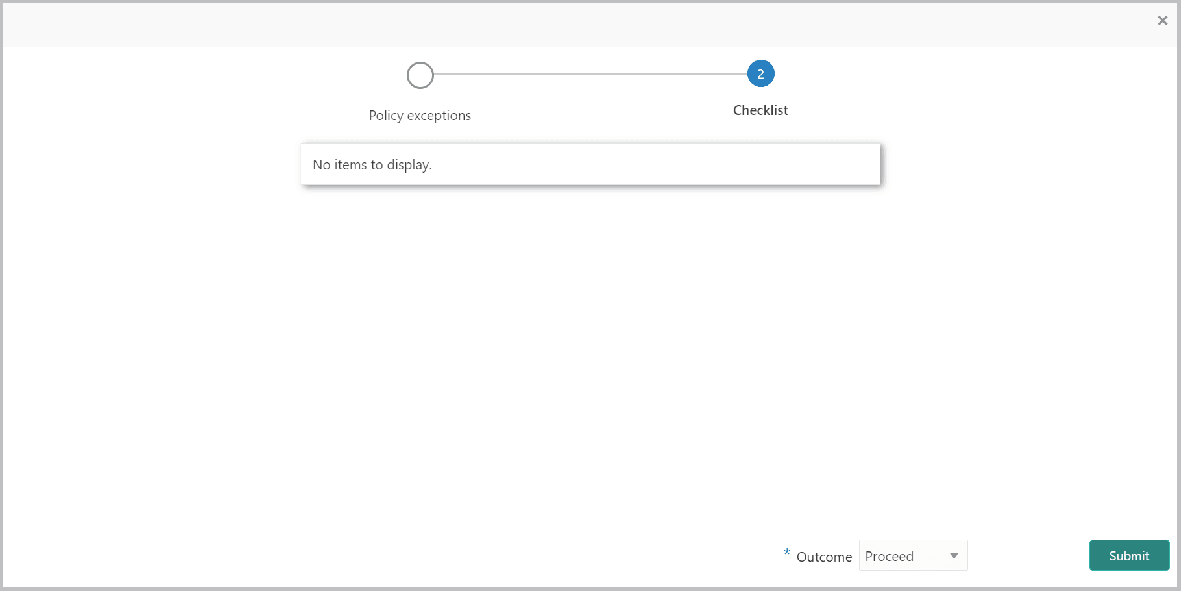
In the above screen, the checklist for manual verification appears if it is maintained for this stage in Business Process Maintenance screen.