3.6 Amendment Initiation - Connected Party
This topic describes information about the Connected Party in the Amendment Initiation.
This data segment allows to view, modify, delete and add details about the connected parties of users customer.
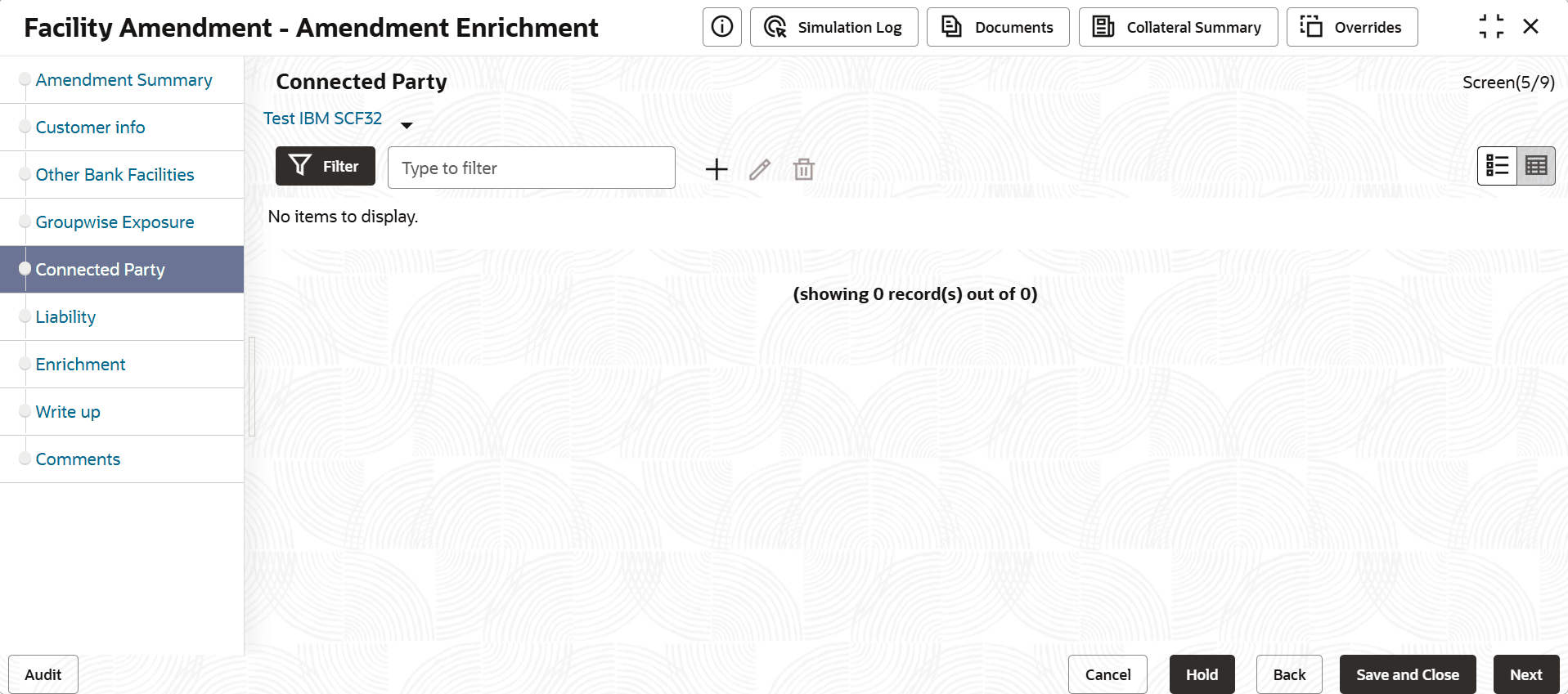
- To filter the required connected party from the list, click Filter
button.The Filter window is displayed.
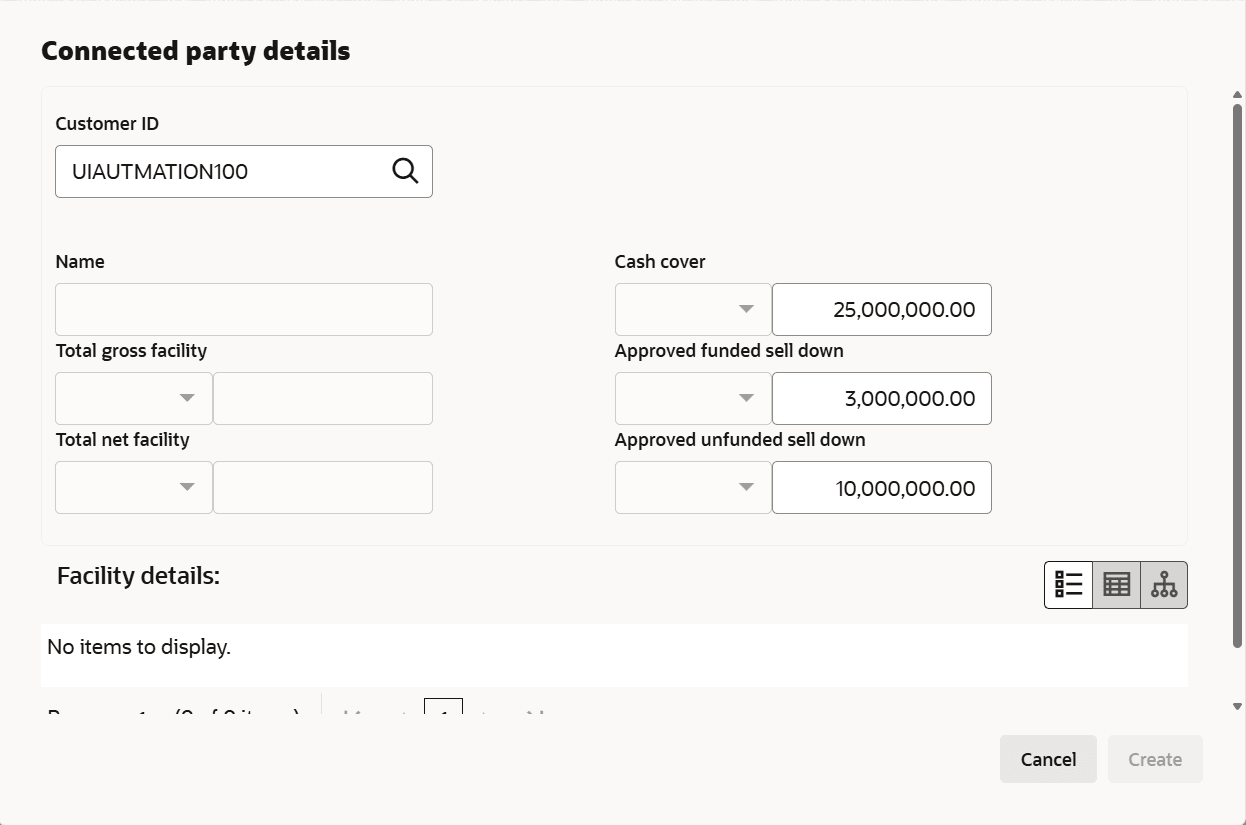
- To add information about connected parties, click the add icon.The Connected Parties Details window is displayed.
For information on fields in the Connected Parties Details page, refer the below table.
Table 3-36 Connected Parties Details
Fields Description Customer No Search and select the Customer No. of the party connected with your customer. Following details about the connected party are fetched and displayed: - Name
- Total Gross Facility
- Total Net Facility
- Cash Cover
- Approved Funded Sell Down
- Approved Unfunded Sell Down
- Facility Details
Facility Details To change the view of Facility Details, click the required icon from List View, Table View and Tree View icons. Create Click Create. Connected party details are added and displayed in the Connected Parties page. Save Modify the required information and click Save. Hold To hold the Amendment Initiation task, click Hold in the Connected Parties page. Back To go back to the previous page, click Back. Save & Close To save the Amendment Initiation task for future edit, click Save & Close. Next To go to the next page, click Next. Cancel To exit the process without saving the information, click Cancel. Select To edit the connected party details, Select the required party from the list. Edit icon is enabled. edit Click the edit icon. The Connected Party Details window is displayed. Select To delete the connected party, Select the party and click delete icon. list view To change the table view to list view, click the list view icon at the right corner.
Parent topic: Amendment Initiation