5 Filtering Data in Dashboard
This topic provides systematic instructions on how to filter data in the Dashboard.
The system allows you to filter the required information from each tile of the Dashboard in graphical view.
The Facility Due for Review RM tile in graphical view is shown below for
reference:
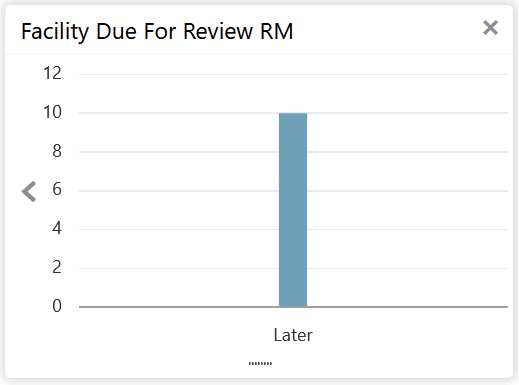
Figure 5-1 Facility Due for Review RM - Chart
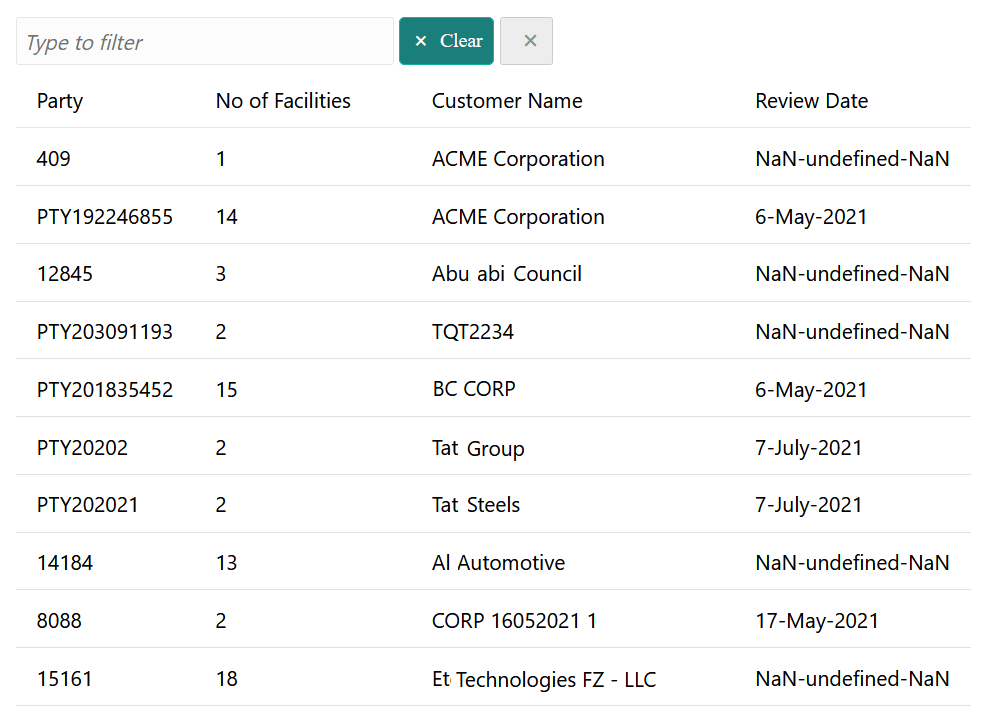
- Click any bar in the graph.The Filter window is displayed.
Figure 5-2 Filter
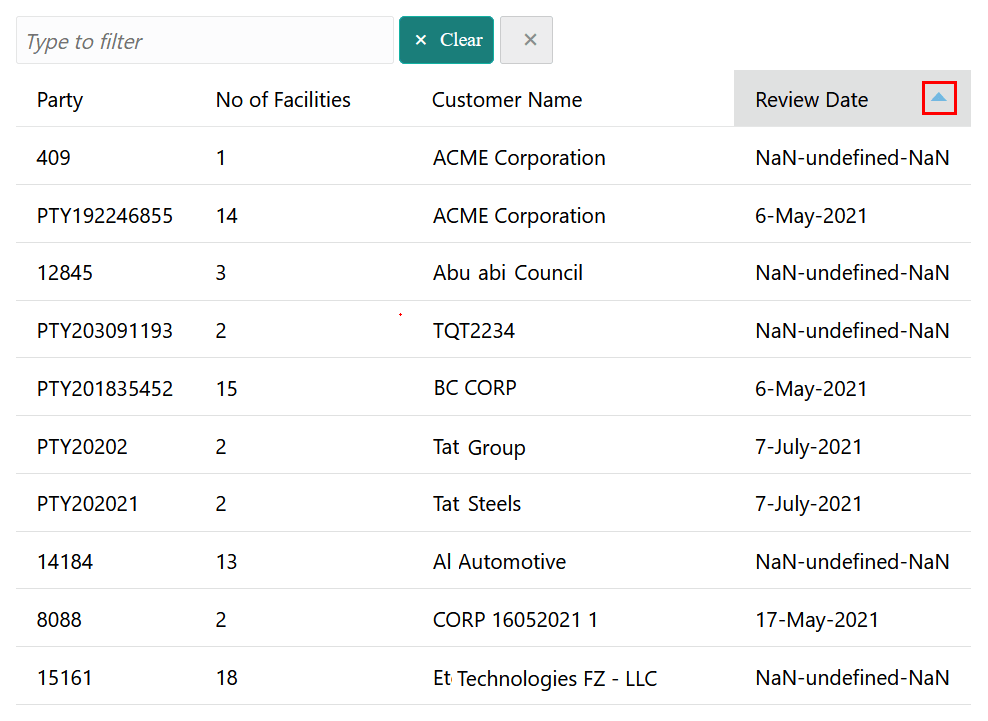
- To sort the data in ascending or descending order, click the triangle next to
any header as shown below.
Figure 5-3 Sort records
- References
This topic provides the information about user guides of modules related to Credit 360 interface. - Feedback and Support
This topic provides Information about Oracle's feedback and support policy.