12.1 Annexure II
Procedure to add and manage documents.
- To upload collateral documents, click Add New Document.
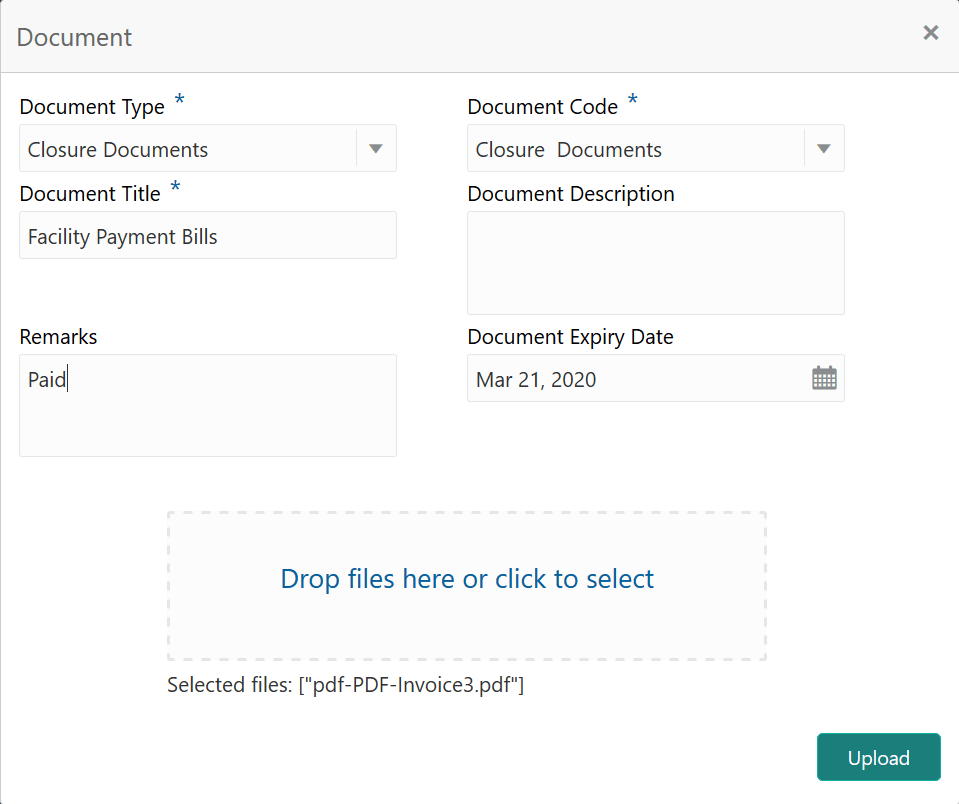
The Document window appears as shown below.The Document Details window is displayed.
- Specify all the details in the Document Details window based on
description in the below table.
Table 12-1 Document Details - Field Description
Field Description Document Type Select the Document Type from the drop down list. The options available include but are not limited to: Amendment Documents, Proposal Documents and Closure Documents. Document Code Select the Document Code from the drop down list. The options available include but are not limited to: Amendment Documents, Proposal Documents and Closure Documents. Document Title Type the Document Title. Document Description Type a brief description about the document in this field. Remarks Type the Remarks, if any. Document Expiry Date Click the calendar icon and select the Document Expiry Date. Drop files here or click to select In this area, drag and drop the documents or click and select the documents. Selected files are displayed at the bottom. Note:
To upload multiple supporting documents at the same time, drag and drop or click and select all the documents. - Click Upload.Document is uploaded and listed in the Documents window.
- To View, Edit or Delete the uploaded documents, click the action icon and select the required option.