6.2 Legal Opinion

This topic provides systematic instructions to capture legal opinion for the collateral.

Upon clicking Next in the Legal Opinion - Collateral Summary screen, the Legal Opinion data segment is displayed.
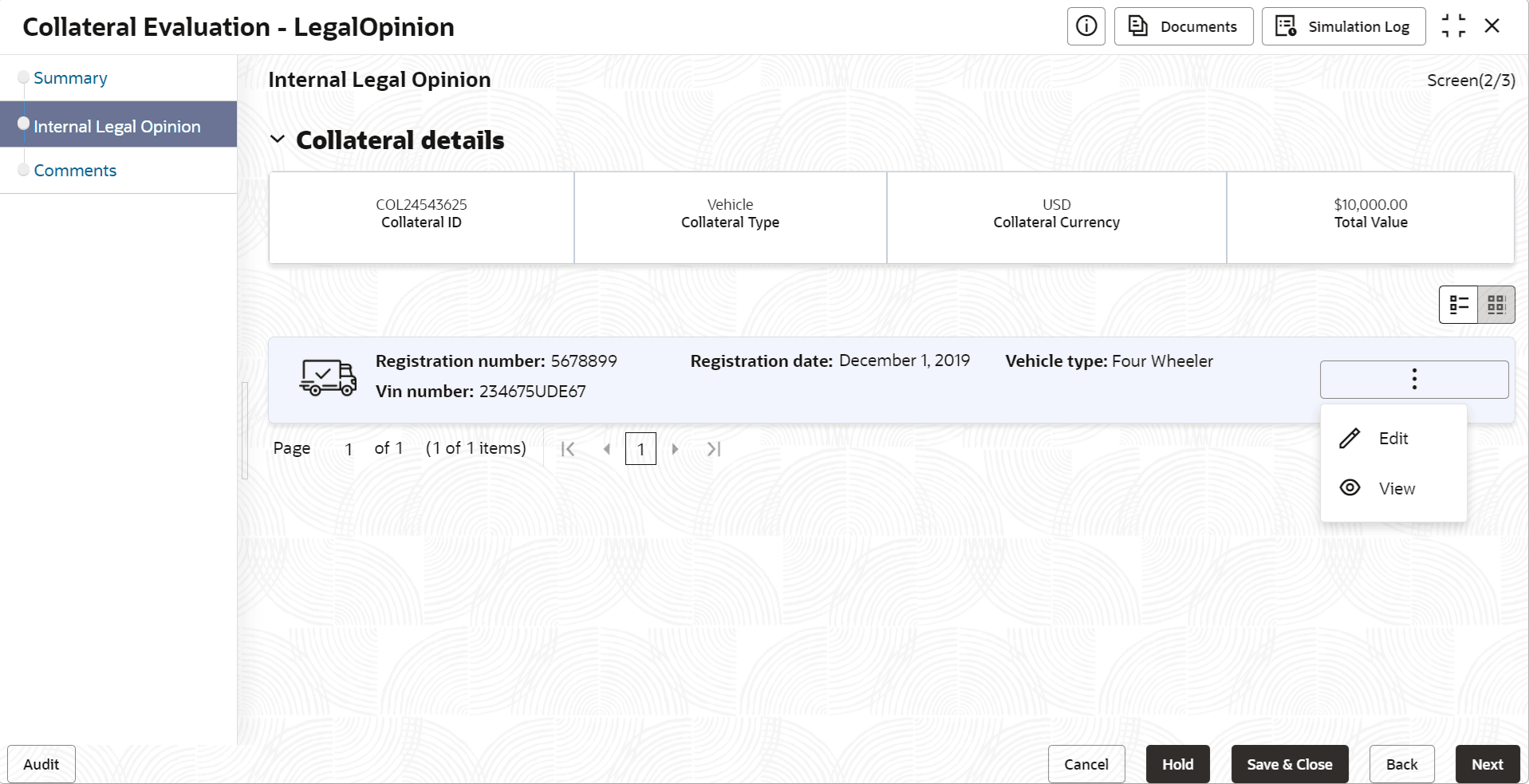
Figure 6-3 Legal Opinion_Legal Opinion


  1. Click the action icon in the required collateral record and select Edit.
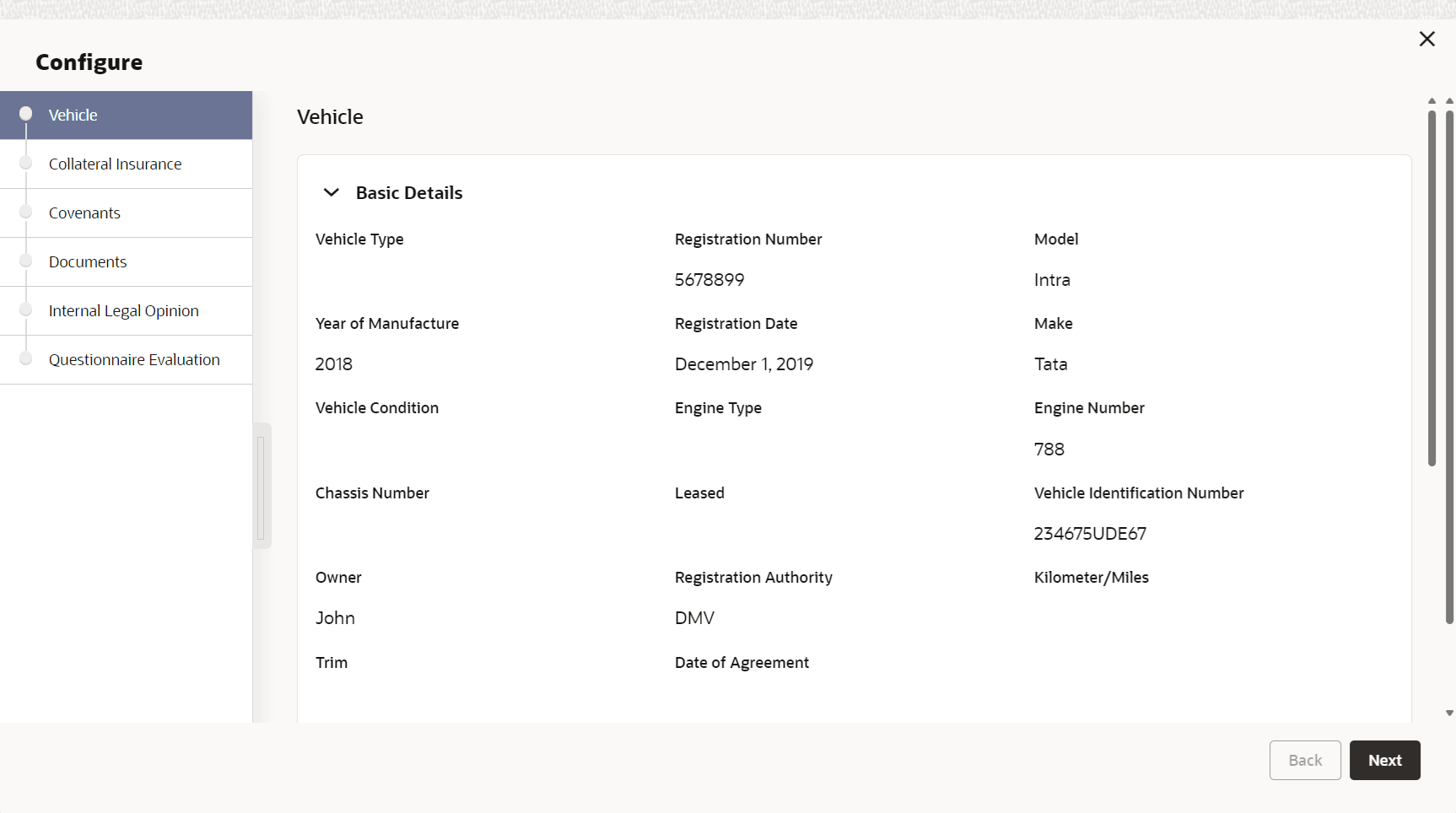
    The Legal Opinion - Configure - Collateral Type screen is displayed based on the selected collateral.

    Figure 6-4 Legal Opinion_Vehicle


    For information on the Vehicle, Covenants, and Documents menus, refer the Enrichment chapter.

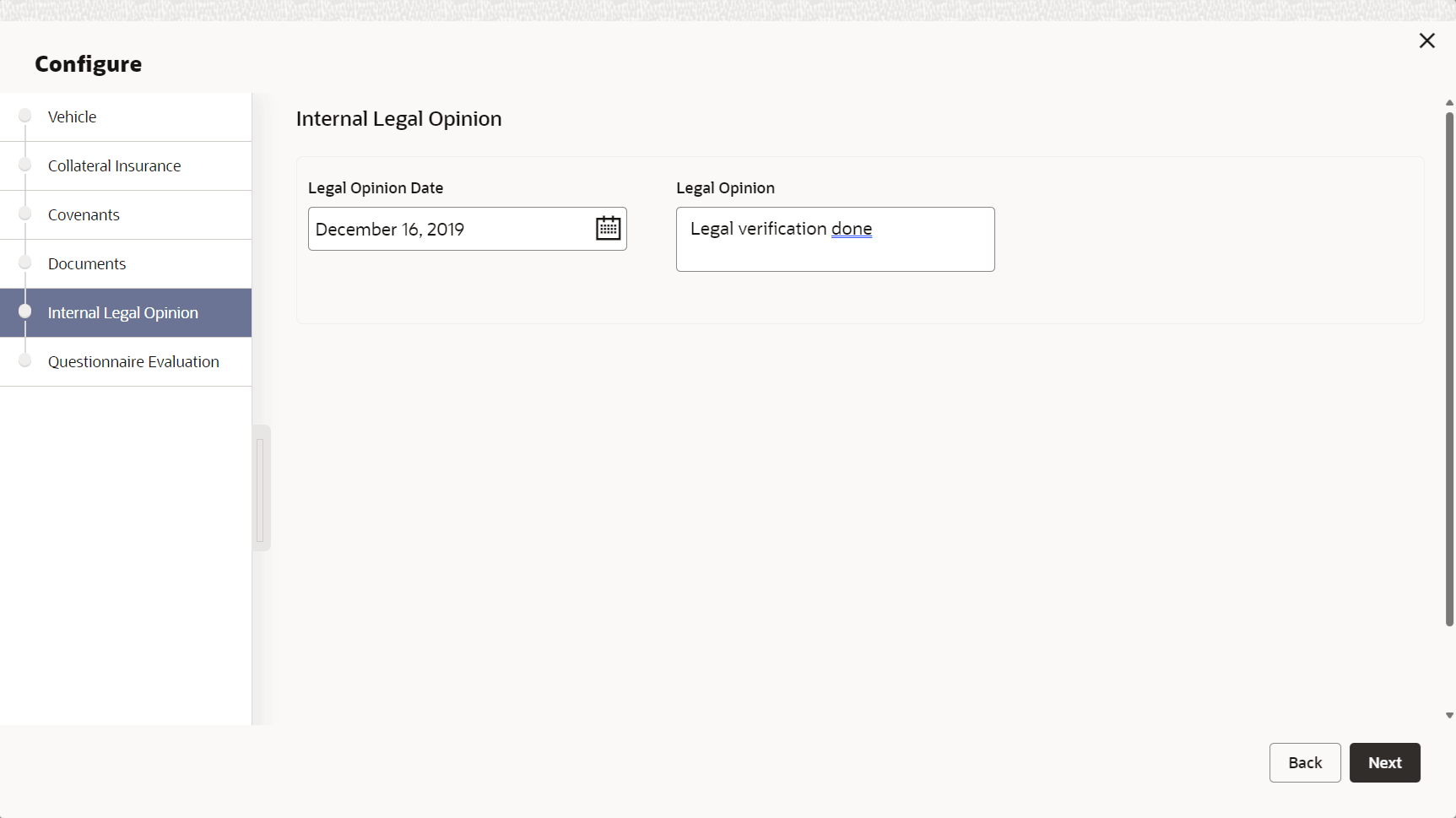
  2. Click Next and navigate to Internal Legal Opinion menu.

    Figure 6-5 Legal Opinion_Internal Legal Opinion


  3. Specify the legal opinion details.
    For field level information, refer the below table.

    Table 6-1 Legal Opinion - Configure - Internal Legal Opinion - Field Description

    Field Description
    Legal Opinion Date Specify the date on which the legal valuation is performed.
    Legal Opinion Capture the Legal Opinion.
  4. Click Next.
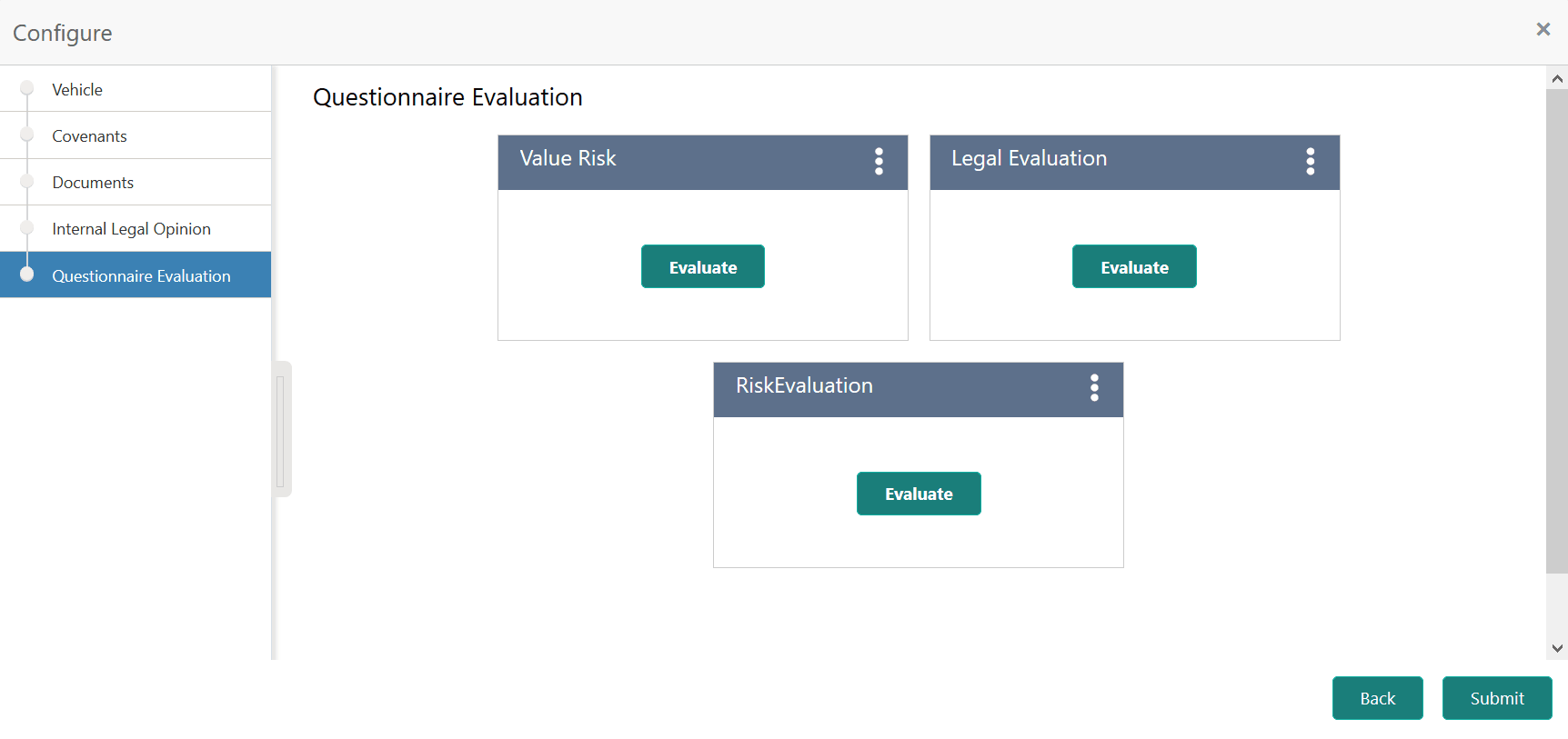
    The Legal Opinion - Configure - Questionnaire Evaluation screen is displayed.

    Figure 6-6 Legal Opinion_Questionnaire Evaluation


    Note:

    In the above screen, the questionnaire linked to the Legal Opinion stage in Business Process configuration are displayed. You can manage the questionnaire process linkage in Maintenance module.
  5. Click Evaluate in any of the tile.
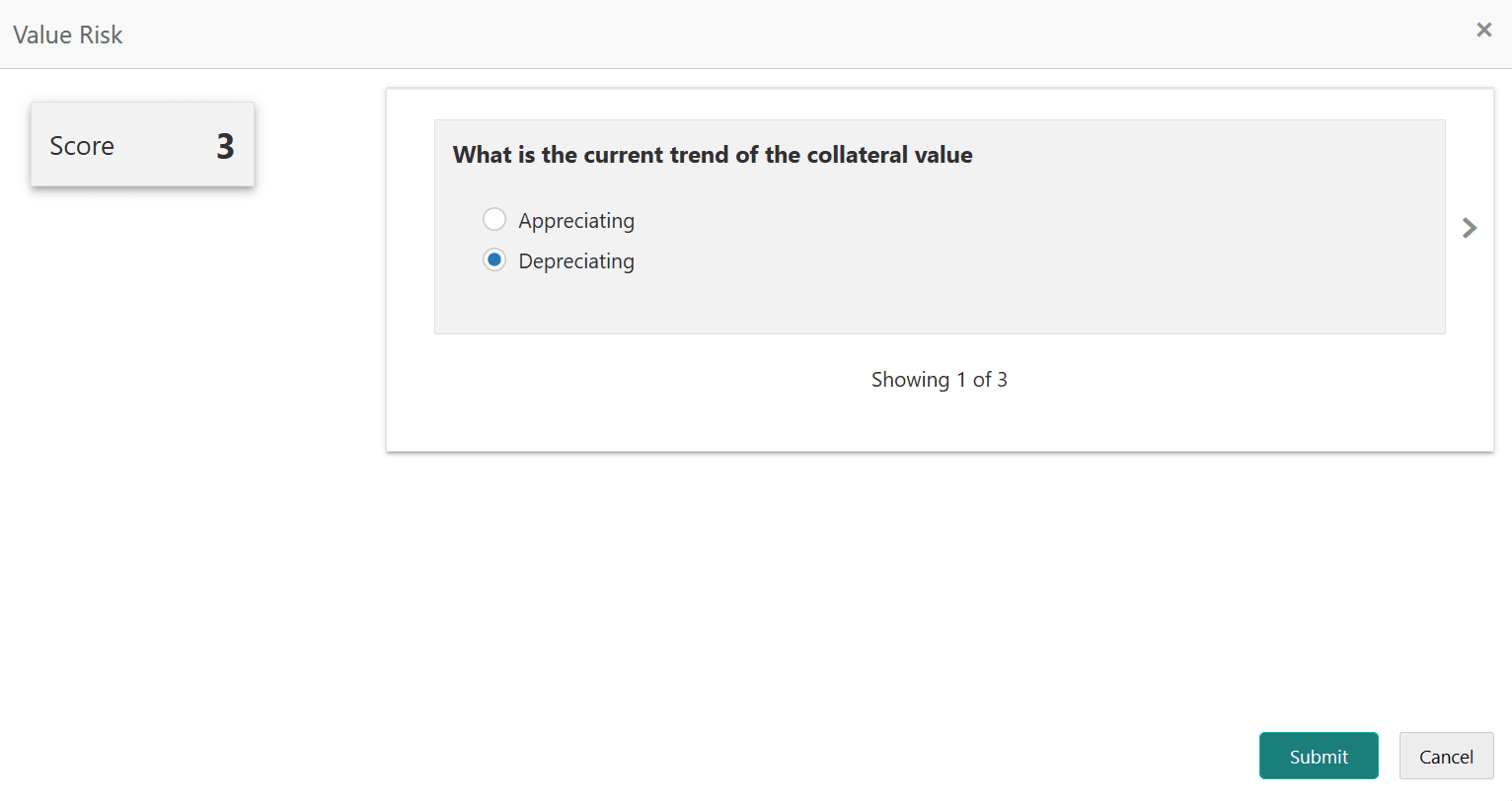
    The Questionnaire window is displayed.
  6. Select answer for all the questions and click Submit.

    In case of multiple questions, the right arrow appears in the Questionnaire screen. Click the right arrow to view next question.

    Once the evaluation is completed, the system displays the overall score for evaluation in Legal Opinion - Configure - Questionnaire Evaluation screen based on the score generated for each answer provided in the Questionnaire screen.

    You can click the Action icon in the tile and select Edit or Comment to modify the answers or capture comment for the evaluation, respectively.

  7. After performing all the evaluation, click Submit.