12 Buyer Approval
This topic provides systematic instructions about the Buyer Approval stage in the Collateral Liquidation process.
In this stage, the Bid Approver must validate the buyer based on the
documents submitted and make necessary decision to approve or reject the buyer.
The data segments in the Buyer Approval stage is same as that of Buyer Recommendation stage. In this topic, the steps to Approve or Reject the buyer is provided. For more information on field description, refer the Buyer Recommendation topic.
To approve or reject the buyer:
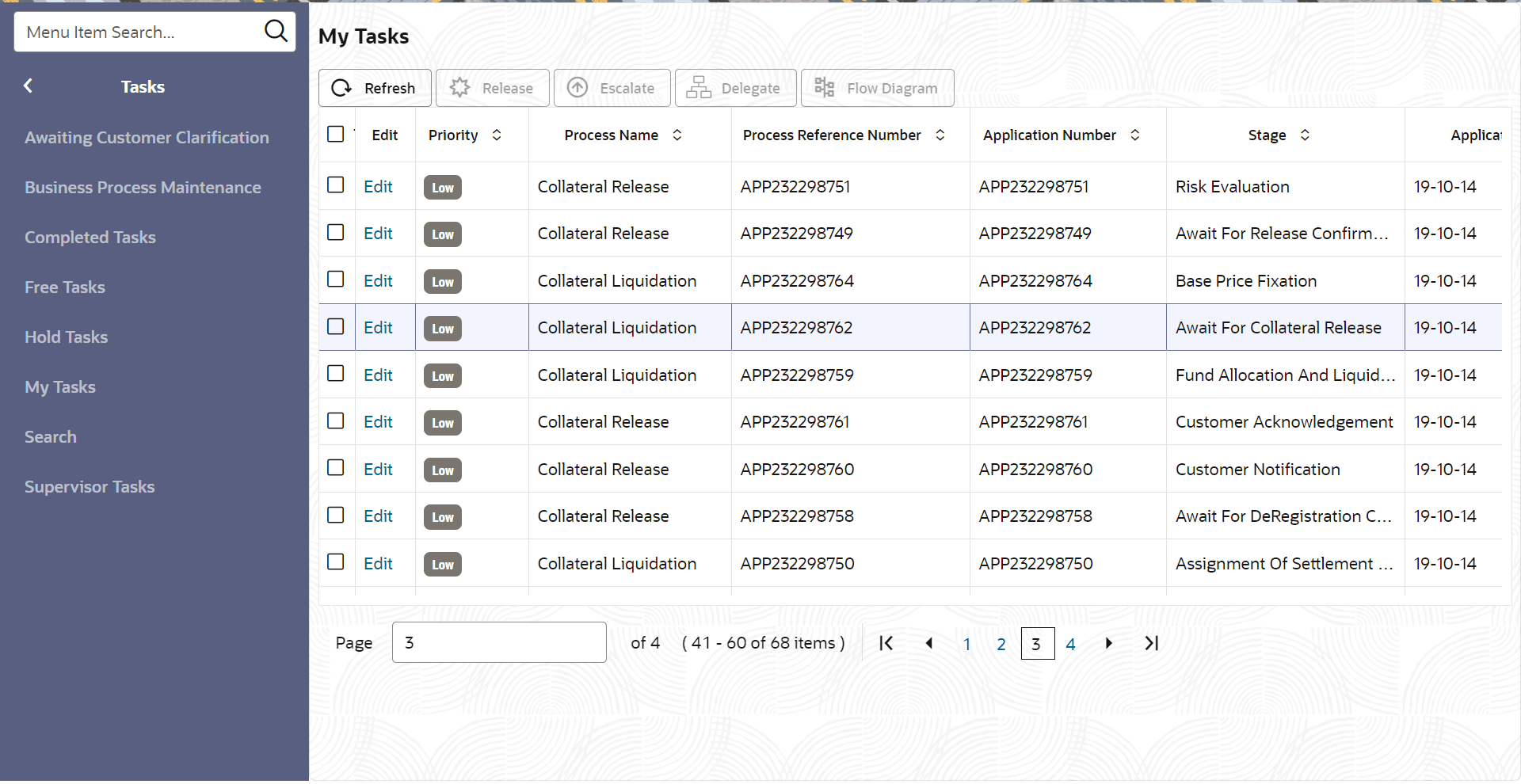
- From Home screen, click Tasks.
Under Tasks, click Free
Tasks.The Free Tasks screen is displayed.
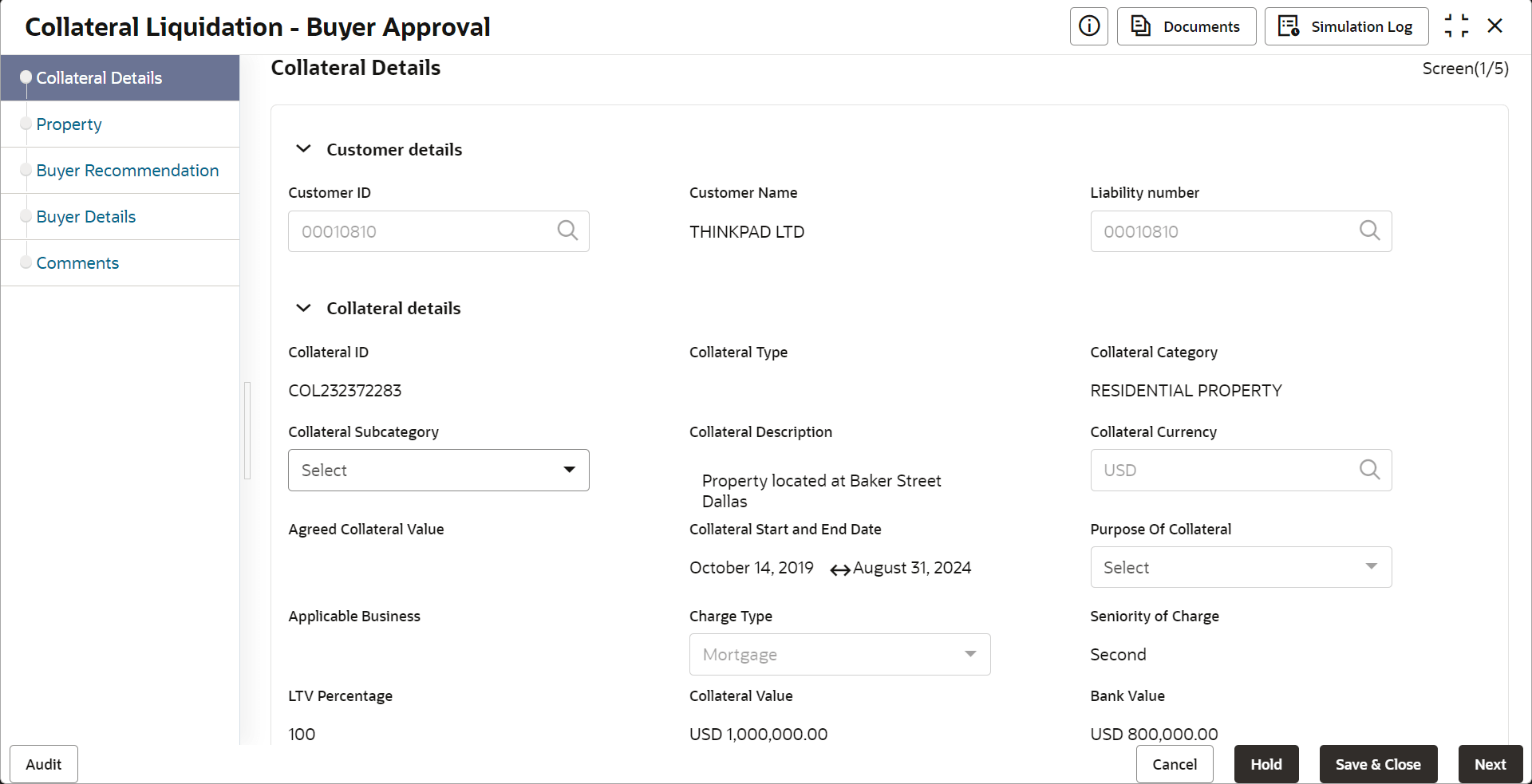
- Acquire & Edit the required Buyer Approval task.The Buyer Approval - Collateral Details screen is displayed.
Figure 12-2 Buyer Approval_Collateral Details
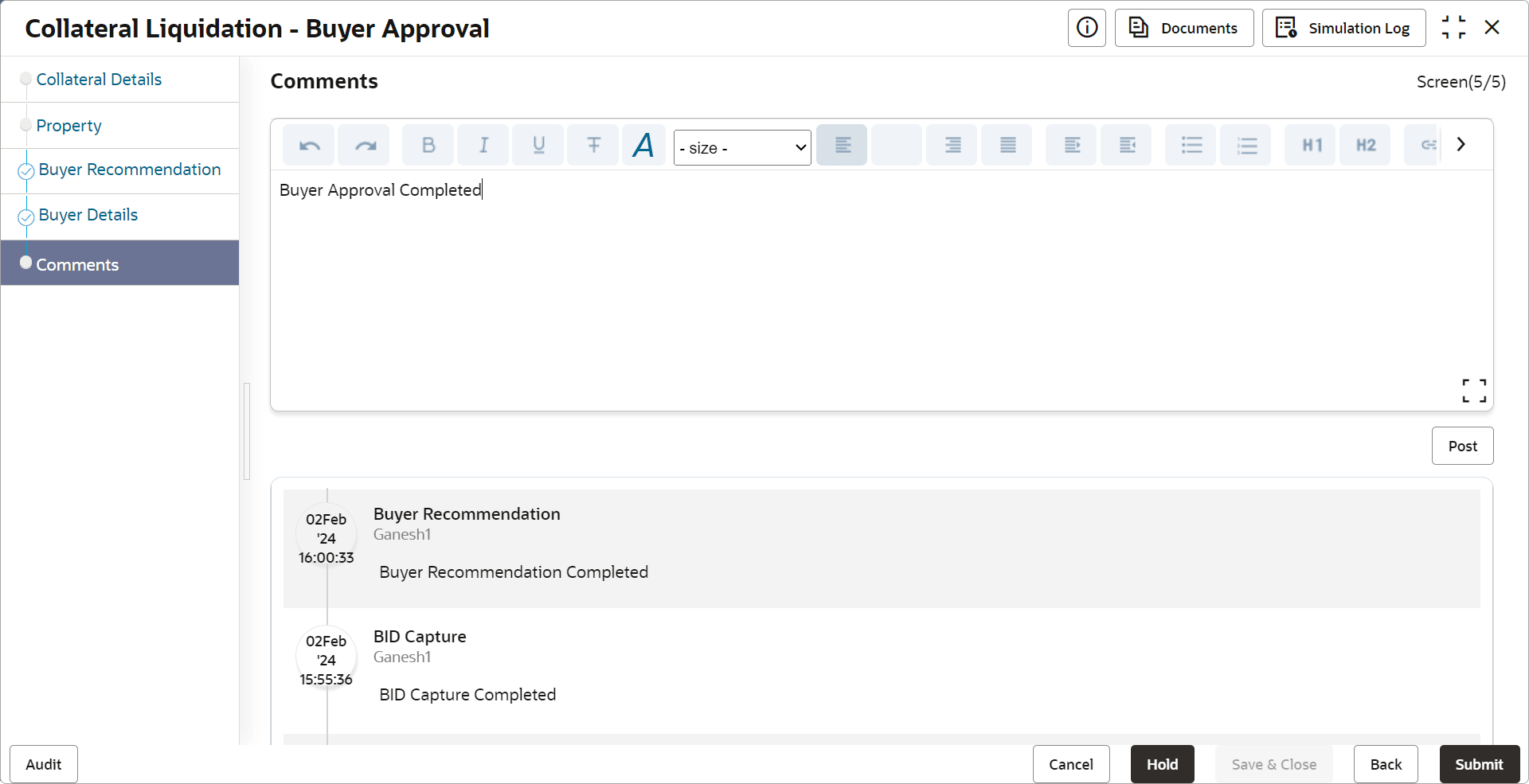
- Click Next and navigate to Comments data segment.
- To submit the Buyer Approval task, click Submit.
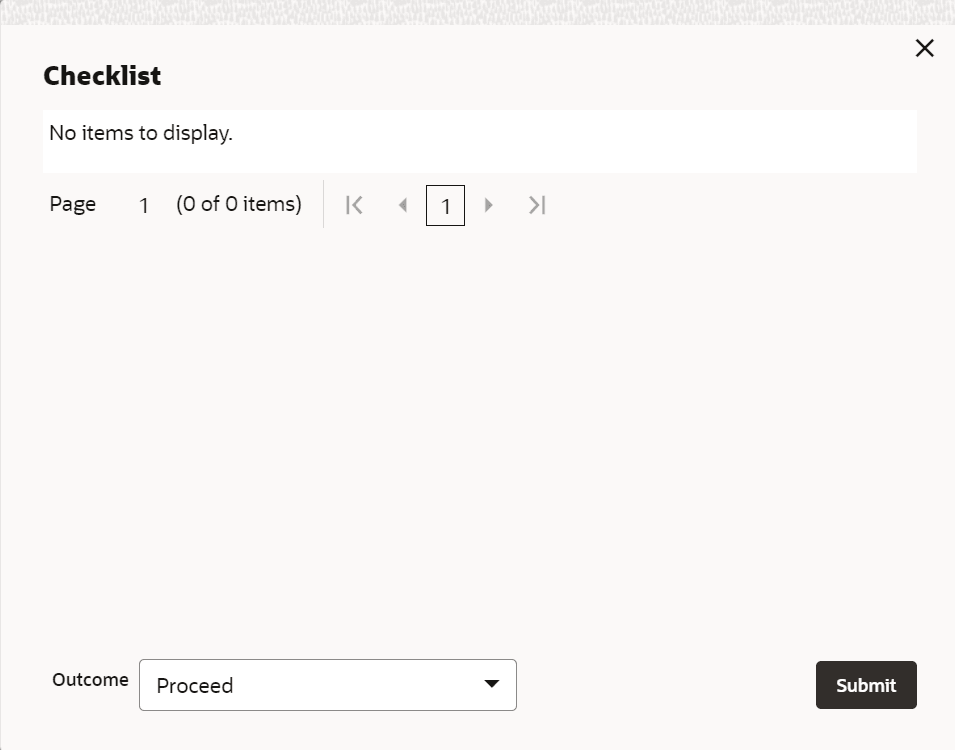
The Checklist window is displayed.
Note:
In the above window, checklist for the stage appears if it is configured in the Business Process Maintenance. You have to manually verify the checklist and enable the corresponding check box.