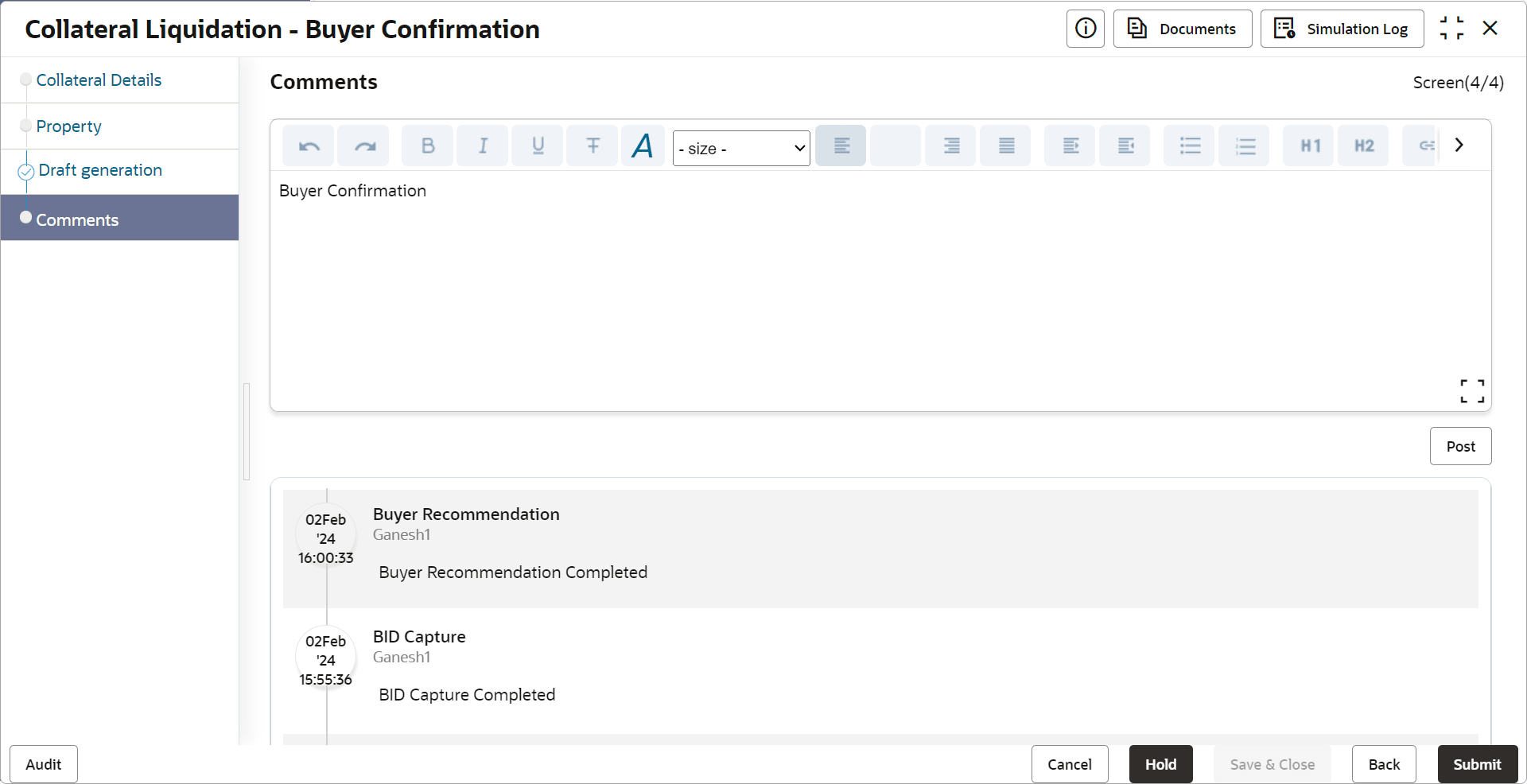
13.4 Comments
This topic provides systematic instructions about the Comments data segment in Buyer Confirmation stage.
This data segment allows user to capture overall comments for the
Buyer Confirmation stage. Capturing comments helps the user of next stage to better
understand the application. Upon clicking Next in the Buyer
Confirmation- Draft Generation screen.
The Comments screen is displayed.
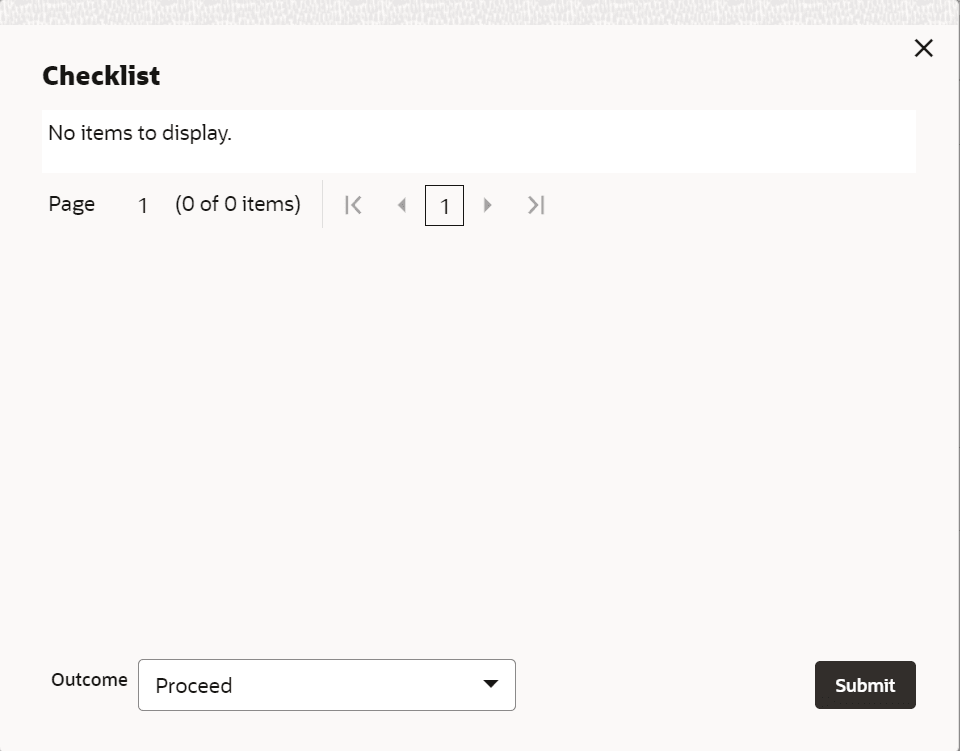
- To submit the Buyer Confirmation task, click Submit.The Checklist window is displayed.
Note:
Checklist for the stage appears if it is configured in the Business Process Maintenance. User manually verify the checklist and enable the corresponding check box.