17.1 Awaiting Registration Completion
This topic provides systematic instructions about the procedure to capture charge registration details.
This data segment allows to add the charge registration details.
- From Home screen, click Tasks.
Under Tasks, click Free
Tasks.The Free Tasks screen is displayed.
Figure 17-1 Free Tasks
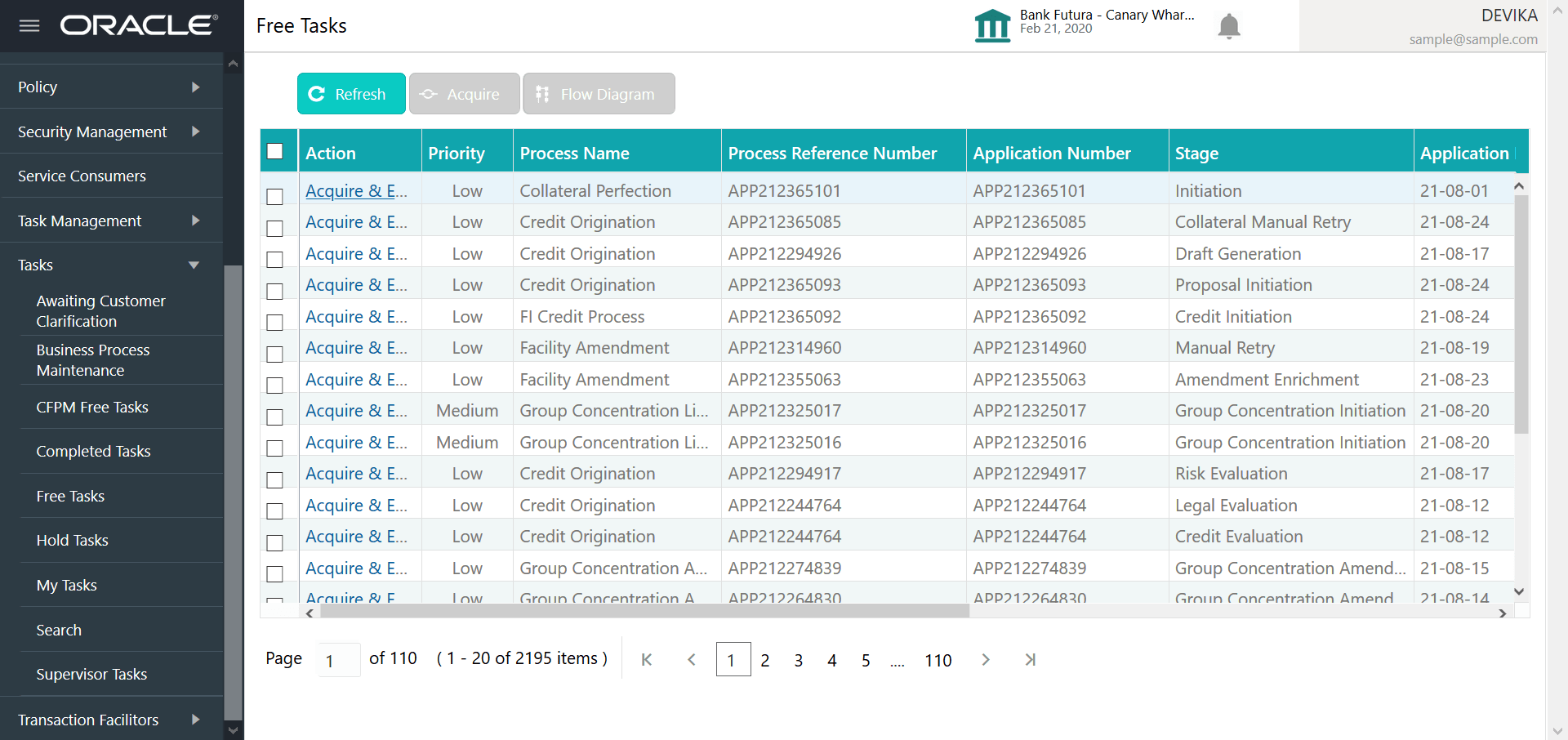
- Click Acquire & Edit in the required Awaiting
Registration task.The Awaiting Registration - Awaiting Registration Completion screen is displayed.
Figure 17-2 Awaiting Registration - Awaiting Registration Completion
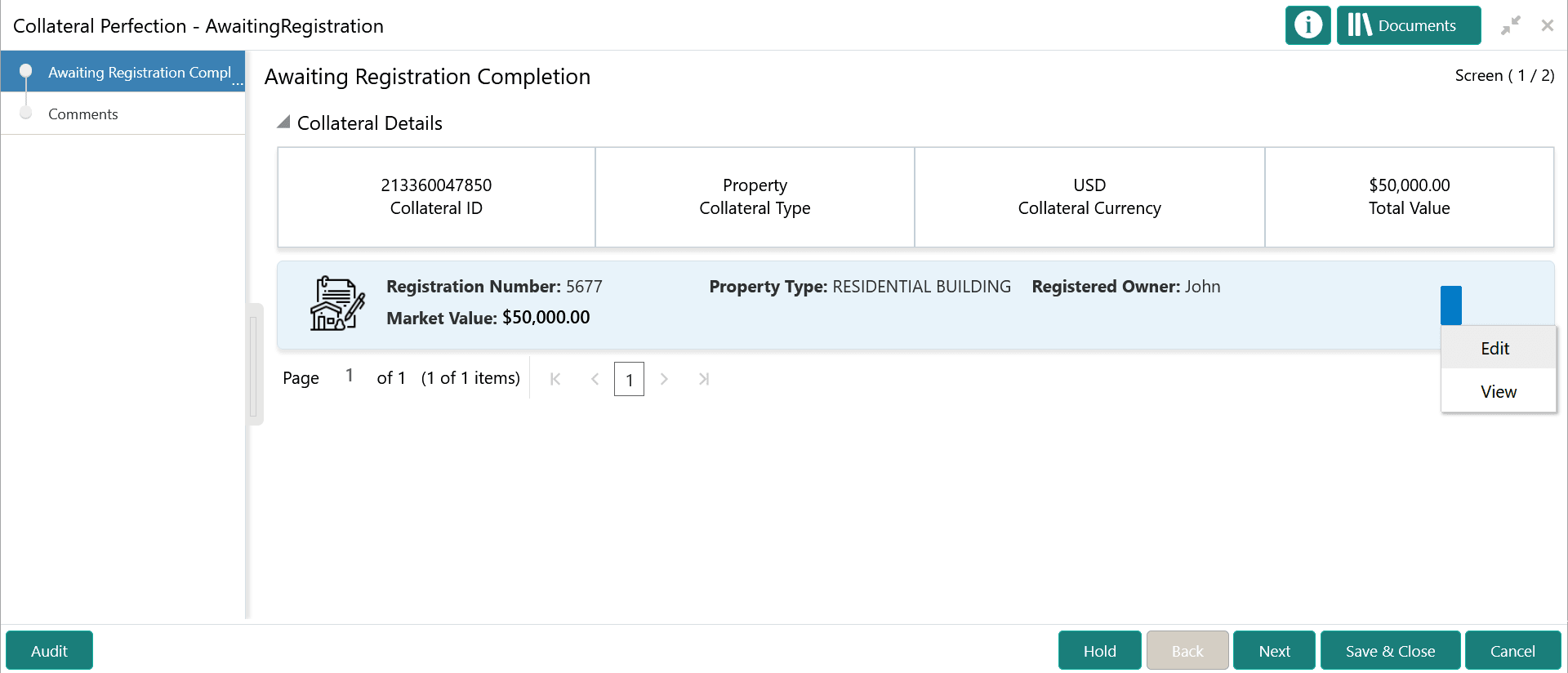
- Click the action icon in the collateral record and select
Edit.The Awaiting Registration - Configure - Property screen is displayed.
Figure 17-3 Awaiting Registration - Configure - Property
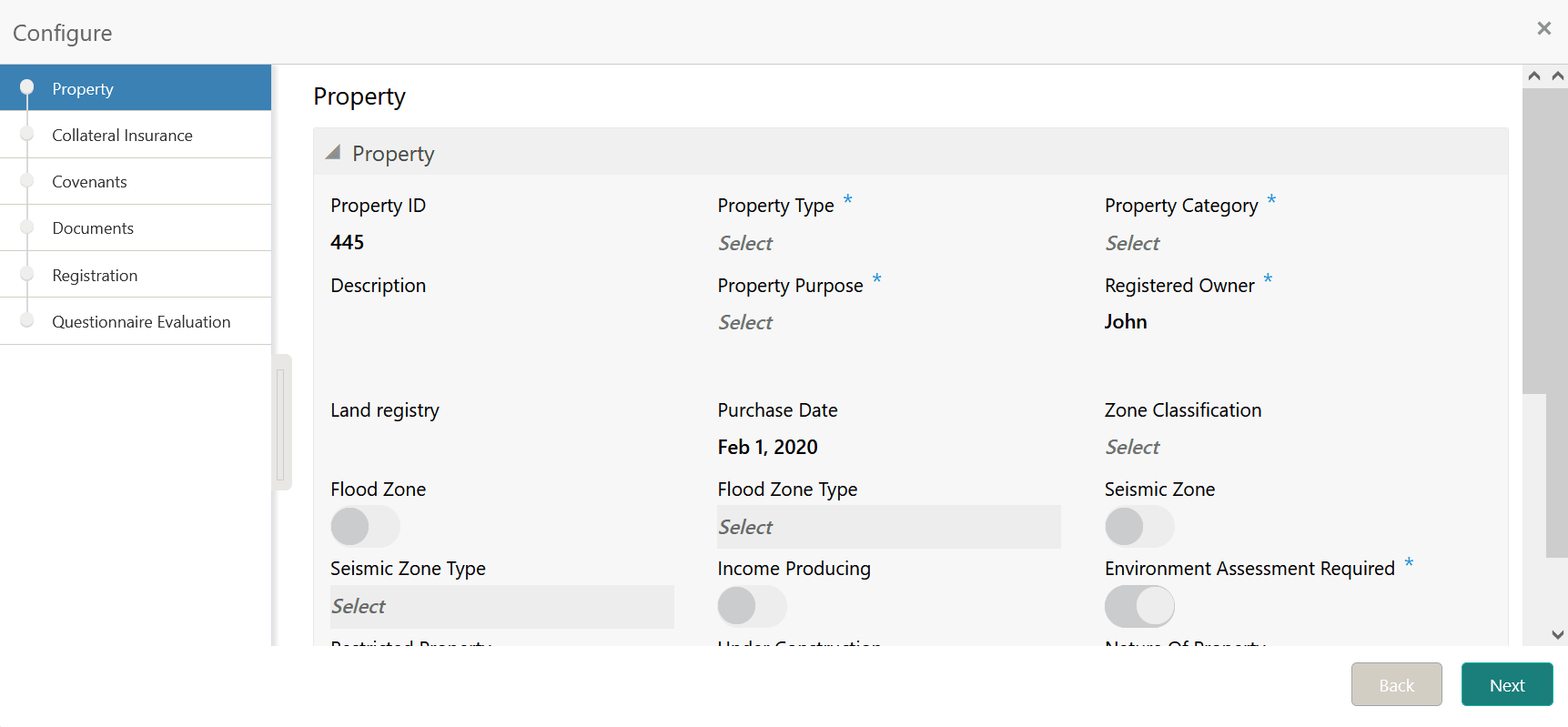
- Click Next and navigate to
Registration menu.
Figure 17-4 Awaiting Registration - Configure - Registration
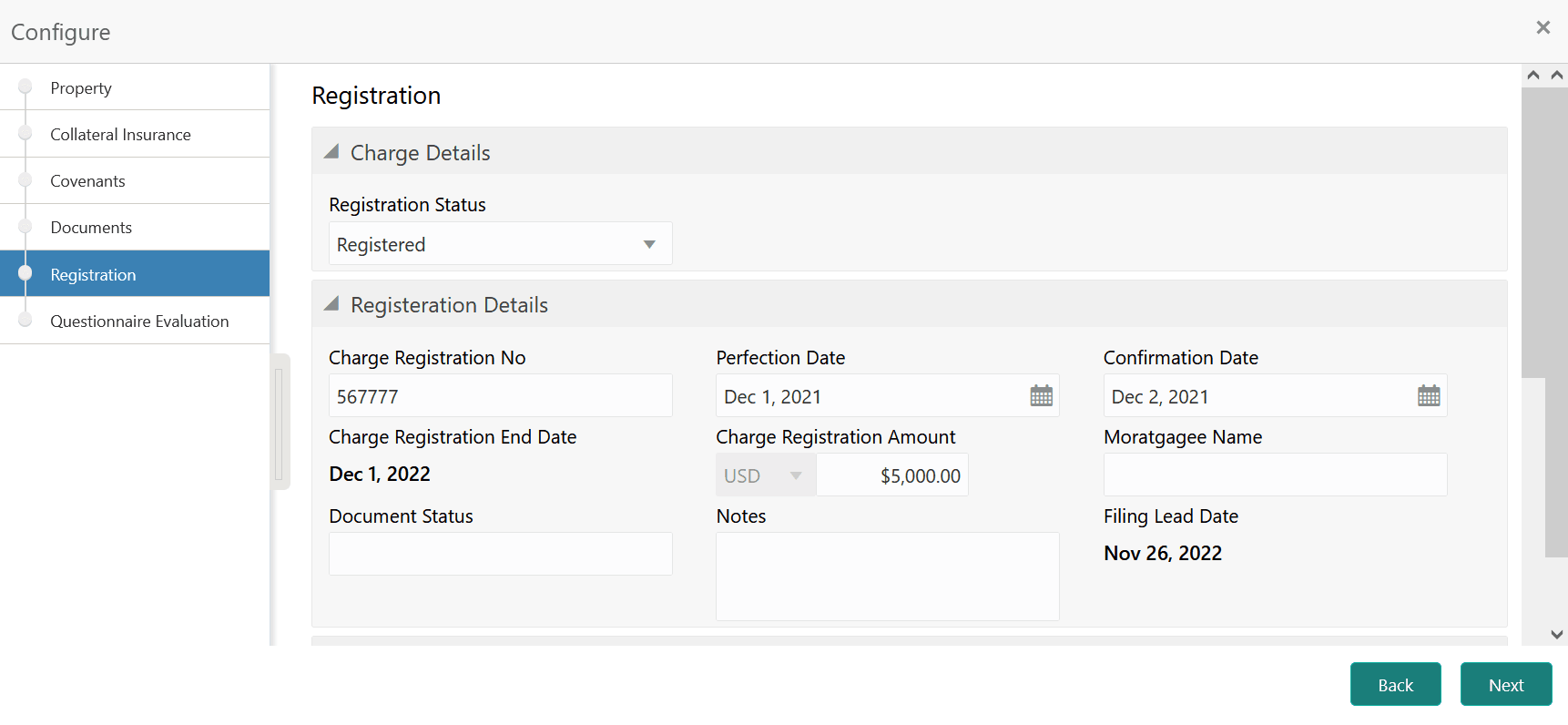
For more information on the fields, refer to the Property topic in the Charge Registration chapter.