15 Customer Acceptance
This topic provides systematic instructions about the Customer Acceptance stage in the Collateral Perfection process.
In this stage, the user authorized to edit the Customer Acceptance task must
capture the customer acceptance status after receiving it from the customer.
- From Home screen, click Tasks.
Under Tasks, click Free
Tasks.The Free Task screen is displayed.
Figure 15-1 Free Tasks
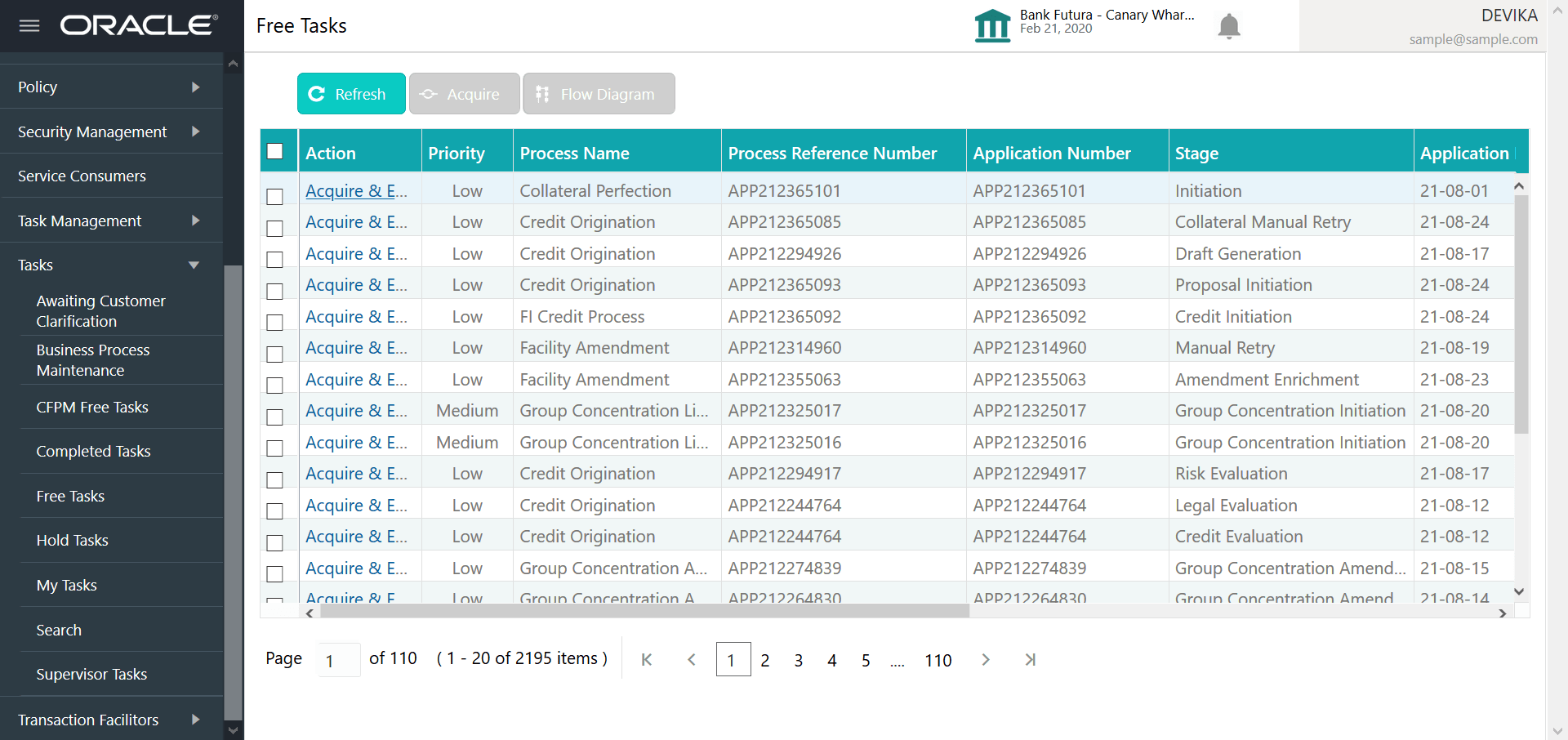
- Click Acquire & Edit in the required Customer
Acceptance task.The Customer Acceptance - Collateral Summary screen is displayed.
Figure 15-2 Customer Acceptance - Collateral Summary
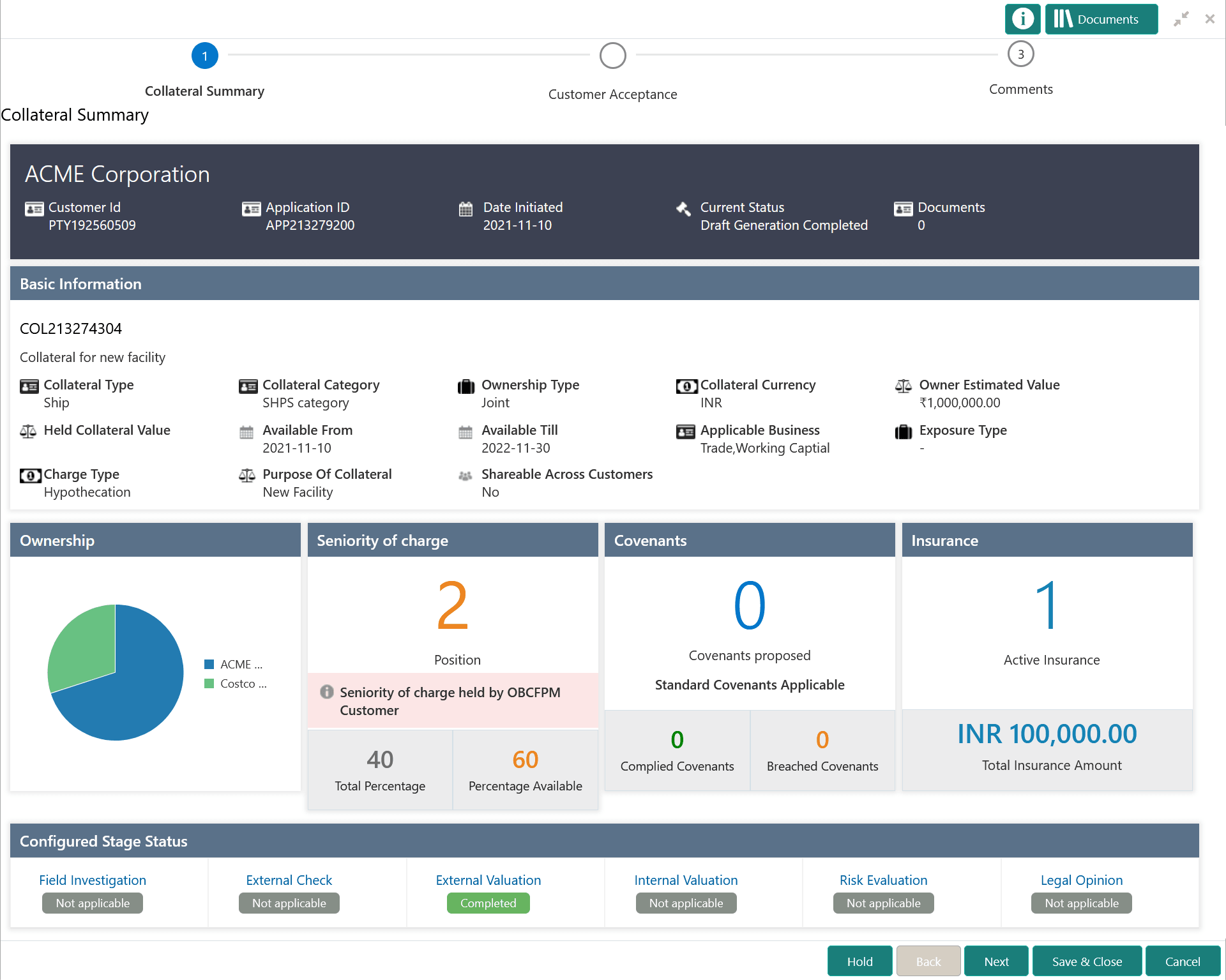 In the Customer Acceptance - Collateral Summary screen, following collateral details captured in the previous stages are displayed.
- Basic Information
- Collateral Type (Property) Details
- Linked Facilities Details
- Ownership
- Seniority of Details
- Covenants
- Insurance
- Configured Stage Status
- View the Collateral Summary and click Next.The Customer Acceptance screen is displayed.
Figure 15-3 Customer Acceptance
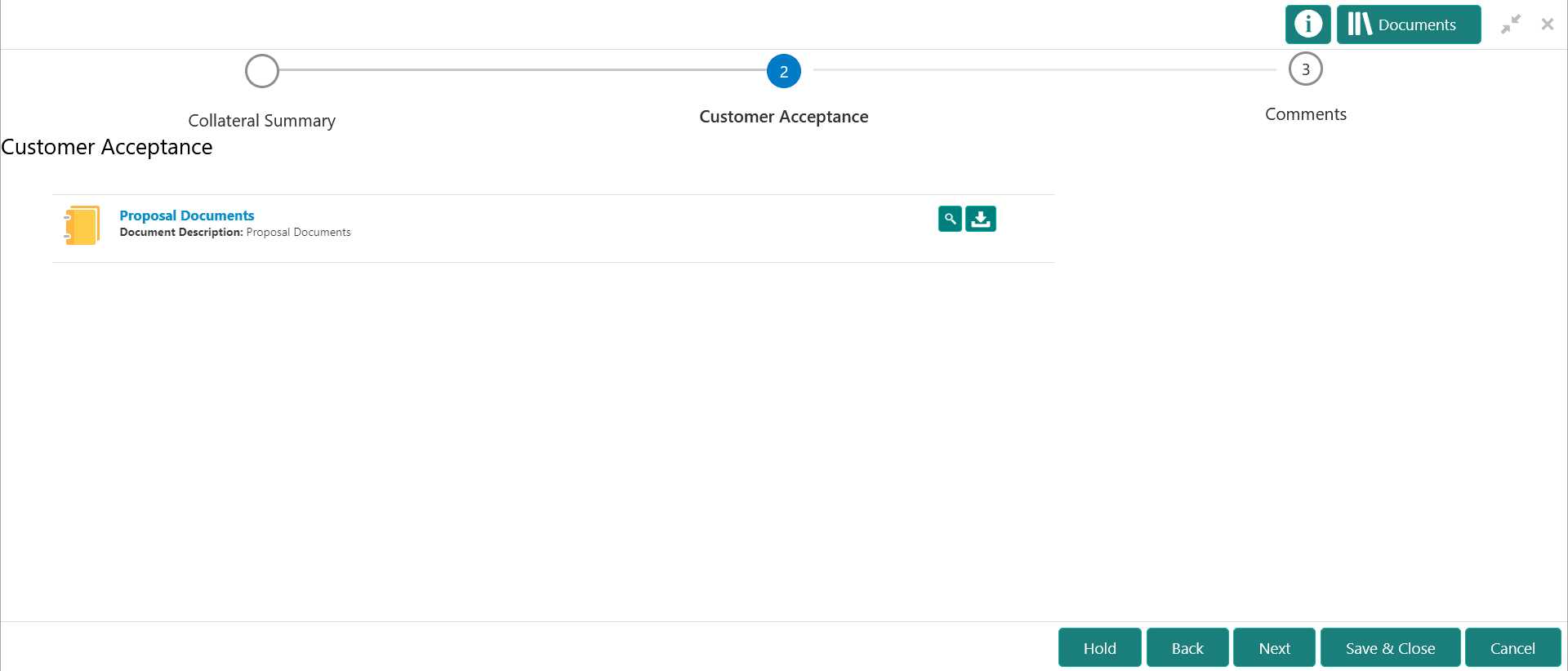
In the above screen, you can download the draft document sent to customer by clicking the download icon.
- In next data segment, click Next.The Customer Acceptance - Comments screen is displayed.
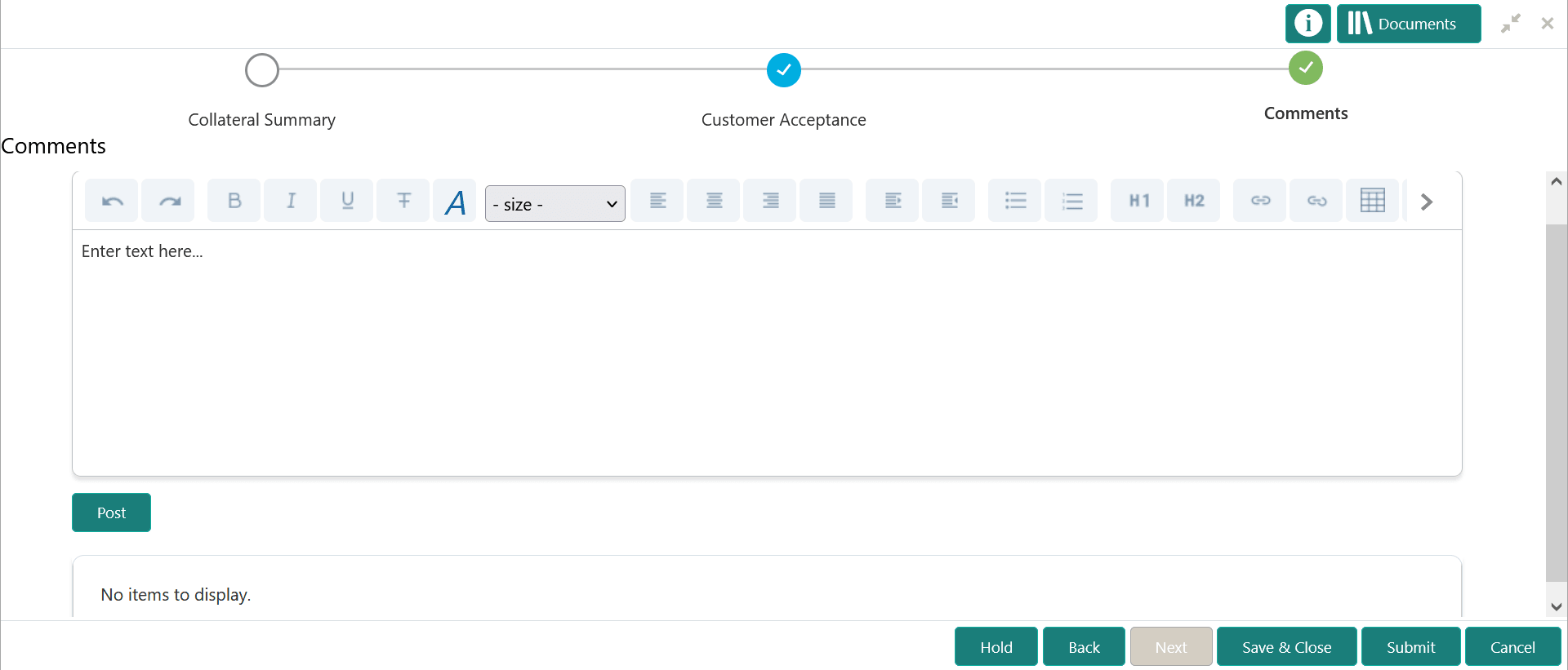
Figure 15-4 Customer Acceptance - Comments
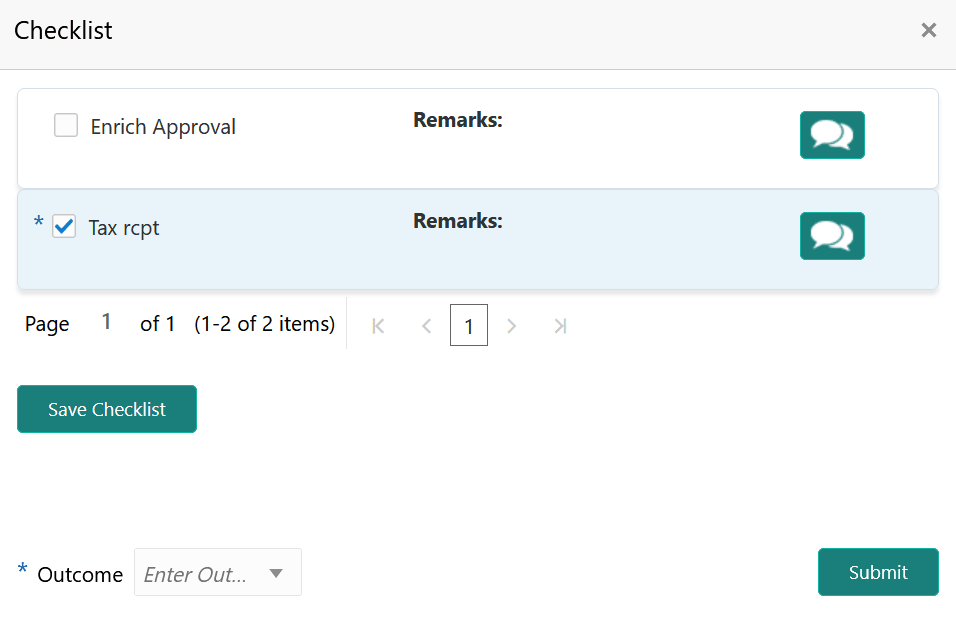
- Click Submit.The Checklist window is displayed.
Figure 15-5 Checklist