14.2 Draft Generation

This topic provides systematic information about the procedure to generate draft document and send it to customer for acceptance.

Click Next in the Draft Generation - Collateral Summary screen, the Draft Generation data segment is displayed.

Figure 14-3 Draft Generation
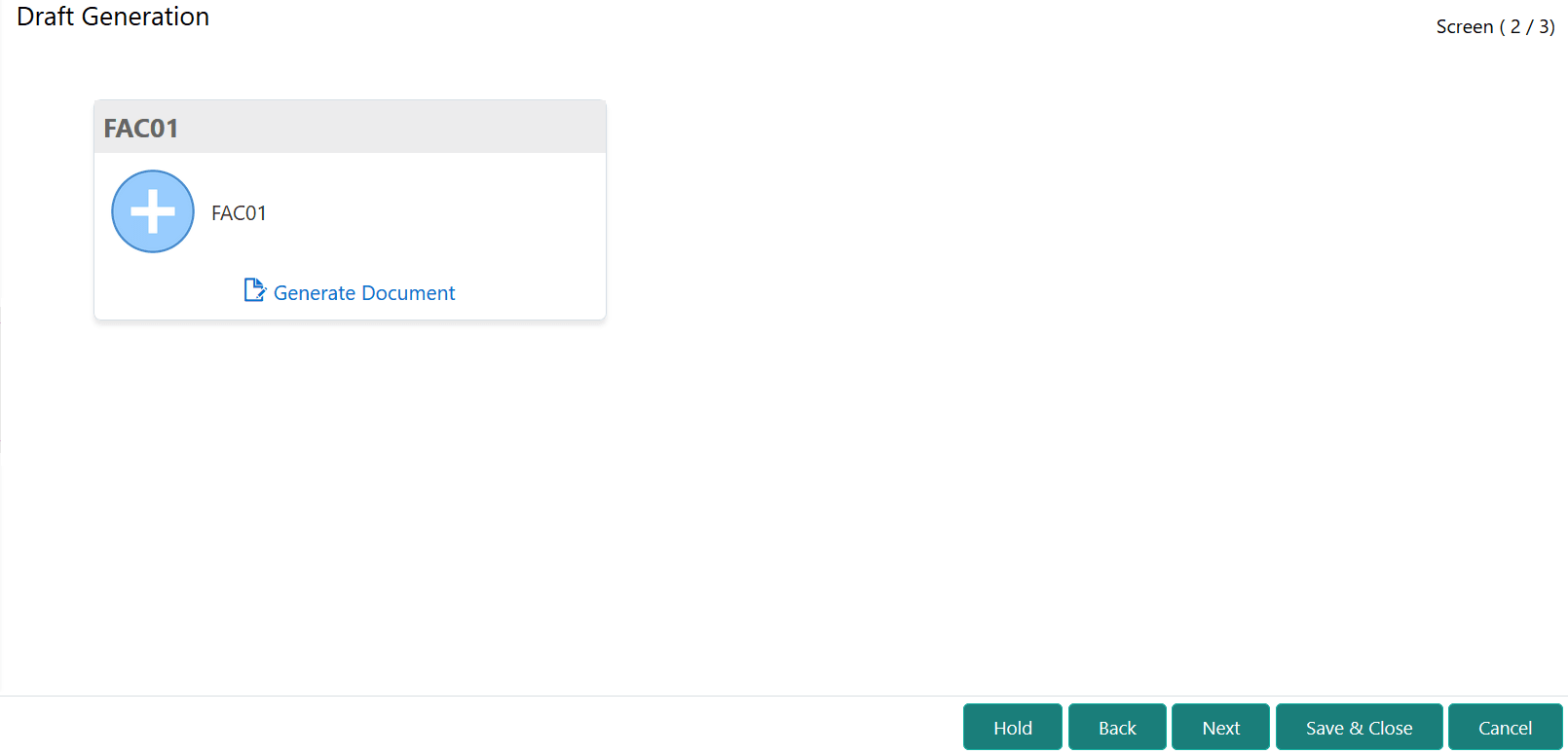


  1. Click Generate Document.
    The Draft Generation Details window is displayed.
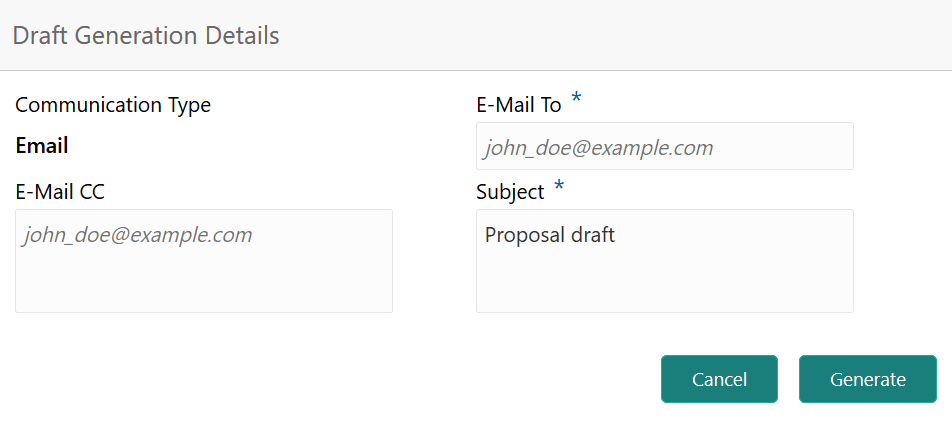
    Figure 14-4 Draft Generation Details


  2. Specify all the details in the Draft Generation Details window.
    For field level information, refer the below table.

    Table 14-1 Draft Generation Details - Field Description

    Field Description
    Communication Type By default, the Communication Type is displayed as Email. You cannot change the Communication Type in this screen.
    E-Mail To Specify the E-mail address to which the draft document has to be sent.
    E-Mail CC Specify the E-mail address which has to be in CC of draft communication mail.
    Subject Specify the mail Subject.
    Generate Click this to send the draft document to the mail ID mentioned in E-Mail To field.
    Cancel Click this to exit the Draft Generation Details window without saving the provided information.

Once the draft document is successfully sent to the mentioned mail ID, the Generated Documents is displayed in the Draft Generation screen as shown below.

Figure 14-5 Draft Generation_Completed
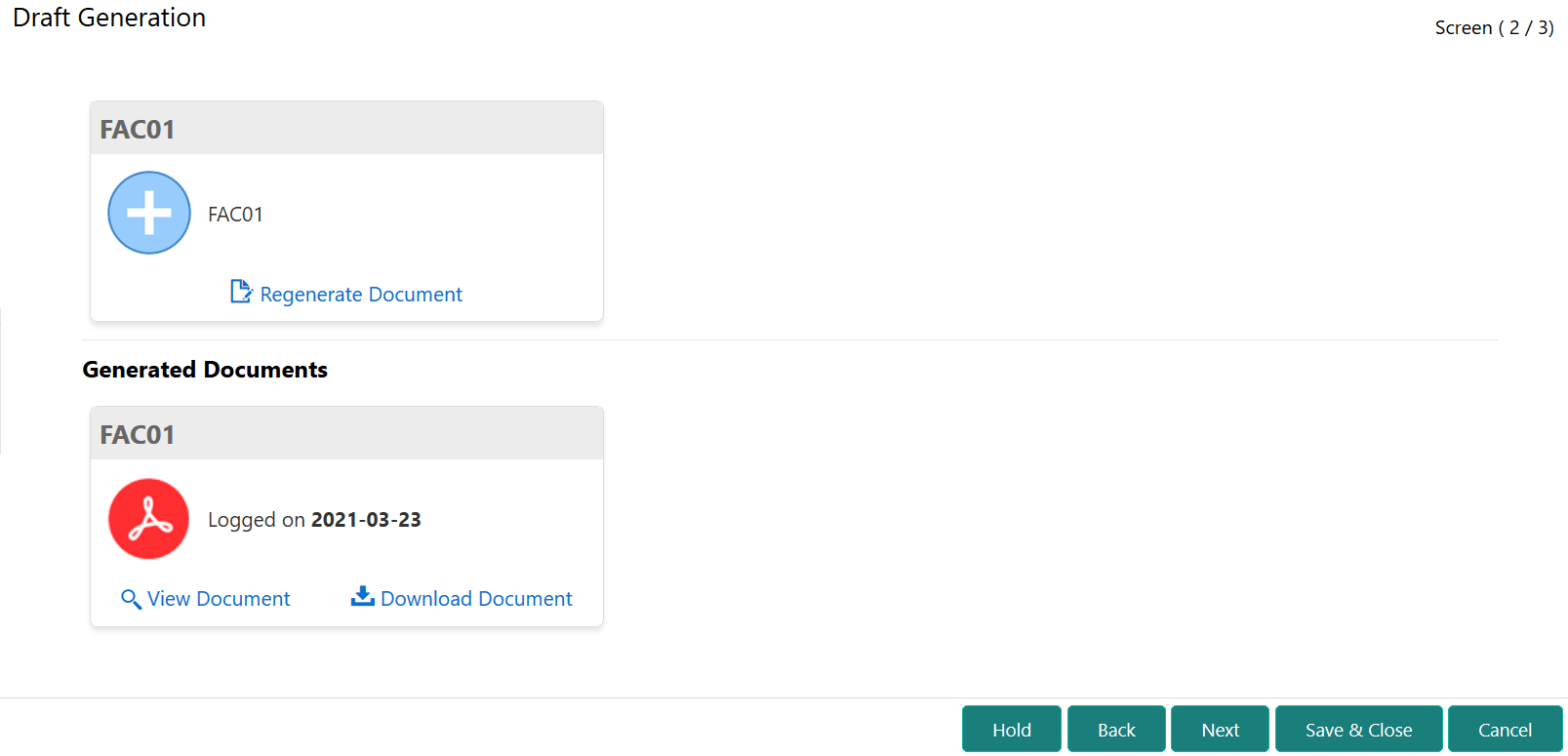


  1. To view the generated draft document, click View Document.
  2. To download the generated draft document, click Download Document.
  3. After performing necessary actions in the Draft Generation screen, click Next.