10.2 Field Investigation
This topic provides systematic instructions about the procedure to add field investigation details.
Figure 10-3 Field Investigation
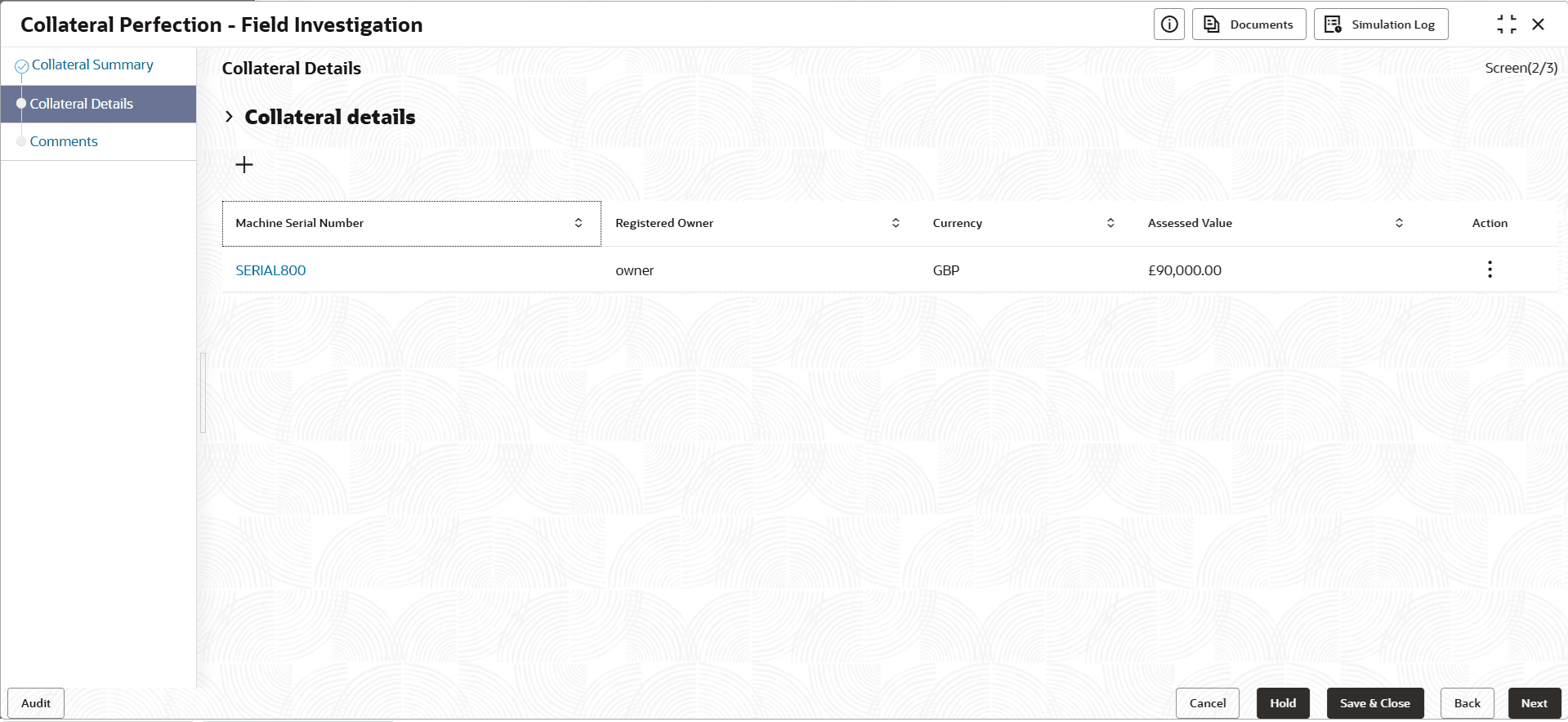
To capture the field investigation details for the collateral:
- Click the action icon in the collateral record and select
Edit.The Field Investigation - Configure - Collateral Type screen is displayed.
Figure 10-4 Field Investigation - Configure - Collateral Type
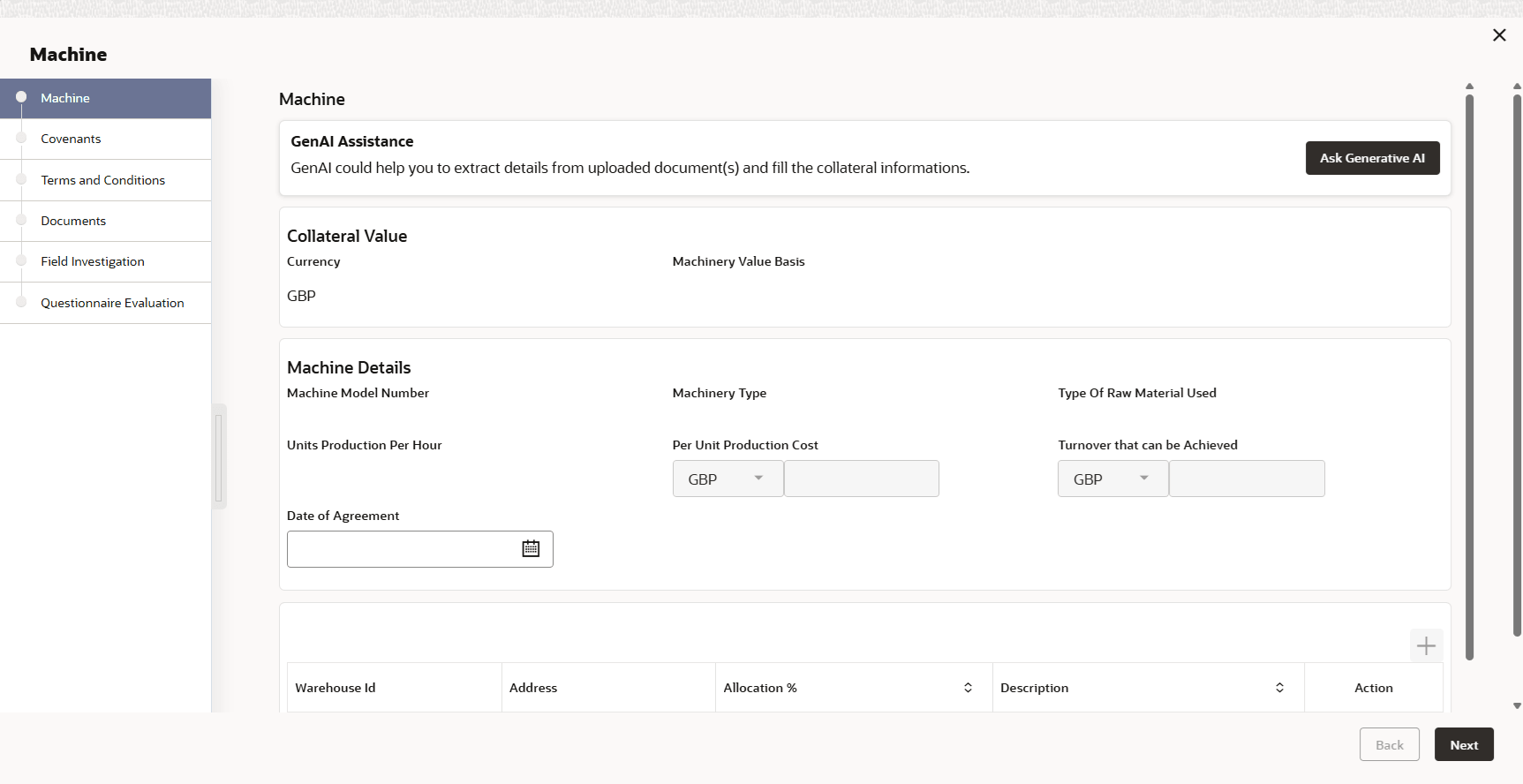
- Click Next and navigate to the Field
Investigation menu.
Figure 10-5 Field Investigation - Configure - Field Investigation
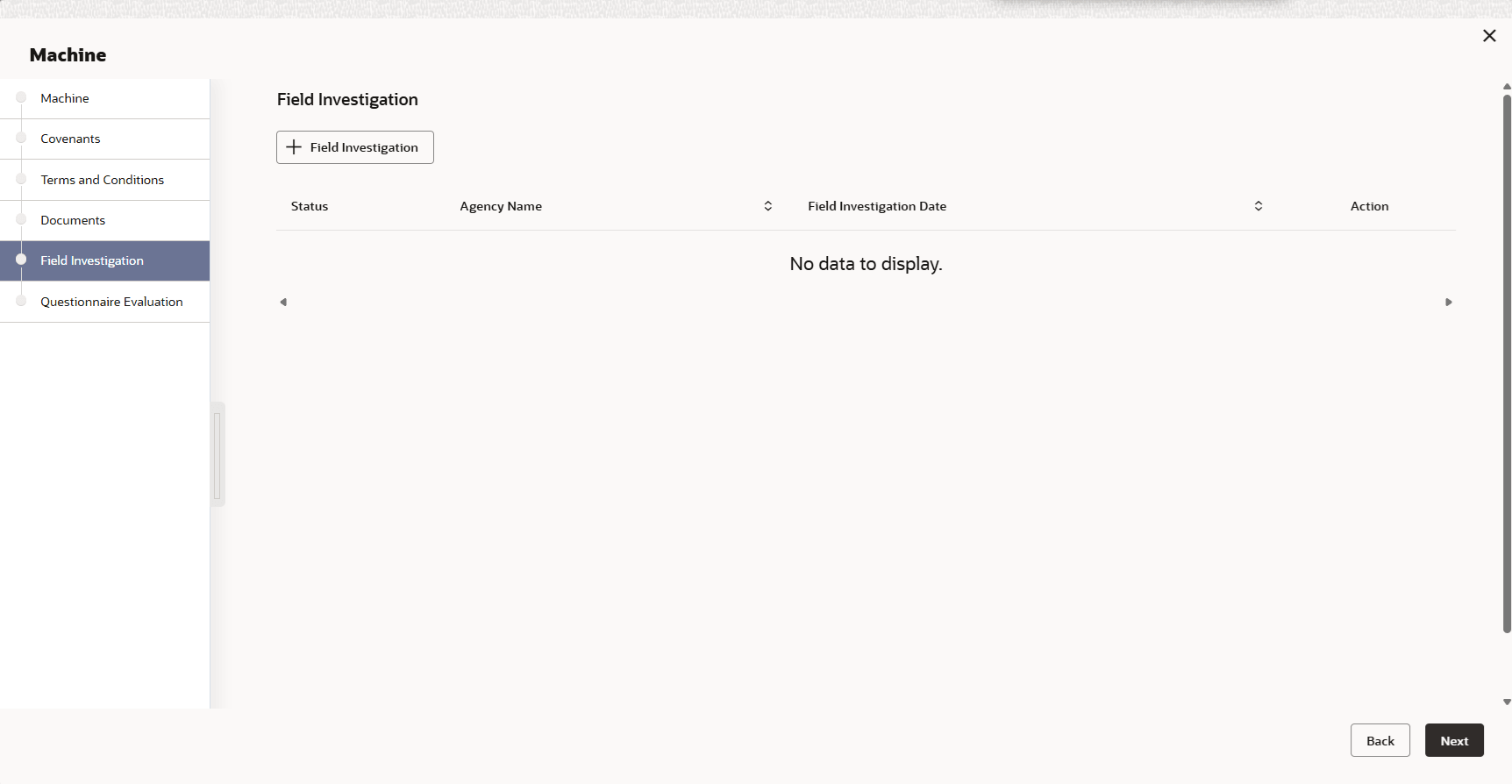
- Click the add icon in the Field Investigation - Configure - Field
Investigation screen.The Field Investigation Details window is displayed.
Figure 10-6 Field Investigation Details
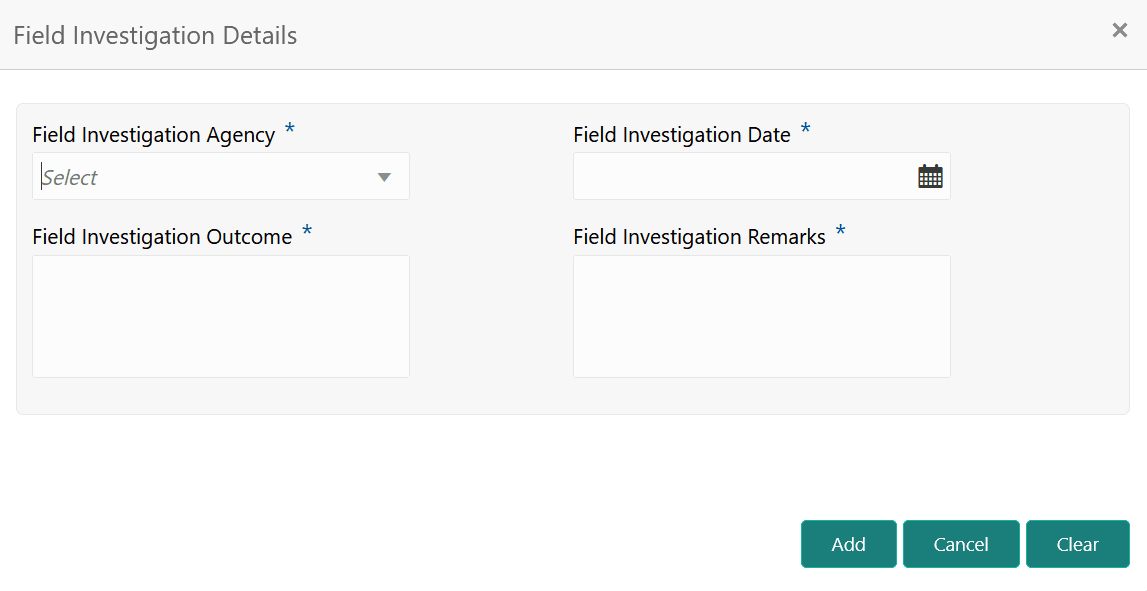
- Click Add in the Field Investigation Details
window.The field investigation details are added and displayed as shown below.
Figure 10-7 Field Investigation - Configure - Investigation Details Added
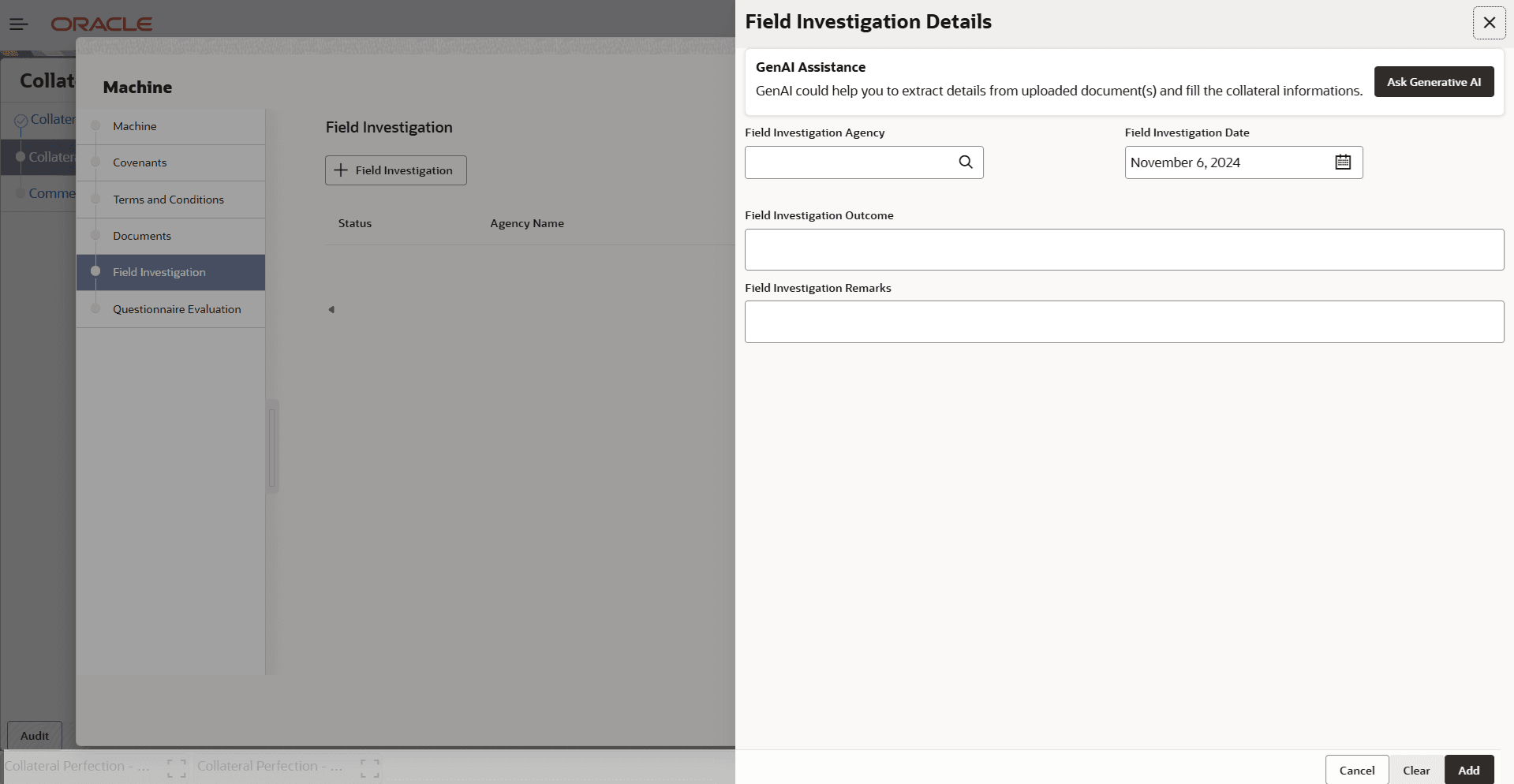
User can Edit, View, or Delete the added field investigation detail by clicking the action icon and selecting the required option.
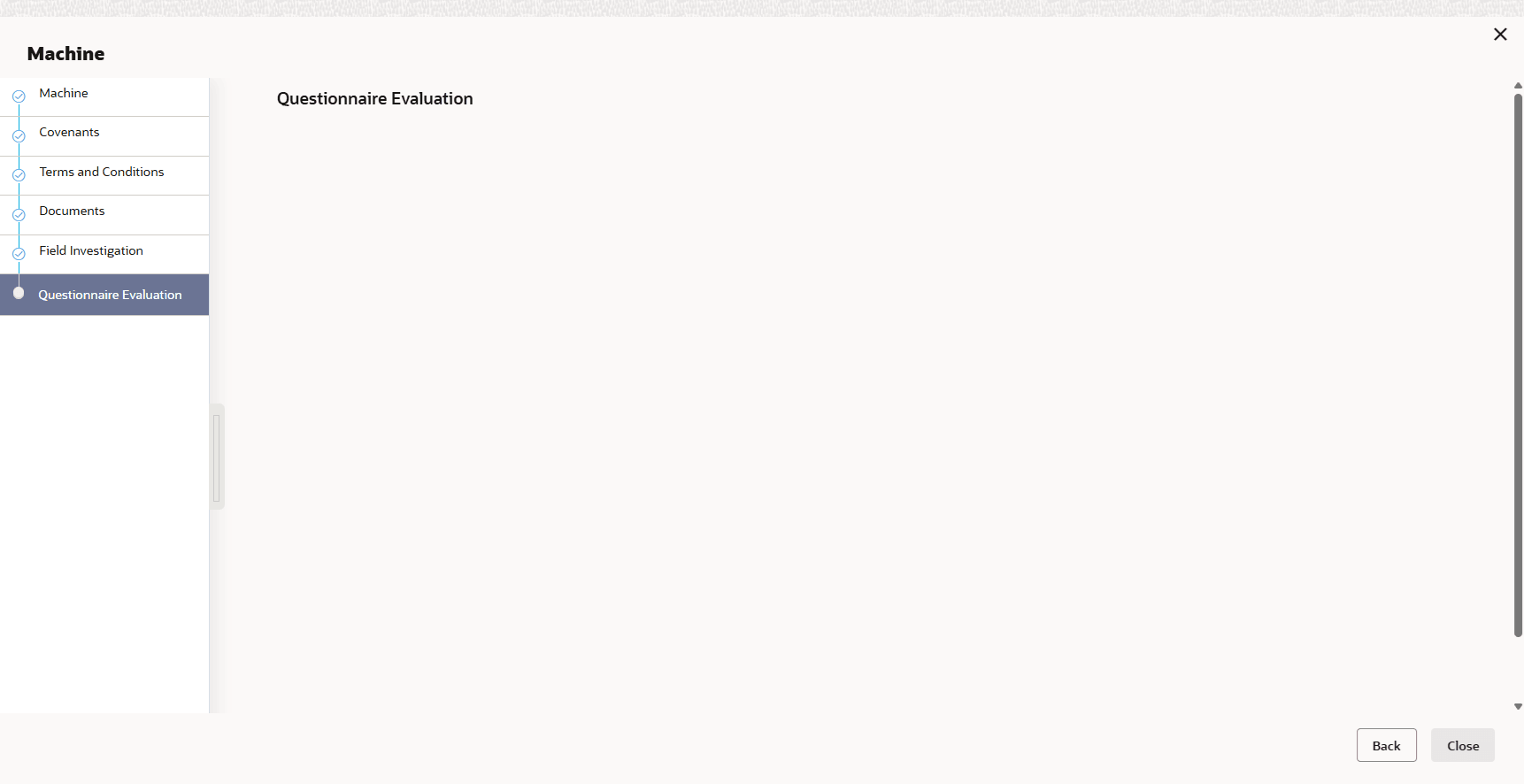
- After capturing field investigation details, click Next.The Field Investigation - Configure - Questionnaire Evaluation screen is displayed.
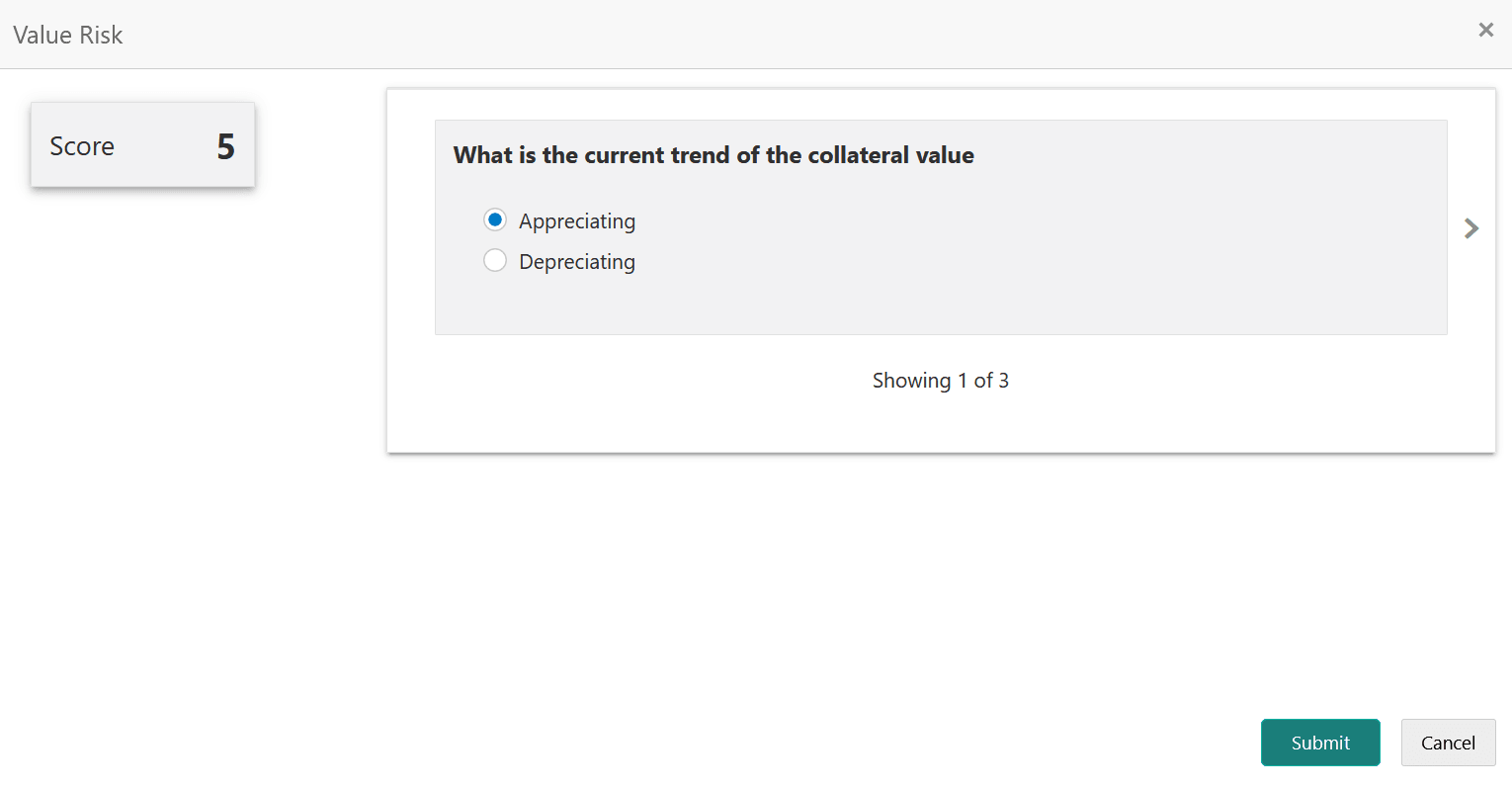
Figure 10-8 Field Investigation - Configure - Questionnaire Evaluation
Note:
In the above screen, the questionnaires linked to the Field Investigation stage in Business Process configuration are displayed. You can manage the questionnaire process linkage in Maintenance module. - Click Evaluate in any of the tile.The Questionnaire window is displayed.
Figure 10-9 Questionnaire