3 Quick Initiation
This topic provides systematic instructions about the procedure to initiate the Collateral Perfection process in OBCFPM.
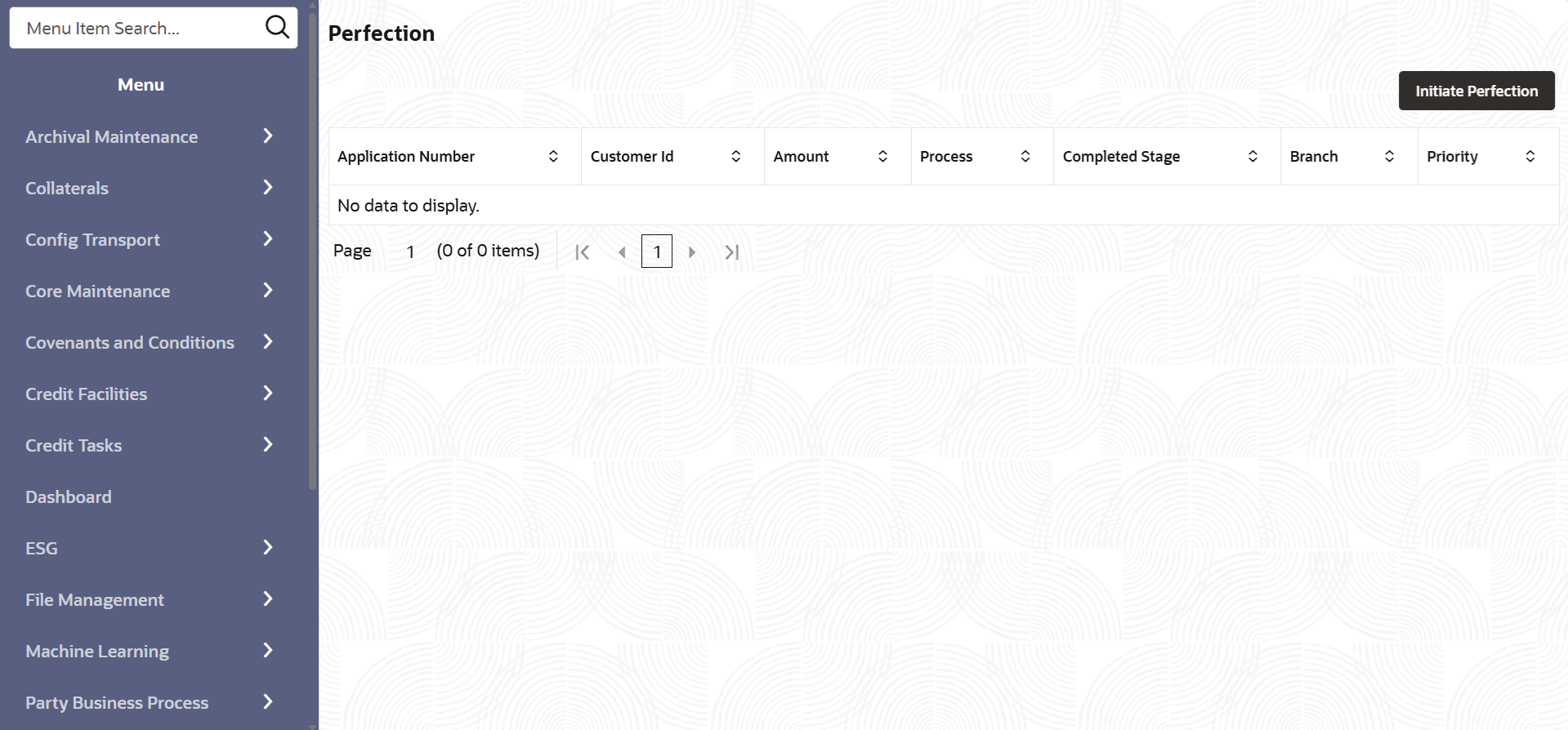
- From Home screen, click
Collaterals. Under
Collaterals, select
Perfection.The Perfection Initiation screen is displayed.
- Click Initiate Perfection.The Quick Initiation screen is displayed.
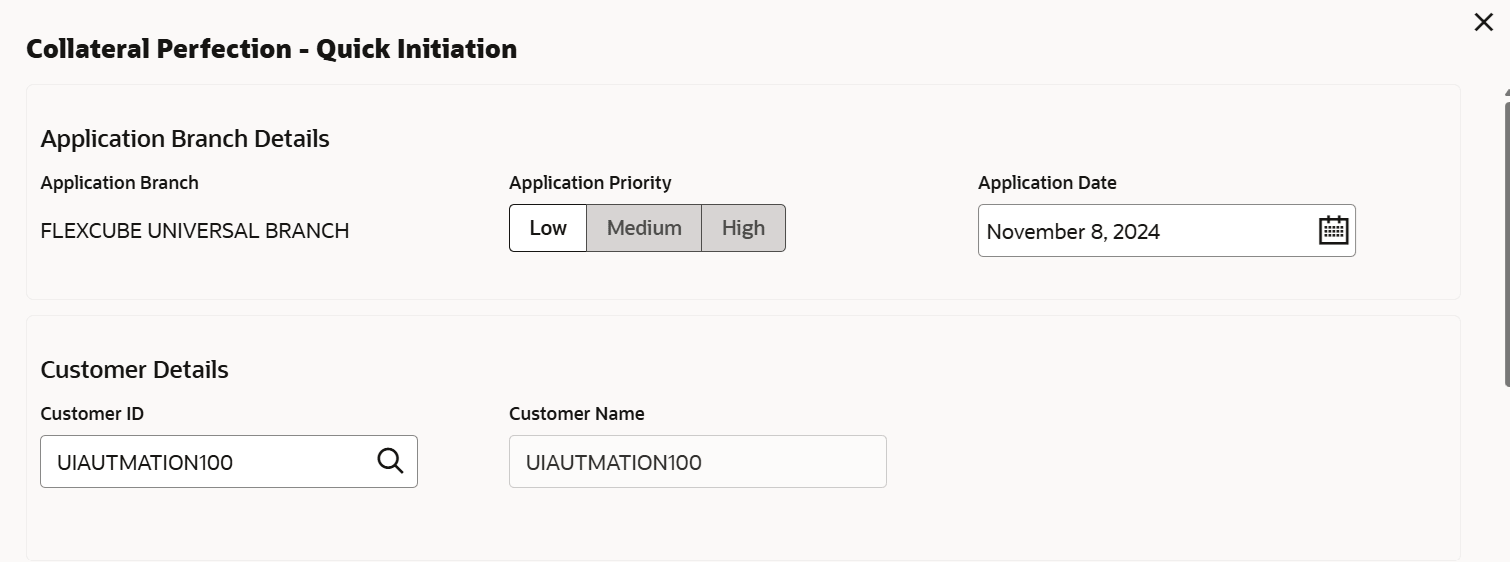
- Provide all the details in the Quick Initiation window.For information on the fields, refer to the field description table below.
Table 3-1 Quick Initiation - Application Branch Details - Field Description
Field Description Application Branch
Select the bank branch for creating Collateral Perfection application.
Application Priority
Select the Application Priority. The options available are:- Low
- Medium
- High
Application Category
Select the Application Category as Collateral Perfection.
Application Date
Click the calendar icon and select the Collateral Perfection Application Date.
Table 3-2 Quick Initiation - Customer Details - Field Description
Field Description Customer Id
Select the Customer Id from the List of Values.
Customer Name
Customer Name is displayed based on the selected Customer Id.
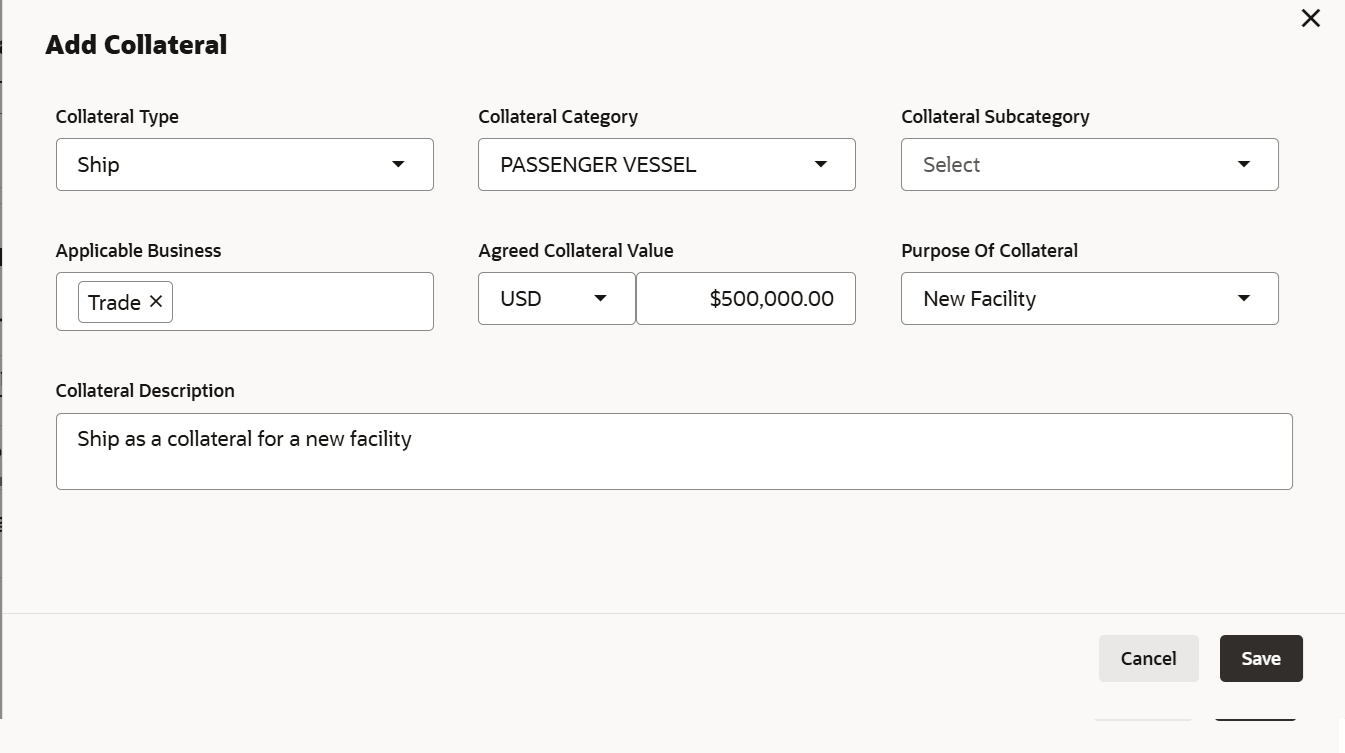
Click Add Collateral in the Collateral Details section, The Add Collateral window is displayed.For information on the fields, refer to the field description table below.
Table 3-3 Add Collateral- Field Description
Field Description Collateral Type
Select the Collateral Type from the drop-down list. The available options are:
- Account Receivables
- Account Contracts
- Aircraft
- Bill Of Exchange
- Bond
- Cash Collaterals
- Commercial Paper
- Commodity
- Corporate Deposits
- Crop
- Fund
- Guarantee
- Insurance
- Inventory
- Machine
- Miscellaneous
- Other Bank Deposits
- PDC
- Perishable
- Precious Metals
- Promissory Note
- Property
- Ship
- Stock
- Vehicle
Collateral Category
Select the Collateral Category from the drop-down list.
Collateral Description
Specify the Collateral description.
Currency
Specify the collateral currency.
Owner Estimated Value
Specify the Owner Estimated Value of the collateral.
Purpose of Collateral
Select the purpose of the Collateral from the drop-down list. The available options:
- New Facility
- Enhancement Of Limit
- Replacement Of Collateral
- Augmentation Of Collateral