18.2 Collateral Safekeeping

This topic provides systematic instructions about the procedure to add collateral safekeeping details.

Click Next in the Safekeeping - Collateral Summary screen, the Collateral Safekeeping data segment is displayed.
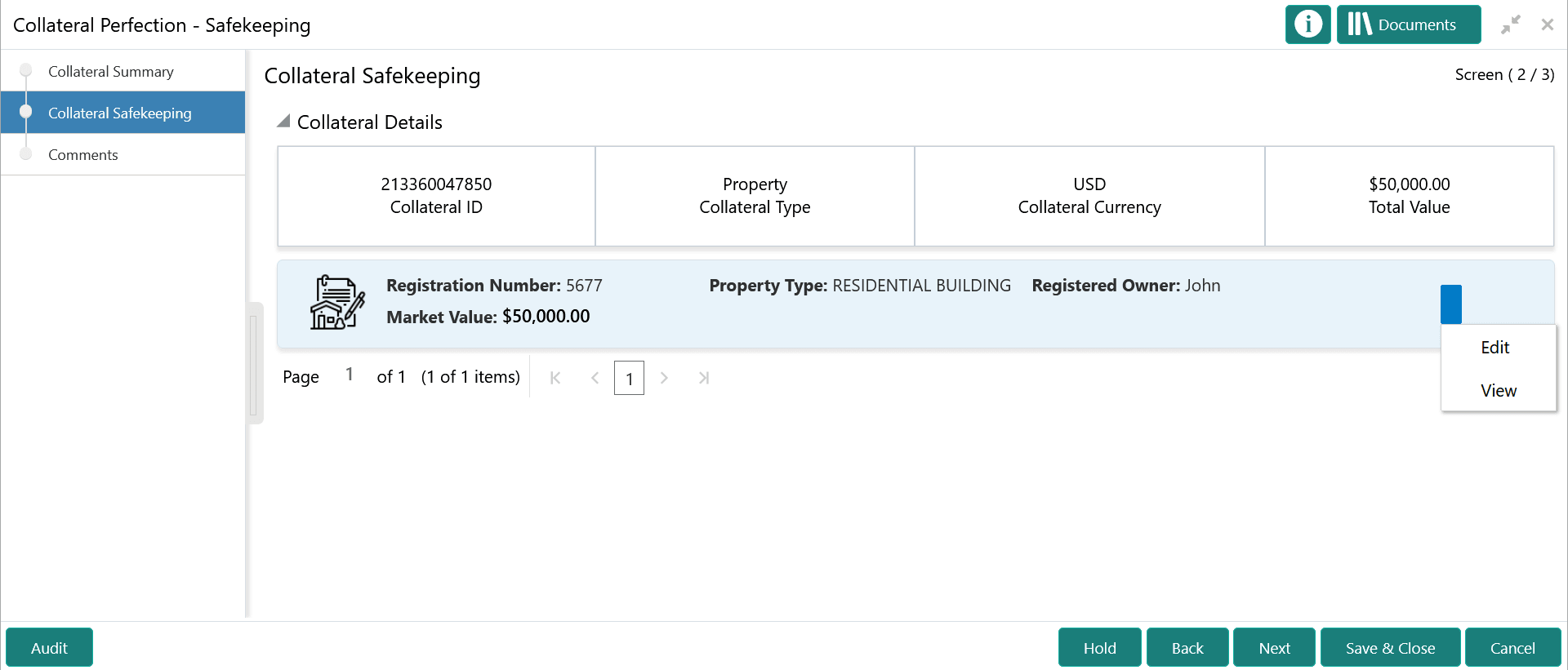
Figure 18-3 Safekeeping - Collateral Safekeeping


Edit and View collateral details

To capture safekeeping details for the collateral:

  1. Click the action icon in the collateral record and select Edit.
    The Safekeeping - Configure - Collateral Type screen is displayed.

    Figure 18-4 Safekeeping - Configure - Collateral Type
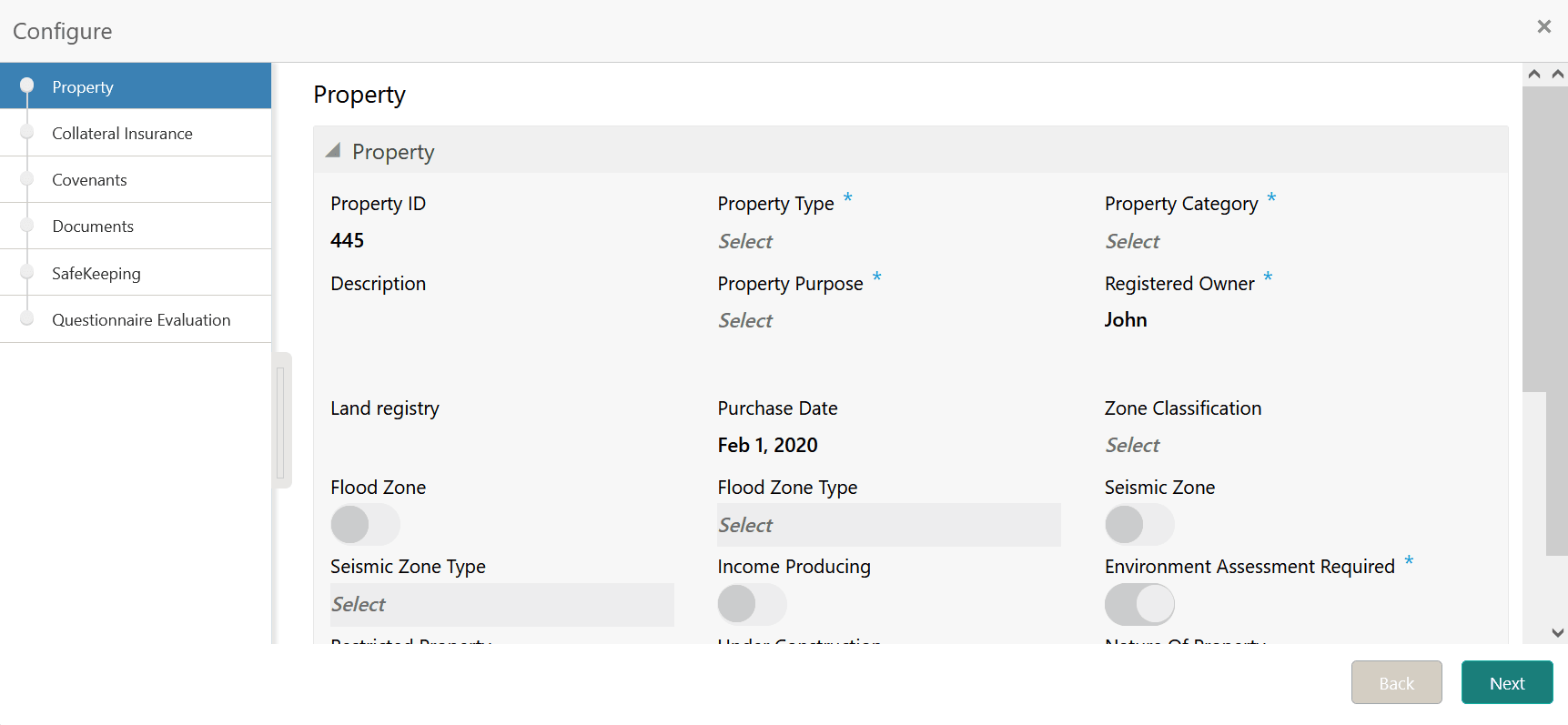

    Collateral details

  2. Click Next and navigate to the Safekeeping menu.

    Figure 18-5 Safekeeping - Configure - Safekeeping
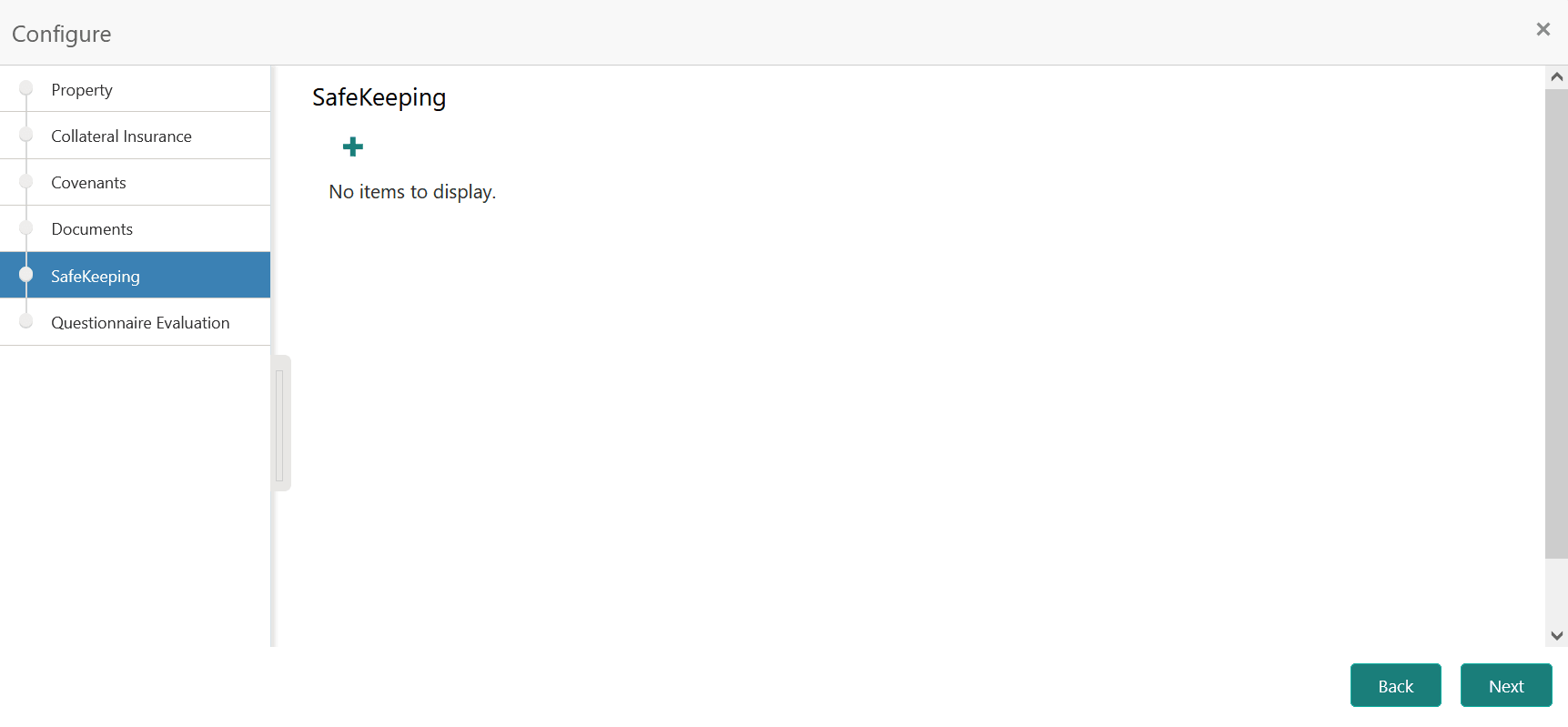

    Option to capture collateral safekeeping details

  3. Click the add icon in the Safekeeping - Configure - Safekeeping screen.
    The Document Safekeeping window is displayed.

    Figure 18-6 Document Safekeeping
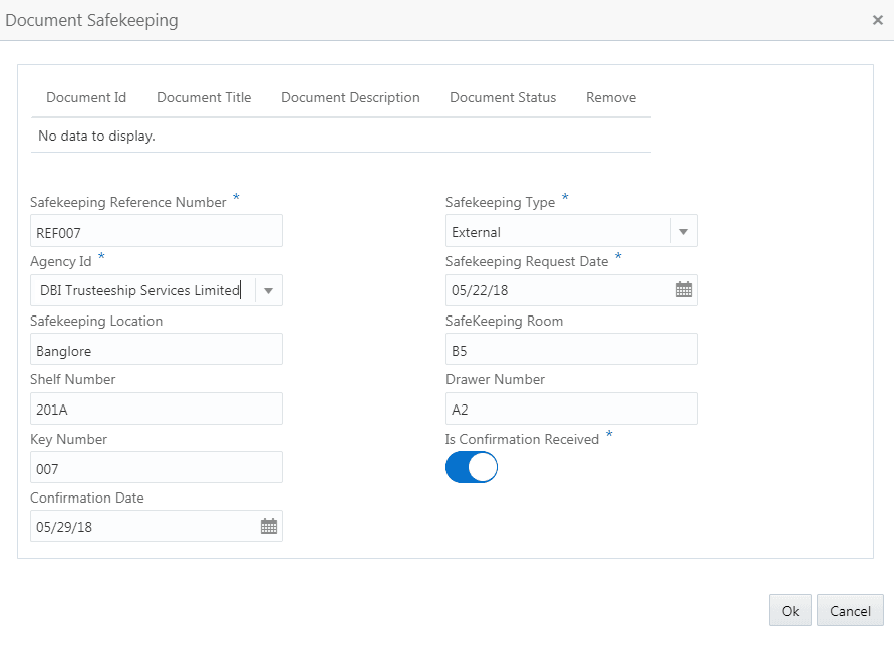

    Document safekeeping details

  4. Select the documents for safekeeping in the above screen.
  5. Capture the document safekeeping details.
    For field level explanation, refer the below table.

    Table 18-1 Document Safekeeping - Field Description

    Field Description
    Safekeeping Reference Number Specify the Safekeeping Reference Number.
    Safekeeping Type Select the Safekeeping Type from the drop down list. The options available are:
    • Internal
    • External
    Agency Id Specify the Agency Id, if External is selected as the Safekeeping Type.
    Safekeeping Request Date Specify the Safekeeping Request Date.
    Safekeeping Location Specify the Safekeeping Location.
    Safekeeping Room Specify the Safekeeping Room detail.
    Shelf Number Specify the Shelf Number for collateral safekeeping.
    Drawer Number Specify the Drawer Number for collateral safekeeping.
    Key Number Specify the Key Number for collateral safekeeping.
    Is Confirmation Received Enable this flag, if confirmation is received for collateral safekeeping.
    Confirmation Date Specify the safekeeping Confirmation Date.
  6. Click Ok in the Document Safekeeping window.
    The document safekeeping details are added and displayed in the Safekeeping - Configure Safekeeping screen.

    User can Edit, View, or Delete the added safekeeping detail by clicking the action icon and selecting the required option.

  7. After capturing safekeeping details, click Next and then click Submit.