3.3.4 Managing Collateral Documents
Procedure to Edit, Download, Delete, and Remove documents.
Figure 3-22 Enrichment - Configure - Documents
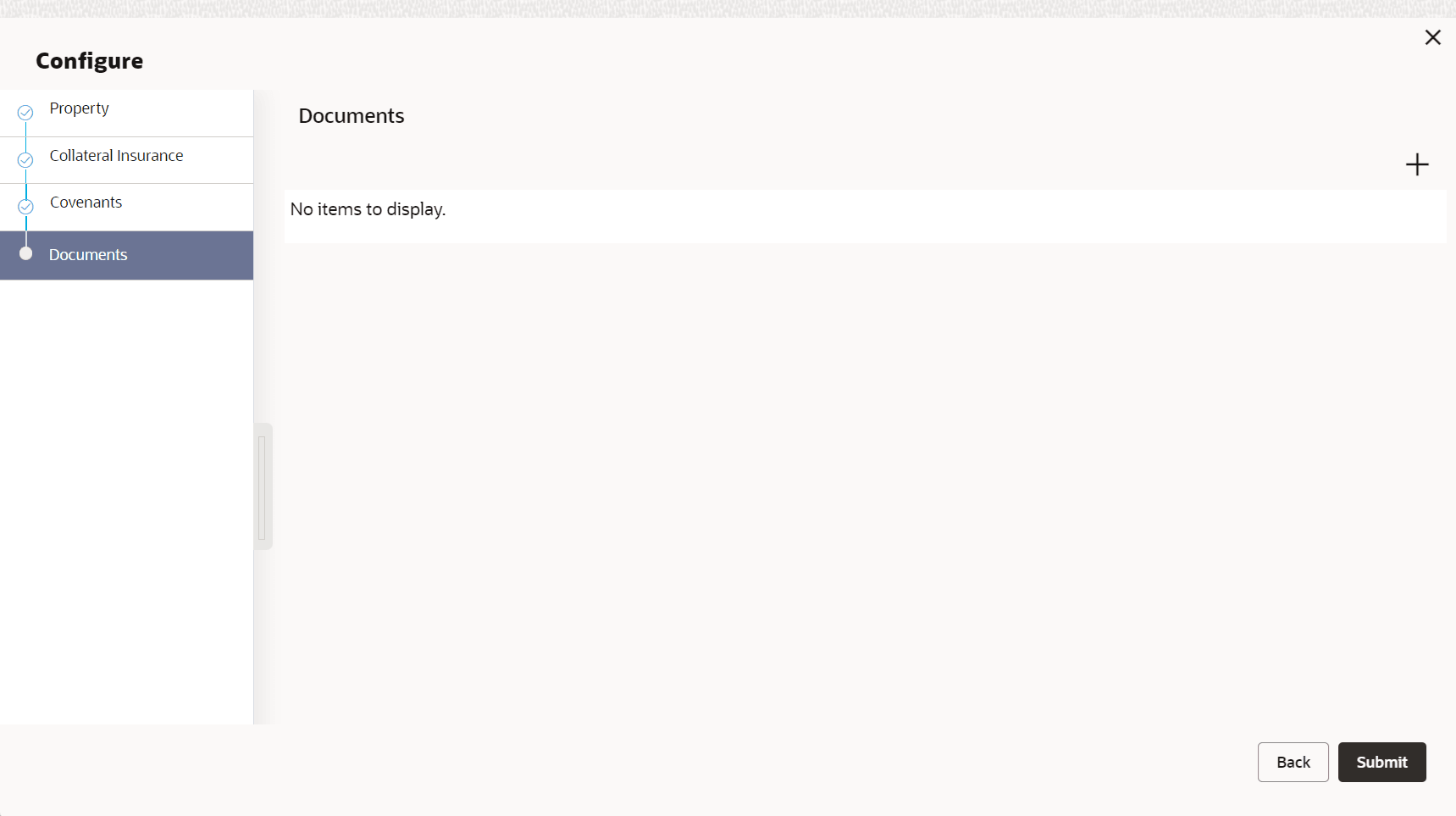
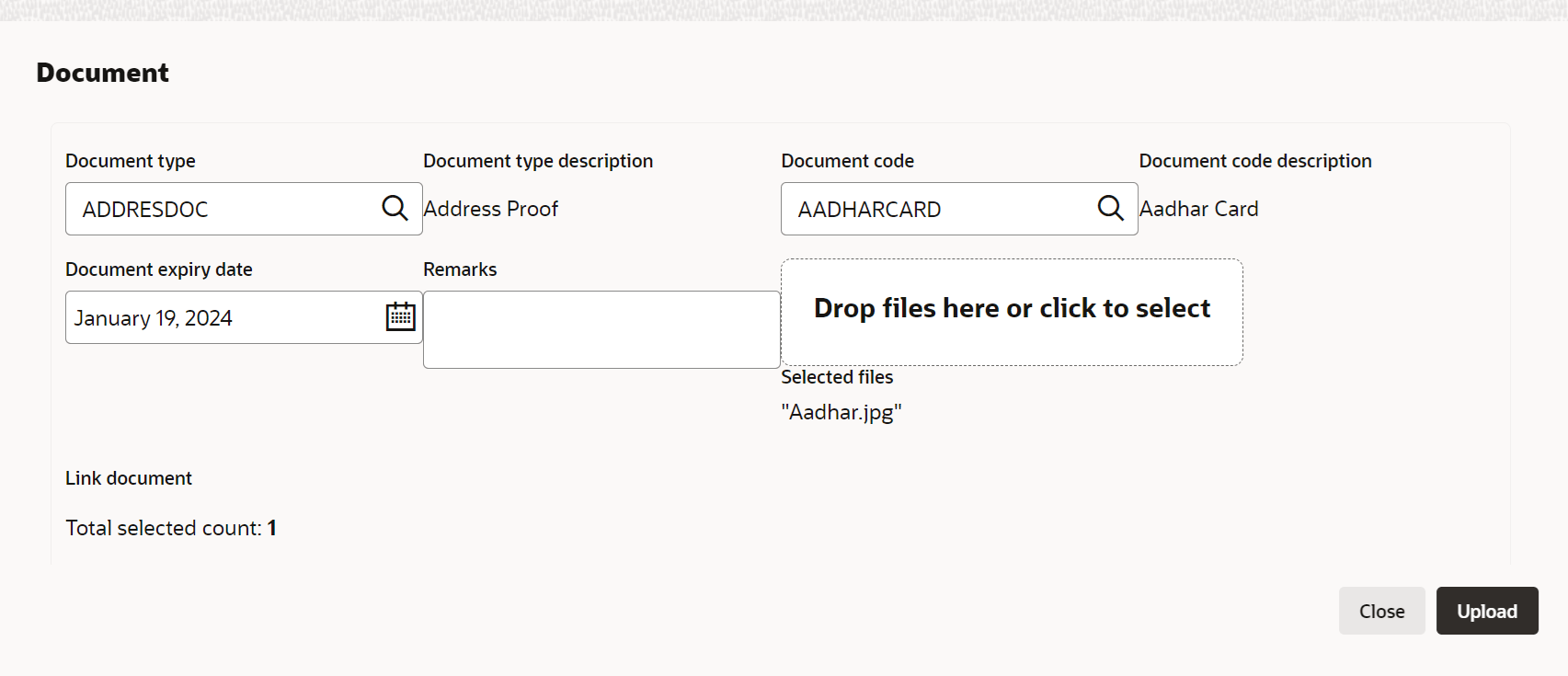
- To upload new documents, click Add New Documents.The Document Upload screen is displayed.
- Provide all the details for adding document.For field level information, refer the below table.
Table 3-18 Document Upload - Field Description
Field Description Document Type Search and select the type of document to be uploaded. Document Type Description Description maintained for the selected Document Type is displayed. Document Code Search and select the Document Code from the list of document codes maintained in the system. Document Code Description Description maintained for the selected Document Code is displayed. Document Expiry Date Specify the date till which the document to be uploaded is valid. Remarks Capture Remarks for the document, if any. Drop files here or click to select In this section, drag and drop the documents or click and select the documents. Selected files are displayed at the bottom. - Click Upload.The document is uploaded and displayed in Enrichment - Configure - Documents screen.
- To modify the document details, click the action icon in document record and select Edit.
- To download the uploaded document, click the action icon in document record and select Download.
- To delete the document record, click the action icon in record and select Delete.
- To remove the uploaded document, click the action icon in document record and select Remove Document.
- After performing necessary actions in the Enrichment - Configure - Documents screen, click Submit.