7.3 Legal Opinion

Procedure to capture external legal opinion for the collateral.

Upon clicking Next in the Legal Opinion - Summary screen, the External Legal Opinion / Legal Opinion data segment is displayed.
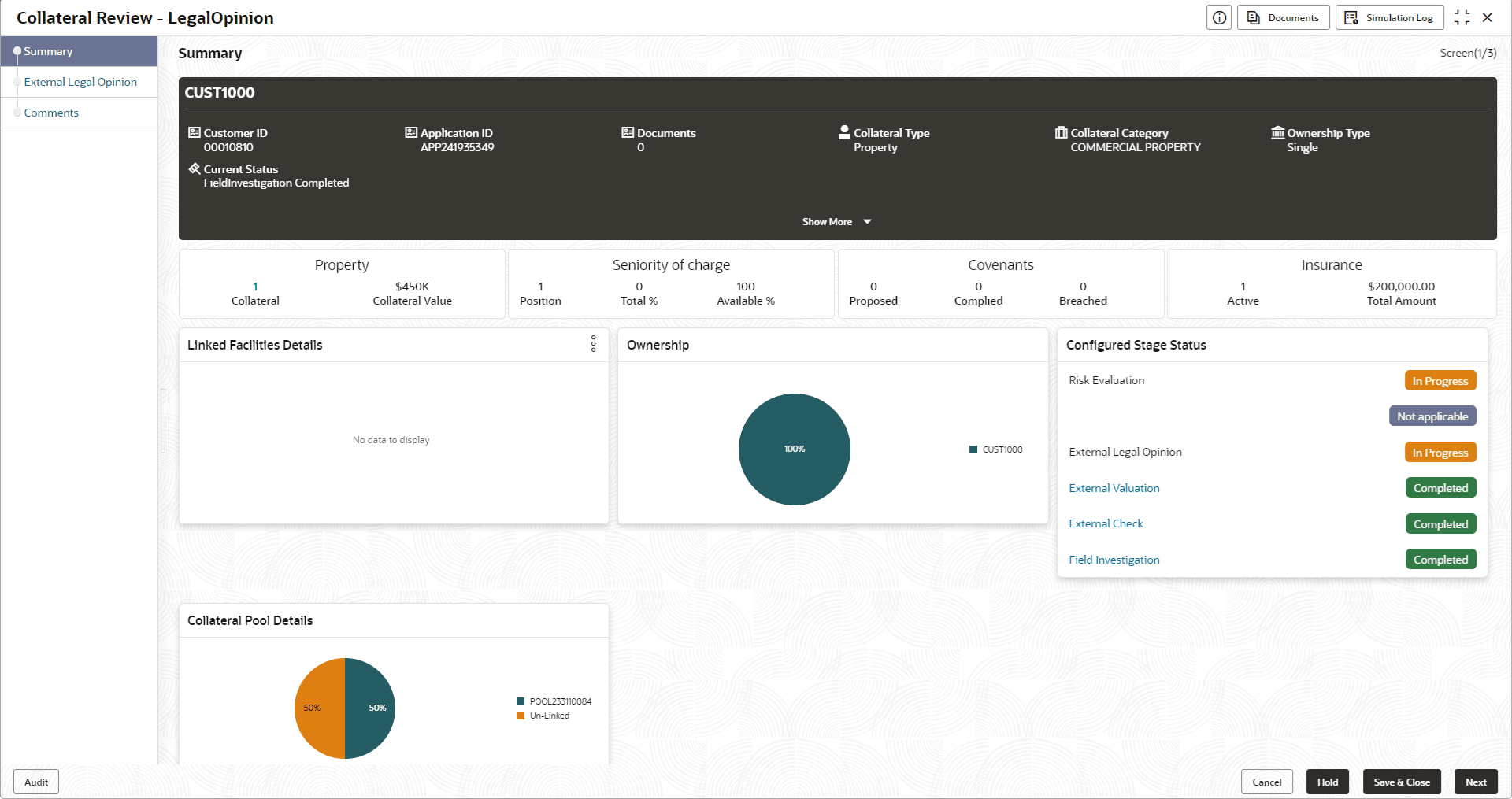
Figure 7-3 Legal Opinion - Legal Opinion


  1. Click the action icon in the required collateral record and select Edit.
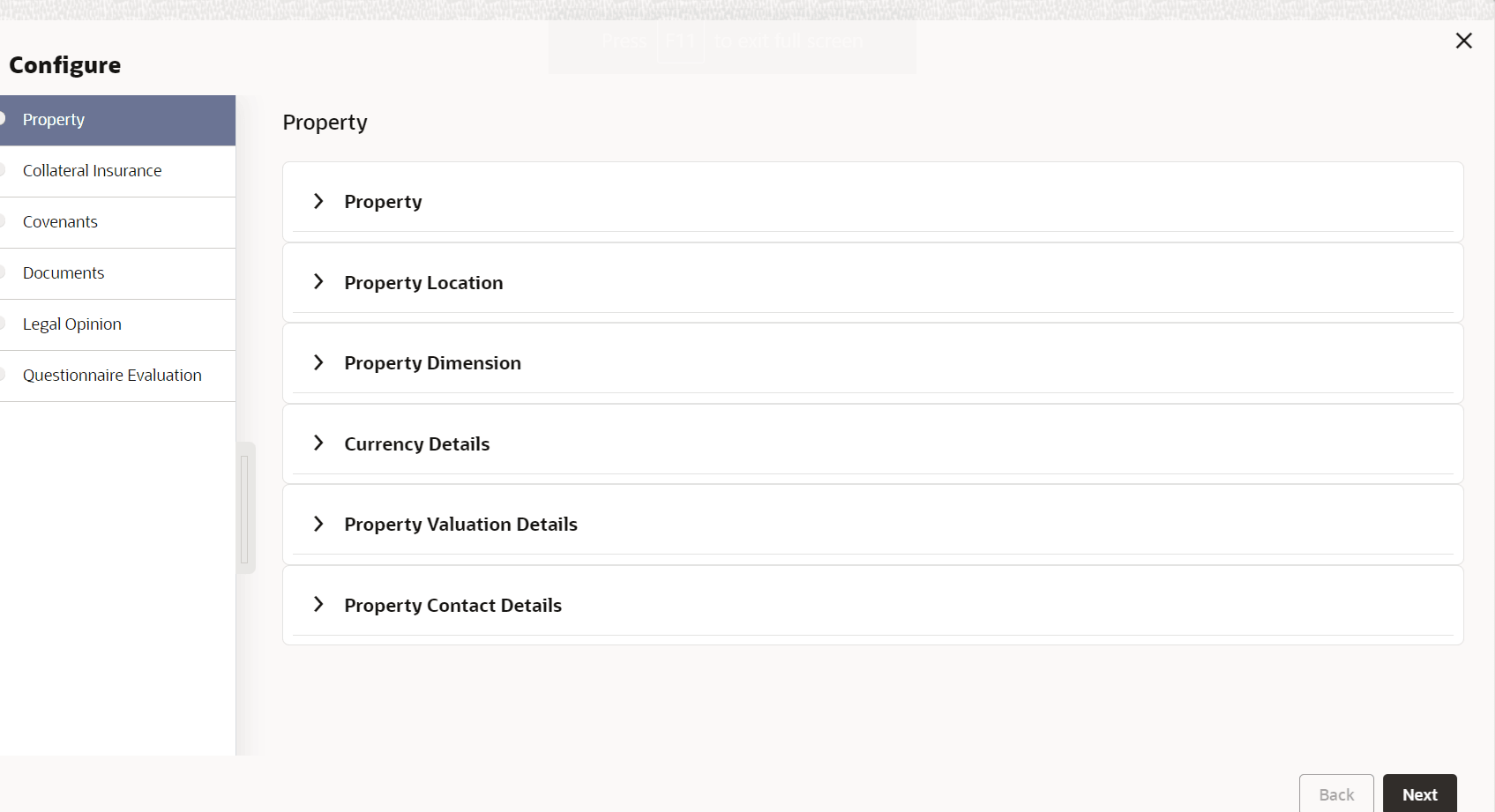
    The Legal Opinion - Configure - Collateral Type screen is displayed based on the selected collateral.

    Figure 7-4 Legal Opinion - Configure - Property


    For information on the Property, Covenants, and Documents menus, refer the Data Enrichment chapter.

  2. Click Next and navigate to Legal Opinion menu.

    Figure 7-5 Legal opinion - Configure - Legal Opinion


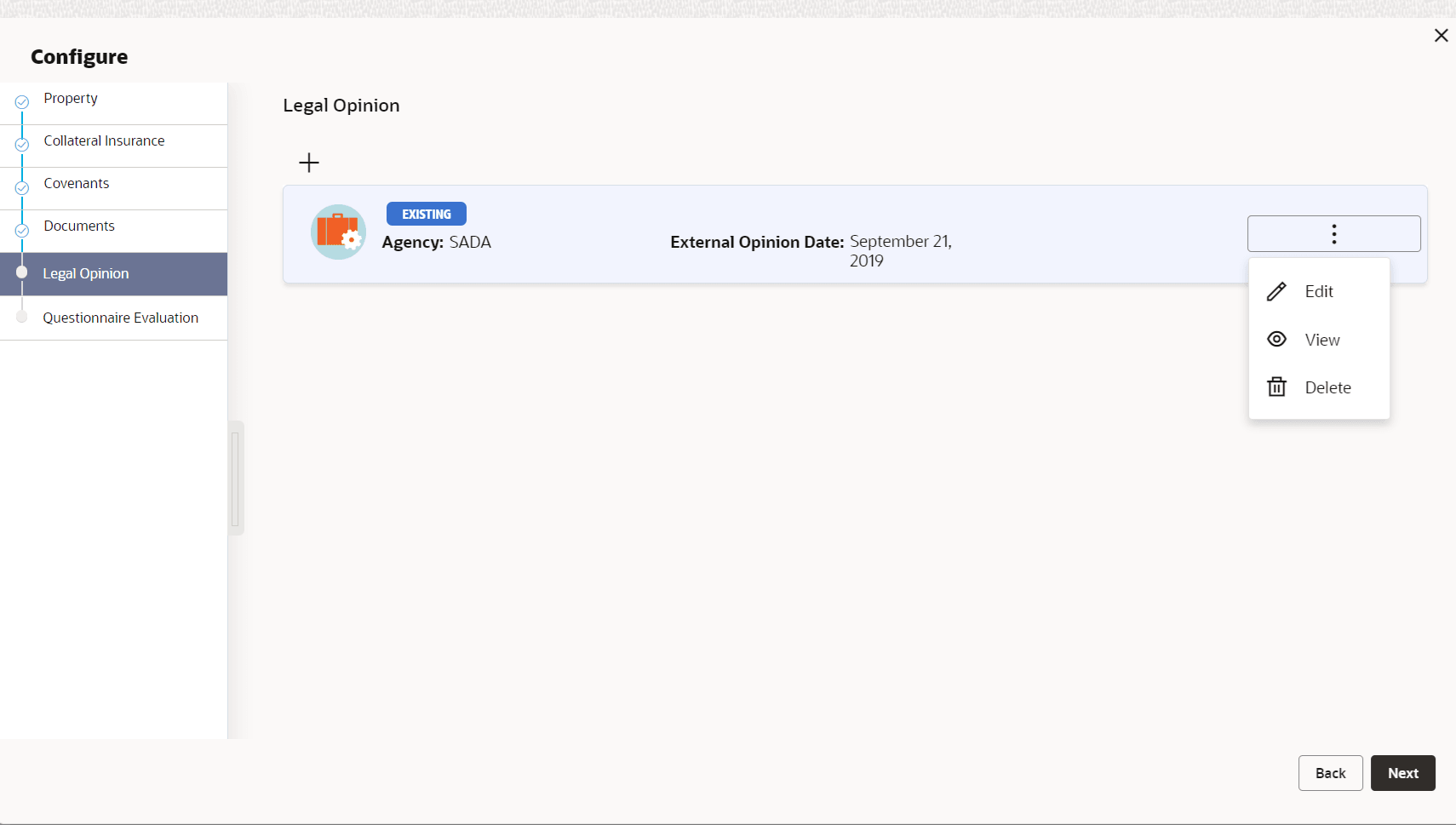
  3. Click + the add icon in the Legal opinion - Configure - Legal Opinion screen.
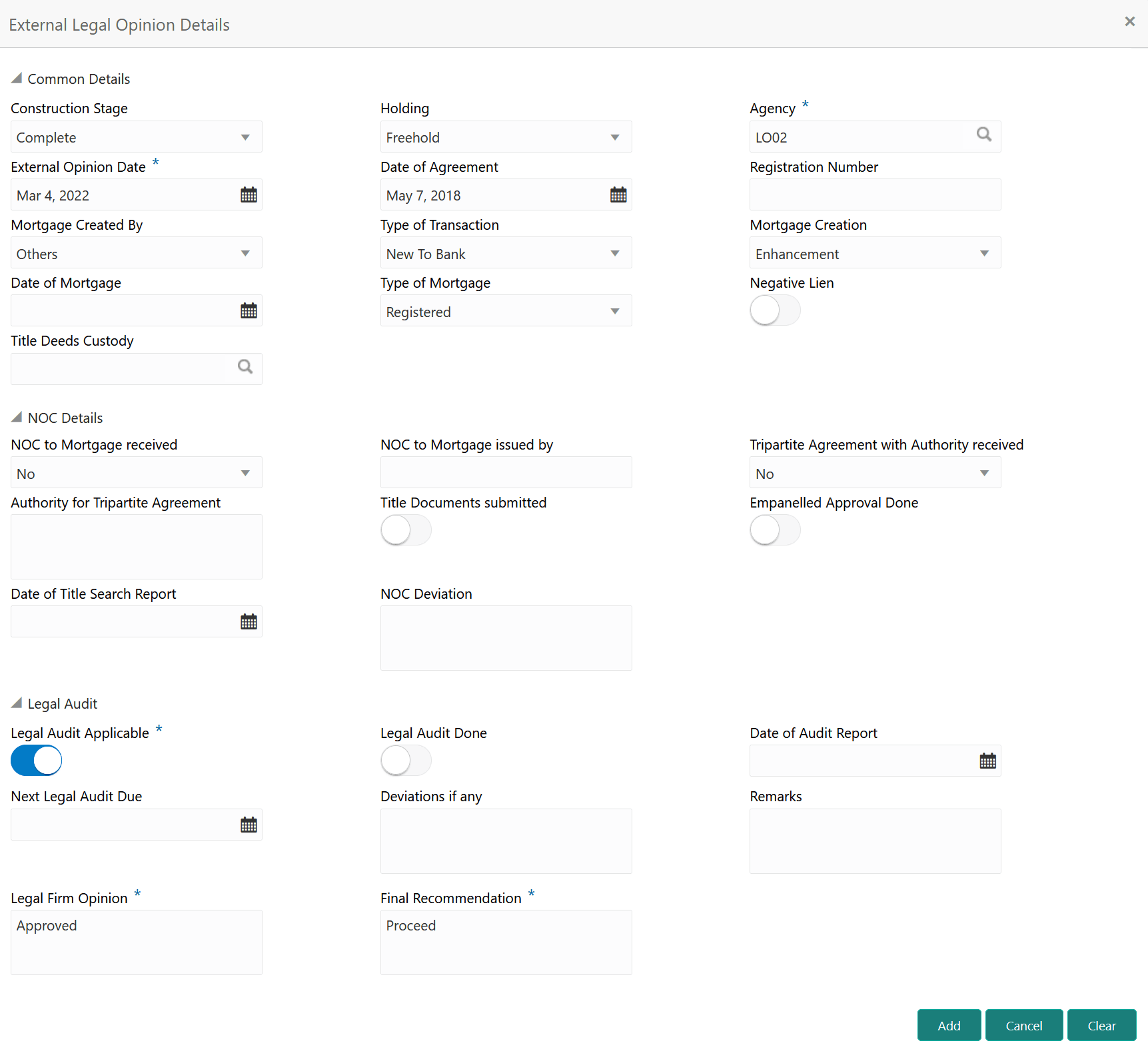
    The External Legal Opinion Details window is displayed.

    Figure 7-6 External Legal Opinion Details


  4. Specify the external legal opinion details.
    For field level explanation, refer the below table.

    Table 7-1 Common Details - Field Description

    Field Description
    Construction Stage Select the stage of construction from the drop down list. The options available are:
    • Complete
    • Under Construction
    Holding Specify if the property is Freehold or Leasehold.
    Agency Select the Agency from which the legal opinion is obtained.
    External Opinion Date Specify the date on which the external legal opinion is captured.
    Date of Agreement Specify the date of lease agreement.
    Registration Number Specify the property Registration Number.
    Mortgage Created By Select the bank or security trustee who created the mortgage. The options available in the drop down list are:
    • Own Bank
    • Others
    Type of Transaction Specify whether the customer is New To Bank or Existing customer.
    Mortgage Creation Select the Mortgage Creation as Fresh or Enhancement of existing mortgage value.
    Date of Mortgage Specify the mortgage creation date.
    Type of Mortgage Specify the type of mortgage as Equitable or Registered.
    Negative Lien Specify whether negative lien is executed covering the collateral by selecting Yes or No from the drop down list.
    Title Deeds Custody Specify the name of bank which is holding the title deeds.

    Table 7-2 NOC Details - Field Description

    Field Description
    NOC to Mortgage received Specify if NOC for creating mortgage is received. The following options are available in the drop down list.
    • Yes
    • No
    • Not Applicable
    NOC to Mortgage issued by Specify the details of other participating lenders that issued the NOC to mortgage.
    Tripartite Agreement with Authority received Specify if the tripertite Agreement is received from the authority. The following options are available in the drop down list.
    • Yes
    • No
    • Not Applicable
    Authority for Tripartite Agreement Specify the authority which executed the tripartite agreement.
    Title Documents Submitted Enable this flag, if the customer has submitted all the property related title documents to the Bank or security trustee.
    Empanelled Approval Done Specify if empanelled approval is in place for deviation, if any section of the title documents is not submitted by the customer.
    Date of Title Search Report Specify the date on which the bank obtained search report from the company secretory of the client.
    NOC Deviation Provide details of deviation in obtaining NOC from other participating banks, if any.

    Table 7-3 Legal Audit - Field Description

    Field Description
    Legal Audit Applicable Enable this flag if legal audit is required for the collateral asset.
    Legal Audit Done Enable this flag if legal audit is done.
    Date of Audit Report Specify the date on which legal audit report is obtained.
    Next Legal Audit Due Specify the next due date for legal audit.
    Deviations if any Provide details of deviation in the legal audit as per Bank policy, if any.
    Remarks Capture legal Remarks, if any.
    Legal Firm Opinion Specify the Legal Firm Opinion.
    Final Recommendation Capture the Final Recommendation for the collateral from the external legal firm.
  5. Click Add.
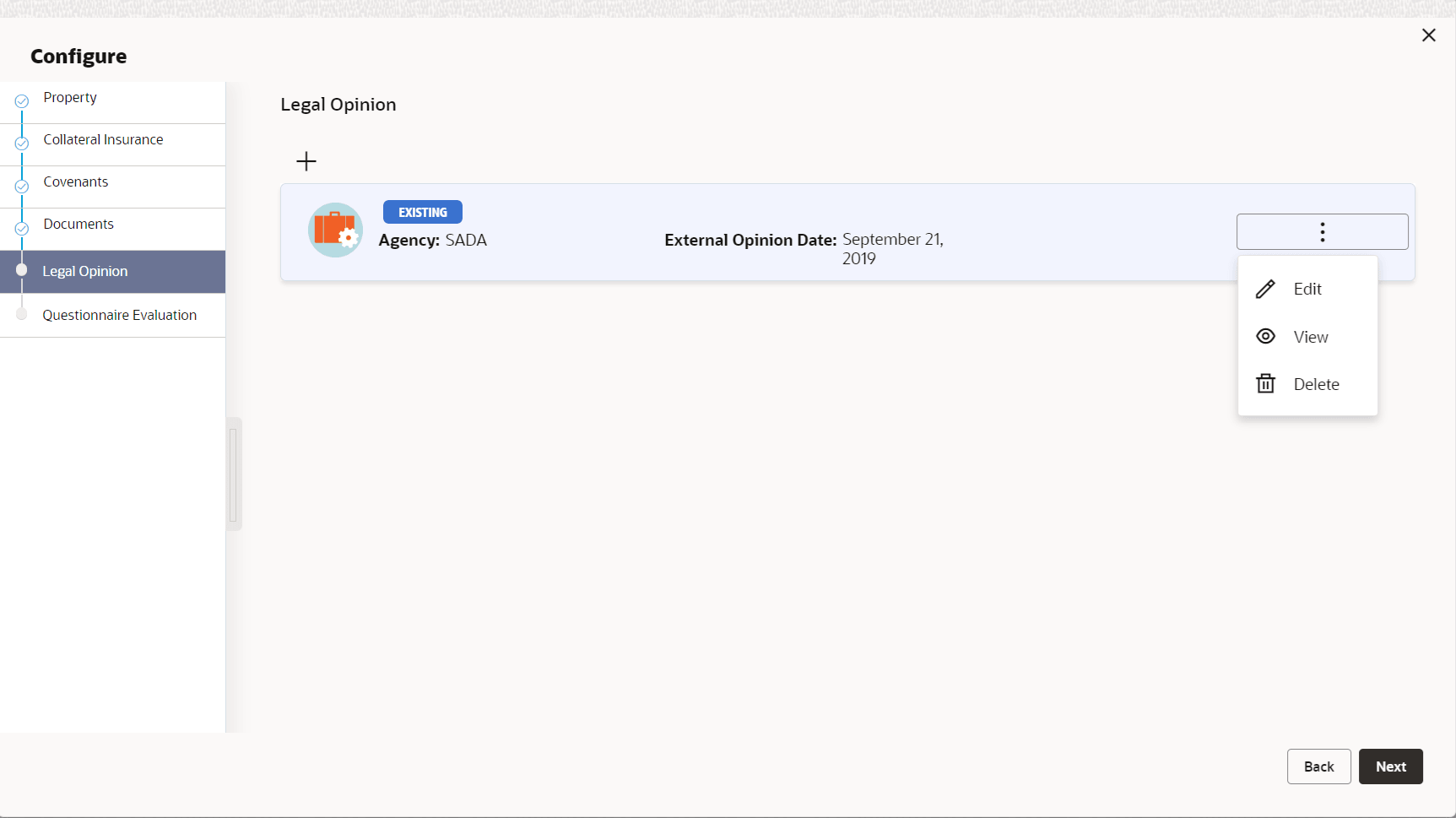
    The external legal opinion is added and displayed as shown below.

    Figure 7-7 Legal Opinion - Configure - Legal Opinion Added


    You can Edit, View, or Delete the added external legal opinion by clicking the action icon in the corresponding record and selecting the required option.
  6. After adding the external legal opinion, click Next.
    The Legal Opinion - Configure - Questionnaire Evaluation screen is displayed.

    Note:

    For information on questionnaire based evaluation, refer the External Check chapter.
  7. After performing necessary actions in the External Legal Opinion/Legal Opinion data segment, click Next.