6 Drawing Power
This topic describes the systematic instructions for Drawing Power.
- On Submit Stock Statement screen, select the customer
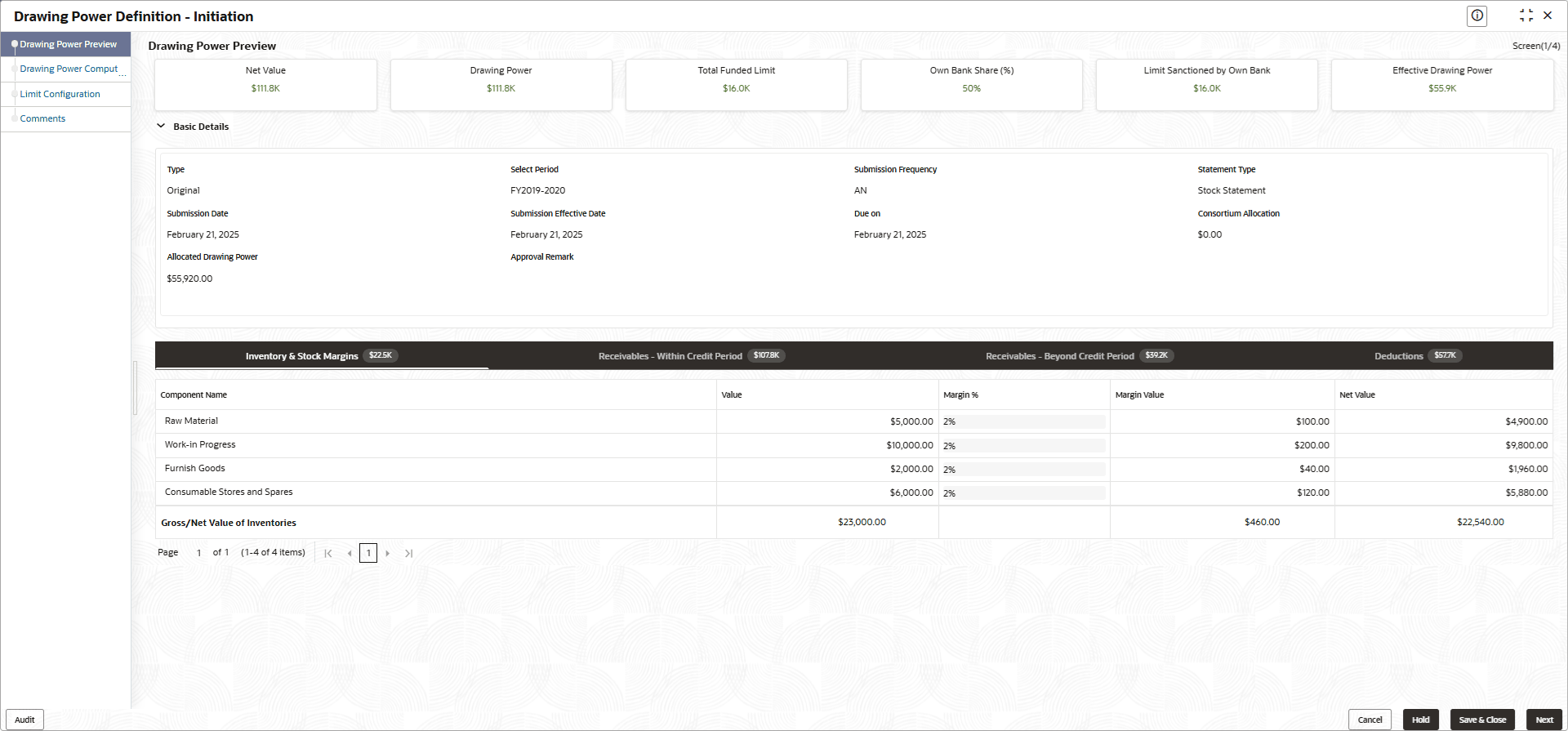
and click Submit and enrichThe Drawing Power Preview screen displays. For more information on fields, refer to the field description table.
Table 6-1 Drawing Power Preview
Field Description Net Value Displays the Net Value. Drawing Power Displays the Drawing Powervalue. Total Funded Limit Displays the Total Funded Limit. Own Bank Share (%) Displays the Own Bank Share (%). Limit Sanctioned by Own Bank Displays the Limit Sanctioned by Own Bank. Effective Drawing Power Displays the Effective Drawing Power. Type Displays the Type Select Period Displays the Select Period. Submission Frequency Displays the Submission Frequency. Statement Type Displays the Statement Type. Submission Date Displays the Submission Date. Submission Effective Date Displays the Submission Effective Date. Due on Displays the Due on date. Consortium Allocation Displays the Consortium Allocation. Allocated Drawing Power Displays the Allocated Drawing Power. Approval Remarks Displays the Approval Remarks. - On Drawing Power Preview screen, click
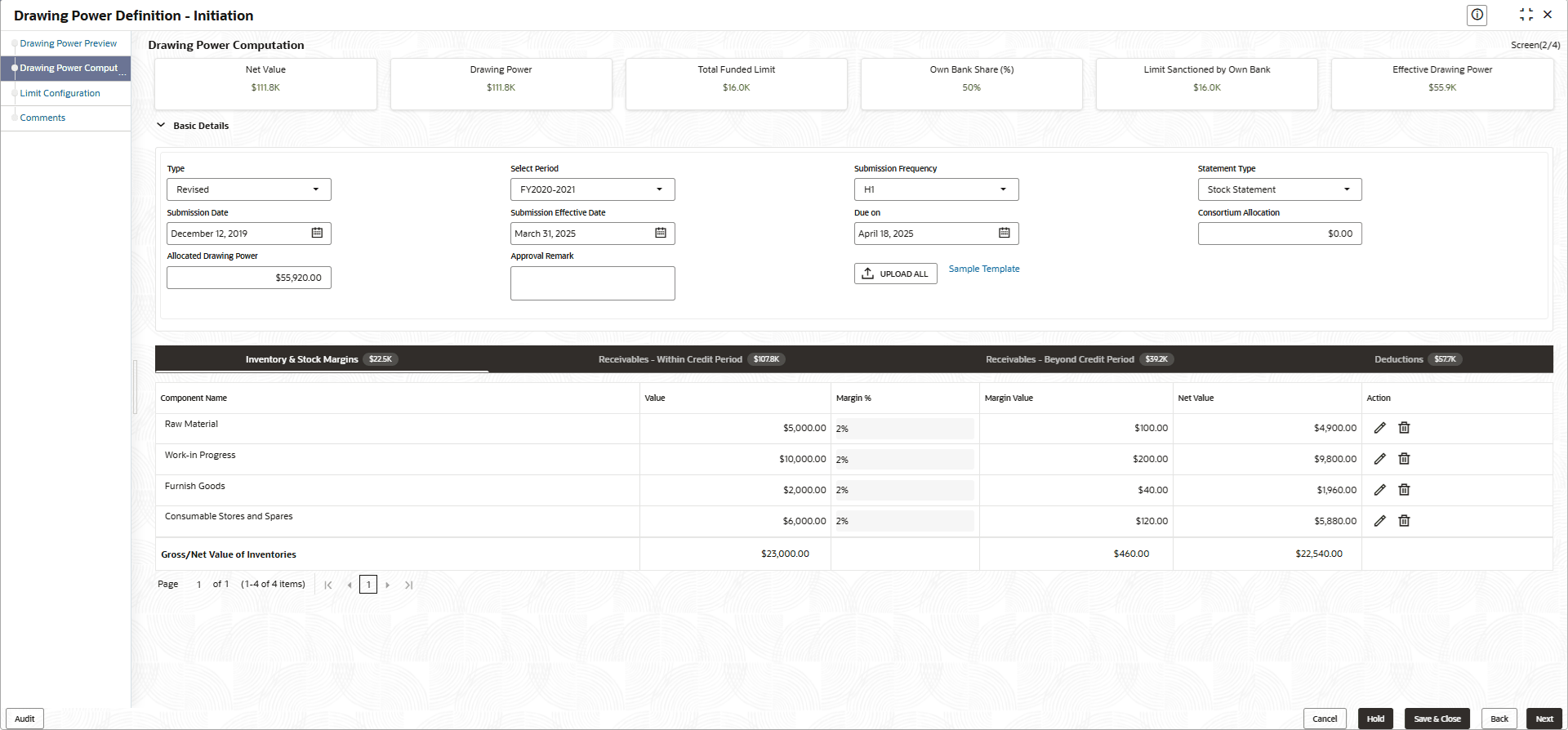
Next.The Drawing Power Computation screen displays. For more information on fields, refer to the field description table.
Table 6-2 Drawing Power Computation
Field Description Net Value Displays the Net Value. Drawing Power Displays the Drawing Powervalue. Total Funded Limit Displays the Total Funded Limit. Own Bank Share (%) Displays the Own Bank Share (%). Limit Sanctioned by Own Bank Displays the Limit Sanctioned by Own Bank. Effective Drawing Power Displays the Effective Drawing Power. Type Specify the Type Select Period Specify the Select Period. Submission Frequency Specify the Submission Frequency The available options are:- Annually
- Monthly
- Quarterly
- Semi-Annually
Statement Type Specify the Statement Type. The available options are:- Cash Budget
- Stock Statement
Submission Date Specify the Submission Date. Submission Effective Date Specify the Submission Effective Date. Due on Specify the Due on date. Consortium Allocation Specify the Consortium Allocation. Allocated Drawing Power Specify the Allocated Drawing Power. Approval Remarks Specify the Approval Remarks. - On Drawing Power Computation screen, click Next.
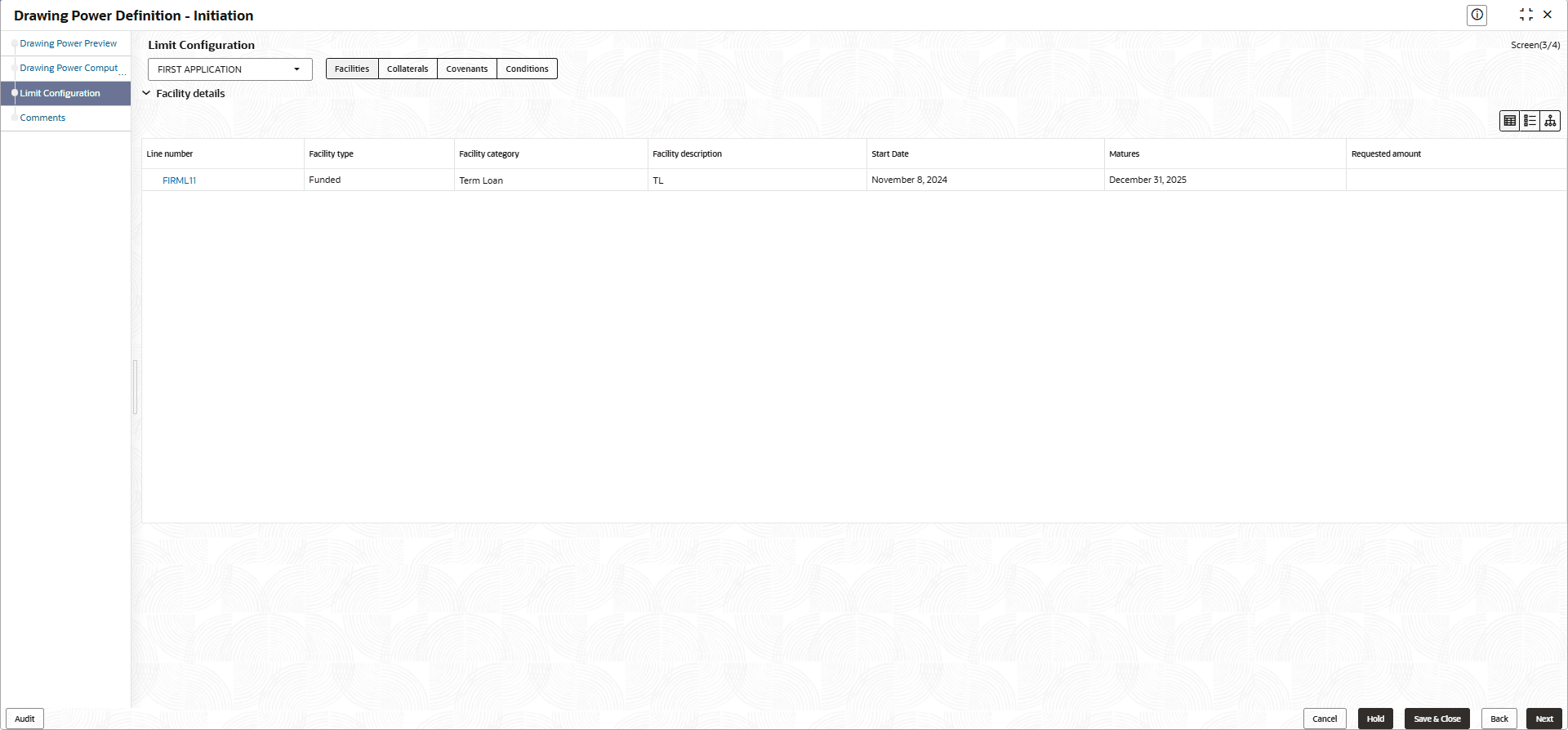
The Limit Configuration screen displays.
Table 6-3 Limit Configurations
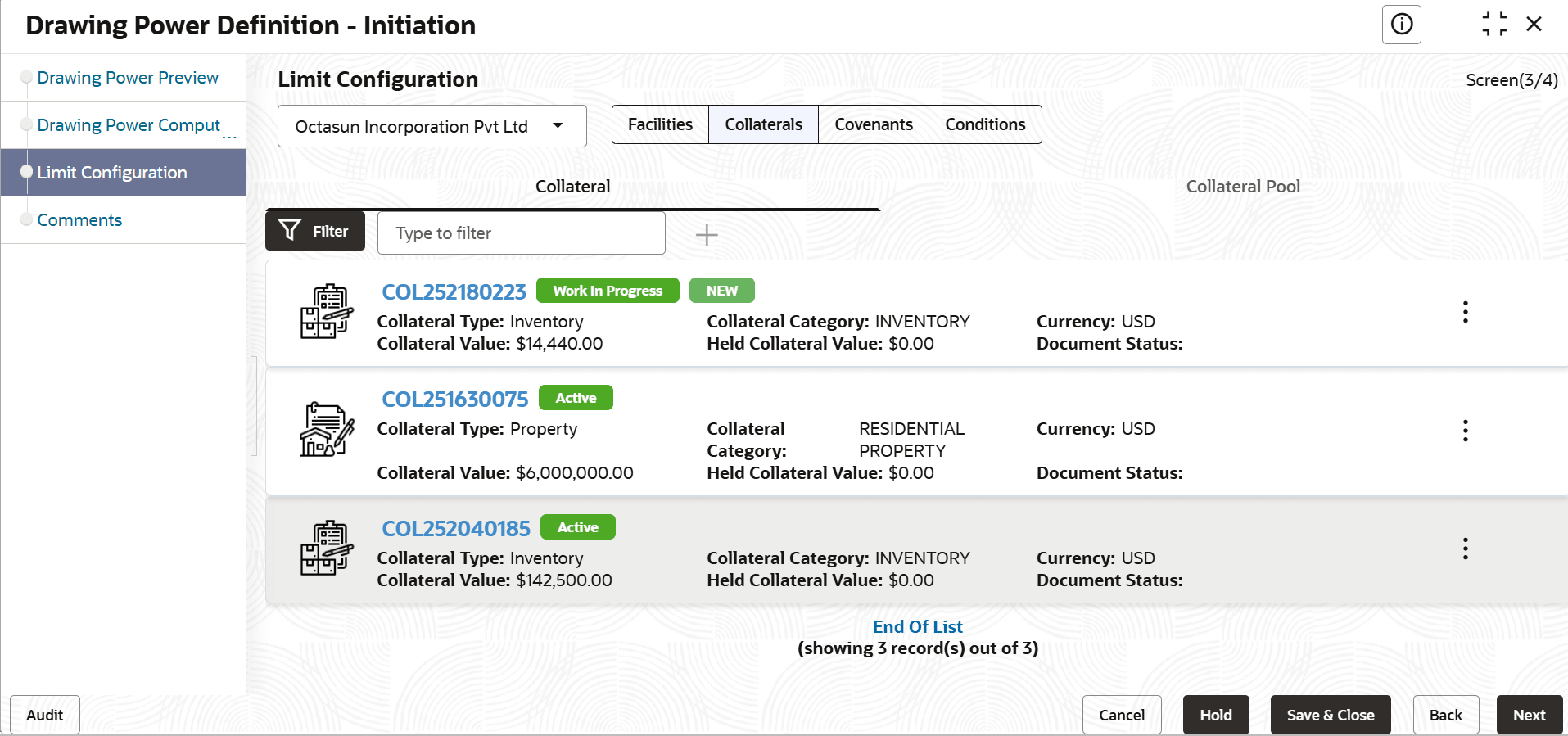
Field Description Limit Configuration Select the limit configuration from the drop-down list. Facility Details Displays the facility details. Line number Displays the line number. Facility Type Displays the facility type. Facility Category Displays the facility category. Facility Description Displays the facility category. Start Date Displays the start date. Matures Displays the maturity date . Requested Amount Displays the requested amount. - Click Collaterals on Limit Configuration screen.The Collaterals screen displays.
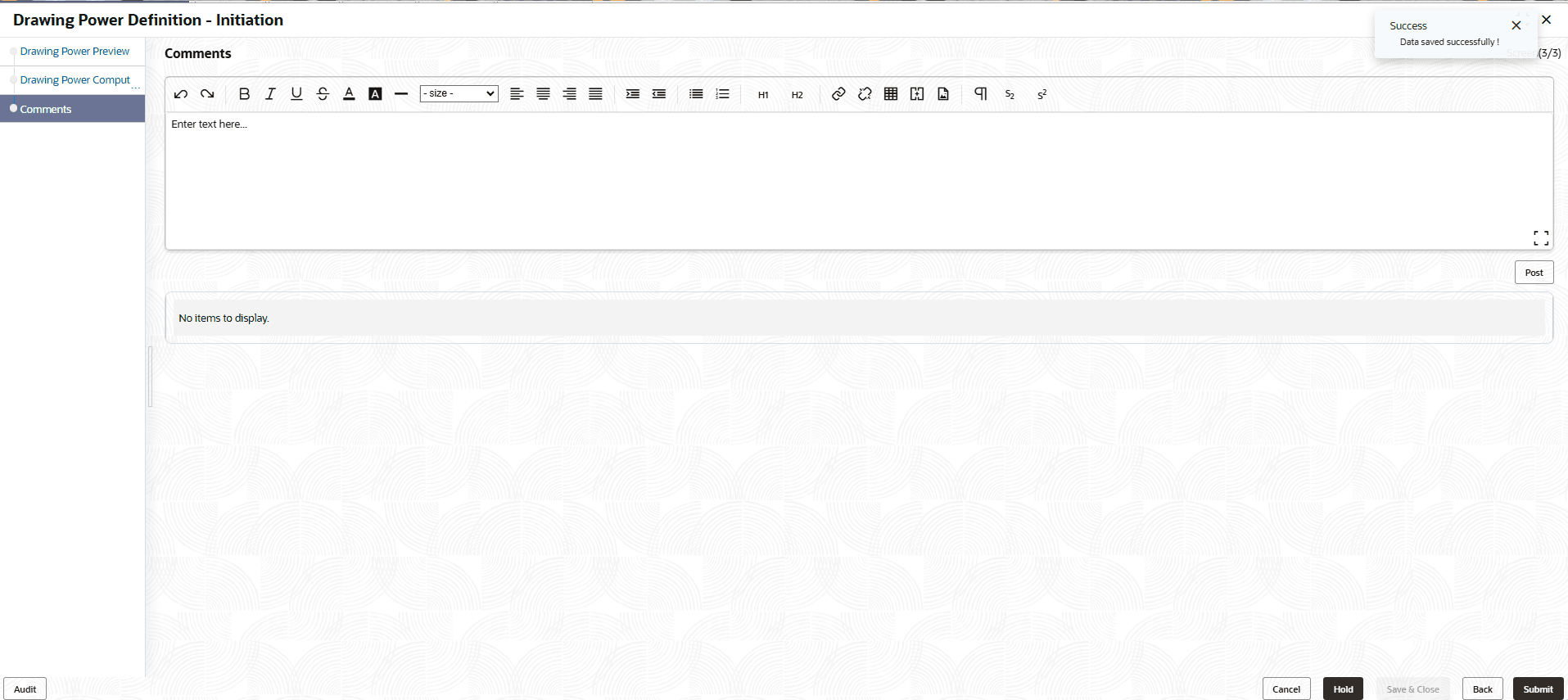
- On Limit Configuration screen, click Next.The Comments screen displays. For more information on fields, refer to the field description table.
Table 6-4 Comments
Field Description Post Enter the necessary comments in the text box and click Post. The comment is posted. Hold Click Hold, to hold the drawing power process. Save & Close Click Save & Close, to save the process for future edit. Submit Click Submit, to submit the drawing power. Cancel Click Cancel, to exit the process without saving the information.