5.4 Comments

This topic provides systematic instructions about the procedure to capture comments for the Review and Recommendation stage and submit the task.

In the Comments data segment, you can add the review comments and send the application to the Approval stage, or add the recommendation and send the application to the Enrichment stage.
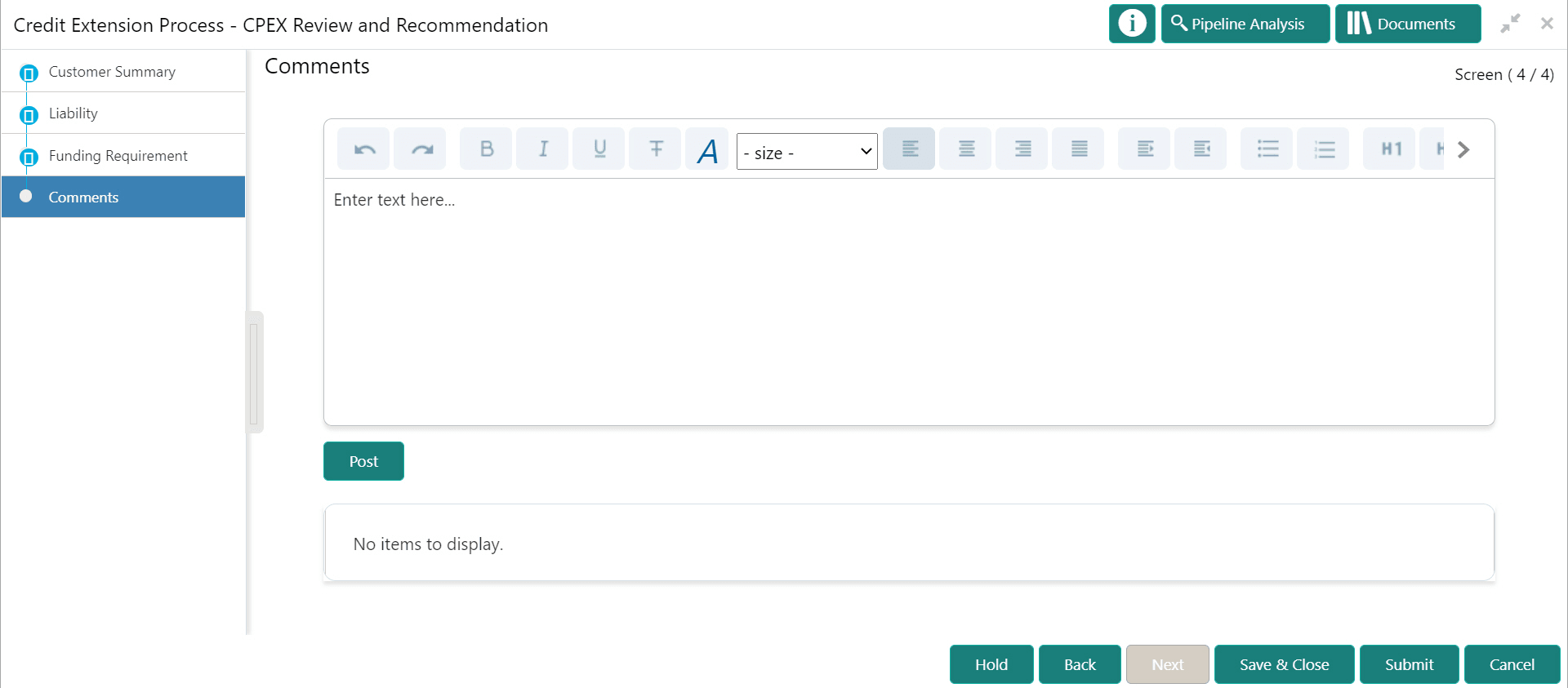
Figure 5-9 Review and Recommendation - Comments


Options to post comments and submit the task

  1. Type the review / recommendation Comments in the text box.
  2. Click Post.
    The comments are posted below the Comments text box.
  3. To go back to the previous screen and modify necessary details, click Back.
  4. If changes are not necessary, click Submit.
    The Policy Exception window is displayed.

    Figure 5-10 Policy Exception
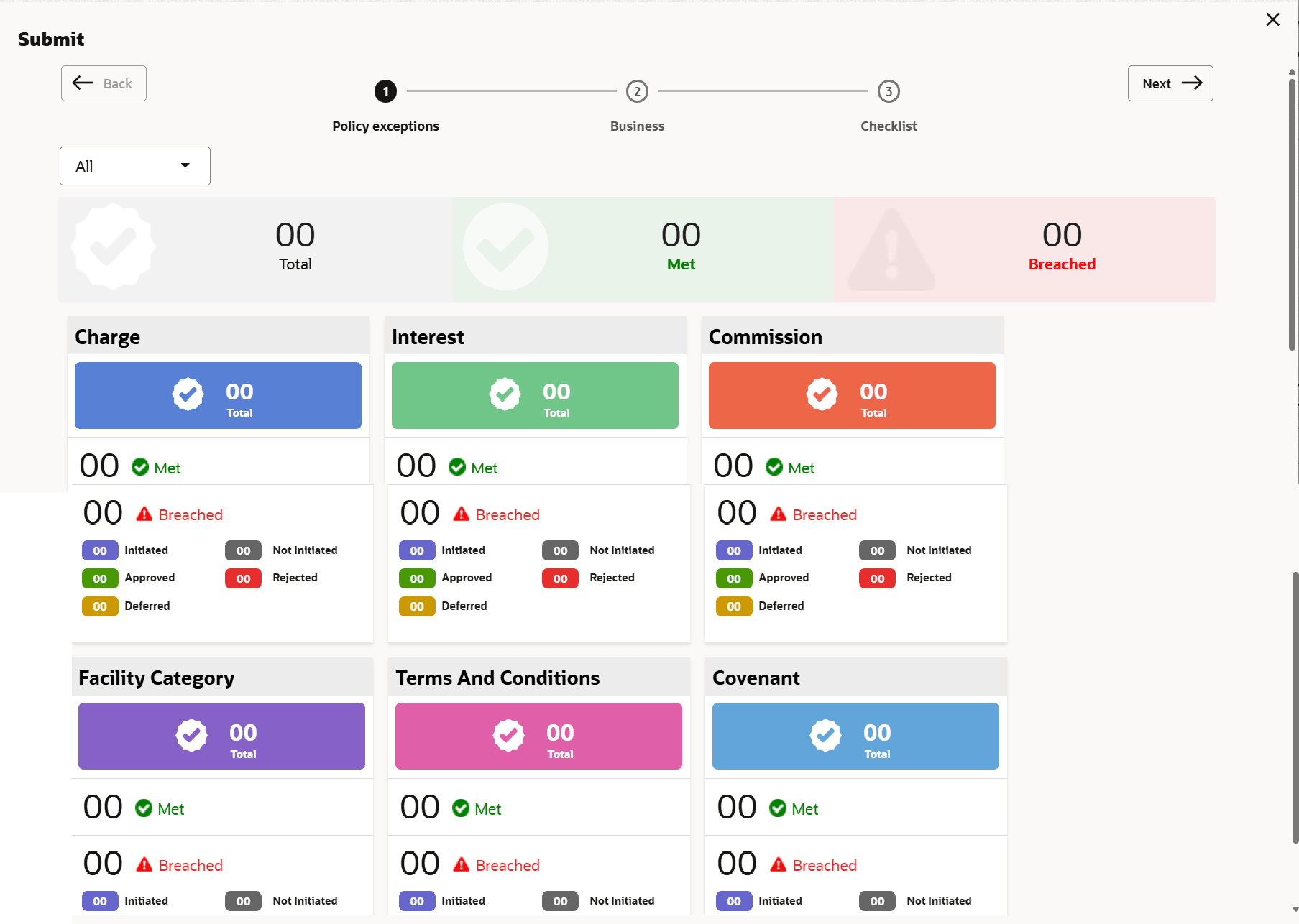

    Customer's policy exceptions

    By default, policy exception is displayed for both the party and its child parties. You can select th erequired party from the drop down list at top left corner to view policy exceptions specific to that party.

  5. View the policy exceptions and click the Checklist data segment.

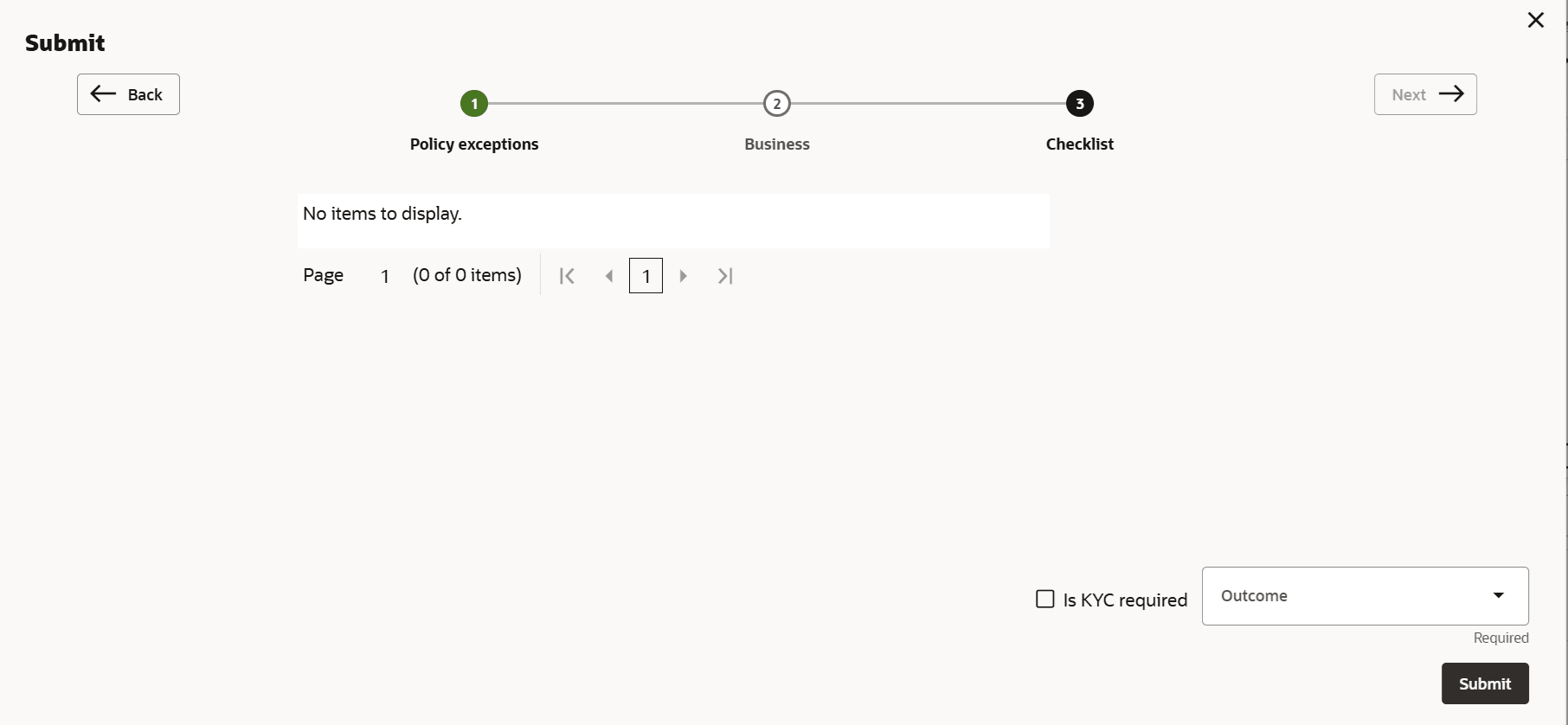
Figure 5-11 Checklist


Checklist configured for the stage and possible outcomes

  1. Select the required Outcome.
    The options available are:
    • Proceed
    • Reject
    • Send Back
  2. Click Submit.

    Ifthe Outcome is selected as Proceed, the credit extension application is moved to the Approval stage on clicking Submit.

    If the Outcome is selected as Reject, the Credit Extension process is terminated on clicking Submit.

    If the Outcome is selected as Send Back, the credit extension application is moved back to the Enrichment stage on clicking Submit.