5.2 Approval - FacilityClosure
This topic provides systematic instructions about the Facility Closure of the Facility Closure.
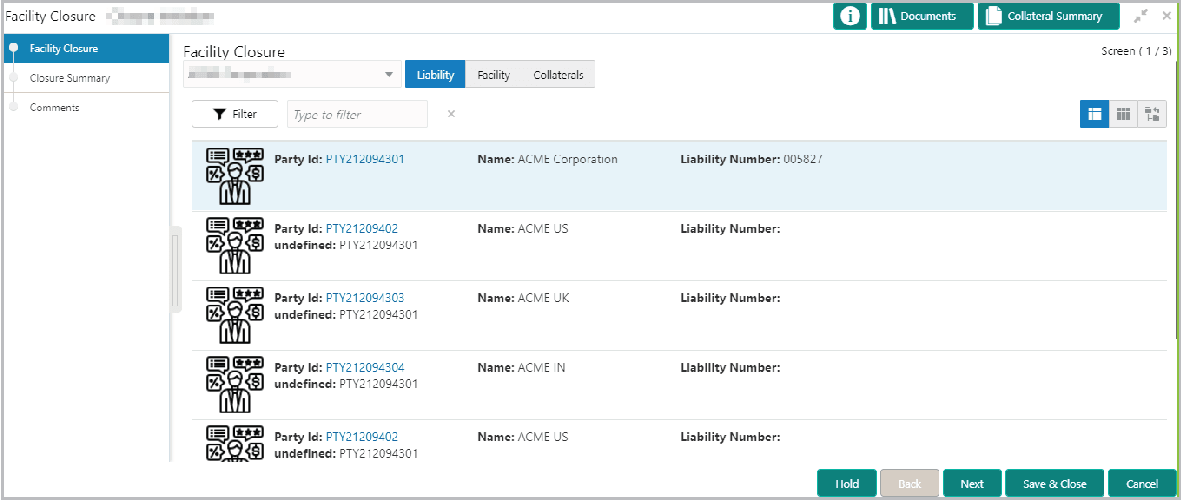
In the Liability tab:
Table 5-2 Facility Closure - Liability - Fields and Description
| Fields | Description |
|---|---|
| Filter | To Filter a liability, click the Filter icon and specify the search parameters or directly type the liability detail in Type to filter text box. |
| Table view | To change the liability view to Table view, click the table view icon. |
| Tree view | To change the liability view to Tree view, click the tree view icon. |
| Party Id | To view the liability details of a party, click the corresponding Party Id. |
| Approve | To Approve the liability closure request for a party, click the Hamburger icon in corresponding record and select Approve. |
- Click Next in the previous data segment to proceed with
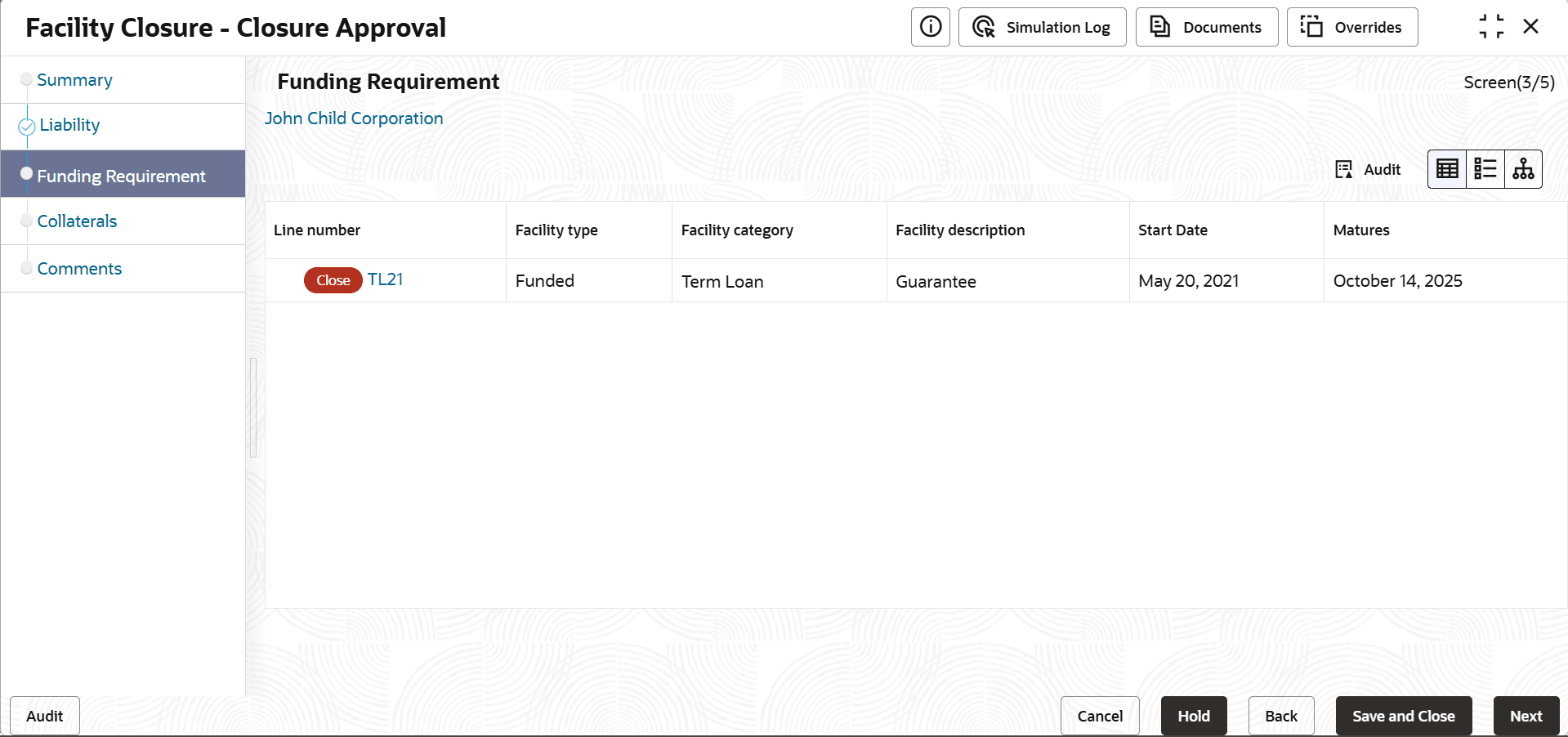
the next data segment, after successfully capturing the data.The Funding Requirement screen displays.
- Click Ok.
Similarly, to reject or send back the closure application for a party, click the Hamburger icon in corresponding record and select the required option.
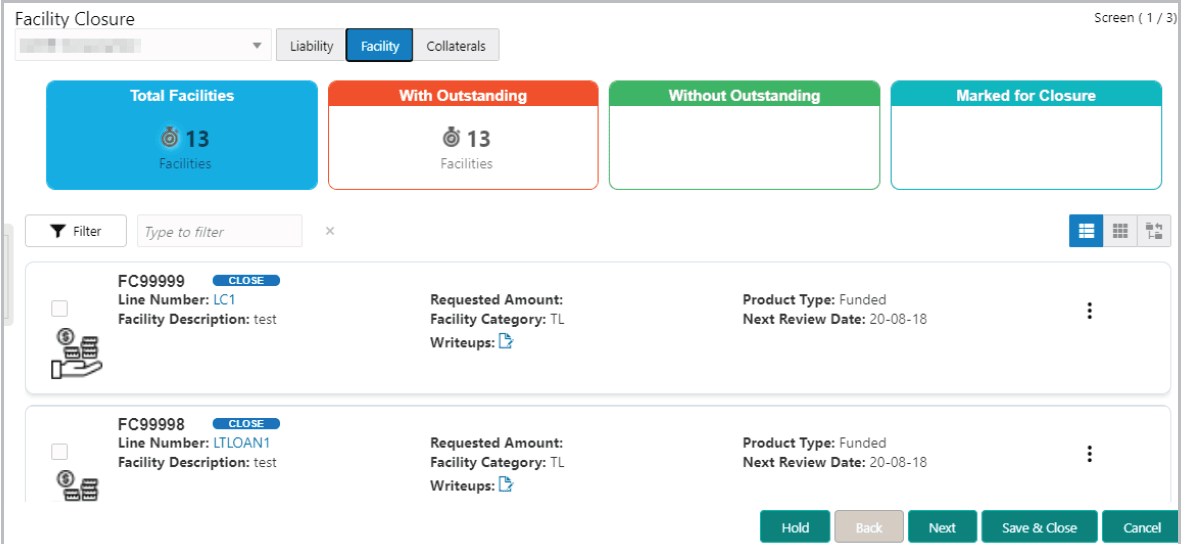
In the Facilities tab:
For information on fields in the Facility Closure - Facility screen, refer the below table.
Table 5-3 Facility Closure - Facility
Fields Description Filter To Filter a facility, click the Filter icon and specify the search parameters or directly type the facility detail in Type to filter text box. Table view To change the facility view to Table view, click the table view icon. Tree view To change the facility view to Tree view, click the tree view icon. Approve To Approve closure request for a party, click the Hamburger icon in the corresponding record and select Approve. For information on fields in the Facility Closure - Comments screen, refer the below table.
Table 5-4 Facility Closure - Comments
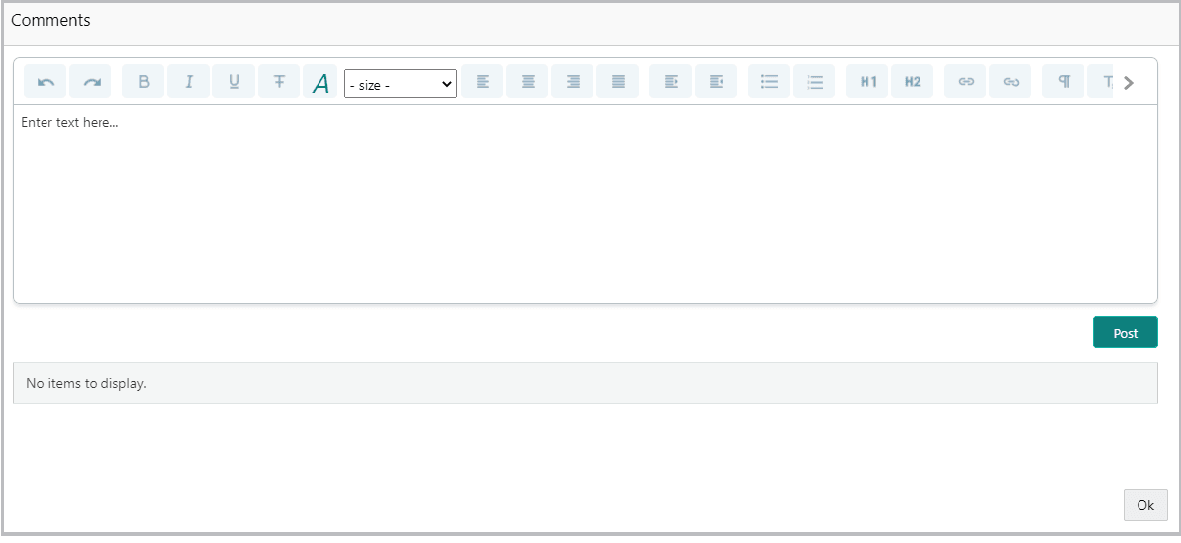
Fields Description Comments Type the approval Comments in the text box. Post Click Post. Comments are posted below the text box. Ok Click Ok. In the Collaterals tab:
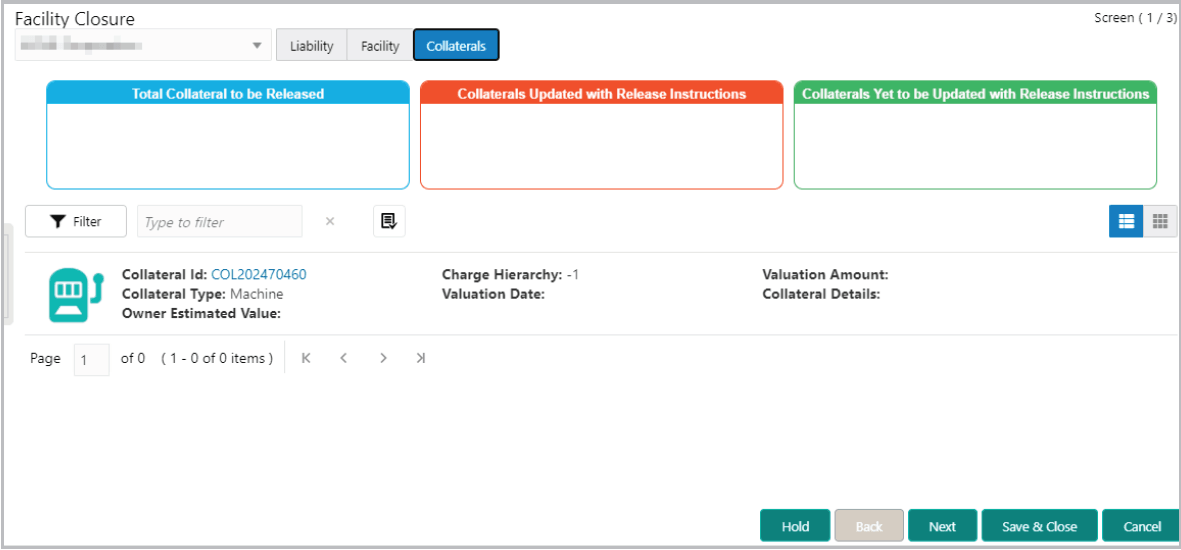
For information on fields in the Facility Closure screen, refer the below table.
Table 5-5 Facility Closure - Collaterals
Fields Description Filter To Filter a collateral, click the Filter icon and specify the search parameters or directly type the collateral detail in Type to filter text box. Table view To change the collateral view to Table view, click the table view icon. Collateral Id To view the details of particular collateral, click the Collateral Id in corresponding record. - To close a Collateral, select the collateral and click the Close
Collateral icon. The Comments window is displayed.
Figure 5-9 Facility Closure - Collaterals -Comments
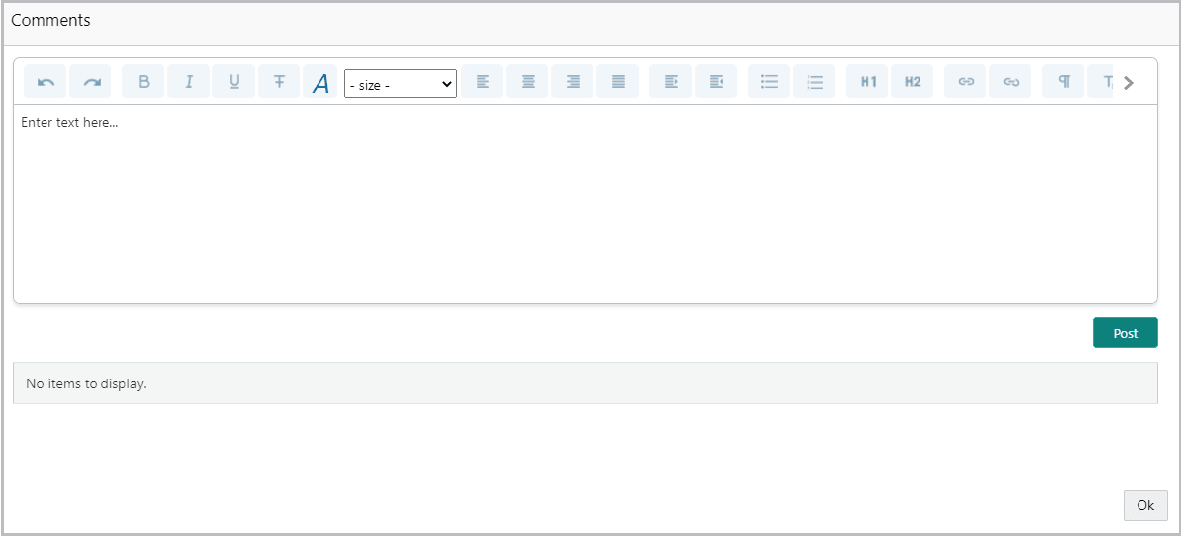
Description of "Figure 5-9 Facility Closure - Collaterals -Comments"For information on fields in the Comments screen, refer the below table.
Table 5-6 Comments
Fields Description Comments Type the Comments for collateral closure in the text box. Post Click Post. Comments are posted below the text box. Ok Click Ok. Next Click Next to go to the next page. The Closure Summary screen is displayed.
Parent topic: Closure Approval